 on 5 September 2026
 Bank details on customer invoices
Banking details on an invoice refer to the account (IBAN, BIC) your customer should use to pay you. DoliPlus lets you choose which account appears on the PDF document.
Changing banking details on invoices
First, you need to set up a bank account in the Banking menu. To select which banking details appear on invoices, log in as an administrator. Go to Home → Setup → Modules, open the Invoices module, then change the associated bank.
In a multi-entity setup, remember to repeat this step for each relevant entity. This ensures each company displays its own correct banking details.

Displaying a factor’s banking details
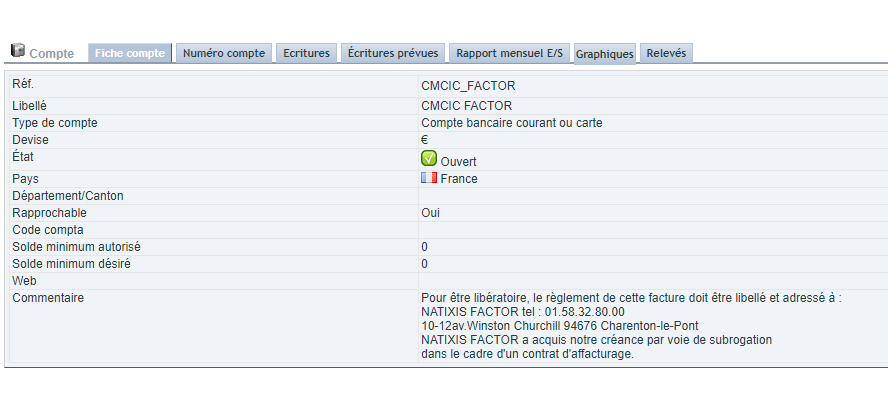
Working with a factor? In this case, your customers should pay the factor’s account, not yours. Here’s a simple workaround.
First, create a bank account in the Banking menu using your factor’s banking details. Then, when generating an invoice, select this account as the bank. Additionally, the account’s comment field lets you add clarifications to the PDF.
Why care about banking details on invoices?
Incorrect banking details delay your payments. Conversely, accurate, clearly displayed details speed up payment. This small detail impacts your cash flow.
You benefit in three ways:
- Smooth payments: customers pay the correct account first time;
- Simplified factor management: the right IBAN appears on invoices;
- Professional image: your documents remain clear and polished.
Learn more about customer invoices
In short, banking details on invoices deserve regular checks, especially after changing banks or factors. An up-to-date IBAN ensures you get paid quickly to the right account. Verify it whenever details change.
Further reading
