 on 5 September 2026
 Dynamic Sales Pricing – Dolibarr & DoliPlus
Dynamic pricing lets you automatically calculate a rate based on a formula. This way, your prices adjust automatically, depending on another pricing tier or external criteria.
What are dynamic prices for?
With dynamic pricing, you define a calculation formula. This can combine multiple variables, or even a supplier’s database, to determine the price. Two use cases apply:
- Calculate a pricing tier from another one. For example, the “online sales” rate is calculated as the “in-store” rate minus 10%. A real price list then exists, usable by the catalogue.
- Calculate a price linked to a product. The price is recalculated when used. This is ideal for highly volatile prices from an external source.
This module is in beta: its behaviour may still evolve.
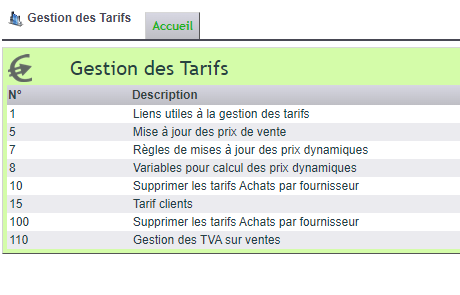
Entering a calculation rule
A sales price is defined by its type (excl. VAT or incl. VAT), its base price, its VAT rate, and an optional minimum price. From there, you enter a calculation expression in the dedicated sub-menu.
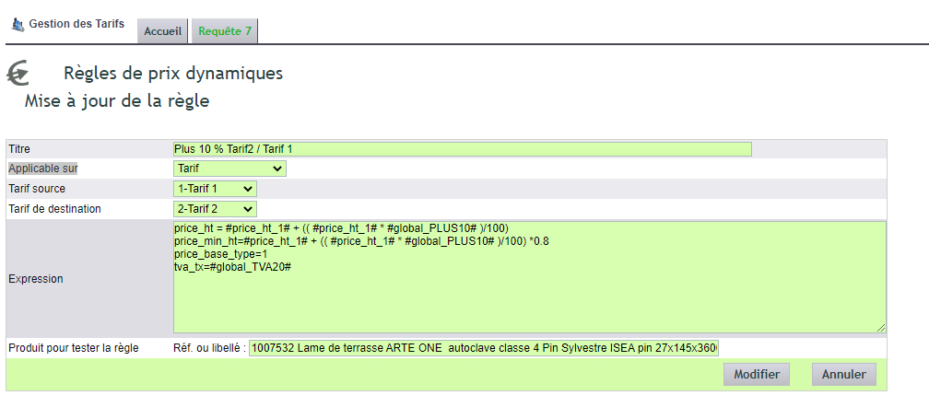
For method 1, specify “Applicable to: Rate”, then the source rate and the destination rate. For method 2, specify “Applicable to: Sales price”, leaving the rates blank.
An expression starts with the calculated price, followed by the formula. For example:
price_ht = #price_ht_2# * #global_15MOINS#
price_min_ht = #price_min_ht_2# * #global_15MOINS#
price_base_type = 1
tva_tx = #global_TVA20#
Variables are enclosed in the # symbol. You have global variables (#global_CODE#), custom product fields (#myfield_code#), as well as product prices, weights, length, and area.
Available variables
All variables are written with the # symbol. When the variable includes a price class number, replace x with that number.
| Variable | Content |
|---|---|
#global_CODE# |
a global variable, defined in the dedicated submenu |
#myfield_code# |
a custom field in the product record |
#price_ht_x# |
the ex-VAT selling price for price class x |
#price_ttc_x# |
the all-inclusive selling price for class x |
#price_min_ht_x# · #price_min_ttc_x# |
the minimum prices for class x |
#price_base_type_x# |
the base type for class x: 1 for ex-VAT, 2 for all-inclusive |
#tva_tx_x# |
the VAT rate for class x |
#localtax1_tx_x# · #localtax2_tx_x# · #localtax2_type_x# · #default_vat_code_x# |
local taxes, depending on the country |
#weight# · #length# · #surface# |
the product’s weight, length and surface area |
What the expression must contain. It always starts with the calculated price, followed by
the formula: price_ht =, price_ttc =, price_min_ht =,
price_min_ttc = or tva_tx =. Also specify the base type with
price_base_type = 1 for ex-VAT, or = 2 for inc-VAT.
Two complete examples. For an ex-VAT price, with the global variables
15MOINS = 0.85 and TVA20 = 20:
price_ht       = #price_ht_2# * #global_15MOINS#
price_min_ht   = #price_min_ht_2# * #global_15MOINS#
price_base_type = 1
tva_tx         = #global_TVA20#
And its equivalent for an inc-VAT price:
price_ttc      = #price_ttc_2# * #global_15MOINS#
price_min_ttc  = #price_min_ttc_2# * #global_15MOINS#
price_base_type = 2
tva_tx         = #global_TVA20#
semicolon; alone on its line, it doesn’t need one. Also, designate a test product: the expression validation will be checked against it.
Update a price list with dynamic pricing
Method 1 integrates with price list management. You create a rule applying to price list 2, based on price list 1. From then on, updating price list 1 automatically triggers an update of price list 2 for all relevant products. Learn more about price list management
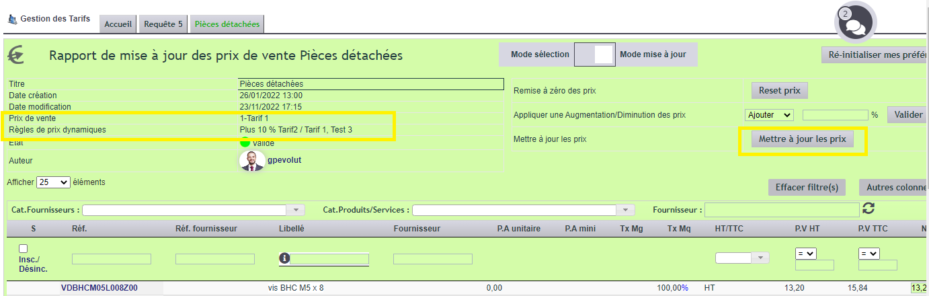
Additionally, on the product record, you enable dynamic pricing for a given price level. Be careful though: ensure the formula doesn’t reference the price level it applies to.
Why automate your prices?
Manually recalculating your prices every time costs change is time-consuming and risky. Dynamic pricing handles this for you.
You benefit in three ways:
- consistent pricing: one rule applies everywhere;
- increased responsiveness: volatile prices update automatically;
- fewer errors: formulas replace manual calculations.
Learn more about modifying selling prices
External database calls
Solutions are available but often require adaptation based on query methods and the formats in which pricing information is received.
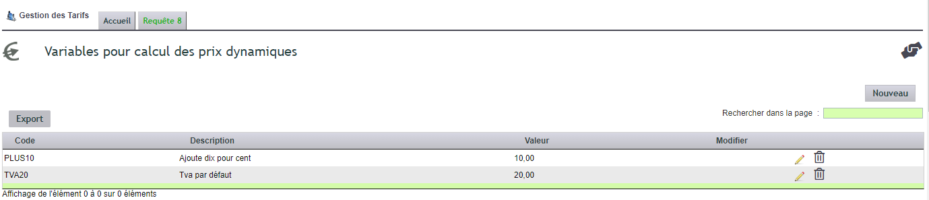
Enter a global-scope variable
A global-scope variable is used in calculations.
From submenu 8, enter the new variable.
To use it in a formula, name it as follows in this example: #global_PLUS10#
Note:
Variables define whole or decimal numbers.
To go further
