 on 25 October 2026
 Customer relationship management software for customers and suppliers
Customer relationship management software built into DoliPlus
DoliPlus offers customer relationship management software that puts your customers at the centre of your organisation:
- every incoming or outgoing conversation is logged as an exchange on the third-party card;
- actions and tasks are then assigned to the right people around each exchange;
- emails, visit reports and documents stay attached to the exchange, so everyone keeps the full context;
- a general dashboard shows all open exchanges and the progress of every task;
- pop-up windows create and edit exchanges without ever leaving the dashboard.
As a result, all the people involved in the customer relationship work towards the same goal: answering customer needs better. DoliPlus is the enhanced cloud edition of Dolibarr, the open-source ERP & CRM used across Europe.
Overview of the customer relationship management software
On the sales side, when the module is enabled, new tabs appear on the following cards, provided the corresponding modules are active:
- Third parties,
- Quotes and commercial proposals,
- Orders,
- Invoices,
- Opportunities,
- Shipments,
- Service contracts,
- Products.
On the purchasing side, new tabs also appear on the following cards, provided the corresponding modules are active:
- Supplier orders,
- Supplier invoices.
Each tab combines a header block describing the context and a table gathering the exchanges filtered by third party, order, and so on.
Therefore, to attach a customer order, a service contract or a delivery to an exchange, the simplest way is to start the creation from these tabs.
Moreover, a general dashboard offers both an overview of the open exchanges and their statuses, and the list of actions assigned to the different members of the organisation with their completion status.
This table highlights the exchanges that are not yet closed, followed by the others.
In addition, filters refine the view, and the “Other columns” button shows or hides columns according to the user profile.
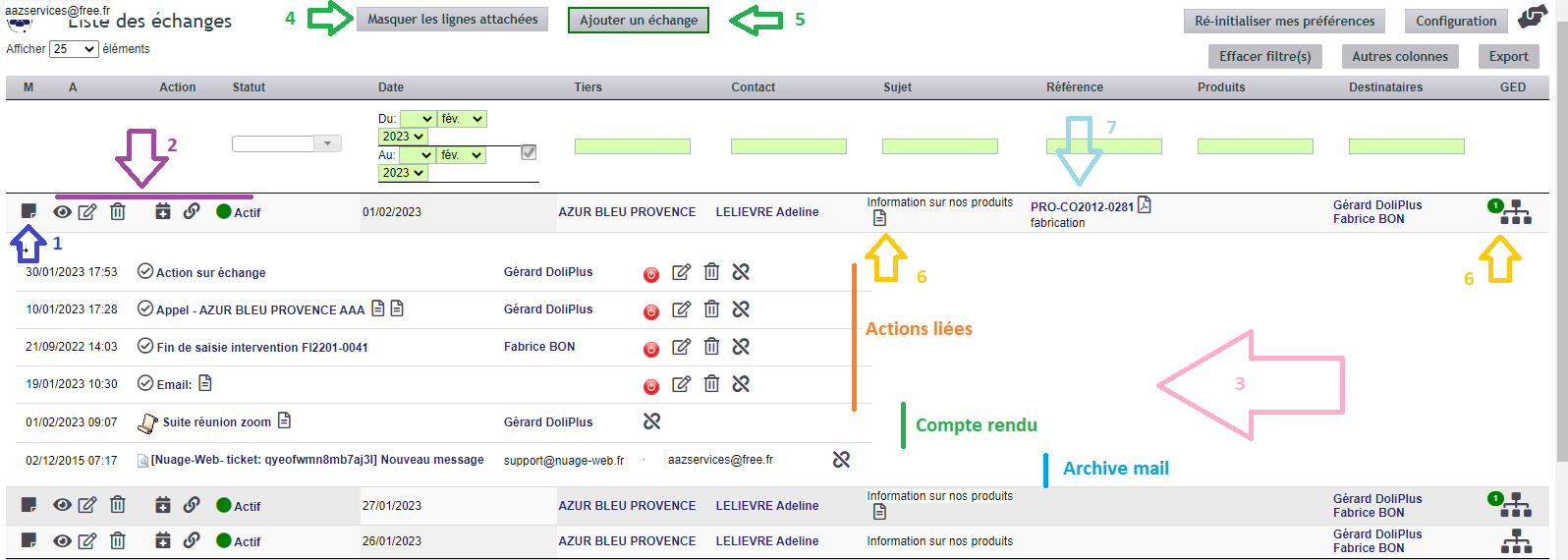
- Toggle button to show or hide, line by line, the details of actions, emails, etc.
- Exchange management button: View, Edit, Delete + add an action, link another action, an archived email or a report (according to user rights).
- Detail lines of the linked items, by type.
- Bulk action to show or hide the detail lines of actions, emails, etc.
- Add an exchange.
- Documents linked to the exchange.
- Object linked to the exchange — in this example, the order.
Finally, the administrator of the organisation can fine-tune the user rights.
Adding or editing an exchange
Use the button marked 5 to create an exchange, and the edit button marked 2 to modify one.
- A status shows or hides the details of the linked items in the dashboard.
- Exchanges with third parties can be “incoming” or “outgoing”, to indicate who initiated the contact.
- The contact mode is defined by a dictionary in the module configuration.
- Depending on the configuration, the subject can be free text or standardised by a dictionary.
- Designate the third party.
- Designate the contact at the third party.
- For a call about one or several products (for example, a prospect calls in).
- Recipients of the exchange, who receive an email notification with an acknowledgement request. Depending on the configuration, a designated group can pre-fill this list, and so can the account managers of the third party.
- A text editor records the exchange, with voice dictation on Chrome and image insertion by copy and paste. The exchanges describe the observations and requests expressed by the customers.
- A drop zone for the documents attached to the exchange. See item 6 above.
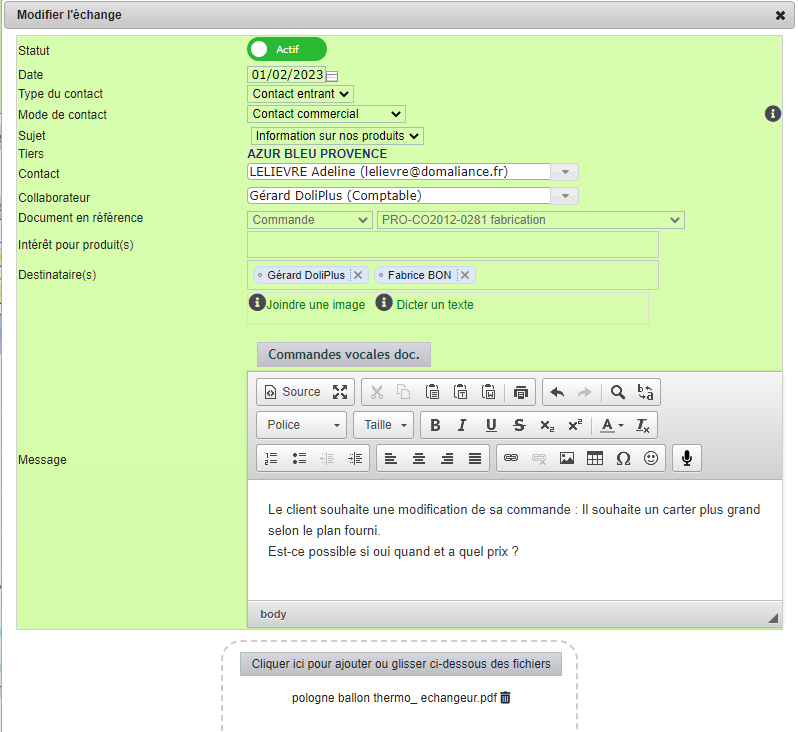
Logging an exchange with a customer, step by step
- On the third-party card, click the “Customer relationship” tab: each line is an exchange (date, contact, subject, message, status), and the number on the tab counts them.
- Click “Add an exchange”. “Incoming contact”: the customer contacted you; “Outgoing contact”: you contacted the customer. The customer’s contact and the author are already suggested.
- Choose the mode (sales contact, in-store contact, Internet, campaign…) and the “Purpose of exchange”. You can also link it to a quote, an order or an invoice of the customer.
- Add recipients among your colleagues: depending on the module settings, they receive an email or a notification, with the link to the exchange. Leave it empty for a simple note.
- Summarise the exchange in “Message” (what was said, what was promised, the next steps), then click “OK”: the exchange is added to the list.
- A click on the status switches the exchange from “Active” to “Closed” once the follow-up is done; the icons on the line let you view it again, edit it or add an action to it.
The “Customer relationship” top menu opens the log of all the team’s exchanges, which can be filtered by column; “Add an exchange” also works there, by choosing the third party.
Filtering the exchanges in the list view
Filters make it easier to follow a large number of exchanges.

Among these filters:
- The Author filter limits the table to the exchanges I created.
- The Recipient filter limits the table to the exchanges I created and/or received. However, this filter is not available for users whose rights already restrict the exchanges to those addressed to them.
Notifications
On every creation, modification or deletion, the recipients are notified by email, with an optional acknowledgement, according to the configuration.
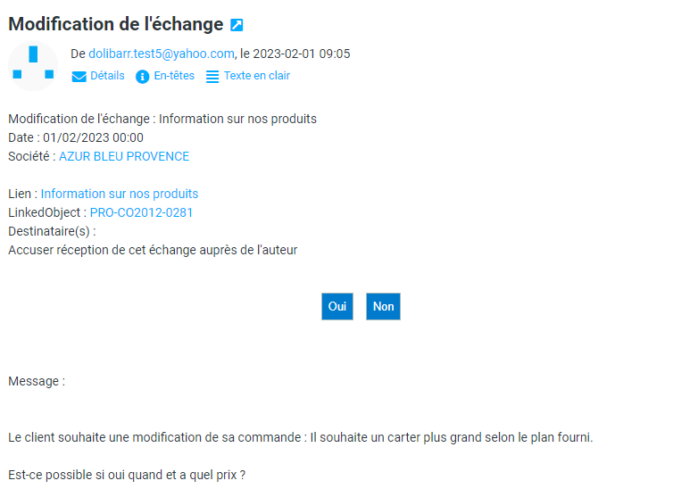
The links are active. Therefore, they open the corresponding windows in a DoliPlus session.
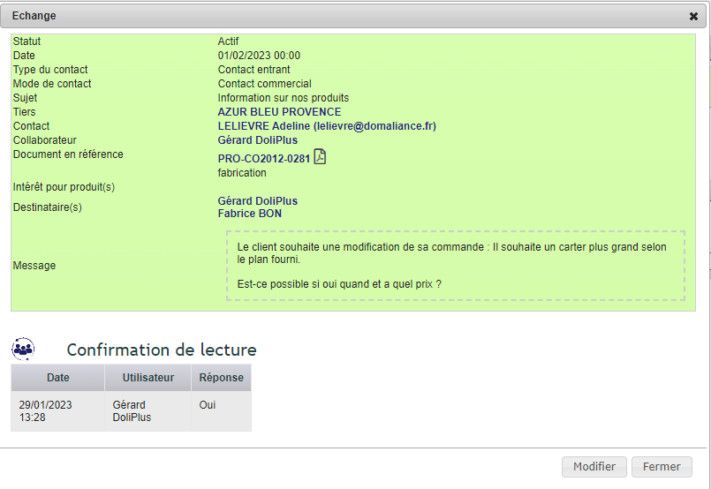
In return, the author receives an email notification, and a summary of the acknowledgements appears at the bottom of the exchange.
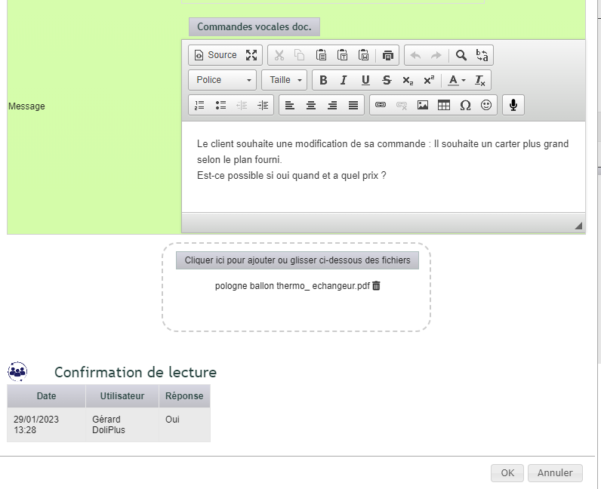
Here is the read-only view of the exchange, opened from the link in the email:
Adding actions and other items to the exchange
Let us take this exchange again, and imagine the following distribution of roles:
- Creation of an action for the account manager, to confirm the customer need. Most fields are pre-filled for quick entry, while the options remain editable. At a minimum, you designate the content of the action and its recipients. A notification is also sent, with the exchange as the linked object.
- Creation of an action for the engineering office, for a feasibility study.
- Attachment of a visit report from the previous account manager.
- Attachment of an archived email from the customer.
Thus, each person finds here all the documents and conversations needed to give the customer the best possible answer, with full knowledge of the case.

Buttons act directly on the attached action, and the red/green dot marks its closure.
Moreover, depending on the individual user rights, an action can be unlinked from the exchange.
Adding custom fields to the form
Finally, you can customise the exchange form with custom fields, as usual in DoliPlus. See the module configuration.
Managing the supplier relationship
Because a good customer relationship goes hand in hand with a good supplier relationship, the customer relationship management software works identically with purchasing.
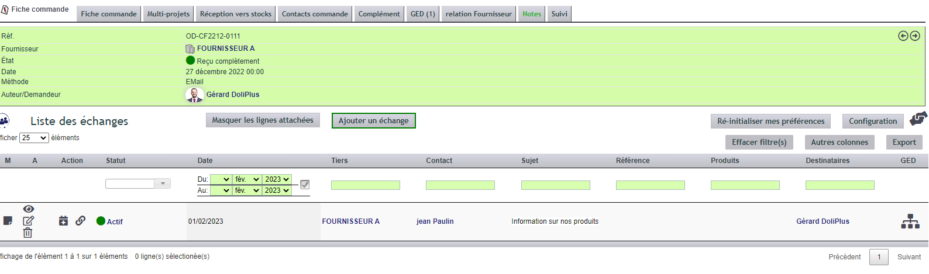
Here, creating the exchange from the supplier order attaches that order to the exchange automatically.
Module configuration
Open the module configuration through the module management page, or directly from the general dashboard: a button gives the administrator access to the console.
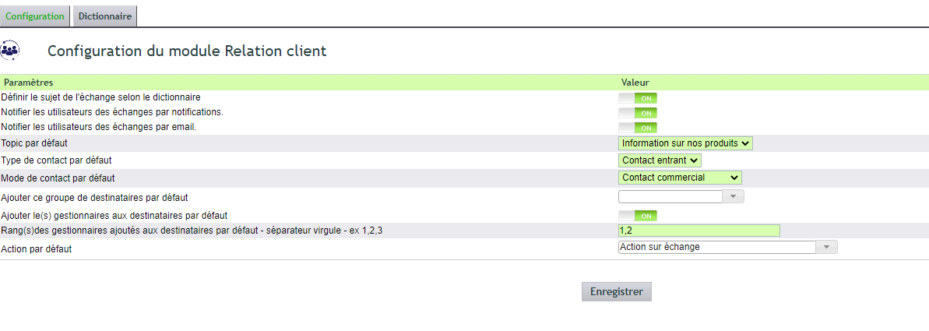
Then enable the options you need, as explained during the initial training.
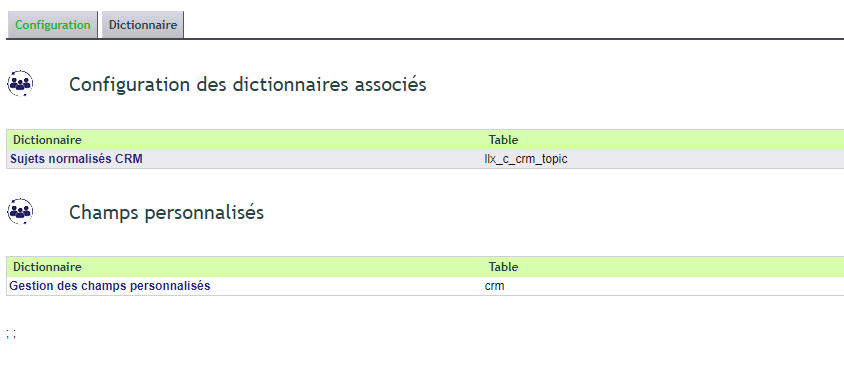
Next, configure the dictionaries and any custom fields.
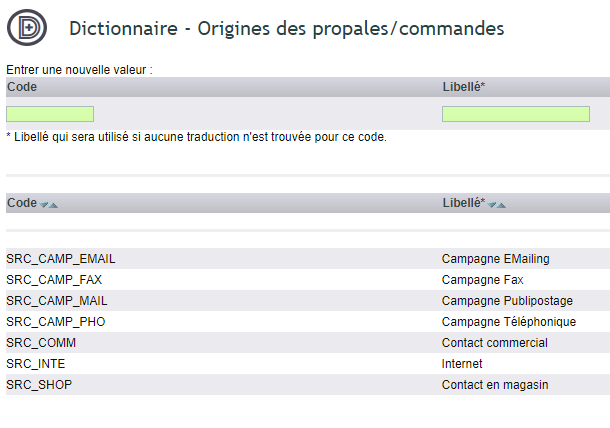
Also check the general dictionary: Dictionary – Origins of proposals/orders.
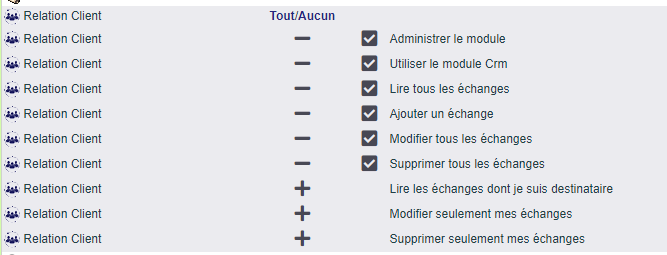
Finally, adjust the user rights.
Setting the exchange defaults and the notifications
- The subject: with the button on, the subject of an exchange is chosen from a list (the dictionary); with it off, it is typed freely. “Default exchange subject” is the one displayed by default.
- The type (incoming or outgoing) and the mode (sales contact, in-store contact, Internet, campaign…) suggested by default.
- Alerting colleagues: through the notification bell, by email, or both. These buttons take effect as soon as you click them; an email is sent to each selected recipient.
- The recipients suggested by default: a user group and/or the customer’s account managers (rank 1 = the first account manager on the card, “1,2” the first two).
- “Default action”: the type of calendar event created when an action is added to an exchange; further down, the log chart (shown or not, height, number of days observed).
Lists and fields take effect after “Save”. The suggested subjects are managed in the “Dictionary” tab, “Standardized exchange objects”: “New” adds one, the pencil corrects it, and the switch removes it from the list without deleting the exchanges that use it.
To go further, read the definition of customer retention on Wikipedia.
