 on 27 October 2026
 Automatic order invoicing: completed jobs invoice themselves overnight
Automatic order invoicing takes care, every night, of the jobs you have marked as finished:
- the final invoice goes out on its own, with down payments deducted;
- it lands directly with the right accounts contact;
- the order switches to “invoiced” without anyone having to think about it;
- the linked after-sales case closes by itself, if you wish;
- a tracking screen reports every run, line by line.
In other words, you arrive in the morning and DoliPlus has already invoiced yesterday’s work. You stay in control, yet you get your time back.
DoliPlus is the enhanced cloud edition of Dolibarr, the open source ERP and CRM.
What automatic order invoicing changes in your day
In many companies, the same scene repeats itself. A job comes to an end, and then someone has to remember to invoice it.
Next, they look up the down payment already received. Finally, they search for the customer’s accounts department address.
As a result, the invoice goes out two days late, sometimes more in busy periods. However, every day of delay costs a day of cash flow.
Therefore, automatic order invoicing does this work for you, overnight, and hands you the result when you wake up.
You decide what triggers an invoice
First, you choose the marker that says “this job is finished”. For example, many companies use an in-house status such as “Job closed — to be invoiced”.
Then, you set the job title of the contact who receives the invoice. You also choose the mail account that sends it.
Finally, you set a limit of invoices per run. In this way, you start cautiously and widen the scope later.
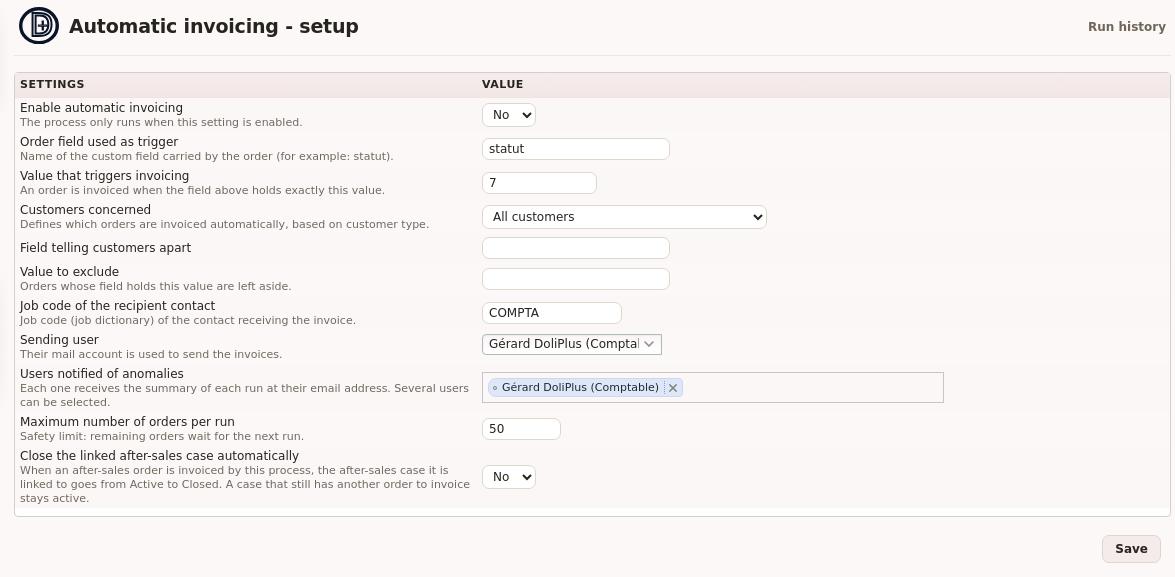
Moreover, automatic order invoicing waits for your go-ahead: as long as the setting stays inactive, nothing is triggered. You therefore keep control from the first day to the last.
Down payments are deducted automatically
This is the point that costs the most when it is forgotten. Indeed, invoicing the full amount of an order that has already been partly paid means asking for the same sum twice.
DoliPlus therefore finds the down payment invoices attached to the job, whichever way the link was made. It then invoices only the remaining balance.
In addition, if the down payments exceed the order amount, DoliPlus creates nothing. Instead, the job comes up as an anomaly to review.
In the morning, a screen tells you what happened
A silent automation is worrying. That is why the tracking screen shows one line per order examined, not just the invoices created.
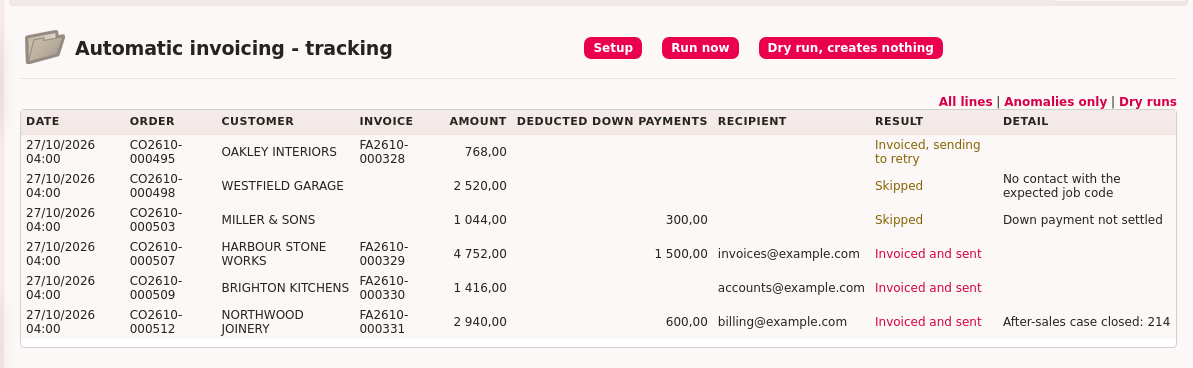
For each job, you read the amount, the deducted down payment, the recipient and the result. Above all, you read the reason when nothing happened.
The reasons speak your language: down payment not settled, accounts contact to fill in, job already invoiced.
Furthermore, an “anomalies only” filter isolates in one click what deserves your attention. In short, the question “why was this order not invoiced last night?” gets its answer in three seconds.
Automatic order invoicing knows when to hold back
An invoicing automation must above all know when to stay quiet. Several safeguards therefore protect your jobs:
- an order that is already invoiced stays untouched, even if its status goes back to “to be invoiced”;
- an unpaid down payment puts the job aside, so that you can chase it first;
- without an identified accounts contact, DoliPlus creates no invoice, so you have nothing to cancel;
- an invoice whose sending fails stays flagged “to retry”, with a link to the document.
Tip: start with a low limit, for example five to ten invoices per night. You check the first runs in the tracking screen, then raise the limit with confidence.
Automatic order invoicing also closes the after-sales case
An after-sales order often ends in two steps. First, the invoice goes out. Then, someone has to remember to close the after-sales case.
Now this second step happens on its own. When the night run invoices an order linked to an after-sales case, that case moves from “Active” to “Closed”.
In addition, an event records it in the case history. The tracking screen also shows it on the order’s line.
Of course, DoliPlus stays careful. A case still waiting for another order to be invoiced stays open. Likewise, an order marked “invoiced” by hand leaves its case as it is.
You switch this on with the “Close the linked after-sales case automatically” option, in the automatic invoicing setup. It appears as soon as the after-sales module is active on your workspace.
Getting started
Setting it up takes one short session with our team. Together, we agree on the marker that triggers invoicing, the recipient’s job title and the time of the run.
However, every company recognises “its” jobs in its own way. That is why we set this point with you, based on your own fields.
Going further
- Group several orders into a single invoice — the manual operation, when you want to choose yourself.
- The down payment invoice — the document this process deducts from the balance.
- Recurring invoicing — for subscriptions and amounts that come back every month.
- The customer order — the job where everything starts.
- After-sales service with DoliPlus — the case this process closes.
Related Entrées
