 on 5 September 2026
 Advance invoice in DoliPlus
Deposit invoices: principles and legal requirements
A deposit invoice records the amount your customer pays in advance as a deposit towards the total price. This amount is then deducted from the final invoice when full payment is made.
Since 1 July 2003, tax regulations require an invoice to be issued for any deposit payment, even when it does not trigger VAT liability (Article 289 I-1-c of the French General Tax Code).
This invoice must be dated and numbered. Furthermore, its numbering must follow the same chronological sequence as your other invoices – there is no separate series for deposits. Finally, the final invoice must reference any deposit invoices issued.
Also indicate the payment date if it differs from the invoice date and if known at the time of issue. Additionally, some mandatory details may be omitted if information isn’t available when issuing (such as exact product quantity or price).
Creating a deposit invoice in DoliPlus
From the customer order (recommended method): create a partial invoice, then select the “Deposit invoice” option. Learn more about customer orders
Only a partial amount should be invoiced compared to the order. Adjust the amount in one of these two ways:
- modify the lines in the lower section of the intermediate screen,
- or uncheck all lines, then add a single line with wording such as:
XX% deposit on your quote/order No. XXX dated dd/mm/yyyy
Alternative method (not recommended if there’s an order to link): create a blank invoice from the customer’s “Client” tab, then add a specific line with similar wording.
When your invoice is linked to the order, a summary at the bottom of the order page lists invoices already issued, with their type and amount.
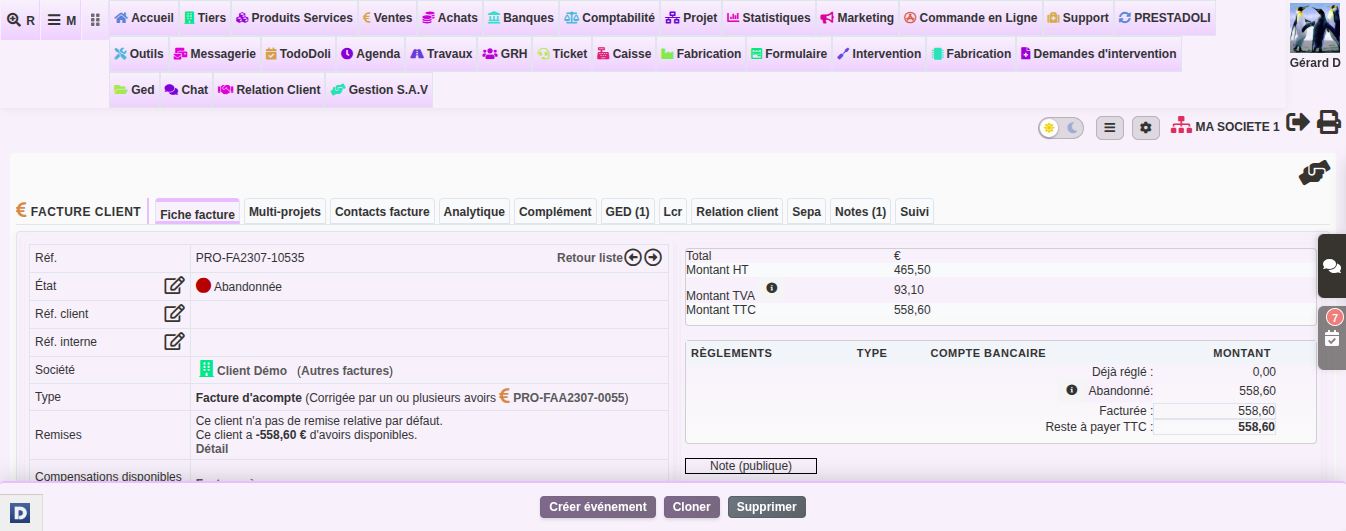
Tip: DoliPlus also offers simplified entry directly from the order. See the Single-line deposit invoice chapter
Processing the deposit payment
After recording the payment, a “Convert to future discount” button creates a balance, stored in the customer or supplier record. You can then apply this credit to the final invoice.
Additionally, DoliPlus can automate this conversion as soon as the invoice is fully paid.
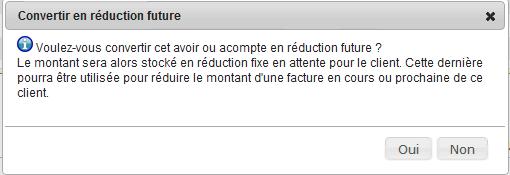
Applying the advance payment credit to the final invoice
Edit a final (standard) invoice from the order, then validate it. Then, apply the advance payment credit shown in the top section of the form.
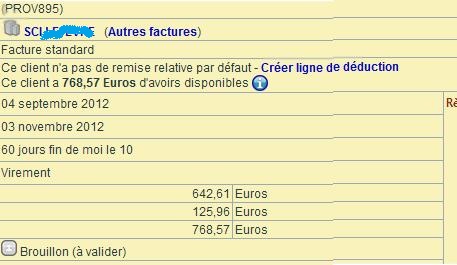
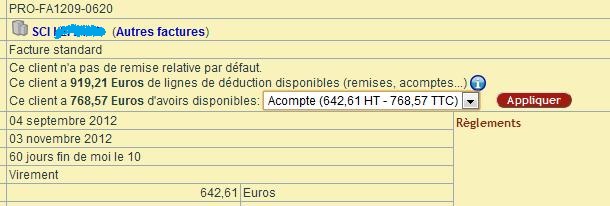
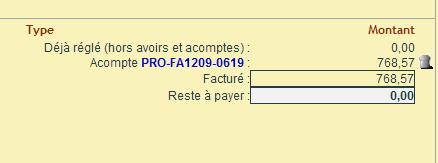
How to split an advance payment for multiple invoices
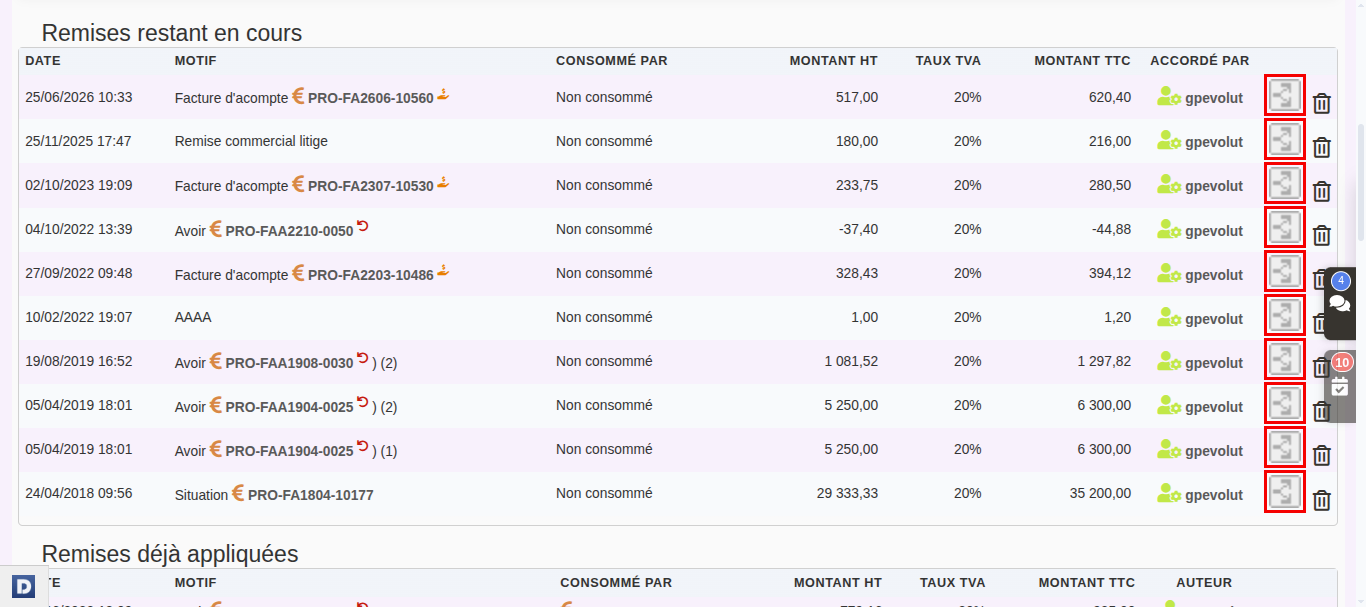
Sometimes, a single advance payment needs to cover multiple final invoices. DoliPlus lets you split this advance into multiple parts, which you can then apply to different invoices. This way, the prepaid amount is distributed freely while keeping track of the original credit.
First, convert the advance payment invoice into a future discount, as explained above. Then, follow these three steps:
- On the invoice record, click the “Discount” link next to the Ref,
- In the “Outstanding discounts” table, locate the advance payment line,
- Finally, click the “split” icon next to the trash can.
DoliPlus then displays a small form. Simply enter the amount for each of the two parts. For example, a 6,000 EUR advance can be split into 2,000 EUR and 4,000 EUR.
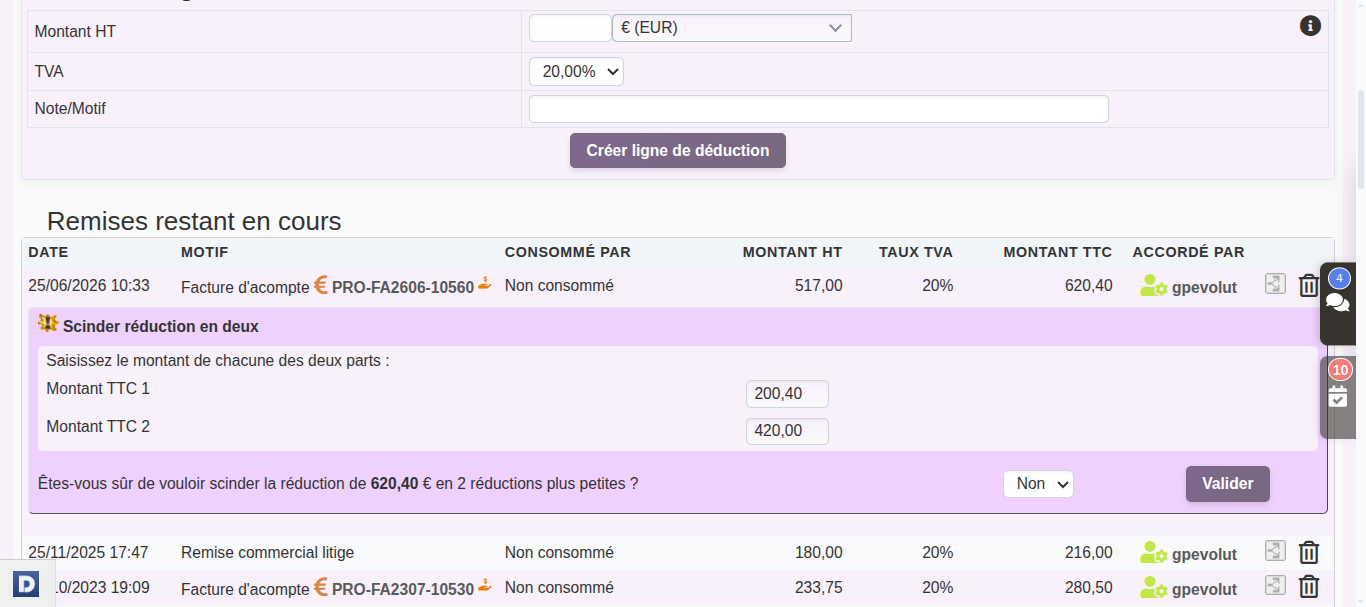
Repeat the operation as needed
This operation can be repeated as needed. You can therefore split the same deposit into three, four or more parts, to spread it across multiple invoices.
The process is identical for credit notes. You split the credit note in the same way, then apply it gradually to your invoices.
Tracking deposits globally
Finally, to maintain an overview, open the “List of Refunded or Converted Deposits”. This screen consolidates all your deposits, regardless of the customer, making global tracking easier.
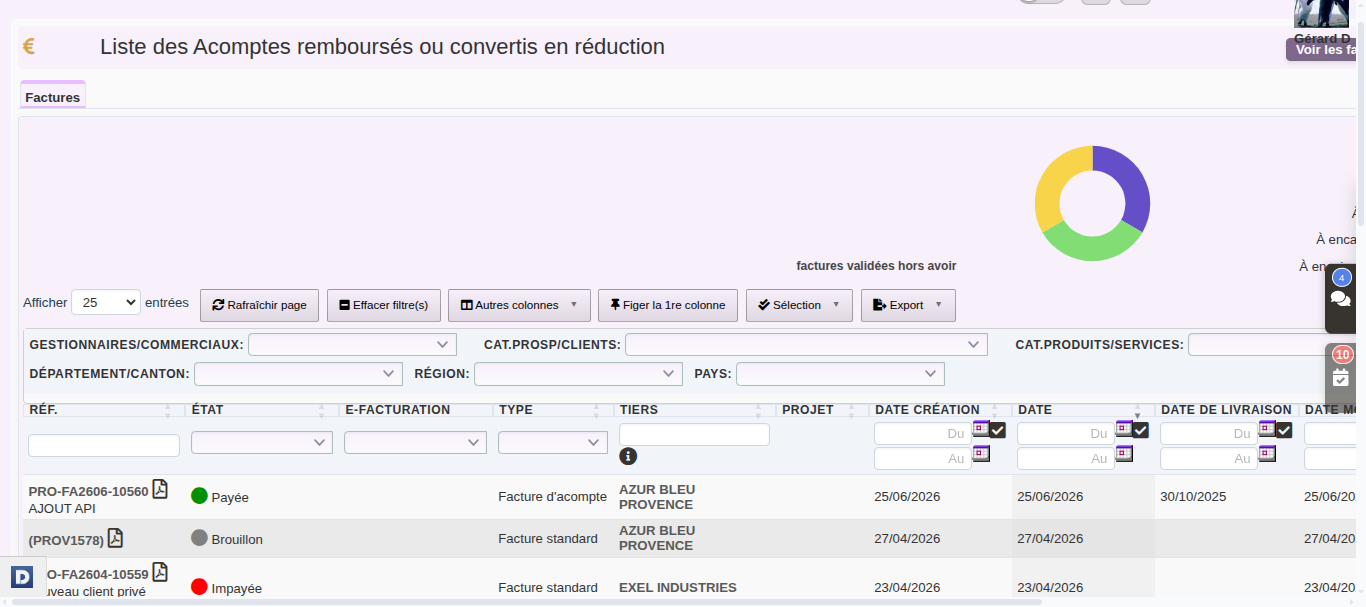
Unpaid customer deposit
What should you do when a deposit remains unpaid by the time the final invoice is due? Once issued, create a credit note referencing this invoice. This signals to your customer that the claim is being waived. Learn more about credit notes
Method 1:
- mark this invoice as “Abandoned” without “Converting to future discount”,
- mark the credit note as “Abandoned” without “Converting to future discount”.

You can now proceed with issuing the final invoice.
Method 2 (preferred):
- “Convert to future discount” the deposit,
- apply the credit note to the deposit,
- mark this invoice as “Abandoned” without “Converting to future discount”, then specify the abandonment reason.

You can then issue the final invoice.
Advance invoice paid beyond its amount
An advance invoice settles itself, then turns into a discount, as soon as its payments match its amount exactly. Conversely, a single euro too much is enough to block it.
In that case, neither “Mark as ’Paid’” nor “Convert to future discount” appears. Moreover, the “Issue payment” button is greyed out, and its tooltip shows the overpaid amount.
The solution is therefore to bring the payments back to the exact amount of the deposit:
- open the advance invoice, then, in the list of payments, click the one that creates the excess;
- on the payment record, click “Cancel payment” (or “Delete”, depending on your setup), then confirm;
- the deposit is settled at once: you can now deduct it from the final invoice.
Does the wrong payment carry most of the amount, for example a mistyped figure? Cancel it in the same way, then click “Issue payment”, which is active again, and enter the correct amount.
On a standard invoice, however, an overpayment is refunded with a credit invoice. See the credit invoice chapter, section “Refunding a customer overpayment”.
Deposits and statistics
To exclude deposits from statistical queries, enable the following option in Configuration → PDF/Interface Settings:
PG23: Treat Deposit Invoices as Payment Methods
Going further
- Single-line deposit invoice
- Deposit invoice for supplier orders
- Progress invoice or milestone invoice
