 on 5 September 2026
 Credit or replacement invoice in DoliPlus
A credit note corrects or cancels an already issued invoice: input error, discount granted later, or waiver of a claim. DoliPlus also handles replacement invoices, detailed below.
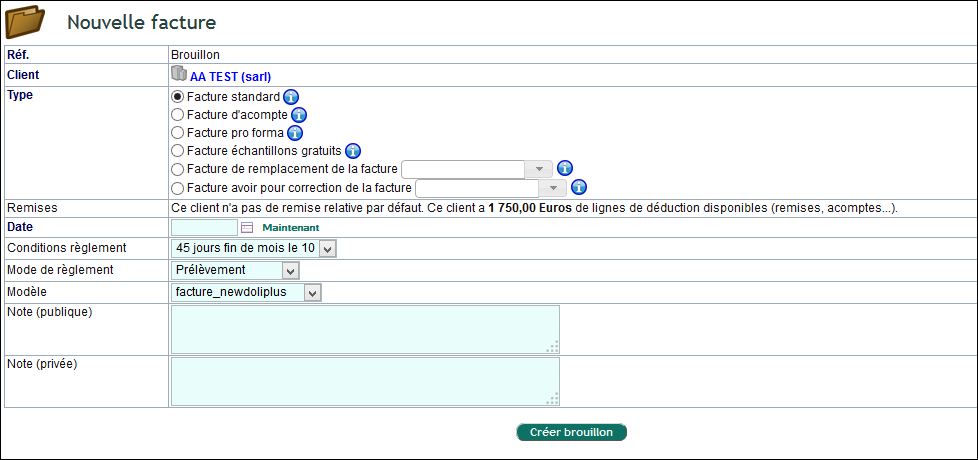
Cancellation or correction: the regulatory reminder
You can cancel or correct an invoice in case of error, or after a discount granted after its issuance.
However, an invoice is never deleted outright. Indeed, the chronological numbering allows verification that there are no “gaps” in the numerical sequences.
In case of cancellation or correction, the seller or service provider therefore sends their customer:
- either a new invoice, issued in replacement of the previous one, which refers to the cancelled invoice,
- or a credit note, particularly in case of a discount granted later, referring to the original invoice (invoice in “negative” for the discount amount).
For taxpayers who have already paid the VAT on the original invoice, the credit note also includes certain details:
- to recover the VAT corresponding to the discount, it states the net amount of the discount and the corresponding VAT amount; the liable customer then corrects their VAT deduction;
- to waive this recovery, it specifies that the discount is tax-free; no correction is then necessary.
Note: in case of error or omission regarding VAT, the VAT-registered customer never corrects it themselves. They request a corrective invoice.
(source)
The replacement invoice
A replacement invoice allows you to reissue an invoice containing errors, and on which no action has been taken (no payment recorded). Additionally, only one replacement invoice is possible for a given standard invoice.
When you create a replacement invoice R, you select the invoice F to be replaced. From that point, no further action is possible on F, even if its status does not change as long as R remains a draft.
If you delete the invoice R, the invoice F resumes its original state and lifecycle. Conversely, if you validate R, the invoice F automatically changes to “abandoned” status. The lifecycle then continues on the invoice R.
Creating a credit note in DoliPlus
You create a credit note on an existing standard invoice (referred to as a “debit” invoice). Additionally, multiple credit notes can apply to the same invoice.
When creating the credit note, a table lists the lines to be included. Modify it to reduce the scope of the credit. You can then edit or delete lines, or replace everything with a single line.
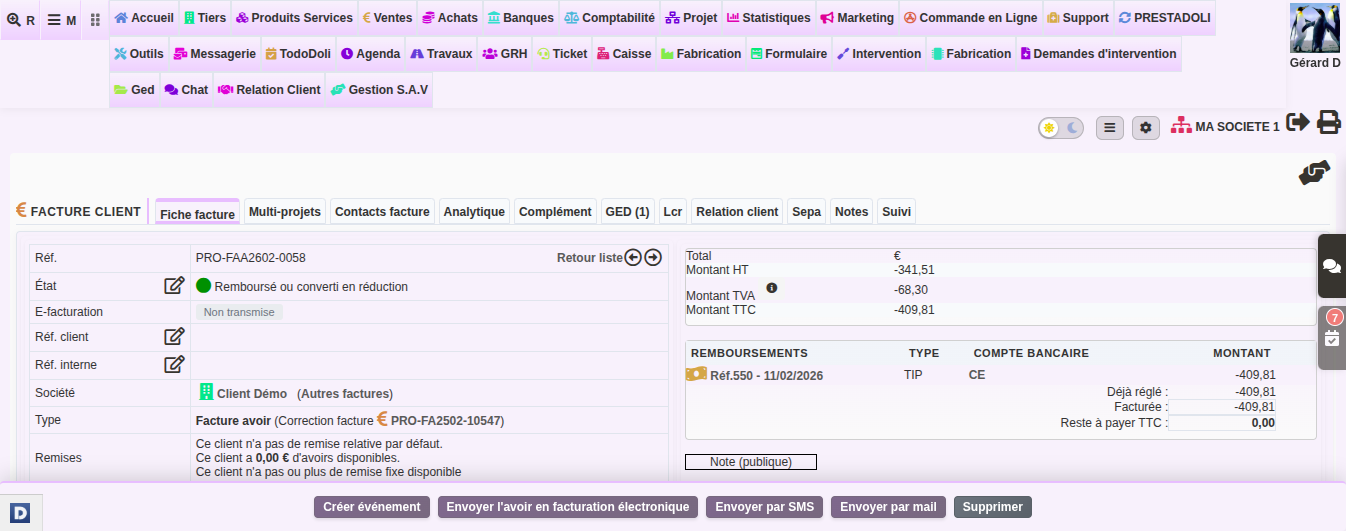
DoliPlus converts the credit note into a discount. This discount is then used to reduce the payment of any other outstanding invoice.
Both credit notes and advance invoices track received payments:
- in excess for the credit note,
- in advance for the advance invoice. Learn more about advance invoices
Convert these invoices into “future discount” to record a credit on the customer or supplier’s account. The credit then appears in the “Fixed Discounts” section of the customer or supplier record, under the “Customer” tab.
You can then assign this credit to another invoice to reduce its amount.
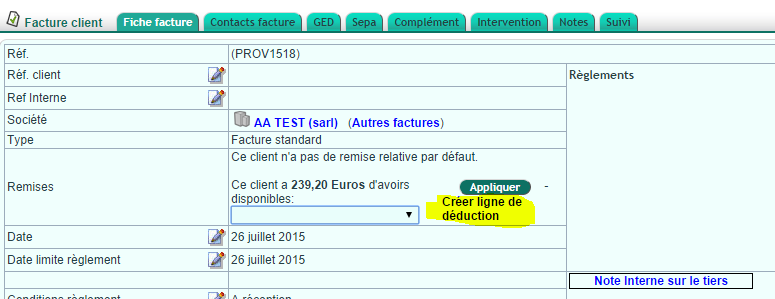
This amount appears in the new invoice as a payment, reducing the remaining amount to be paid (excl. VAT, incl. VAT, and all-inclusive).
Credit note without reference invoice
Creating a credit note without referencing an already issued standard invoice is not the default configuration. This method is discouraged, as the link between the credit note and its original invoice is lost.
To enable it anyway, go to PDF/Interface Settings, then activate the option:
- PG80: Accept standard invoices with negative amounts and force the “Credit Note” type on validation without referencing another invoice (not recommended)
Then create a standard invoice with a negative amount, validate it, and note the new invoice type (credit note).
Splitting a credit note amount
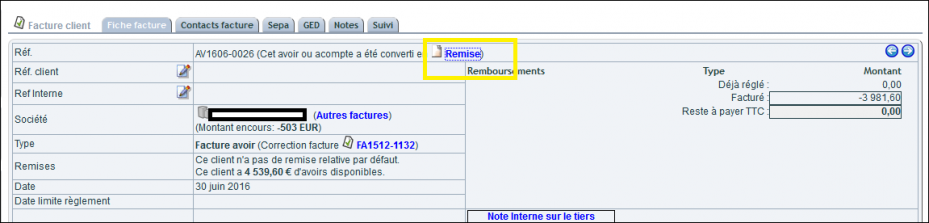
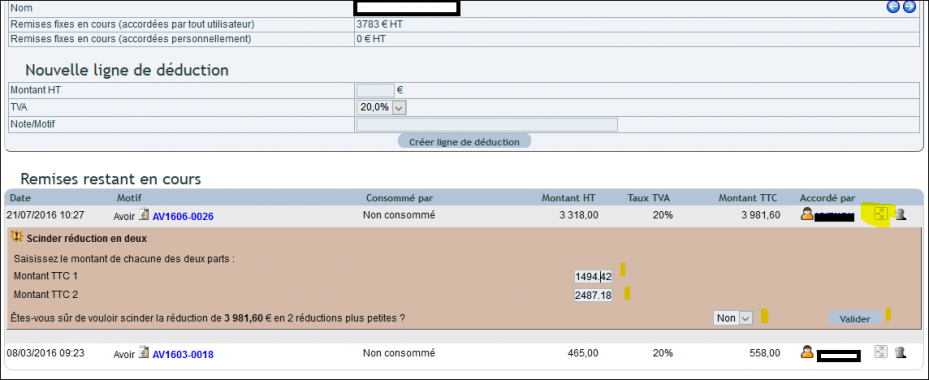
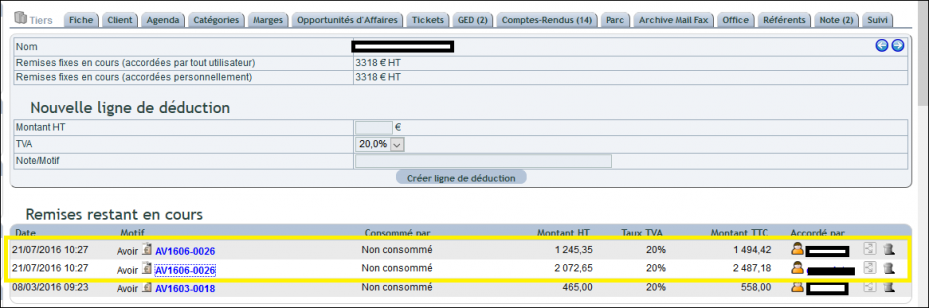
You can split a credit note into two. To do this, follow the method described in the screenshots below.
Processing the credit note payment
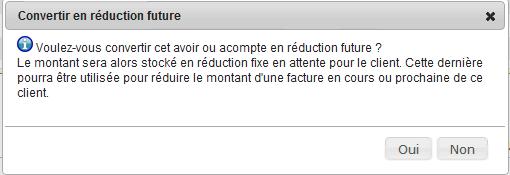
After recording the payment, the “Convert to future discount” button creates a credit balance, stored on the customer or supplier record. You can then apply it to a future invoice.
Moreover, DoliPlus can automate this process if the invoice is fully paid.
Refunding a customer overpayment with a credit invoice
Your customer paid more than the invoice amount: a rounded-up transfer, a payment entered twice, a forgotten bank-detail test. DoliPlus flags it straight away on the invoice.
Indeed, the “Issue payment” button turns grey, and its tooltip shows the overpaid amount. A new payment would only widen the gap.
However, the invoice stays open: DoliPlus only closes it automatically when the payments match its amount exactly. So click “Mark as ’Paid’” to remove it from your unpaid invoices.
Refund the excess in four steps
- On the overpaid invoice, click “Credit invoice”.
- Then bring the credit invoice down to the exact excess: shorten the proposed lines, or replace them with a single line.
- Validate the credit invoice.
- Finally, on the credit invoice record, click “Issue refund”, choose the bank account and the payment method, then validate.
The credit invoice is then marked as paid. The refund also appears in your DoliPlus bank account, so you can easily match it with the outgoing payment on your bank statement.
Is your customer ordering again soon? In that case, refund nothing: instead, convert the credit invoice into a future discount, as explained above, and deduct it from their next invoice.
Learn more
