 on 5 September 2026
 PDF/Interface Settings
The PDF and interface settings group together the configuration for PDF documents and the Quotes, Orders and Invoices screens in DoliPlus.
In practice, this page brings all display settings together in one place. This way, you control both the data entry screen and the printed output. Plus, you save time on a daily basis.
Home Menu → Configuration → PDF/Interface Settings
First, note that the page has four main sections. Each section covers a specific use of PDF and interface settings:
- Sales/Purchases interface settings (No. 200–223): behaviour of quote, order and invoice forms on screen
- PDF settings (No. 100–168): display options for printed documents
- Additional PDF settings (No. 300–328): numerical values (margins, column widths, etc.)
- Colours: background, borders and text in PDF outputs
Moreover, each option has a fixed reference number. You’ll easily find them in the tables below.
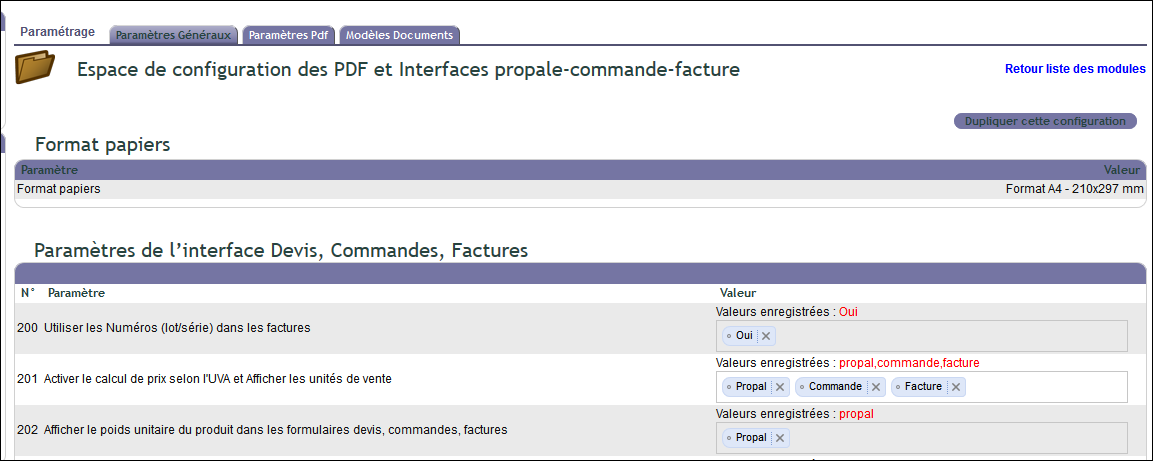
Section 200 — Sales / Purchases interface settings
To begin with, these options modify the display and behaviour of on-screen forms. They mainly concern quotes, orders and invoices.
Additionally, the Documents column specifies the scope of each option. It indicates the relevant document type (P = Quote, C = Order, F = Invoice) or a global scope (Yes/No).
| No. | Description | Documents |
|---|---|---|
| 200 | Use batch/serial numbers in invoices | Yes / No |
| 201 | Enable UVA price calculation and display sales units | P · C · F · Purchases |
| 202 | Display product unit weight in forms | P · C · F |
| 203 | Display total weight in forms | P · C · F |
| 204 | Display invoiced quantity in forms | P · C · F |
| 205 | Enable primary, secondary and tertiary packaging management | Yes / No |
| 207 | Display photo management on Quotes (product record document library) | Yes / No |
| 208 | Display technical documentation management for Products/Services on Quotes | Yes / No |
| 209 | Enable bank change on PDF documents (according to user permissions) | Yes / No |
| 210 | Display PDFs via browser viewer (No = automatic download) | Yes / No |
| 211 | Force DoliPlus built-in PDF viewer instead of browser | Yes / No |
| 212 | Enable anchor navigation (jump tag) | Yes / No |
| 213 | Allow users to disable T&Cs | Yes / No |
| 214 | Enable delivery addresses on orders | Yes / No |
| 215 | Enable delivery addresses on quotes | Yes / No |
| 216 | Display shipment selector + dates on Invoice | Yes / No |
| 217 | Round sum of lines (instead of sum of rounded lines) | Yes / No |
| 218 | Enable delivery addresses on invoices | Yes / No |
| 219 | Display line number on quote, order, invoice lines | Yes / No |
| 220 | Enable auto-focus on product/service search | Yes / No |
| 221 | Display free line start reference (construction industry) | P · C · F |
| 222 | Print logo(s) at bottom of page (Matrix/Logo) | P · C · F · Purchases |
| 223 | Use manual batch/serial numbers in shipment interface (incompatible with product batch management) | Yes / No |
Section 100 — PDF Settings
Next, these options modify the appearance of generated PDF documents. In other words, they affect the final output, not data entry.
Header, sender and addresses
First, this group controls the document header. This is where you choose the information displayed at the top of the page.
| No. | Description | Documents |
|---|---|---|
| 100 | Display tax ID 1 (SIRET) in the recipient address | P · C · F |
| 101 | Display tax ID 2 in the recipient address | P · C · F |
| 102 | Display tax ID 3 in the recipient address | P · C · F |
| 103 | Display tax ID 4 in the recipient address | P · C · F |
| 104 | Display the header logo on PDF (disable if pre-printed letterhead is used) | Yes / No |
| 112 | Swap sender and recipient | Yes / No |
| 117 | Display the sender information block | Yes / No |
| 120 | Display the customer phone number | P · C · F |
| 121 | Display the customer fax number | P · C · F |
| 163 | Display the customer email | P · C · F |
| 115 | Display the delivery address below the recipient | P · C · F |
| 116 | Display the delivery address instead of the sender | P · C · F |
| 168 | Display the intervention address below the recipient | P · C · F |
| 118 | Display the customer barcode | P · C · F |
| 124 | Display the EU VAT number in the recipient address | P · C · F |
| 152 | Display the project in the PDF header | P · C · F |
| 156 | Display the customer code in the document header | P · C · F |
Line items and columns
| No. | Description | Documents |
|---|---|---|
| 125 | Display product descriptions on sales PDFs | P · C · F |
| 126 | Display product references on PDFs | P · C · F |
| 127 | Display line details (unit price, quantity, etc.) | P · C · F |
| 128 | Display the VAT column in PDFs | P · C · F |
| 129 | Hide the VAT total and the grand total | Yes / No |
| 130 | Display batch numbers in the description on invoices | Yes / No |
| 131 | Display the sales unit (UVA) column | P · C · F · Purchases |
| 132 | Display the unit weight column | P · C · F |
| 133 | Display the total weight column | P · C · F |
| 134 | Display the reference quantity base for unit price calculation | P · C · F |
| 135 | Display the billed quantity | P · C · F |
| 136 | Display the weight summary table | P · C · F |
| 137 | Draw a separator line after each item | P · C · F |
| 138 | Display the customs code on lines | Yes / No |
| 139 | Display the country of origin on lines | Yes / No |
| 140 | Display the Product or Service type on each line | Yes / No |
| 141 | Display primary packaging under the description | P · C · F |
| 142 | Display secondary packaging under the description | P · C · F |
| 143 | Display tertiary packaging under the description | P · C · F |
| 155 | Remove indentation from free description text on print | Yes / No |
| 161 | Do not bold non-referenced products on documents | Yes / No |
| 162 | Display eco-contribution details per line | P · C · F |
| 164 | Enable the discounted unit price (excl. VAT) column on PDFs | P · C · F |
| 166 | Display the total discount (incl. VAT) at the bottom of the page (disable option 167 if active) | P · C · F |
| 167 | Display the total discount (excl. VAT) at the bottom of the page (disable option 166 if active) | P · C · F |
Footer and additional notes
Moreover, this group manages the bottom of the document. This allows you to configure the footer and additional notes.
| No. | Description | Documents |
|---|---|---|
| 107 | Show headers on every page (not just the first) | P · C · F |
| 108 | Show footer only on the last page | P · C · F |
| 109 | Display standard footer | Yes / No |
| 110 | Show company details in the footer | Yes / No |
| 111 | Format additional notes (automatic line breaks) | Yes / No |
| 154 | Show bank account comment before IBAN (e.g., factoring note) | Yes / No |
| 157 | Allow HTML in footer notes | Yes / No |
Terms, conditions, and quote options
Additionally, this group handles T&Cs and quote-specific options. This lets you tailor displayed terms based on the commercial context.
| No. | Description | Documents |
|---|---|---|
| 105 | Add an “Approved by” section to the document | P · C · F |
| 106 | Show “ARC Order” on PDF instead of “Order” | Yes / No |
| 113 | Display T&Cs at the end of the document (see Matrix/T&Cs) | P · C · F · Purchases |
| 114 | Prioritize manual T&C selection from the list | Yes / No |
| 149 | Disable printing delivery date on quotes | Yes / No |
| 150 | Show supplier reference in quotes, orders, invoices | P · C · F |
| 151 | Display contract reference and date on invoice PDF | Yes / No |
| 153 | Hide “Option” label if quantity is empty on a quote line | Yes / No |
Shipments and deliveries
Next, this group focuses on delivery notes. This fine-tunes the content of shipping documents.
| No. | Description | Documents |
|---|---|---|
| 123 | Show shipping date instead of delivery date | Yes / No |
| 148 | Hide Phone and Fax for shipment recipient | Yes / No |
| 158 | On delivery note: enable line separator | Yes / No |
| 159 | On delivery note: show only lines with shipped quantity > 0 | Yes / No |
| 160 | On delivery note: add “Remaining to ship” column | Yes / No |
Supplier documents
Finally, this last group targets purchases. This way, you control the display on supplier orders and invoices.
| No. | Description | Documents |
|---|---|---|
| 119 | Display supplier barcode | Yes / No |
| 122 | Display fax number on supplier order | Yes / No |
| 144 | Hide DoliPlus reference on supplier order | Yes / No |
| 145 | Hide supplier reference on supplier order | Yes / No |
| 146 | Hide DoliPlus reference on supplier invoice | Yes / No |
| 147 | Hide supplier reference on supplier invoice | Yes / No |
| 165 | Do not display product descriptions on purchase PDFs | Purchases |
Section 300 — Other PDF settings (numeric values)
Now, these settings accept a numeric value. Additionally, the value in brackets corresponds to the system default value.
In practice, you adjust the layout dimensions here. These PDF and interface settings complement the “Yes/No” options seen earlier.
Layout and margins
First, this group sets the document margins and spacing.
| No. | Description | Default |
|---|---|---|
| 300 | Spacing between boxes (deadline, contact, etc.) | 50 |
| 301 | Left margin (mm) | 8 |
| 302 | Right margin (mm) | 5 |
| 303 | Bottom margin (mm) | 15 |
| 304 | Top margin (mm) | 5 |
| 305 | Extra space below the information area | 0 |
| 306 | Header offset on subsequent pages | 50 |
| 307 | Reserved height for additional footer note | 10 |
| 325 | Minimum height for sender/recipient block | 37 |
Logo and page background
Then, this group sets the size of logos and the background image.
| No. | Description | Default |
|---|---|---|
| 308 | Header logo width (mm) | 24 |
| 321 | Product image height in PDF (-1 to disable, 10 to 50 recommended) | 35 |
| 323 | Alternative header logo (image name in Templates/Logo/) | — |
| 326 | Extra space below logo (1 to 20) | 0 |
| 327 | Footer logo(s) height | 27 |
| 328 | Footer logos horizontal alignment (L = left, C = centre, R = right) | C |
| 319 | Background PDF document applied before editing (place in Templates/Background Image/) | — |
Borders and tables
Additionally, this setting adjusts the shape of table borders.
| No. | Description | Default |
|---|---|---|
| 322 | Table border style (square = -1, rounded = 1 or 2) | 2 |
Table column widths (mm)
Finally, this group sets the width of each column in millimetres.
| No. | Column | Default |
|---|---|---|
| 309 | VAT column | 10 |
| 310 | Discount column | 13 |
| 311 | Unit Price (excl. VAT) column | 19 |
| 312 | UVA (Sales Unit) column | 12 |
| 313 | Reference unit column (base quantity) | 12 |
| 314 | Total Weight column | 15 |
| 315 | Unit Weight column | 13 |
| 316 | Invoiced Quantity column | 13 |
| 317 | Quantity column | 10 |
| 318 | Total (excl. VAT) column | 19 |
| 324 | Index/Reference column (construction) | 10 |
PDF Output Colour Settings
Finally, customise three colours. Enter them as hexadecimal values:
- Background colour: column headers and coloured areas
- Border colour: table lines and frames
- Text colour: main document text
For more on themes and menus, see the chapter New DoliPlus design — customisable theme and web, tablet, smartphone menus.
Multi-entity: duplicate PDF and interface settings
In a multi-entity setup, you configure each entity separately. This is why you sometimes need to repeat the same setting.
However, the “Duplicate this configuration” button simplifies this task. It copies all settings to another entity, speeding up the implementation process.
In summary, these PDF and interface settings give you full control over data entry and editing. Take the time to configure them once to save time later.
