 on 5 September 2026
 Job Site Tracking in DoliPlus
DoliPlus’s construction site monitoring helps construction companies manage their projects, both on-site and from the office. This allows you to track progress, requirements and profitability for each site in real time.
When paired with the mobile app, this tool significantly boosts operational efficiency. It also centralises all information within your management system.
Note: The Works module must be activated and configured. It is subject to special pricing.
What is construction site monitoring for?
The module takes quote stages, organised by work packages, and converts them into orders. You then initiate a new two-phase site monitoring process:
- Daily site visits, typically conducted by site managers;
- Weekly site meetings with project supervisors.
On-site, you input data via DoliPlusMobi, the Android and iOS app. Crucially, it works offline. Its ergonomic design enables one-handed operation, voice dictation and photo capture.
Concretely, each quote line can then include multiple details:
- A progress report;
- Photos;
- Completion percentage;
- Staffing requirements;
- Equipment needs;
- Material requirements.
During synchronisation, these three requirements automatically trigger actions in designated staff’s calendars. They also receive alert emails.
Unlike specialised standalone apps, this solution syncs everything within DoliPlus. You can cross-reference photos, progress and financial data to monitor site status at any time.
Daily visits and site meetings
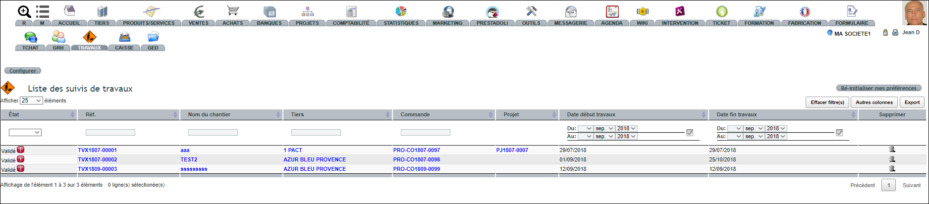
When activating the module, a “Works monitoring” button appears on customer orders. First create the “Works” process: a link then appears at the order’s bottom.
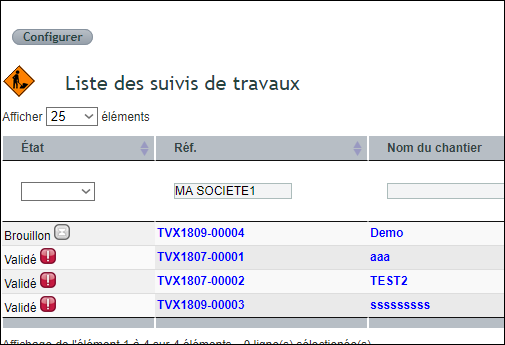
This process subsequently groups all monitoring by date. Meanwhile, the “Works” menu lists all active sites with dates and statuses.
The lifecycle is simple: draft (preparation), validated (input enabled), closed (input locked).
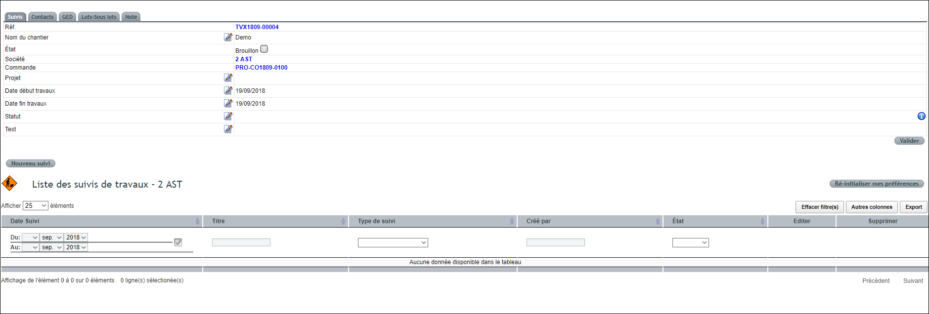
After creation, configure works monitoring:
- Assign internal resources in the Contacts tab;
- Upload PDFs (technical specifications, plans) to the document library, synced with DoliPlusMobi;
- Record notes in public or private sections;
- Access order lines in the Work packages/sub-packages tab;
- Adjust these lines (delete, modify, add, reorder);
- Finally validate monitoring to begin recording visits.
Recording new site monitoring
The works line must first be in validated status.
Via DoliPlus web application
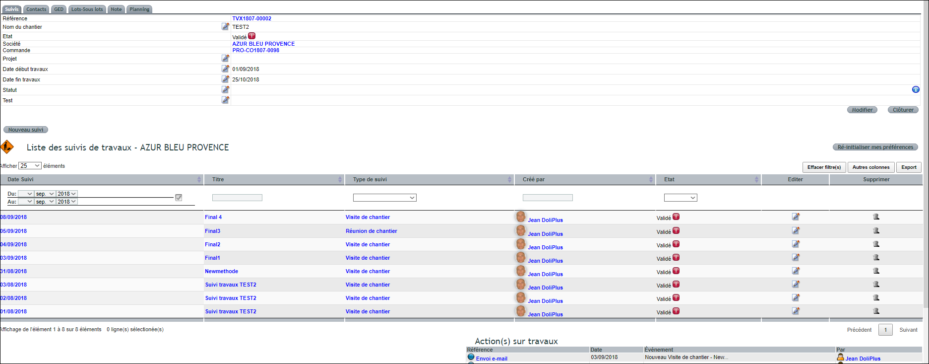
You can record monitoring via the web interface. However, we recommend reserving this for consultation, as the mobile app remains better suited for on-site data entry.
Via DoliPlusMobi app
The app must be downloaded. The connector must also be activated and configured with user permissions.
The app detects the network. As a result, the bottom page buttons turn green when internet is available. Conversely, they disappear when offline, blocking any action.
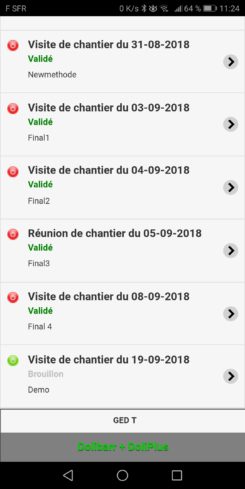
From the main menu, click on “Work”. The “Refresh” button then updates the list of ongoing projects.
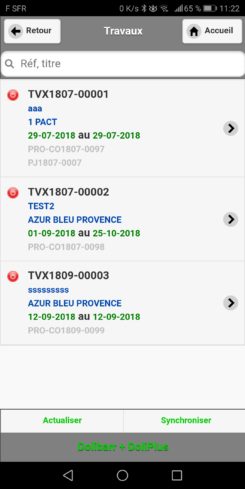
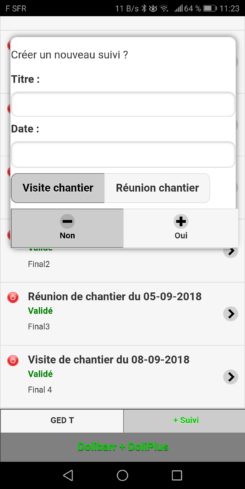
Next, from the date-based list, add a new entry with “+ Entry”.
Note: the network is still required at this stage. Plan this action in advance if the project is in an uncovered area.
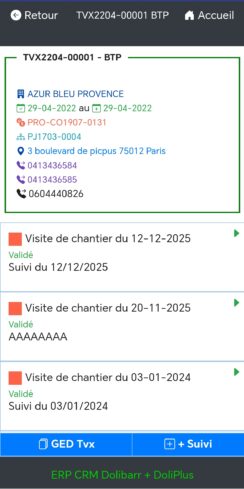
Finally, specify the entry type (visit or meeting). After validation, a new entry line appears.
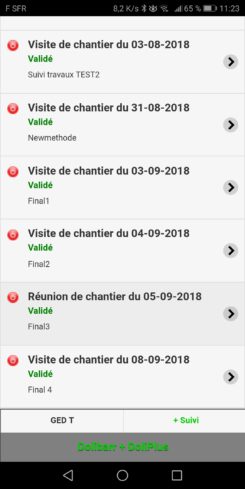
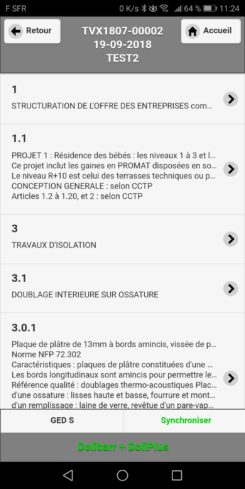
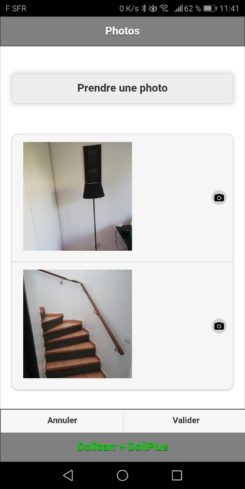
When you access an entry line, you update several statuses: progress, needs (human, equipment, materials), report, and photos.
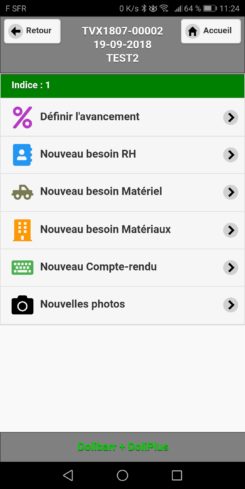
Additionally, the microphone and its voice recognition let you dictate your reports.
Recall of entry history
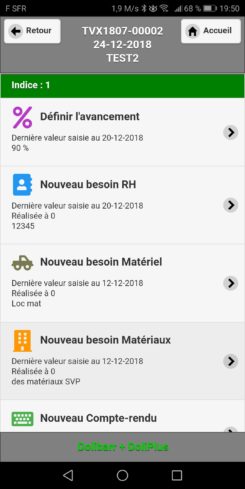
You can also retrieve the latest recorded values on each screen. To do this, simply configure the module in the web app.

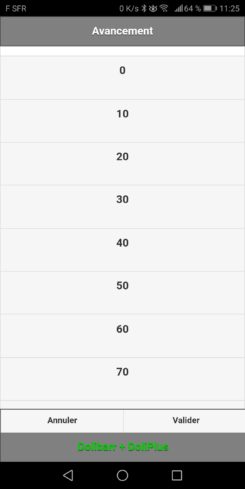
End of entry
Once the entry is complete, return to the list of lines, then sync if the network is available. DoliPlus then transfers the photos, followed by the data.
Warning: after syncing, any modification becomes impossible on the mobile. You then continue on the web app.
Therefore, upon syncing:
- an email notifies the project resources;
- actions related to needs (human, equipment, materials) are added to the relevant calendars.
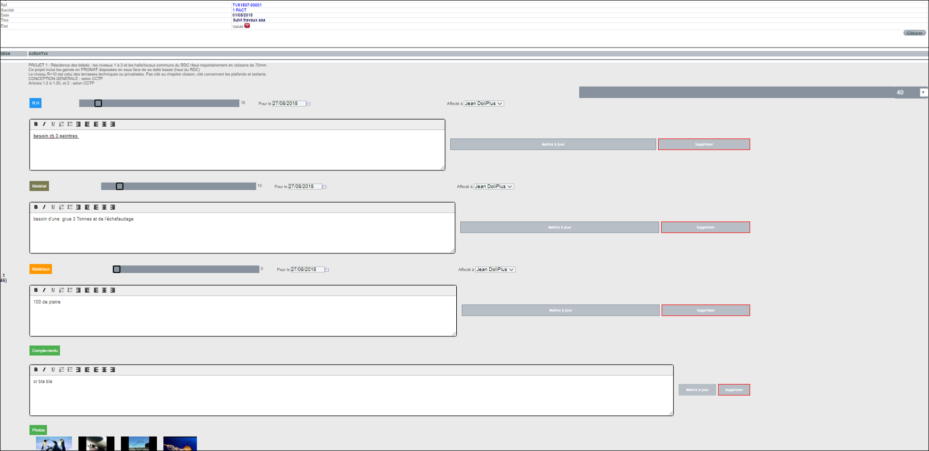
Track projects in DoliPlus
On the web, select the entry date: the corresponding tab opens. You then edit the fields and photos.
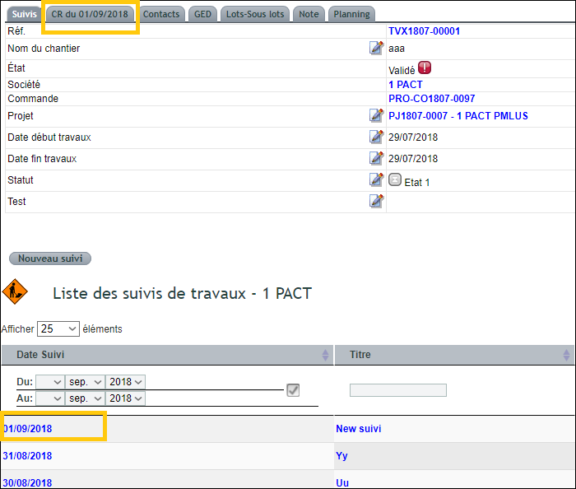
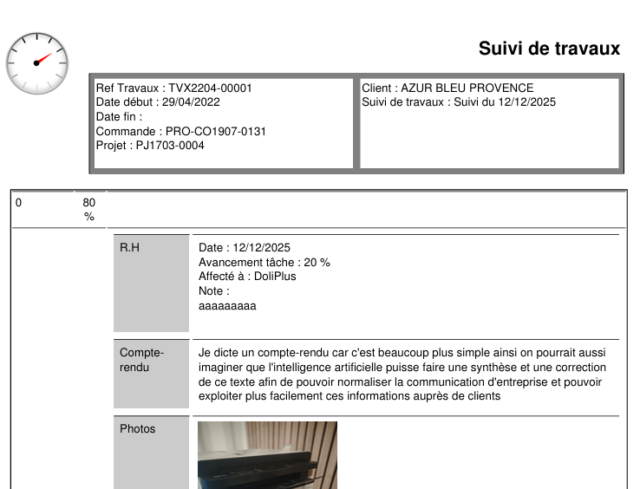
Document library: site documents and plans
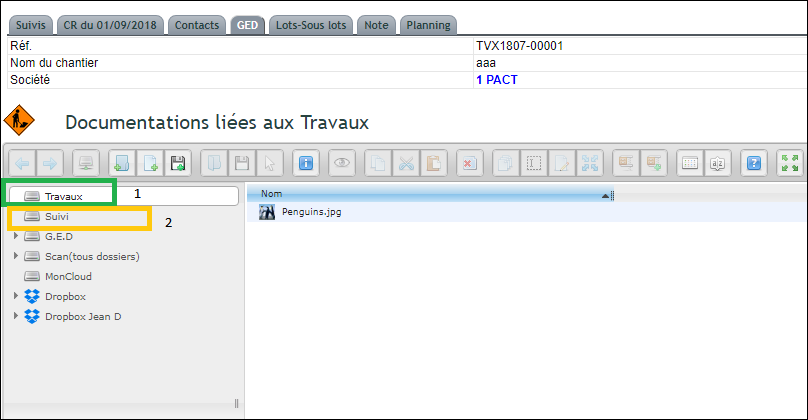
On the web, two storage areas exist: “Works” for global documents (CCTP, plans), and “Follow-up” for minutes, sorted by date.
On mobile, you access the same documents via the Doc Tasks and Doc Tracking tabs. A simple swipe down then downloads them for offline viewing.
Planning: scheduled and actual attendance
You access the planning from the Works process tab, or from the main menu for a multi-site view.
What does this planning allow?
The planning lets you enter scheduled attendance, then actual attendance. You can thus organise your site smoothly.
Staff, both internal and external, must be declared in the HR section, with the required permissions. External staff (temporary) are linked to a customer or supplier.
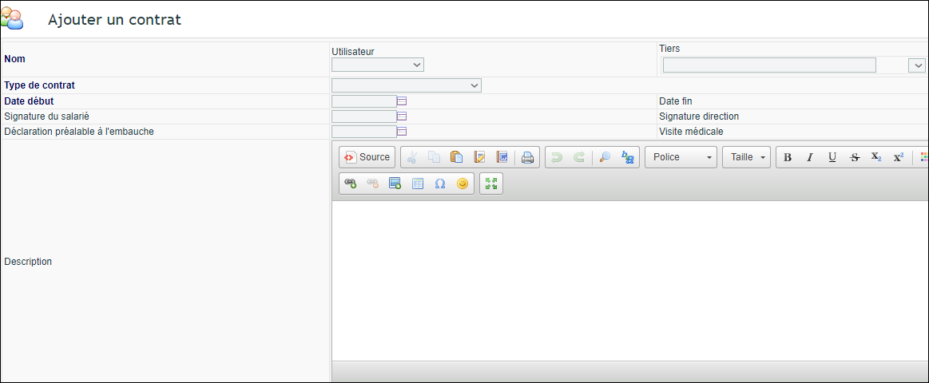
Additionally, internal staff absences automatically feed back to HR as requests to regularise.

Using the planning
You choose a weekly or monthly view. Participation is then grouped by person, making scheduling easier.
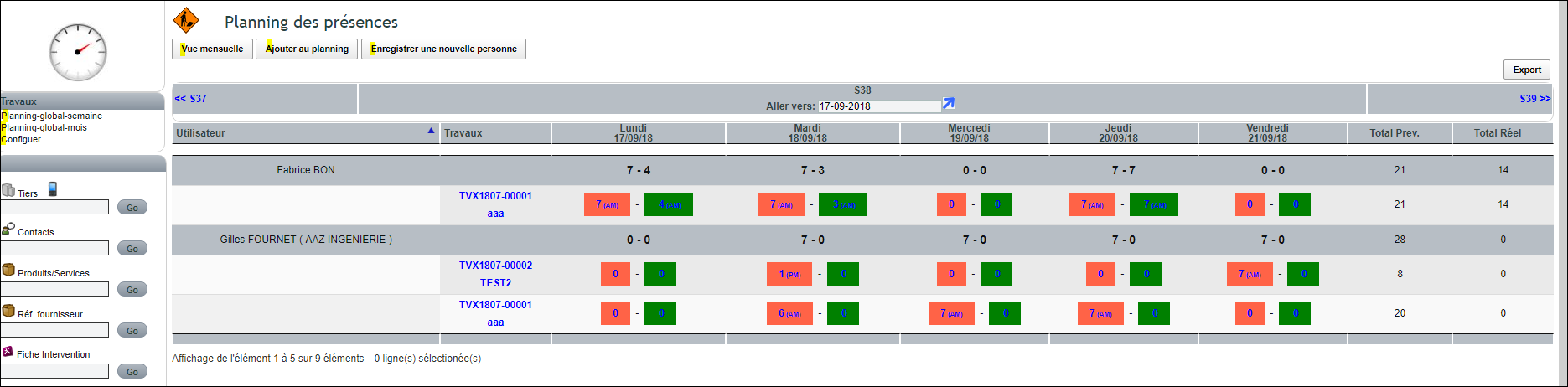
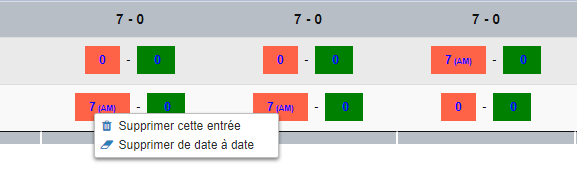
The orange area represents a forecast, the green area a confirmed actual. You enter or modify with a simple click in the desired area.
A few rules apply:
- you cannot modify a forecast that has already been confirmed;
- two forecasts cannot start at the same time, but can overlap on different time slots;
- always check the total hours displayed at the top.
To delete an entry, you modify its duration, or right-click on an unconfirmed forecast.
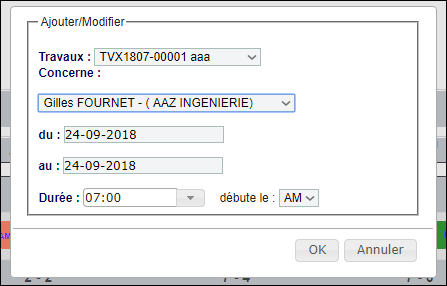
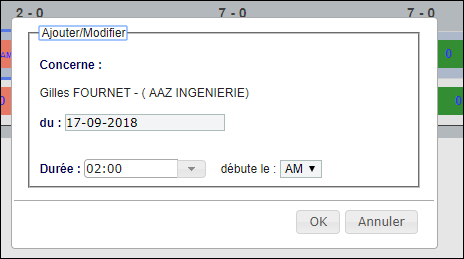
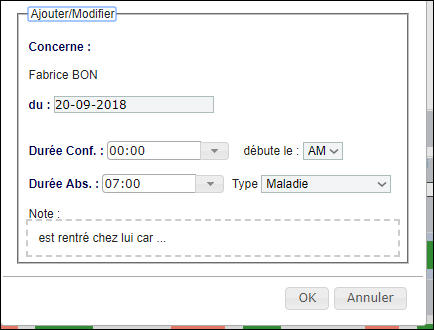
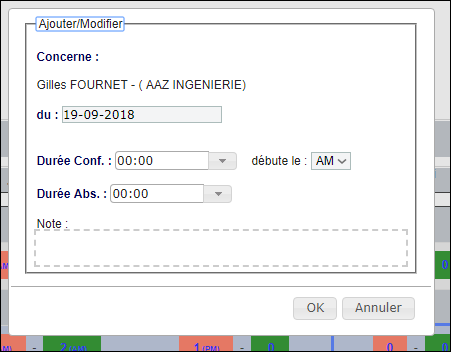

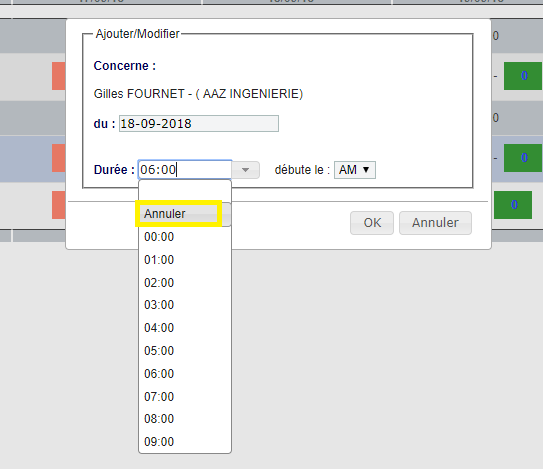
The scheduling buttons. For a new entry, use
« Add to schedule » — multi-date scheduling is safe for existing entries. The chevrons, or the « Go to » button, navigate between periods.
Someone missing from the list? The « Register a new person » button adds them to the HR contract section and immediately displays them in the dropdown list.
In case of absence. Report it in the « HR absence type » field, then enter the absence duration and, if applicable, the partial attendance duration.
Timesheet
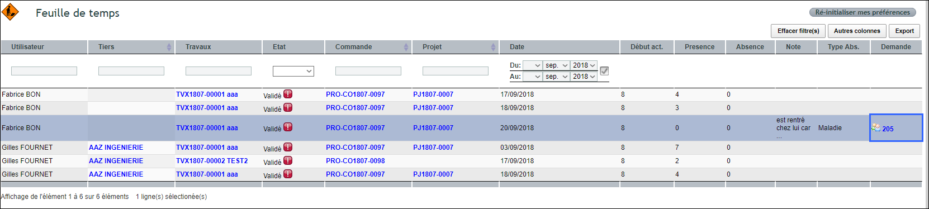
Finally, the timesheet extracts confirmed attendances and absences for management purposes.
Configure the module
You configure the module from Works → Configuration, as soon as it starts. Additionally, you add custom fields to the job description via the « Configure » button.
To go further, also discover the job management.
