 on 25 October 2026
 Field service management software: interventions and equipment in DoliPlus
Field service management software tied to your equipment records
The DoliPlus field service management software organises your visits, installations and maintenance work, and links straight to the equipment you look after:
- appointments booked on a general planning board or on each technician calendar;
- equipment records holding parts changed, readings, measurements and alerts;
- calendars synchronised live with Google, on iOS and Android, with built-in geolocation;
- technical documents, part ordering and multi-warehouse stock reachable during the visit;
- jobs attached to a service contract or a sales order, ready for invoicing.
As a result, your technicians carry everything they need into the field. DoliPlus is the enhanced cloud edition of Dolibarr, the open-source ERP & CRM used across Europe.
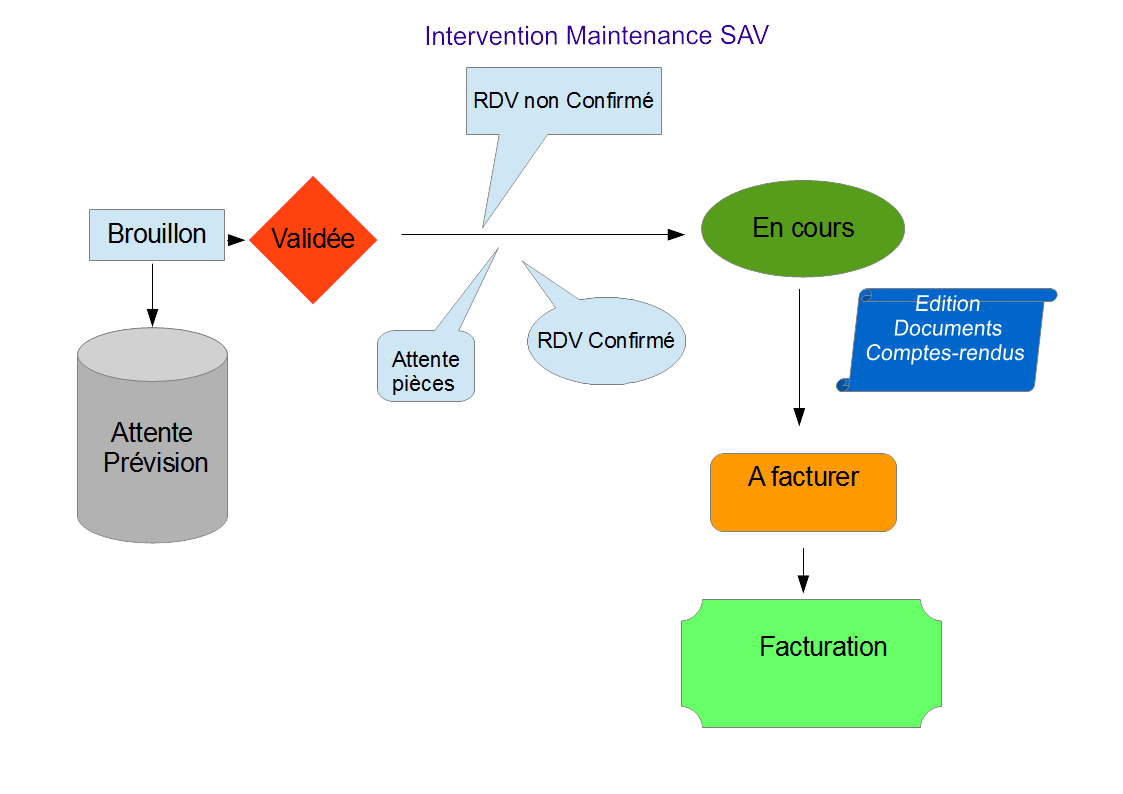
What the module is for
The module handles your visits for installations, works or maintenance. Above all, it rests on a highly customisable equipment base, built with your own forms.
In practice, the equipment record holds the parts changed, the measurements, the readings and the alerts. You then schedule your appointments on a general planning board or on each technician calendar.
Besides, those calendars synchronise live with Google, on iOS and Android smartphones. You therefore benefit from built-in geolocation. Moreover, every appointment carries what matters: address, contact, phone number and instructions.
Fully mobile-friendly, DoliPlus also gives you access, during the visit, to technical documentation, part ordering and multi-warehouse stock.
Finally, jobs attach to a service contract or a sales order. Statuses mark out their life cycle. Paired with the support ticket module, the software even carries over the request the customer expressed.
Using your field service management software
Create the job
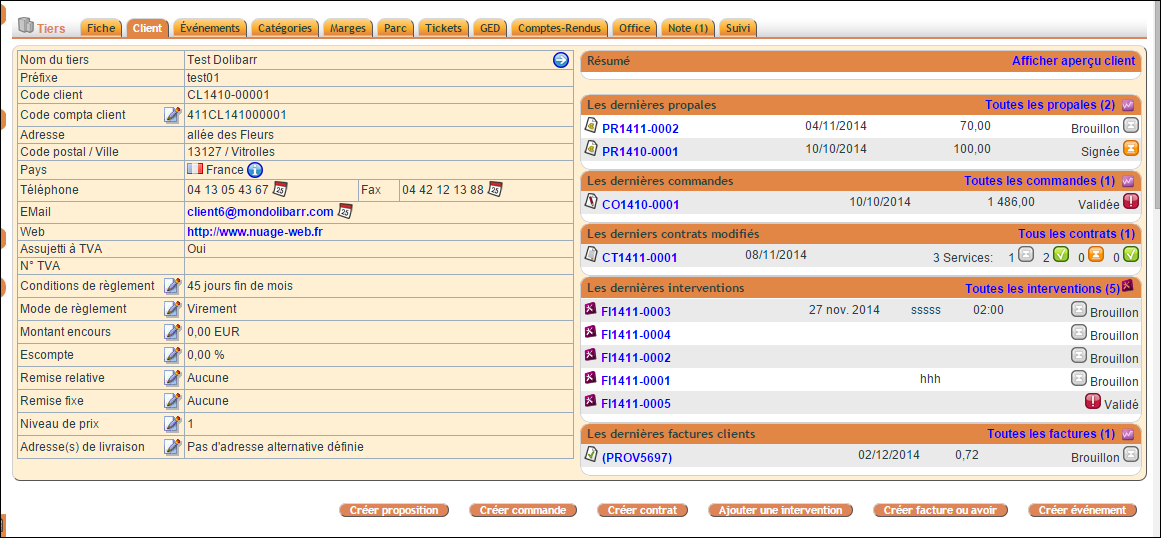
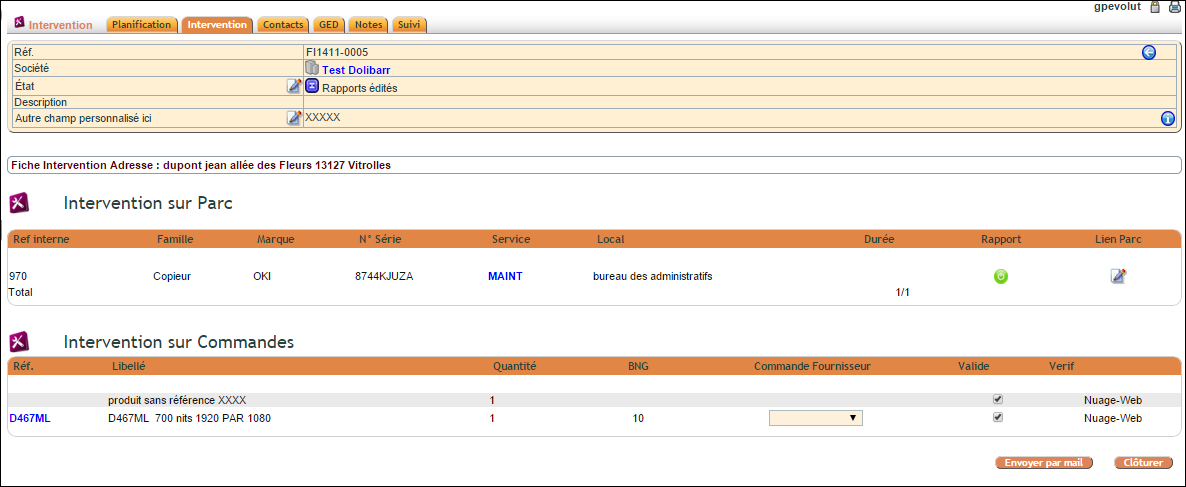
You create the job directly from the customer record or from the Ticket module.
From the Intervention menu, “New Intervention” guides you step by step:
- choose the customer, then click “Create a draft service call”;
- in “Order”, choose the type of linked document — contract, order or, depending on your setup, commercial proposal — then the document itself;
- complete the project, the description and the notes if needed, then click “Create a service call”.
The record reference is numbered automatically. If no document is chosen, DoliPlus tells you so (“The field ‘Contract’ is required”) and waits for your choice before creating the record.
A contract or an order is required
A job rests on a service contract or a sales order. You may combine both — a contract plus an order outside the contract, for instance. That step therefore prepares the invoicing.
Moreover, a maintenance service attached to the contract links a piece of equipment to the customer. That service then describes the work sold and its particular terms.
Contacts and addresses
The Contacts tab lets you select the site address, the person on site and the appointment contact.
Booking the appointment
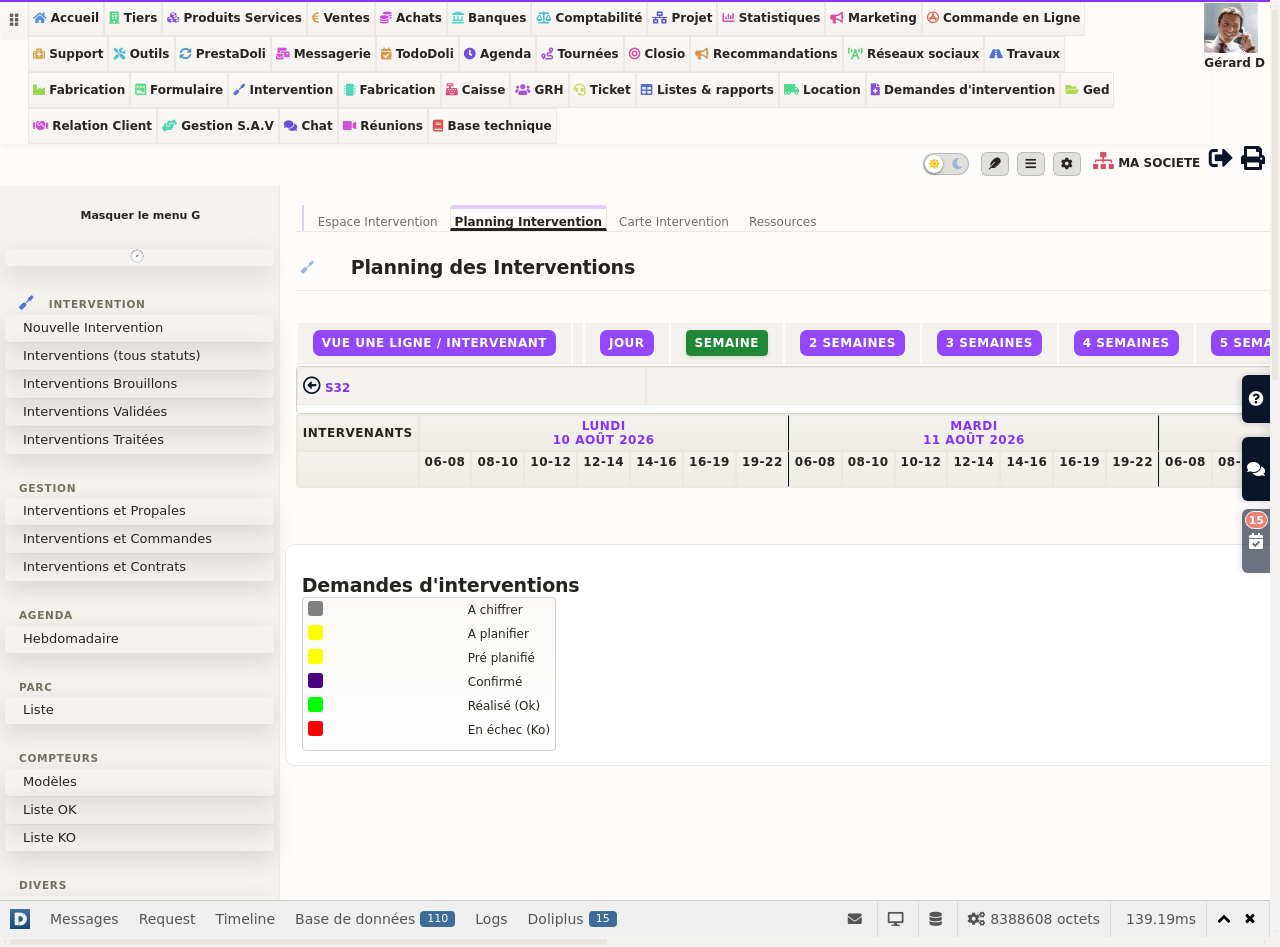
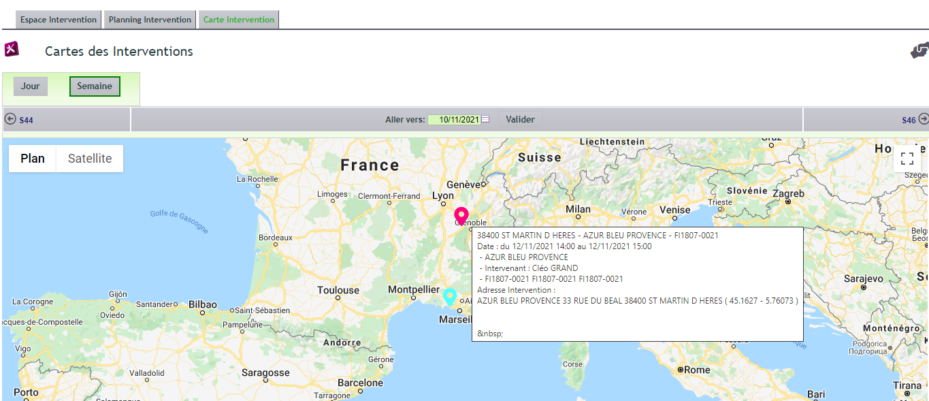
On the general planning board, a colour code identifies the statuses and makes a busy schedule manageable. Moreover, a map locates your jobs.
Depending on your trade and the distance involved, securing the appointment is sometimes essential. To do so, follow this process:
- identify the contact who organises the appointment at the customer site;
- put a provisional appointment on the general planning board;
- produce a pre-filled confirmation, ready to send by email;
- on their reply, move the status to “appointment confirmed” to assign it to a technician.
Setting the appointment and letting the customer know
The “Scheduling” tab of the record shows the planning grid in week view. The arrows change the week, and “Go to” jumps straight to a date.
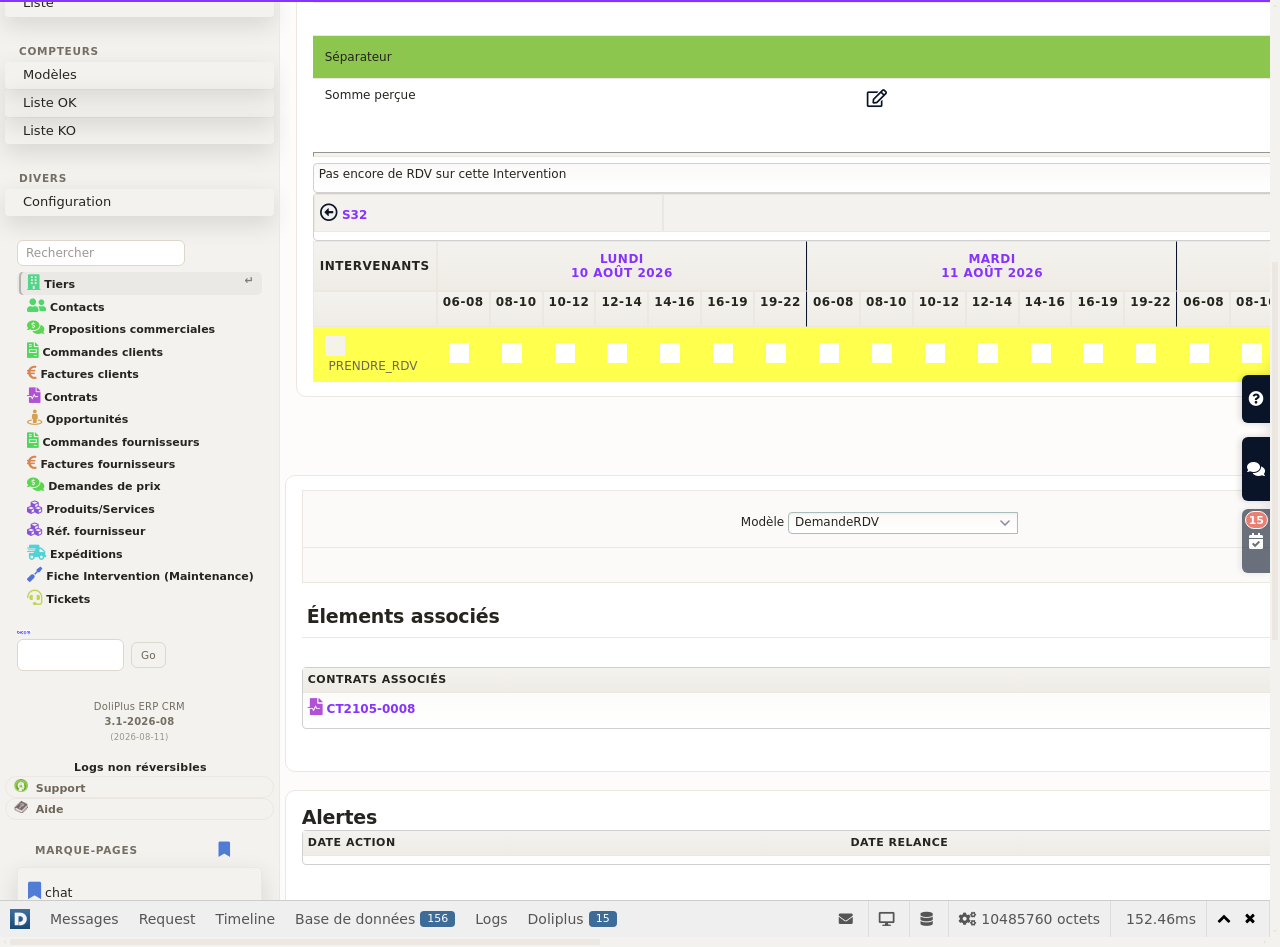
- As long as the record has no appointment, a line highlighted in yellow offers you free slots: click the day and time you want.
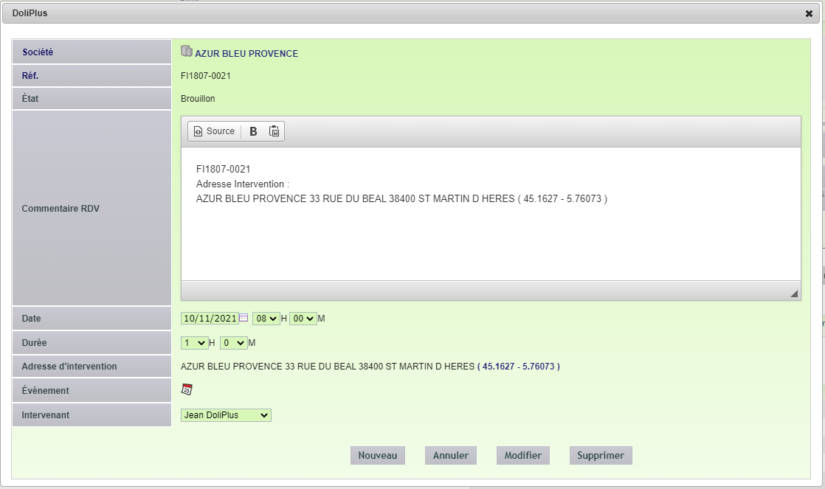
- In the “Nouveau RDV” (new appointment) box, choose the technician, the duration and the address, add a comment if needed, then click “Valider” (confirm).
- For a further appointment, open an existing slot and click “New”.
Each appointment adds the matching event to the technician calendar. DoliPlus also screens out duplicates: a second appointment on the same date, with the same duration and for the same technician, is not saved.
Above the appointment table, the action bar helps you let the customer know:
- “Send by email” sends the job document to the appointment contact;
- “Send by SMS” is offered when DoliPlus telephony is active;
- “Add an alert” schedules an automatic reminder before your visit — see the SMS alert on jobs.
Recurring or preventive maintenance
You also schedule future jobs in advance, from the “Planning” tab of the record. To create an appointment, click the white square on the highlighted line.
A dialogue box then lets you adjust the appointment settings. Then, clicking the square again, you can edit it, duplicate it onto another date or another technician, or delete it.
Note that the colour key is repeated on every page of the planning board. The first colour stands for the status, the next for the general state.
Following your activity day to day
The Interventions space and its indicators
The Intervention menu opens the module space, in four tabs: “Service Visit Space”, “Service Visit Schedule”, “Service Visit Map” and, if you manage resources, “Resources”.
The first tab gathers your indicators as cards: jobs in progress (drafts and validated), breakdown by status, latest jobs, open jobs with their duration and, if you look after copiers, the latest counter readings and those in error. Further down, you find a search by reference, statistics by status and the ten latest records in draft, validated and processed.
The team planning board
The “Service Visit Schedule” tab shows all the appointments of your technicians.
- The period: “Day” and “Week” buttons, then from “2 weeks” to “5 weeks”. A click on the header of a day opens that day in detail.
- The layout: the “One line / Invoice view” or “One line / Resource view” button switches between one line per technician and one line per record. DoliPlus remembers your choice.
- The filters: type a few letters into “Technician filter”, “Service filter” or “Customer filter”; the red cross clears the field.
- Navigation: the arrows change the week, “Go to” jumps to a date.
Hover over a slot to read the dates, the technician and the description; the slots of one record are linked by a dotted line. A click opens the appointment box to edit it or create a new one, as long as the job is neither invoiced nor cancelled. Right-click, then “Ouvrir” (open), shows the record in a new tab.
Each slot is split into two triangles: top right, the status of the record; bottom left, its state. Both keys are repeated under the planning board.
The map of the week
The “Service Visit Map” tab places the appointments of the day or of the week on a map, with the same arrows and the same “Go to”. Each point matches the address of the contact chosen as “Adresse d’intervention” (site address) in the Contacts tab of the record. Under the map, the “Addresses not found” list shows the records to complete.
The week of a technician
The Planning menu, “Weekly” entry, shows the week of a technician over five working days. Choose the person in “Assigned to”, then click “Refresh selection”. For each appointment, you find the time, the record, the customer and the place. To view the week of a colleague, you need the right to see the events of other users.
The job list, and the map of ticked records
The “Interventions (all statuses)”, “Draft Interventions”, “Validated Interventions” and “Processed Interventions” entries open the list of records.
- Filter under each header: text, period, status, technician.
- “Other columns” adds the technician, the project, the postcode, the town or the site address; DoliPlus remembers your columns, and “Reset my preferences” brings back the original display.
- “Export” outputs the list to Excel — selected lines — or to PDF, in portrait or landscape.
- Tick some records, then click “Geolocate”: the map of those jobs alone opens in a new tab, handy for building a round.
Managing your equipment base
The module includes equipment management. You reach it at any time from the Equipment tab of the company record. Depending on your settings, further tables join it:
- the options and products associated with the equipment;
- the parts changed during jobs;
- specific tables, such as copier page counters.
Stock
For products tied to an order, a view of warehouses and purchase orders helps you prepare the equipment. That view stays compatible with the purchase stock tab of the StockPlus module. Moreover, a status marks this step out.
Two ways to steer the purchases a job triggers
Two options complete this stock view: opposite each order or quote line of the job, they add what you need to trigger the purchase of the missing product — according to the way you work.
- Link to an existing purchase order: a dropdown lists the purchase orders already open for that same product. As soon as you pick one, DoliPlus remembers the link — the reference, date and status of the purchase order then show directly on the job record.
- Create or complete the purchase order directly: you choose the supplier and the quantity, DoliPlus works out the price and the VAT, then creates the purchase order in one click — or completes a draft order already open for that supplier if there is one.
The two options do not stack: you switch on the one that matches your organisation, never both at once.

Once the purchase order is created, it shows clearly on your goods receipt screen — including when it comes from a quote, and not only from a sales order.
To go further on the purchases tied to your jobs: the purchase order in DoliPlus, stock management and receiving goods on mobile.
Documents and the document space
Field service work usually comes with documents, before and after the visit. The document space was therefore designed to leave you autonomous once the initial setup is done.
In practice, signed documents — acceptance reports, job sheets — are scanned then filed in the document space by drag and drop. Better still, the DoliPlusMobi app spares you that step: it captures the signature and places it straight into the document.
Build a document from an Excel template
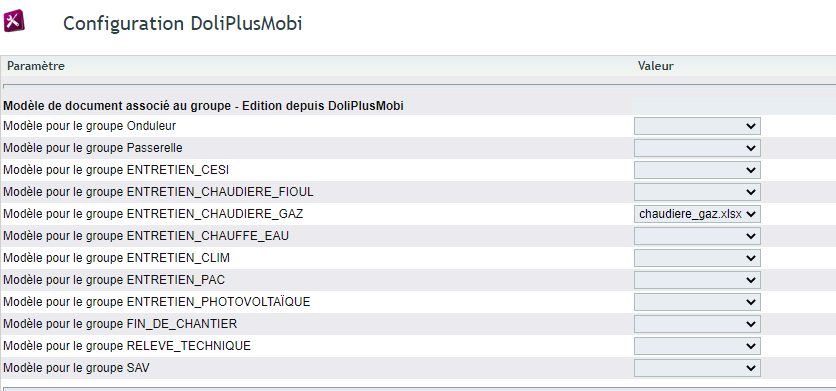
You upload your Excel templates through Tools → Template management → Document models. Then you declare them in the module to make them editable inside the job.
Substitution variables
Your templates carry tags between curly brackets. DoliPlus then replaces them with the right data, as Excel, PDF or both.
Careful: type these variables on the keyboard rather than copying them. Indeed, invisible characters can stop the substitution from working.
Here is a non-exhaustive list of the variables available.
Global information — {Divers-…}
- {Divers-dateinter}: job date;
- {Divers-adresseproprio}: owner address;
- {Divers-adressepose}: installation address;
- {Divers-technicien}: technician name;
- {Divers-n°inter}: job number;
- {Divers-note_public} / {Divers-note_private}: notes from the record;
- {Divers-description}: description from the record;
- {Divers-contrat}: references of the linked contracts;
- {Divers-signature_client} / {Divers-signature_intervenant}: signatures.
The custom fields (group IN) of the “Planning” tab are carried over like this: {Divers-name_of_the_custom_field}.
Form and equipment information
For the job form, the syntax is {Intervention-name_of_the_variable}. For the equipment base it is {Parc-name_of_the_variable}, for example:
- {Parc-Desig}: associated service;
- {Parc-MarqueArt}: brand;
- {Parc-NumSerie}: serial number;
- {Parc-Localisation}: installation site.
Order and company information
Finally, you carry linked data over with {Inter-…} (order), {Commande-…} (custom fields of the order) and {Tiers-…} (fields of the company).
Repeating tables
To list equipment or consumed parts, wrap the area between the delimiters [!– BEGIN row.lines –] and [!– END row.lines –].

Signing documents
An option adds a “Signature” tab for the people visited. DoliPlus then stores a self-adjusting image in the document space.
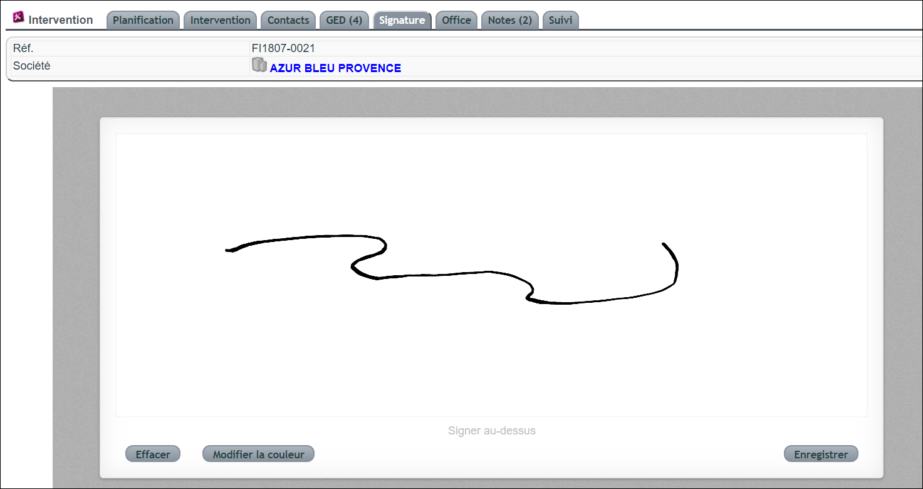
Likewise, your field staff record their signatures or initials. Those are then used when producing acceptance reports.
Invoicing
A status lets the technician tell the invoicing team that the job is over. The team then picks the file up, according to the contracts involved.
Preparing the content, checking the parts, validating
The “Intervention” tab of the record describes the work to do.
- In draft, the “Select Intervention content” table lists the lines of the linked contract, order or proposal. Tick those that concern this visit, then click “Confirm selection”. A new selection replaces the previous one.
- On each line, a box lets you state that the part has been checked: DoliPlus records the first name of the person who ticked it. When every line is ticked, the state of the record moves on by itself.
- Click “Confirm service call”. To correct a validated record, “Edit” sets it back to draft.
Once the job is validated, you change its state with the pencil, next to “Status”. A red banner “ATTENTION PAS D’ADRESSE RENSEIGNEE !!” (no address entered) reminds you to choose the site address in the Contacts tab.
Invoicing, or marking as invoiced
When the technician moves the record to the “to invoice” state, the closing buttons appear for the people allowed to close jobs:
- “Invoice order(s)” or “Create Invoice”, if invoicing from the job is switched on for you;
- otherwise “Mark as invoiced”, after a confirmation;
- “Close as canceled”, for a job that will not take place.
A closed record reopens with “Reopen”, and “Clone” creates a copy of it for a similar job.
What remains to be invoiced
The Management menu offers three lists: “Interventions and Quotes”, “Interventions and Orders”, “Interventions and Contracts”. Each job appears there with its source document and, for quotes and orders, the invoice issued on that document. In the “Invoice” column, choose “No”: only the jobs whose document has not been invoiced yet remain. To target a period, fill in the month and year of the date, then export the list if needed.
Tie your equipment to service contracts
You associate a service with one or several pieces of equipment, inside your service contracts.
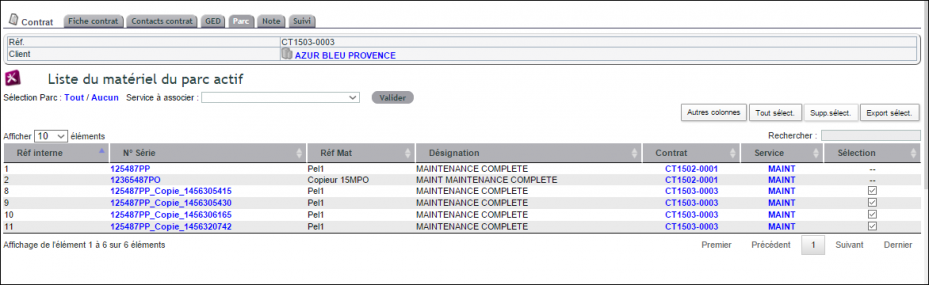
The service then defines the type of work — an annual maintenance with part replacement, for instance. In the Equipment view of the company, the associated contracts stay immediately visible.
Consequently, when you create a job on a piece of equipment, that association is carried over automatically. Your jobs are therefore tied to a commercial contract. You can even launch a job straight from the contract.
Clone a piece of equipment
To record a large equipment base, the cloning function saves you time. You reach it from the equipment view, on the company record.
During that operation, DoliPlus adds a temporary tag to the serial number to avoid duplicates. You then simply reopen the record to adjust the equipment.
Setting the module up
Setting up jobs, step by step
- Setup › Modules, “Inter-Maintenance” line: click the key on the right.
- Careful, some labels read the other way round: “Disable service call button on quote” (and its neighbour for orders, “Disable the intervention button on order”) switched on removes the quote (or the order) from the possible origins of a job; “Disable Fleet management” switched on hides the equipment base menus. Leave them off if you use them.
- “Schedule excluding Saturdays” (and “Schedule excluding Sundays”) removes those days from the grid of the technicians’ planning board.
- “Status to reach for invoicing via the service call”: on a closed job, a button moves it to that status, which shows the invoicing team the jobs to invoice.
- “Default action”: the type of event preselected by “Create event” from a job.
- “Sender email (report, invoices,..)”, the subject and the body of the emails that send the job report or invoice to the customer from the mobile app.
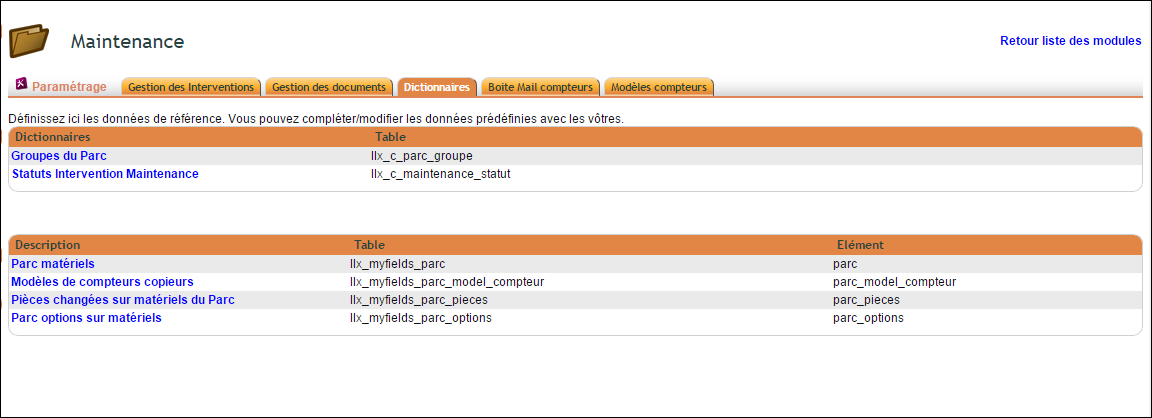
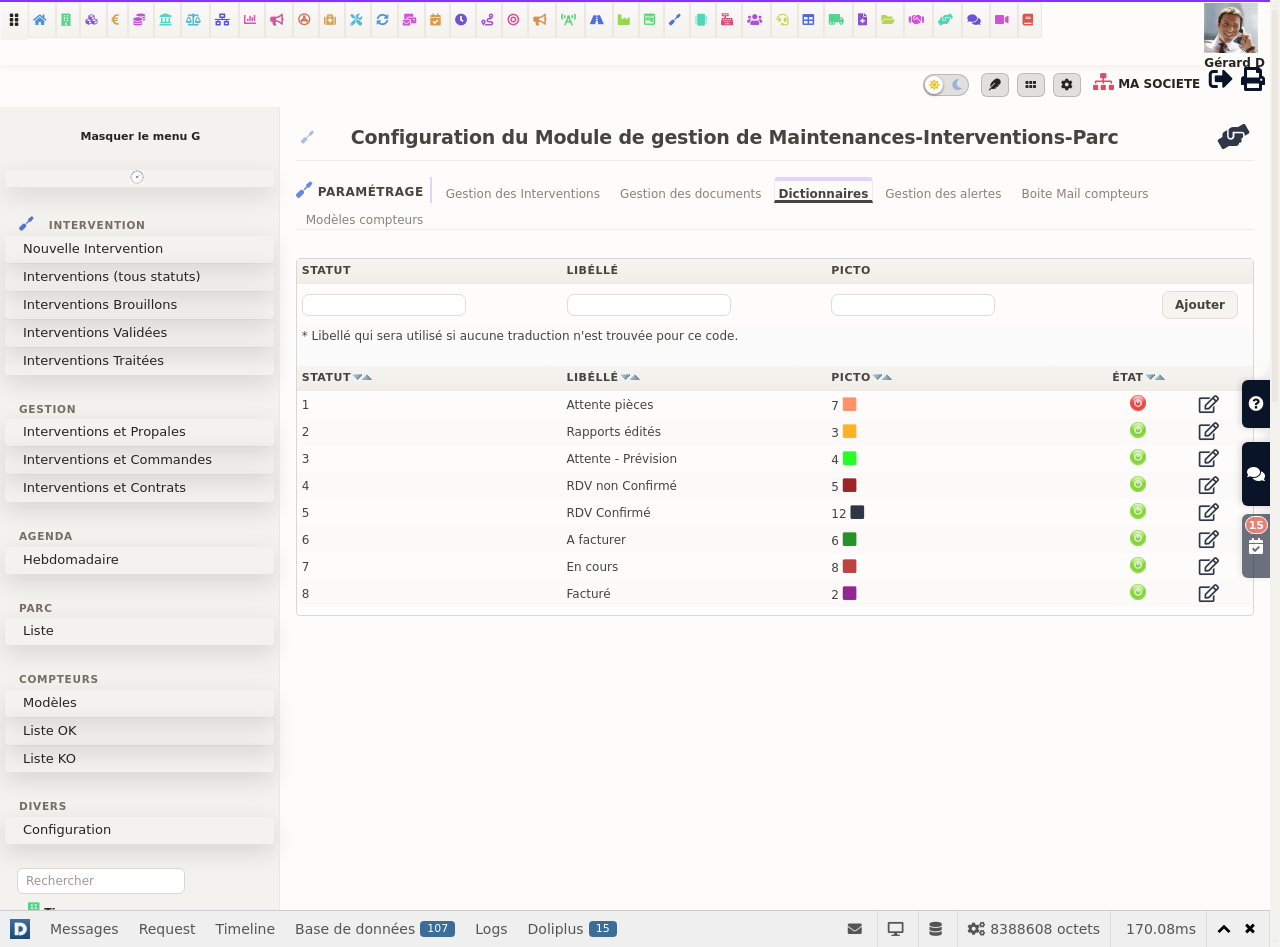
- “Dictionaries” tab: the list of job statuses (to schedule, report printed, to invoice…) offered by the planning board and the status lists.
Documents, appointments and alerts
- “Document management” tab: the numbering mask of jobs (change it at the start of the year: references already assigned stay as they are), the record template offered by default, the texts of the letter, email and SMS that tell the customer the date of the technician’s visit, the note printed at the bottom of each record, and where to store the technicians’ photos (document space of the customer, of the job or of the equipment).
- “Alerts management” tab: notify the customer before the visit, by SMS (if you have credit) or by email — how many hours before the appointment, from what time in the morning, and to which contact. The sending account at the top of the page is set up once with the DoliPlus team; “Save” applies the page.
Job statuses
Depending on your trade, you customise the statuses through the dictionary, in the administration console.
Custom fields
The fields of the equipment base and of the job form stay customisable, usually without coding, through the Myfield module. Group IN applies to the “Planning” tab, and group OUT to the “Job” tab.
For the copier counter sub-module, see this chapter.
The DoliPlusMobi app for field service
Finally, for entry in the field on a phone, see this chapter.
