 on 5 September 2026
 Supplier Orders in DoliPlus
The supplier order in DoliPlus lets you manage your purchases end-to-end: from supplier quote to goods receipt, right through to invoice. This way, you track your stock and supplier references in one place.
Configure supplier orders
To get started, enable the module. First log in with an admin account, then go to Home → Configuration → Modules.
Next, if an icon appears at the end of the line, click on it. This takes you to the module setup page.
Enable Sales and Purchase Units (SPU)
Managing Sales and Purchase Units is covered in this chapter.
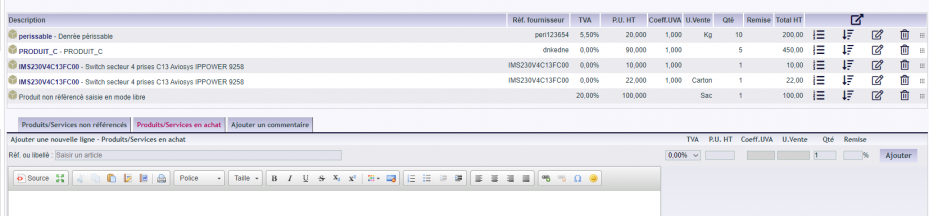
Also check out the Quotes, orders and invoices interface.
Lifecycle and management rules
A supplier order follows a clear process:
Draft → Validated → Approved → Awaiting receipt → Received (partially or fully) → Invoice creation.
Create a supplier order
You create a supplier order from the supplier record, via the dedicated tab. The order starts as a draft.
Next, select the products supplied by this vendor. To add a new product, first go to its record: in the Supplier tab, enter the price and minimum quantity. The product then becomes available for this supplier.
Close a supplier order
Once products are received, return to the record to log the receipt. The status then changes to “partially received” or “fully received”, depending on your entry.
Delete a supplier order
You can only delete an order in draft status. Once validated, it can only be cancelled. Note: a deleted order is permanently lost.
Edit a supplier order
Similarly, you can only edit an order in draft status.
Send the order by email
To send the order, first generate the PDF. You can then customise the subject and accompanying message, including with variables. For this, refer to the standard email templates.
Request manager approval
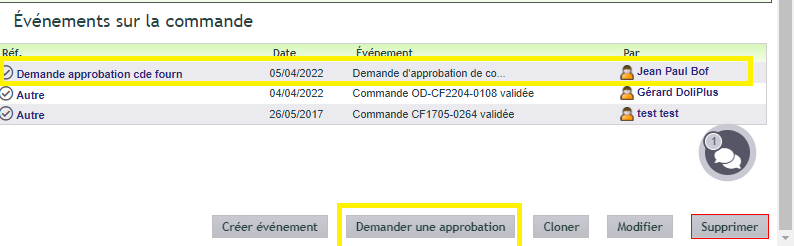
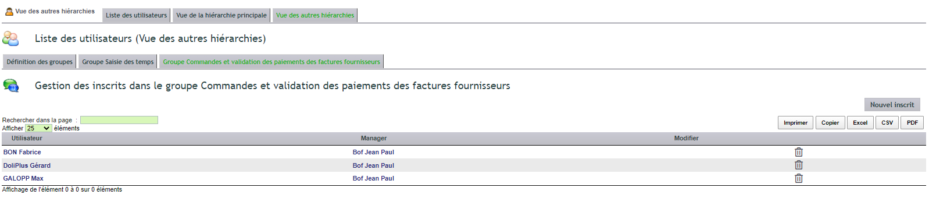
Sometimes a user lacks sufficient permissions. If they’re listed in the “Orders and supplier payment validation” hierarchy, a button lets them send an approval request to the manager.
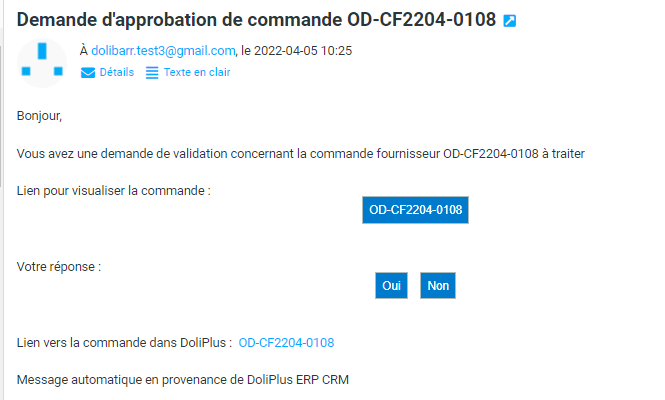
The manager then reviews the order from their inbox and responds.
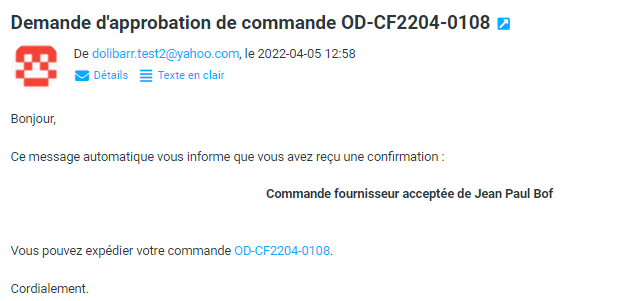
The user receives the response, and the corresponding action shows as 100% complete.
First, you create the hierarchy linked to orders, then you add users to it.

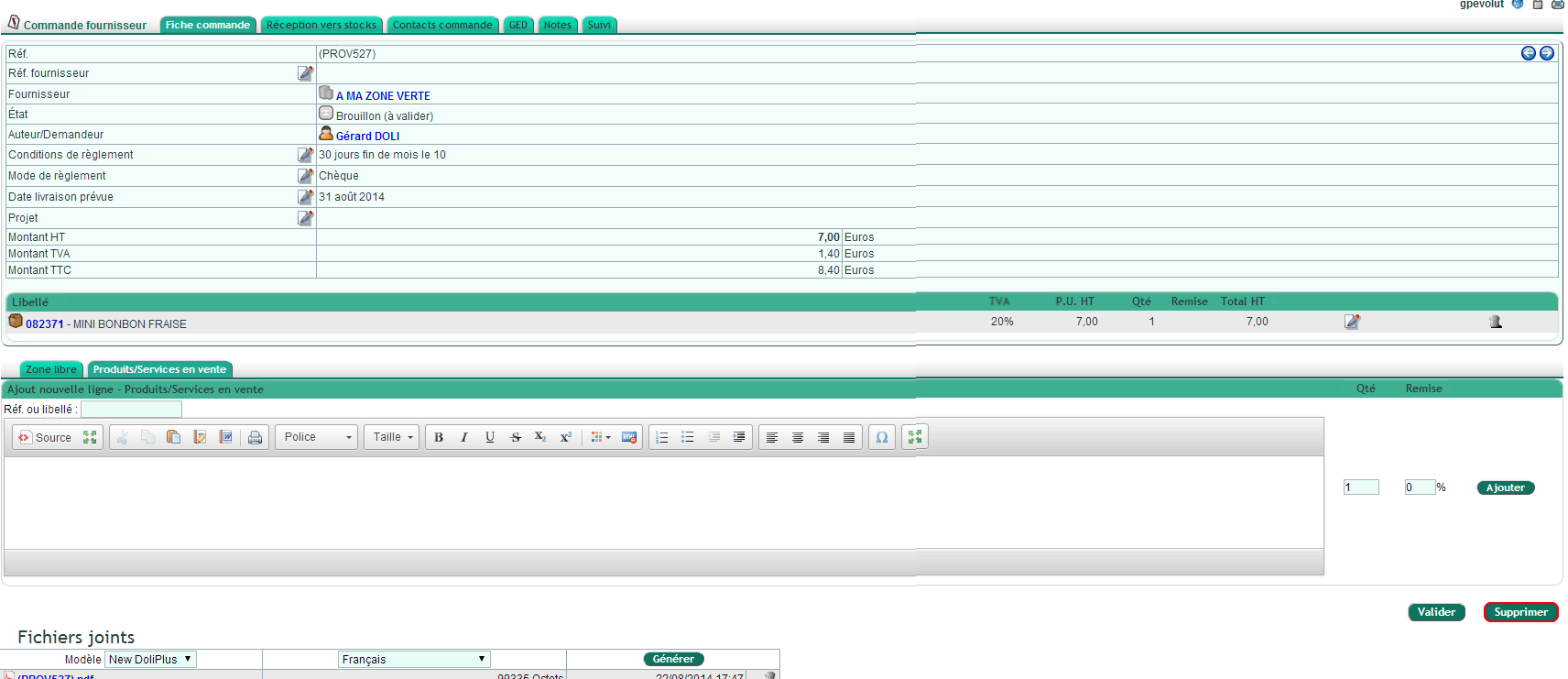
The supplier order console
In practice, data entry remains guided:
- search only suggests supplier items;
- the expected delivery date matches the desired date;
- the supplier reference usually serves as the order reference;
- the manager’s details are copied to the order.
Receiving goods
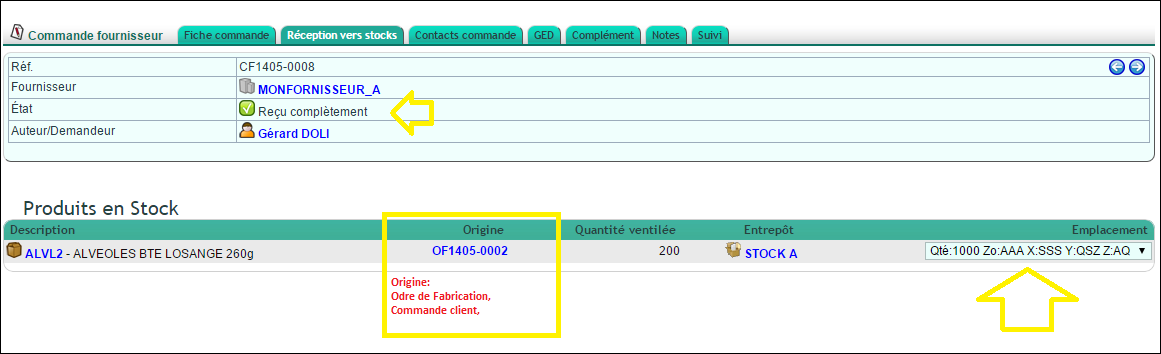
On receipt, DoliPlus provides several key details:
- a receipt status (partial, complete, never received);
- a link to the original document (customer order, manufacturing order, intervention);
- assignment to the selected warehouse;
- if location management is enabled, the location coordinates and associated stock.
Contacts and delivery address
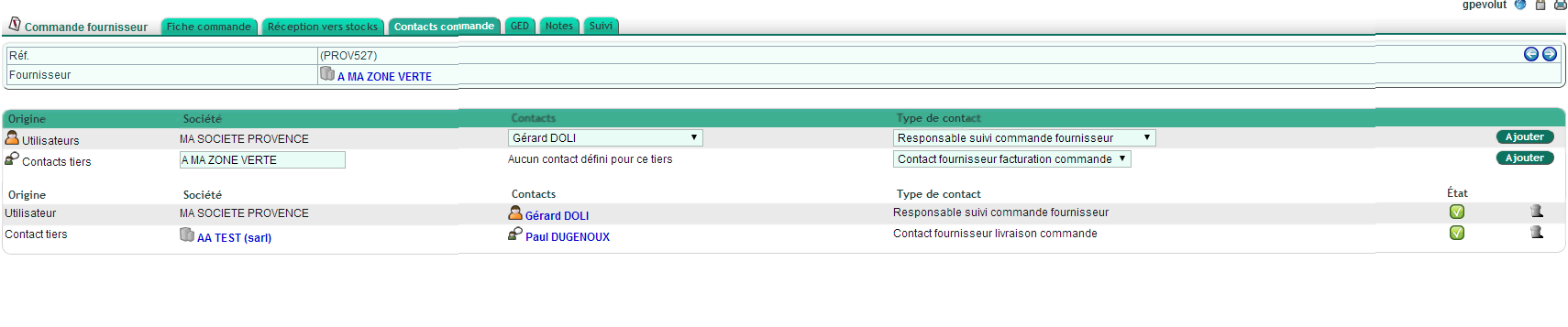
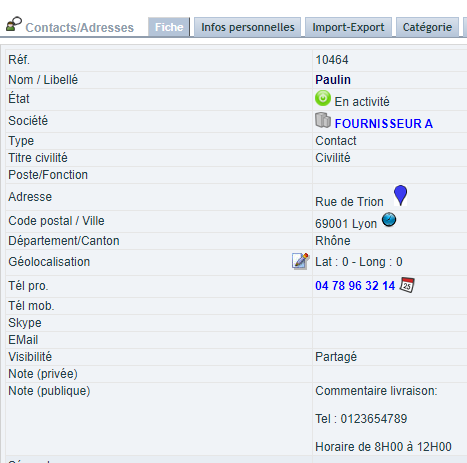
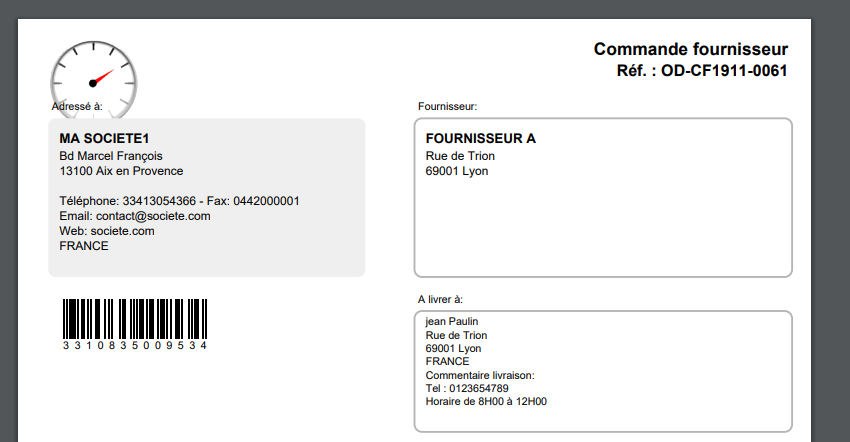
You specify a delivery address via the “Supplier Delivery Order Contact”. This differs from customer orders: here, it’s an external contact that may refer to an agency, warehouse, or logistics centre.
If needed, create a customer or supplier record with their contact. Additionally, to automate the delivery location, use the default contact function.
Note: the public note for the contact clarifies delivery terms, such as opening hours.
Creating a supplier order from other modules
From the customer order
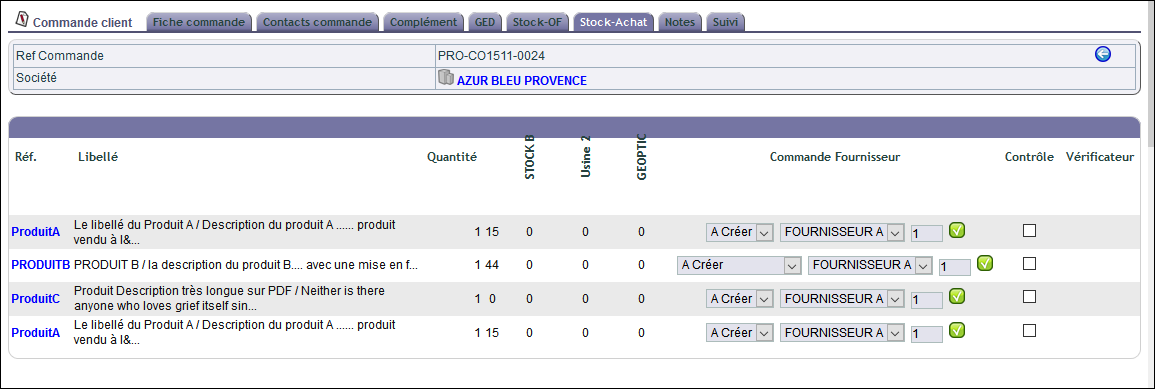
This feature is enabled in the StockPlus module. You can then create a supplier order directly from a customer order item.
In practice, a new tab in the customer order replicates its content. You then add these items to a new or existing supplier order. Additionally, a link connects the lines of both orders, simplifying tracking on receipt.
Via replenishment
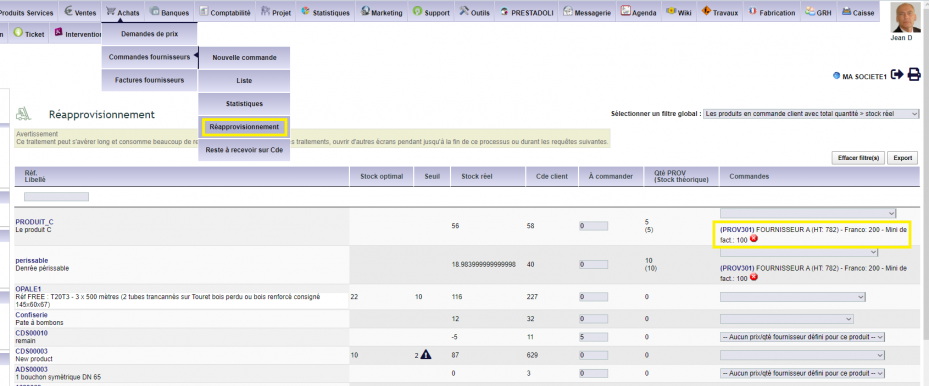
This feature is also active in StockPlus. This time, DoliPlus groups all stock shortages to process them globally.
As a result, the direct link between lines disappears due to the grouping. However, other tools quickly identify “shippable” orders upon receipt.
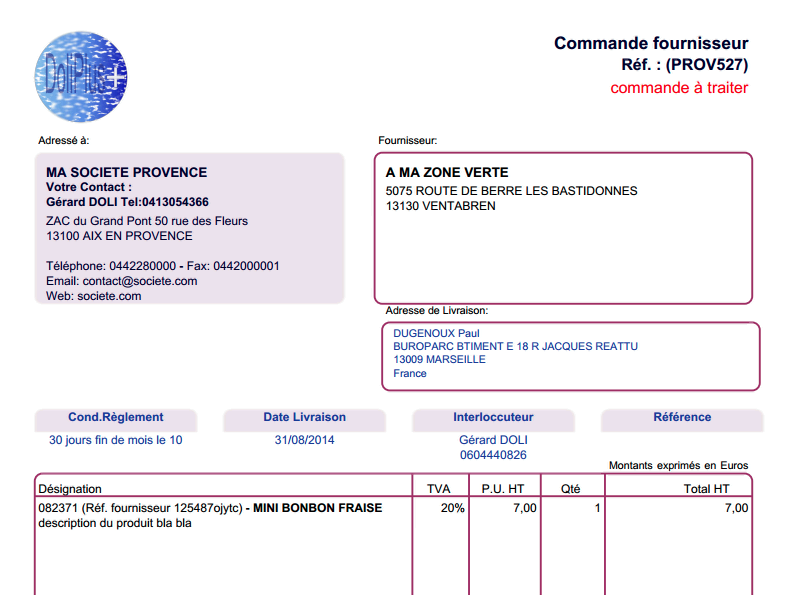
PDF document editing
As with the New DoliPlus client-side series, borders and colours remain configurable.
Validation checks
DoliPlus offers standard validation checks. To learn more, see the dedicated chapter.
Additional settings to configure
Several supplier order-specific parameters are available in Home → Configuration → PDF/Interface Settings:
| Ref. | Description | Access |
|---|---|---|
| PG32 | Makes selecting a project mandatory to validate the supplier order | Admin |
| PG58 | Makes the delivery date mandatory to validate the order | Admin |
| PG99 | Changes the label “Delivery date” to “Shipping date” | Admin |
| PG85 | Enables “Amount to invoice” and “Invoiced (excl. VAT)” columns in the list | SuperAdmin |
For the full list, refer to the PDF/Interface Settings chapter.
