 on 21 August 2026
 ERP task management: every deadline comes back to you on time
ERP task management: every deadline comes back to you on time
ERP task management fits into a single DoliPlus module, TodoDoli, built straight into your business software:
- a Kanban board where your tasks move from one column to the next;
- reminders by notification or email, each carrying the exact name of the task;
- every task linked to a customer, a quote, an invoice or a project;
- delegation to a colleague, with follow-up on what you handed over;
- a quick drawer you can open from any page;
- and the same comfort on mobile, driven by finger gestures.
Therefore, you stop juggling a sticky note, a spreadsheet and your ERP. Your tasks live next to your customers and your documents — and the software chases you, instead of your memory alone.
DoliPlus is the enhanced cloud edition of Dolibarr. Unlike a plain checklist, TodoDoli connects deeply with every business object in your ERP: customer records, invoices, orders and projects. As a result, a task points to a real action of your business, which turns it into the nervous system of your daily work.
The Kanban board — your productivity cockpit
The main TodoDoli page shows a three-column Kanban board, inspired by agile practice:
- Pending — tasks created but not started yet
- In progress — tasks between 1% and 99% complete
- Done — tasks at 100%, displayed on demand
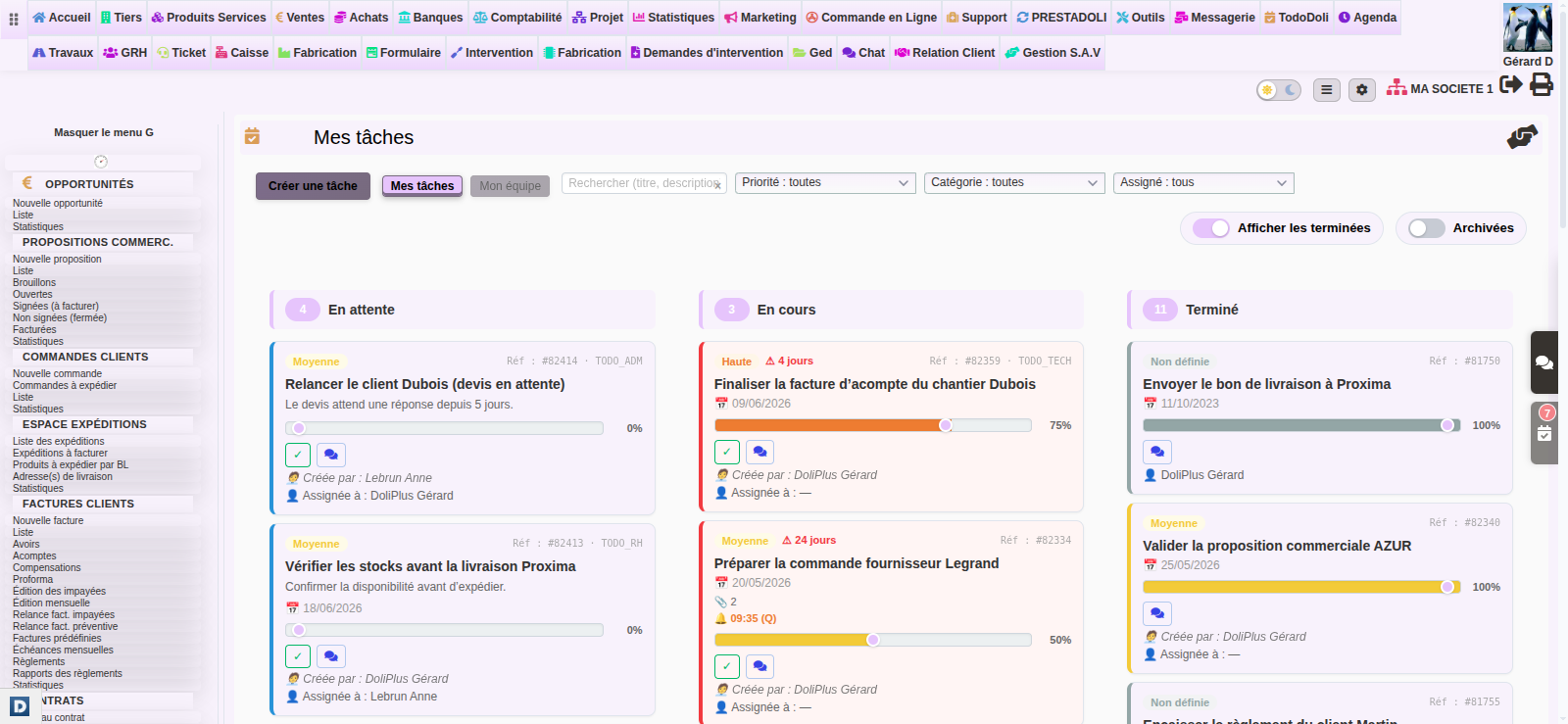
Each card shows, at a glance: the priority level as a colour code, the title, the due date, the assignee, the progress and any attached files. Moreover, you drag a card from one column to another, including from a touch screen.
Visual priorities
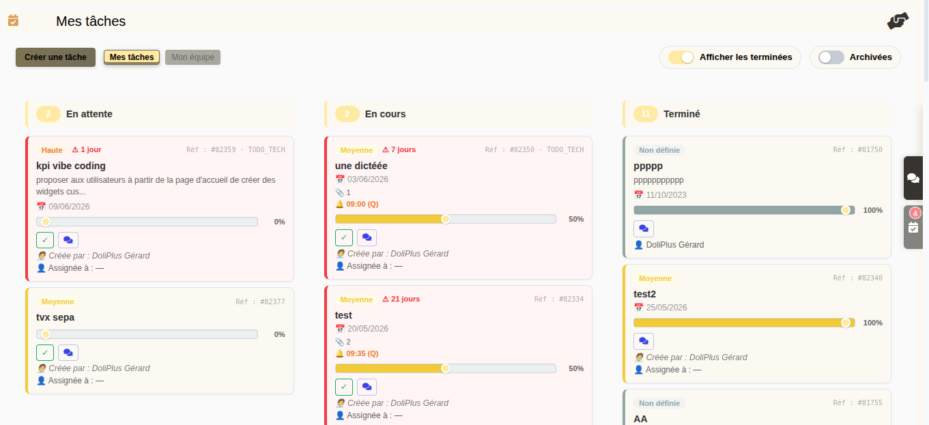
Every task carries a priority you can read by colour alone:
- 🔴 Critical — handle immediately
- 🟠 High — schedule first
- 🟡 Medium — standard
- 🟢 Low — no rush
Progress slider
A slider sits directly on the card, so you update progress from 0 to 100% without opening any form. Consequently, the column holding the task changes on its own, following that percentage.
Creating and organising your tasks
Creating a task takes less than 30 seconds. Indeed, when you click “Create a task”, a form opens with these fields:
- Title — a short name for the task
- Description — any further detail
- Due date — to track your deadlines
- Priority — Critical, High, Medium or Low
- Category — Technical, Sales, Administrative, HR, Finance, Other
- Assigned to — hand the task to a colleague, if your rights allow it
- Colour — tint the card for instant visual sorting
Furthermore, you schedule a reminder while you create the task, so you never reopen it afterwards. In addition, a microphone button lets you dictate the description out loud rather than type it — handy for capturing an instruction quickly.
Linking a task to an object in your ERP
This is one of TodoDoli’s real strengths: each task links straight to a business object — a customer record, an invoice, an order, a sales proposal or a project.
In practice, open the TodoDoli drawer from the record you are working on. The task you create then picks up the context of that record automatically. For example, it works on:
- Third-party records, customers as well as suppliers
- Customer and supplier invoices
- Customer and supplier orders
- Projects
- Sales proposals, in other words quotes
The task keeps that link afterwards. That is why a “View object” link on the Kanban card takes you back to the record in one click. Thus, you keep the business context without digging through history.
Reminders and notifications
TodoDoli offers two complementary reminder systems, because the needs differ:
Global reminders for every task
When the notification module runs, you set automatic reminders covering all your tasks — for example, “warn me 30 minutes before every deadline”. You configure this once, from your notification profile page.
Per-task reminders
For recurring or specific work, you set an individual reminder, either while creating the task or later from the edit dialog, on the board as well as in the quick drawer. First, pick a time; then choose a frequency — daily, weekly or monthly; finally, tick “send by email” if you want an alert outside DoliPlus. A 🔔 badge showing the configured time then appears on the card.
Moreover, every reminder carries the full task label: the notification and the email both show the exact name of what needs doing. Therefore you know what it concerns without opening DoliPlus — which matters especially on mobile, where people skim notifications.
Filters, search and advanced views
Above the board, several tools help you find the right task instantly, without reloading the page:
- Search — by word in the title or the description
- Priority filter — Critical, High, Medium, Low
- Category filter — Technical, Sales, HR and so on
- Assignee filter — or unassigned tasks only
In addition, two switches display completed tasks or open the archived view. DoliPlus remembers each preference from one visit to the next.
Managers also get a “My tasks / My team” toggle on the board itself. However, it only appears when you genuinely supervise someone. In team mode, a further menu filters the board by colleague, so you read everyone’s workload at a glance.
The quick drawer — your tasks from any page
Like the messaging drawer of the Chat module, TodoDoli has its own floating tab on the right edge of the screen. One click opens a side panel showing your five most urgent tasks, while you stay on the page you were working on.
That panel holds:
- the number of active tasks in an orange badge, or overdue ones in an animated red badge
- the 5 priority tasks, sorted automatically
- a full “Create” button — title, due date, priority, category, assignee, colour and even a reminder
- a “See all my tasks” link to the complete Kanban board
Learn more about the DoliPlus Chat module
Teamwork — delegation and permissions
TodoDoli separates two roles clearly: the person who creates or delegates, and the person who carries the task out. Consequently, follow-up stays transparent and no grey area survives inside the team.
Besides, you configure module rights per user from the administration area:
- See own tasks — read the tasks you created or received
- Create tasks — add and edit tasks
- Delegate — assign tasks to other users
- Supervise a team — see the tasks of the colleagues you supervise
- Administration — manage configuration and categories
Finally, a TodoDoli task also counts as an agenda action, so your deadlines show up in the shared DoliPlus calendar.
Discover the shared online calendar
Attaching documents to a task
You attach one or several files to any task — a purchase order, a screenshot, a contract — straight from the edit dialog. Moreover, attachments appear on the Kanban card behind a 📎 badge showing how many there are, and they stay reachable once the task is done.
ERP task management on mobile, at your fingertip
On a smartphone, ERP task management runs through the DoliPlusMobi app. You find the same Pending, In progress and Done columns, driven entirely by finger gestures. Therefore simple moves replace clicks, which keeps follow-up quick while you travel.
- Tap a card to open the task and edit it.
- Long press then drag to reorder tasks inside a column.
- Swipe left to move the status on: Pending becomes In progress, then In progress becomes Done; likewise, a finished task can go back to In progress.
- Swipe right to archive the task. A striped red “Archive” background appears, exactly as in a mail app.
Besides, the description area grows when you drag its handle, so you type a long text comfortably. Finally, action buttons stay on a single row, which protects readability on a small screen.
Discover the DoliPlusMobi mobile app
Archiving and restoring completed tasks
Over time, completed tasks pile up. To keep the board readable, you therefore archive them: the task leaves the columns, yet DoliPlus keeps it. That is why archiving stays a safe move — you can always undo it.
To find an archived task, open the “Archived” view — a dedicated tab on mobile, a dedicated entry on desktop. From there, the “Restore” button puts the task back into the Done column in one click. Thus nothing ever disappears, and your history stays available at any moment.
How to switch TodoDoli on
- Sign in to DoliPlus as an administrator
- Go to Administration > Modules
- Search for TodoDoli, then click “Enable”
- Set the access rights for your users from Administration > Users
- The TodoDoli menu appears in the navigation bar, so you can create your first tasks right away
Related Entrées
