 on 5 September 2026
 Supplier invoice in DoliPlus
The supplier invoice in DoliPlus lets you record your purchases, track payments, and export entries to accounting without re-entering data. This way, you fully control your expenses.
Configure the supplier invoice
To get started, activate the module. First, log in with an admin account, then go to Home → Configuration → Modules.
Next, select the tab containing the module and click “Activate”. The module is then ready.
Finally, if an icon appears at the end of the line, click on it. This takes you to the module’s specific settings page.
Create a supplier invoice
Currently, DoliPlus handles debit invoices, i.e. standard invoices. There are no specific prerequisites.
First, create the invoice as a draft. You then add products or services already recorded, or enter the description, VAT rate, and unit price directly. For each line, you finally specify a quantity and, if applicable, a discount.
Once the invoice is ready, validate it. However, be aware that this operation is irreversible. Upon validation, DoliPlus automatically assigns a number, according to the chosen numbering model.
If an error occurs after validation, you then create either a replacement invoice or a credit note.
Create a supplier invoice from the order
Additionally, a “Partial invoice” button creates an invoice as soon as the order is in draft.
For a deposit, for example, you select all lines and adjust the quantities. You can also delete them, then create a single line with the desired amount.
Record supplier payments
To pay an invoice, select it from the list, then click “Issue payment”.
In the window that opens, enter the date, payment method, optional number, and bank account. Finally, enter the paid amounts at the end of the line, then save.
Late payment alert
Additionally, a flag indicates delays directly in the lists. You set this tolerance in Home → Configuration → Alerts.
Classify the supplier invoice
After payment, the invoice moves to the “Started” status. To consider it as settled, then classify it as “Paid”: select it, click “Classify as Paid”, then confirm.
Warning: as long as an invoice is not classified as “Paid”, it remains counted among overdue invoices, even if the payment is issued.
Example: supplier invoice then credit note due to an error
| Situation | I receive a supplier invoice, then a credit note due to an error. |
| Actions | I enter the supplier invoice (debit invoice). I then enter the credit note as a supplier invoice with a negative amount. I pay both, including a negative payment on the credit note. Finally, I classify both invoices as “Paid”. A positive payment and a negative payment then appear on the bank statement. |
The supplier invoice console
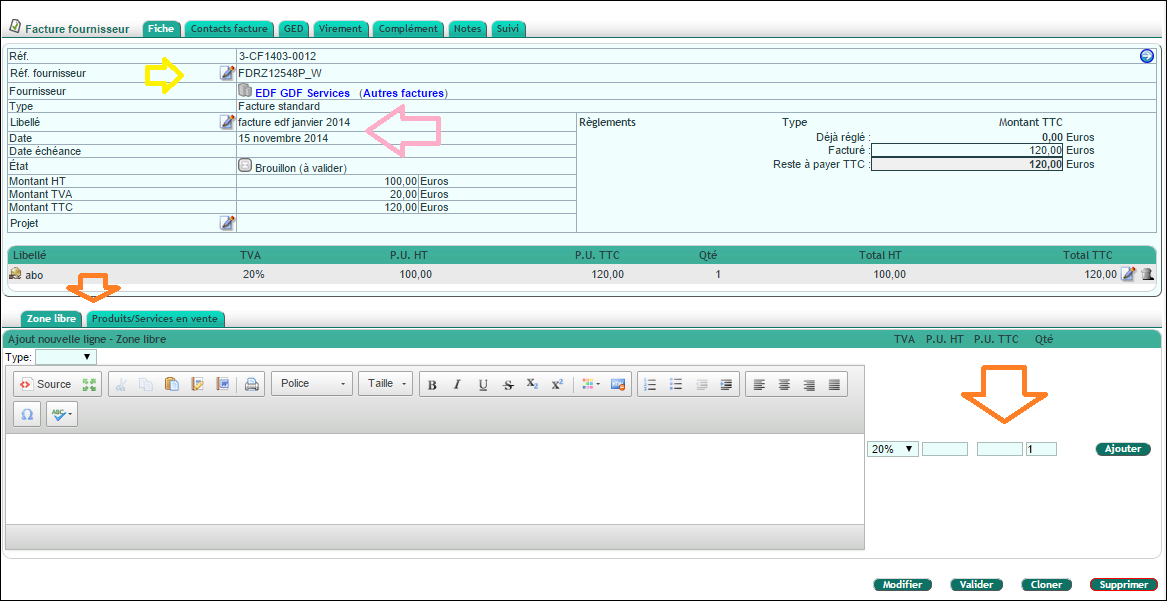
In practice, data entry is guided:
- the search only suggests supplier items;
- the description serves as an internal reference to better identify the invoice;
- the supplier ref. takes the one provided by your supplier;
- in the free field, you enter the pre-tax and post-tax amounts, and DoliPlus calculates the VAT;
- you store the original invoice in the document library;
- the Transfer tab issues SEPA transfers;
- the Additional tab adds your custom fields.
Advance invoice on supplier order
Have you paid a deposit to a supplier? Record it as a deposit invoice, then link it to the relevant purchase order: you’ll always know what you’ve already paid upfront and what remains due upon delivery.
Note a key principle: in DoliPlus, the purchasing workflow is separate from sales. Supplier deposit invoices therefore follow their own procedure, which isn’t a mirror of customer deposits. Deposit invoices for supplier orders.
Assigning accounting codes
When the accounting module is enabled, DoliPlus automatically allocates accounting codes:
- for catalogued products, based on the purchase accounting code and chart of accounts;
- for non-catalogued products, via manual assignment during data entry.
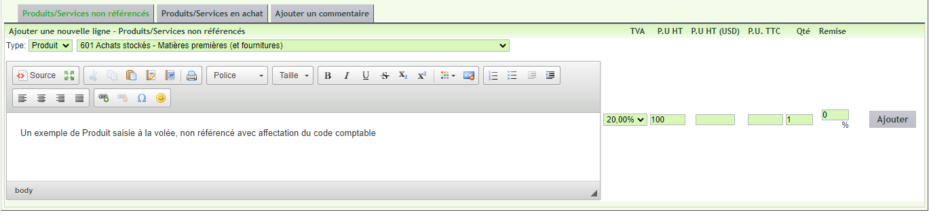
You can preview these allocations by hovering over the product.

Streamlining incoming invoice sorting
To save time, explore digital management of received supplier invoices.
Debt and credit offsetting
Is a partner both your customer and supplier? Offsetting clears what you owe them and what they owe you in one operation. You settle reciprocal accounts without unnecessary back-and-forth transfers.
DoliPlus matches the relevant supplier invoice and customer invoice, then settles both up to the offset amount; any remaining balance is processed normally. Debt and credit offsetting.
Additional configurable options
Several PDF options specific to supplier documents are available under Home → Setup → PDF/Interface Settings:
| No. | Description |
|---|---|
| 119 | Display supplier barcode on documents |
| 122 | Show fax number on supplier orders |
| 144 | Hide DoliPlus reference on supplier orders |
| 145 | Hide supplier reference on supplier orders |
| 146 | Hide DoliPlus reference on supplier invoices |
| 147 | Hide supplier reference on supplier invoices |
| 165 | Don’t show product descriptions on purchase PDFs |
For the full list, see the chapter PDF/Interface Settings.
