 on 22 October 2026
 Setting Up Copier Meter Readings
Import a new copier counter report type
Here’s how copier meter readings work.
First, copiers send an email report of their copy usage, both black and white and colour.
This report has a fixed format. Therefore, the system records the line positions to extract. Then, it stores this information in the DoliPlus database.
Next, the system checks the mailbox receiving copier emails at regular intervals. This way, it automatically processes them.
During processing, the system first identifies the model or serial number. This step is the cornerstone of the system.
Indeed, it then applies the correct report template. This ensures the system accurately extracts the colour and black-and-white counter values.
Finally, you must also link the model name in the Equipment Database to each machine and its serial number.
How to register a new report template
To begin, follow these steps in order:
- First, copy the machine’s email content into a text editor.
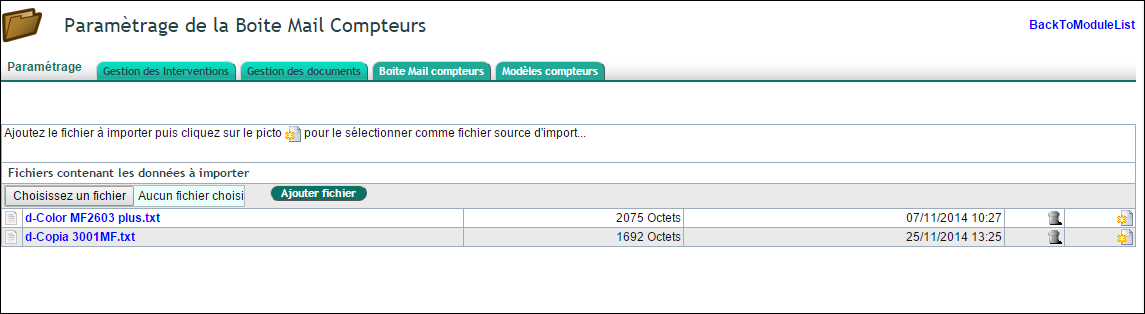
- Then, save the file exactly as the Model Name. For example: d-Copia 3001MF.txt
- Next, via the module’s admin console, go to the “Counter Templates” tab and add the file.
- Click the icon on the right, on the model’s line.
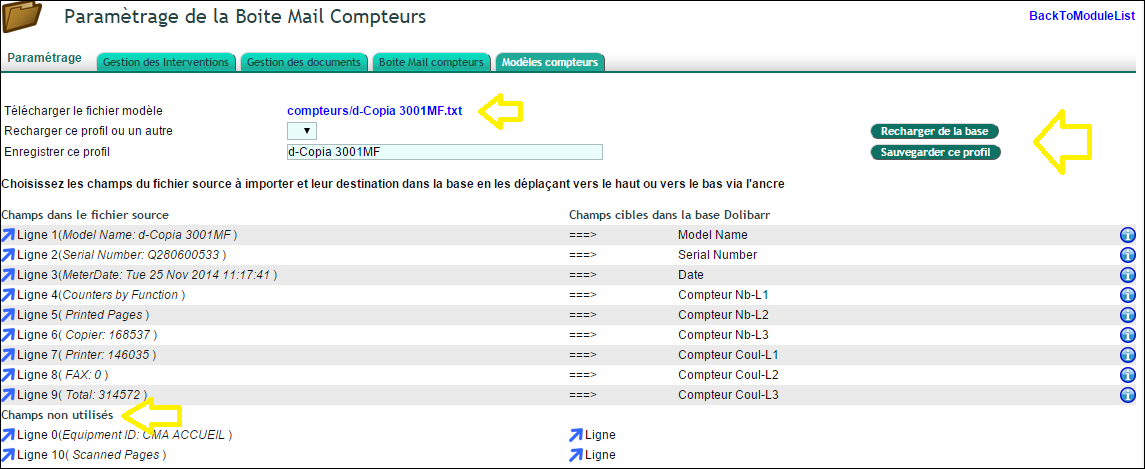
- Using the blue arrows, match the source fields to those in DoliPlus. If the black-and-white counter is a sum, use indexed fields 1, 2, 3. For example: Counter B&W-L1 ===> Counter B&W-L2 ===> Counter B&W-L3
- Also, move unused source fields to “Unused Fields”.
- Finally, save the template.
- For the next model, repeat this process. You can also load a similar template to speed things up.
Here’s a first example of a setup screen.
Finally, here’s a second example of field matching.
Setting up the counter mailbox
In the module setup, the “Counter Mailbox” tab tells DoliPlus where to read the reports sent by your copiers: the connection settings of the mailbox, then the “Detection settings” — the services invoiced in black and white and in colour, and the phrase that comes before the serial number in the email (“Serial Number” for example). Click “Save”, then “Meter connection test” to check access to the mailbox.
Once a report template is saved, “Test an email using this template” lets you check how a report is read before letting the automatic reading run. Note: a template already linked to machines in the Equipment Database cannot be deleted; remove it first from the records concerned.
Tracking successful and failed readings
The Intervention menu, “Counters” section, offers two lists:
- “OK List”: the recorded readings, with the reading date, the customer, the serial number, the model and the colour and black-and-white counters;
- “KO List”: the latest emails that could not be read, with their date, their subject, their sender and the reason for the failure — most often a serial number not found in the email, or a machine in the Equipment Database with no report template linked to it.
The same information shows as cards on the Interventions space: “Latest meter readings” and “Meter reading errors”.
