 on 7 July 2026
 Sales order management in DoliPlus
Sales order management is the heart of your sales cycle — from a single customer order, DoliPlus chains every next step for you:
- create the order in a few clicks, straight from the customer card;
- trigger shipping, manufacturing or supplier orders from the same document;
- group several orders into one invoice when the time comes;
- print professional purchase order PDFs, with your terms and logos.
As a result, nothing gets lost between the signed quote and the paid invoice. DoliPlus is the enhanced cloud edition of Dolibarr, the open-source ERP & CRM used across Europe.
The sales order management interface
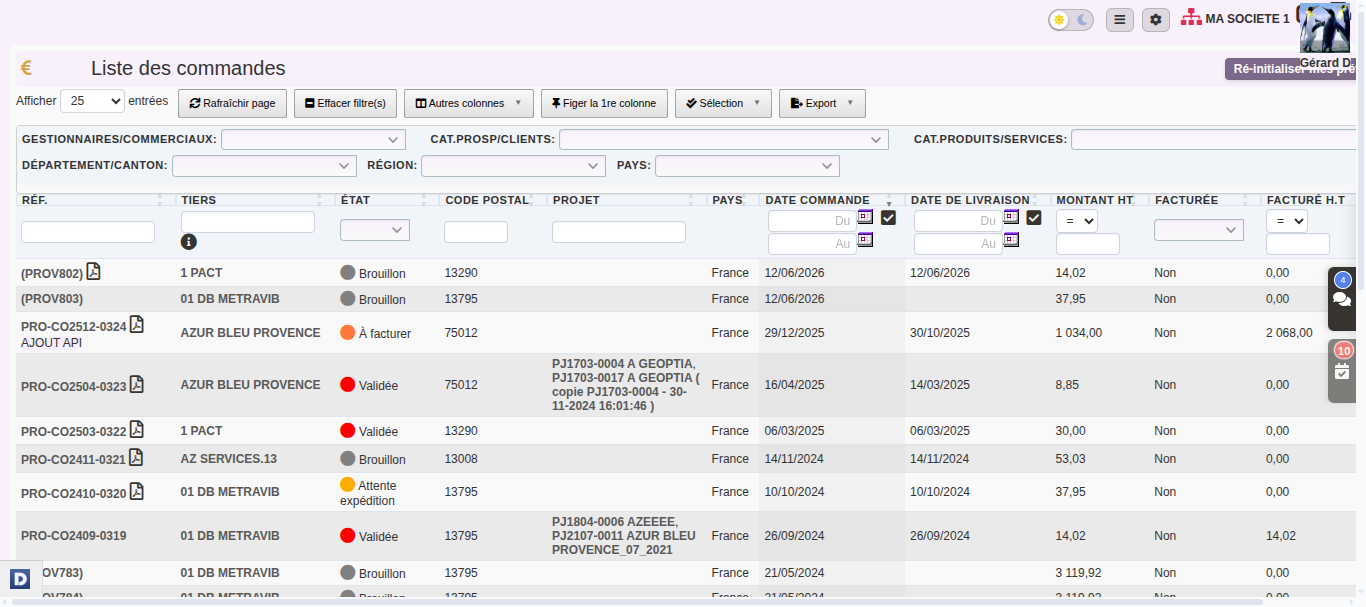
The customer order is the central document of your sales cycle: from it, you ship, manufacture, order from suppliers or invoice. Here is how to create and use the purchase order in DoliPlus.
Moreover, read these related chapters:
- The quotes, orders and invoices interface;
- The subtotal function for quotes, orders and invoices;
- The line index column for quotes and orders.
Creating a customer order
The creation of a customer order starts from the customer card. The button is located in the action bar at the bottom.
The order is then created as a draft, with its final number already assigned.
Next, you select products from your catalogue, or you enter free lines. However, to add a brand-new product, first go through the Products/Services interface.
Editing or deleting a customer order
Unlike an invoice, a customer order can be deleted.
To edit an order, simply open its card. Please note: an order can only be modified as long as it is not closed.
Automated chaining
In addition, orders can be created automatically when a quote is closed in the “signed, to invoice” state.
Chaining rules define these automations — see the chapter Automated chaining.
Choosing the contacts
The Contact tab designates the contacts on the customer side and on your side, and sets the role of each person.
Furthermore, see Default contact management to make this step systematic.
Life cycle of a customer order
A customer order follows a clear path in your sales order management:
Draft → Validated → … depending on the shipping module … → Processed
Cancelling a customer order, then reopening it
A customer changes their mind, or asks for a cancellation by mistake? On a validated order, the “Cancel” button sets it to cancelled. However, it stays in DoliPlus with its reference and history: it simply leaves your open orders.
Moreover, a cancellation can be undone. On the record of a cancelled order, click “Reopen”: the customer order returns to validated, with its reference, its lines and its linked documents. So there is no need to create it again.
Both buttons depend on the same permission, “Cancel customer orders”. Without it, neither “Cancel” nor “Reopen” appears on the record. Learn more about access rights
To correct the content afterwards, click “Edit”: the order goes back to draft. Finally, prefer cancelling to deleting as soon as an order has been sent to the customer, because cancelling keeps a record of what was agreed.
Delivery addresses
See the chapter Delivery addresses.
Supplier orders from a customer order
You can generate the matching supplier orders directly from a customer order — see the chapter Supplier orders.
Lot and serial numbers
See the chapter Lot and serial numbers.
Sales and purchase units
See the chapter Sales and purchase units.
Adding your terms of sale
Attach your general terms of sale to your documents.
- Read the chapter General terms of sale.
Grouping orders into one invoice
Therefore, at billing time, you can merge several orders into a single invoice — see the chapter Grouping orders into an invoice.
Validation checks
DoliPlus offers standard validation checks on orders. Read more
PDF documents
Formatting the documents
Activate the layout options in the PDF/Interface settings. For example, in the New DoliPlus series, borders and colours are configurable.
To go further, see the document generation templates and the PDF customisation.
You can display the logos of your certifications and services at the bottom of the page — read more.
Additional options
Finally, many options customise the display of this document on screen and on the PDFs: show or hide columns, enable delivery addresses, supplier references, terms of sale, footer logos, and more.
For the complete list of available options, refer to the chapter PDF/Interface settings.
Related Entrées
