 on 7 July 2026
 Point of sale software built into your ERP: the DoliPlus cash register
Point of sale software built for the counter
The DoliPlus point of sale software has a new face, and several new tricks:
- a touch catalogue in pictures, filtered by category;
- a “My till” shortcut bringing up your best sellers and your latest sales;
- a receipt always in view, whose quantities are corrected with one finger;
- a dark display with large figures, readable from the far end of the counter;
- quick banknote buttons when it is time to give change;
- an “Automatic scan” switch, to ring items up at speed or adjust the price one sale at a time;
- a screen that finally fits a tablet and a phone.
In other words, you take payment faster at the counter, and your stock, your prices and your accounts stay up to date without a single re-entry. DoliPlus is the enhanced cloud edition of Dolibarr, the open-source ERP & CRM used across Europe.
Why point of sale software belongs inside your ERP
A standalone till always lives apart. Indeed, you then have to re-import the sales, realign the stock and copy the customers over. Here, on the other hand, the shop sale feeds the very same database as your quotes, your invoices and your web store.
Consequently, every payment updates stock and accounts in real time. Moreover, you find the customer purchase history on their record straight away. You therefore save time and cut copying mistakes.
A sales screen designed for standing up
The shop assistant works standing, often on a touch screen, with a customer facing them. The point of sale software therefore follows the habits of a counter rather than those of a management form.
First, the catalogue fills the screen: thumbnails with a photo, a label, a price and the remaining stock on a badge. There is no tab to hunt for, no form to open before selling. Then categories filter with one tap. Finally, the “My till” shortcut puts your best sellers of the last thirty days at the top, followed by the most recent sales.
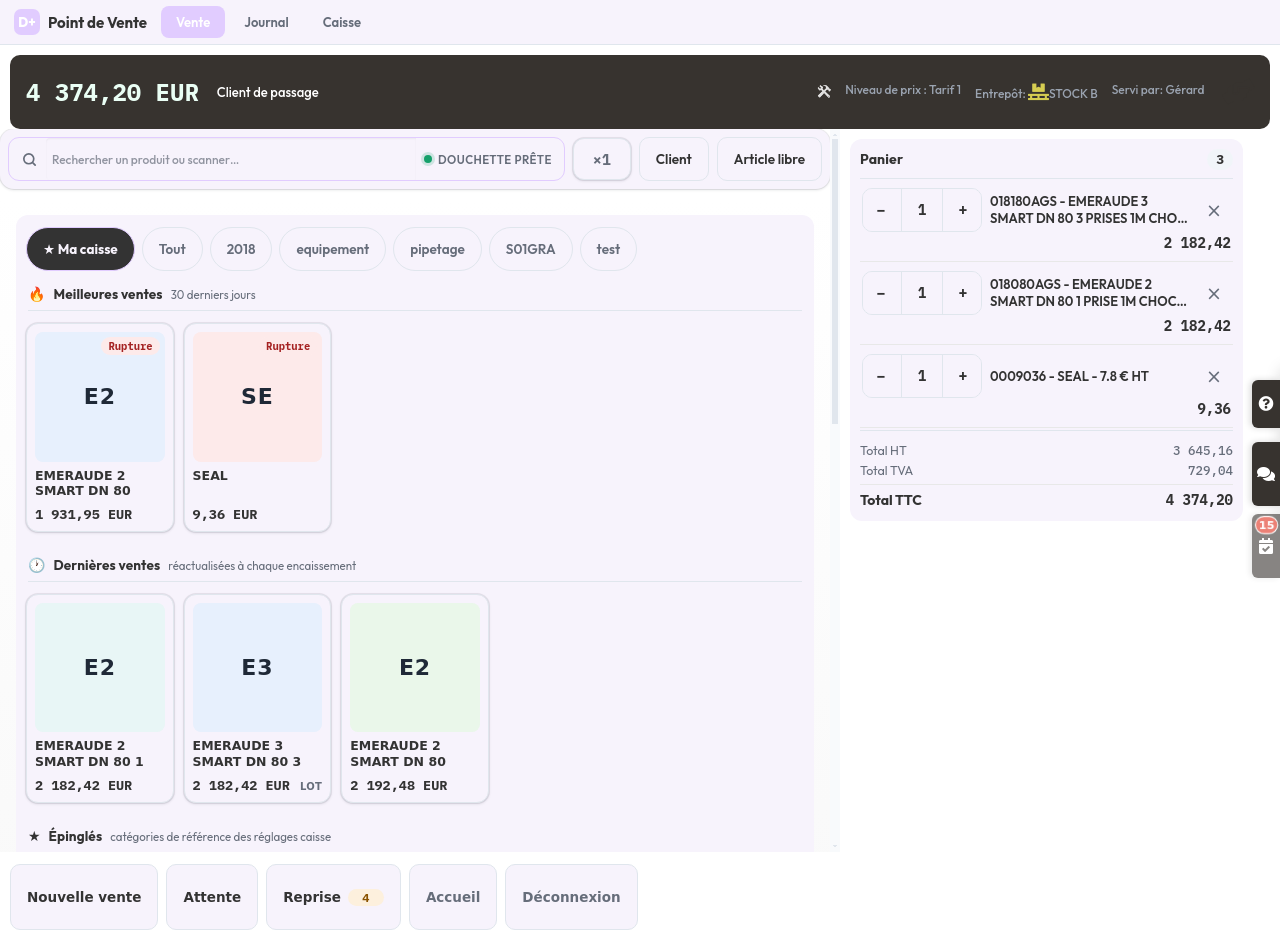
On the right, the receipt stays on screen permanently. Consequently, the customer sees what they are buying and the assistant corrects a quantity without reopening the line: two buttons, − and +, are enough. Moreover, the total appears in large clear figures on a dark background.
At payment time, banknote buttons (5, 10, 20, 50, 100) and an “exact change” button work out the change to give. The number pad only appears when you type a figure: the rest of the time, the space goes back to the catalogue.
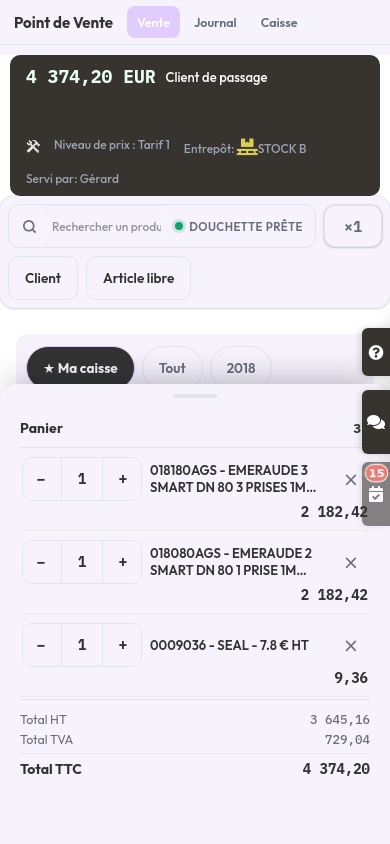
On a large screen as on a tablet, everything fits within the height of the screen: nothing left to scroll to reach the receipt or the payment button. On a phone, the receipt folds into a bar showing the item count and the total at all times, and unfolds with one tap. Your till therefore follows the assistant, from the counter to the stockroom.
Ring items up at speed, or adjust the price: you decide
A counter has two rhythms in the same day. Sometimes the queue moves and every gesture counts. At other times, a customer negotiates a discount or leaves with an item at an agreed price.
Therefore, the till lets you switch between the two at any moment. The “Automatic scan” switch sits in the search bar, next to the “Customer” and “Free item” buttons.
- On: the product joins the receipt with a single tap. You can therefore ring up one item after another without leaving the catalogue.
- Off: the item detail opens instead. You then adjust the price, the discount or the quantity before confirming.
Moreover, the setting belongs to each salesperson: on the same machine, two cashiers therefore keep their own choice. Finally, it applies to every way of adding an item — the picture catalogue, the barcode scanner and the reference search.
Can’t see the switch on your screen? It is simply waiting for a green light. Indeed, your administrator turns it on from the till settings, with the “Add product automatically when scanned” option. While that option stays off, every sale goes through the item detail.
Finally, note that this setting applies company by company. Therefore, if you run several of them in DoliPlus, turn it on for each one that sells over the counter.
The key functions of the till
The till covers the daily life of a shop. In particular, you get:
- multi-criteria item search, by barcode or by picture thumbnails;
- adding an unlisted product on the fly;
- a view of the real or theoretical stock attached to the till;
- putting a receipt on hold to serve another customer;
- automatic totalling of quantities of the same reference;
- split payments and deferred payment;
- sales history, with receipts and invoices reprinted on demand;
- an optional loyalty scheme.
Besides, the touch interface and the number pad suit large screens as well as tablets. Finally, a Bluetooth or USB barcode reader connects without difficulty. You can even switch on direct validation as soon as the code is scanned.
How it works: the invoice in real time
Every sale systematically generates an invoice, then its payment. Moreover, stock updates itself if you switched that option on. When needed, a delivery note is produced too and stays attached to the invoice.
Everything is recorded in real time on your dedicated server, reachable securely in the cloud. In other words, there is no offline mode: the till stays connected during the sale.
If the customer would rather not give their name, the sale goes to a “walk-in” customer defined in the settings. You then issue either an invoice or a simple receipt.
Setting your till up
Setting the point of sale software up stays simple. First, you name the “walk-in” customer and the stock warehouse attached to the till.
The settings screen has been redesigned too. Each option fits on one line, with a sentence explaining what it really changes for the assistant.
Then you choose the price class applied. You either keep the customer price level, or a single level for every shop sale. Besides, you switch on automatic receipt printing, validation on barcode scan or the totalling of identical quantities as you see fit.
Finally, thumbnail selection relies on your product categories. To add pictures to those categories, see category management. Remember to give invoicing rights to your sales staff too.
Making a sale
A sale takes a handful of gestures. Here is the typical path:
- Choose the customer: the “walk-in” account, an existing customer (name, phone, email, barcode) or a new company created on the fly.
- Add the products by reference, by barcode or through the picture thumbnails.
- Enter the quantity, then adjust the discount if needed.
- Choose the payment method, then validate.
You may combine several payments on a single sale. If deferred payment is active, you confirm the sale without taking the money: the invoice then stays “unpaid”. Finally, you print the receipt or the invoice, then start a new sale.
Payment methods and till journal
You handle cash, cheque and card payments. Moreover, you add up to five optional methods — luncheon vouchers or gift vouchers, for instance.
Each method points at a specific bank account. Every payment therefore creates the accounting entry in the right place, with no re-entry. You then follow your takings transparently.
Cancel or correct a sale
A price or quantity mistake is easy to put right. Indeed, you simply issue a credit note to cancel all or part of the payment.
To do so, find the invoice in the sales journal, then proceed as usual in your management screens.
The loyalty scheme (optional)
A set number of visits to the till opens the right to an accumulated discount, calculated over a period you fix in the settings. You therefore reward your regulars automatically.
Moreover, you can exclude certain product categories from the benefit. Once the visit threshold is reached, the discount shows directly on the till screen, then the receipt states it to the customer.
Sales and cash journals
The sales journal shows the day sales by default. However, a date selector lets you go back over any period, then export the result to a spreadsheet or to print.
The cash journal, for its part, shows the entries of the cash account. You therefore follow your takings day after day, without surprises.
Compliance and hardware
The till complies with French regulations on point of sale software. For the detail, see the regulation of till software.
On the hardware side, a recent browser is all you need, on a computer as on a tablet. Besides, the barcode is scanned straight into the product search field.
Further reading
To go further, see the definition of value-added tax on Wikipedia.
