 on 5 September 2026
 Category management
Category management in DoliPlus
With the category management module, you can easily create segments in your DoliPlus CRM ERP software. It covers all 4 category types:
- customers/prospects,
- suppliers,
- products,
- customer/supplier contacts.
Applications are numerous. For example, you can:
- Refine your marketing strategy. Market segmentation involves identifying buyer subgroups with similar needs and purchasing behaviours. The Marketing module uses categories in its bulk tools (fax, SMS, email) to target the right message to the right subgroup. email dispatch via a dedicated routing system
- Efficiently manage product families,
- Organise contact lists with precision,
- Track prospect leads through website integration,
- Segment prospects and customers by territory. Reporting features then help monitor performance and steer initiatives that deliver ROI.
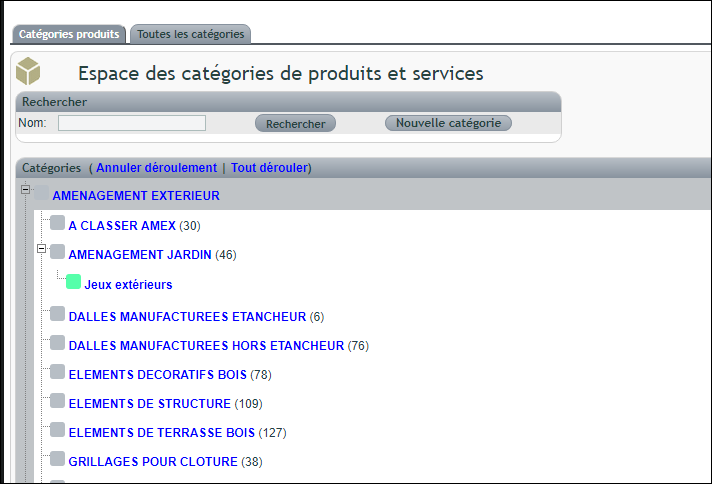
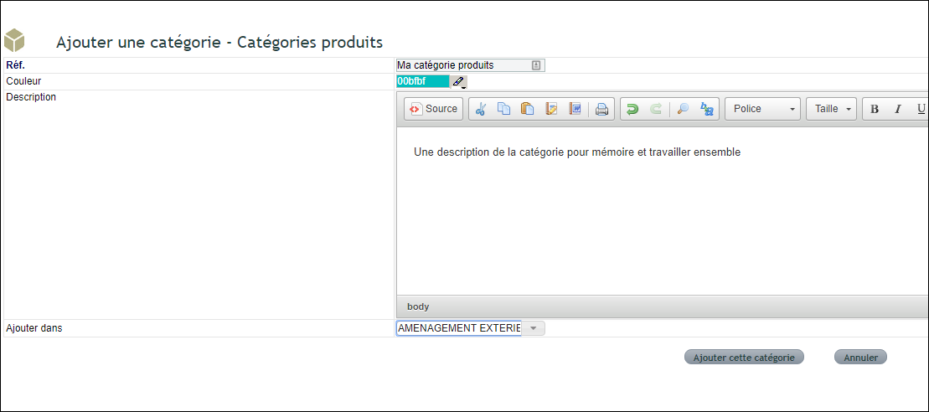
How to create a category
Shortcuts let you create categories by type. The Customers, Contacts and Products menus each create their own category type.
The “Add to” field then links the category to a parent category. Note: the hierarchy is limited to 10 levels.
How to use categories
Start by creating a category based on your segmentation purpose, via the Customers or Products/Services menu.
Then assign items to a category:
- For a prospect, customer or supplier, go to the “Category” tab in their record.
- For a product, use the “Category” tab in the Products/Services record.
- For a contact, access the “Category” tab in the Contact/Address section.
DoliPlus displays Parent/Child categories as a tree structure, helping you organise classifications.
Note: there is no content correlation between Parent and Child categories.
Bulk-add content to categories using predefined customer or product lists
DoliPlus also enables bulk classification from these predefined lists:
- Products/Services, via the main Products/Services menu then “list” submenu,
- Customers, Prospects or Suspects (neither customer nor prospect), via the Customers menu,
- Suppliers, via the Customers menu,
- Customer/supplier contacts.
Here’s an example with Customers/Prospects; the process is similar for other categories:
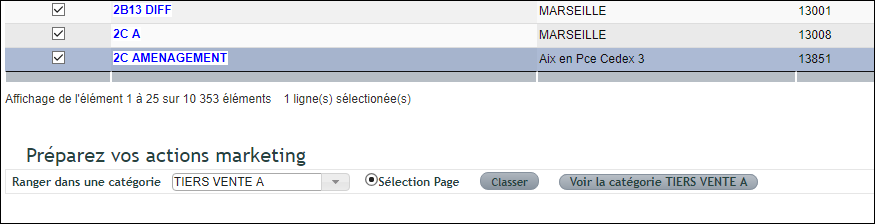
- Use the toolbar at the bottom of the list page,
- Optionally create a category; a shortcut link is also available on the right,
- Select the category,
- Make your selection using the table’s other filters.
Selection mode:
- At the bottom of the table, the “page selection” only adds the ticked rows on the current page. For a broader selection, first maximise the page display.
Finally, the temporary “View category XXX” link lets you instantly check the category’s contents.
Categories also serve as temporary selection baskets. Use them to organise phone follow-ups or bulk email/SMS actions.
Tip: structure your categories hierarchically. For example:
Trade shows -> 2019 -> Porte de Versailles. Year-based sorting lets you track and follow up leads from the event, then monitor their relevance year after year.
Prospecting -> Marie -> File XXX -> South-east region. Temporary categories help segment workloads and assign tasks efficiently.
Note: you can also assign a category during DoliPlus customer/supplier file imports.
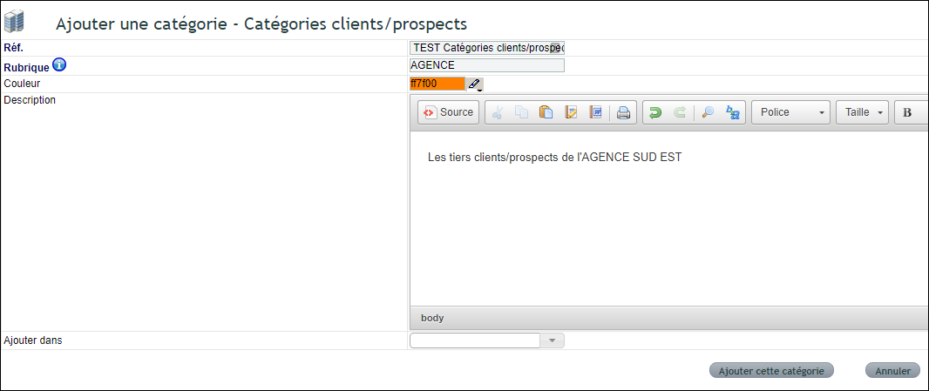
Using categories to define sales territories
The category field stores tags used in statistics, extending their functionality.
For example, AGENCY categories can define geographic sales territories (commercial agency zones, account manager regions, etc.).
Using product/service categories to group items by family
Again, you can assign these during DoliPlus imports to a category and subcategory. Refer to the Sales & Purchases Pricing Management – Imports and Updates documentation. The image above shows a building materials catalogue classification.
Managing category contents – “Management” tab
Access requires “Category Management” rights in the module.
This tool handles Customer/Prospect, Supplier, Product and Contact categories. It lets you:
- Perform bulk additions/deletions within a category type,
- Launch category-specific operations.
“Management” tabs across category types
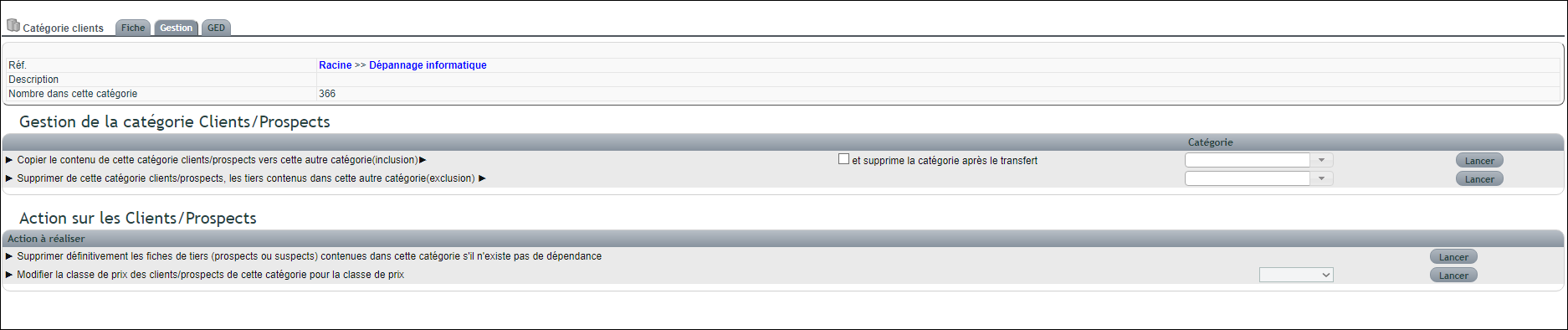
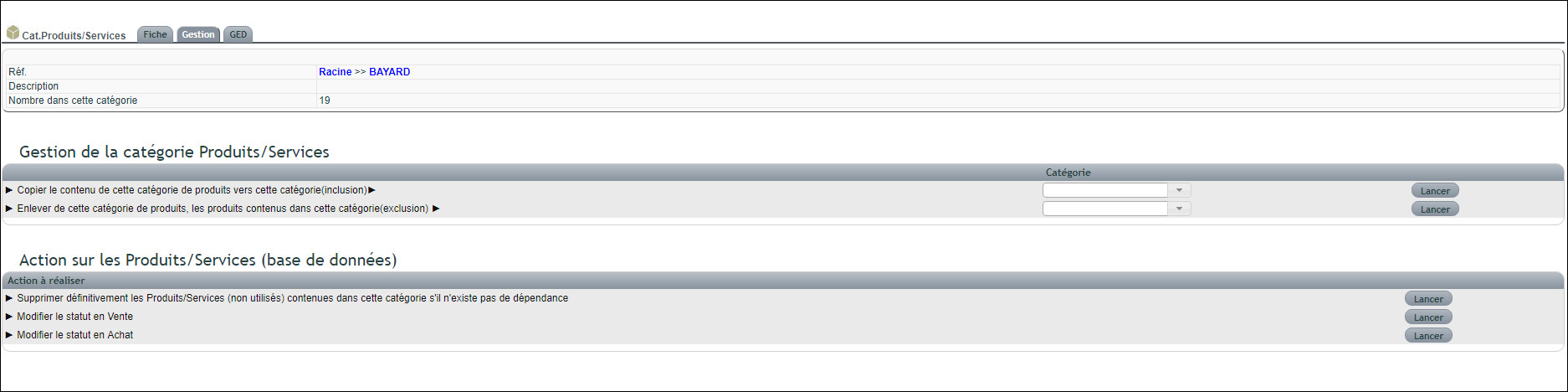

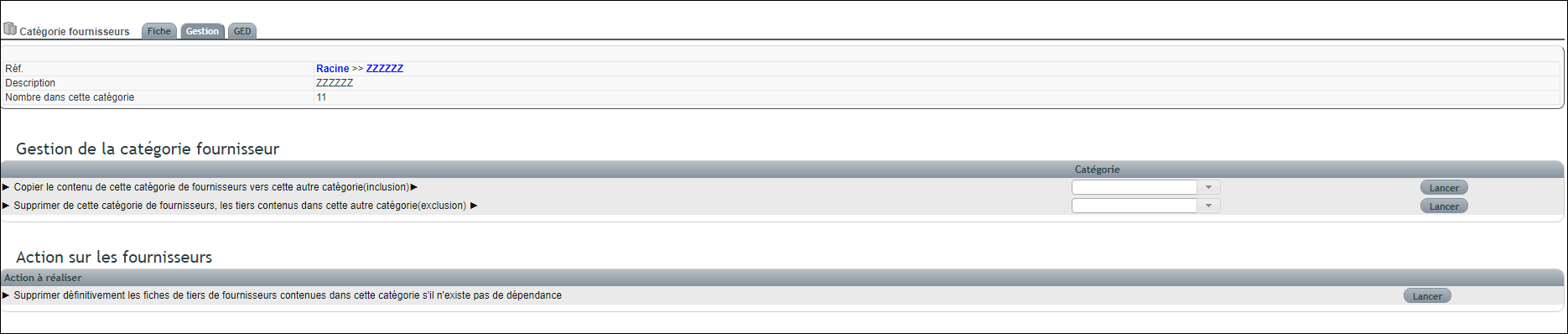
Using categories to delete customers/suppliers
- Admin rights required.
- After creating the category, go to its “Management” tab.
- In the lower “Action…” table, click the relevant button.
Using categories to delete contacts
- Admin rights required.
- After creating the category, go to its “Management” tab.
- In the lower “Action…” table, click the relevant button.
Using categories to delete products
- Admin rights required.
- After creating the category, go to its “Management” tab.
- In the lower “Action…” table, click the relevant button.
Note: you can also modify sales/purchase statuses from the supplier’s product list.
Using categories to modify product sales/purchase statuses
- You must have administrator rights.
- After creating the category, go to its “Management” tab.
- In the lower table “Action…”, click the corresponding button.
Using categories to modify the sales price class assigned to customers
- You must have administrator rights.
- After creating the category, go to its “Management” tab.
- In the lower table “Action…”, click the corresponding button.
Assigning images to categories – “Document Library” tab
DoliPlus lets you attach images to categories, for example to create sales catalogues.
When you drag and drop an image into the “Photos” folder, it immediately appears enlarged below the explorer.
Additionally, an extra icon creates a thumbnail, which DoliPlus reuses in catalogues to reduce document weight. This thumbnail isn’t mandatory, but we recommend it.
Note: the “Photos” folder name can be configured in the Tools menu console.
See also: the products and services catalogue
