 on 5 September 2026
 User management in DoliPlus
User management in DoliPlus lets you create, edit, and secure access for each team member. This ensures everyone has exactly the permissions they need.
A user represents a person who logs into your DoliPlus session. In contrast, a “technical” user doesn’t log in – it simply links to a specific function or use case.
Of course, these features are restricted to administrators.
Create an internal user
To begin, go to Home → Users & Groups → New User.
Edit a user
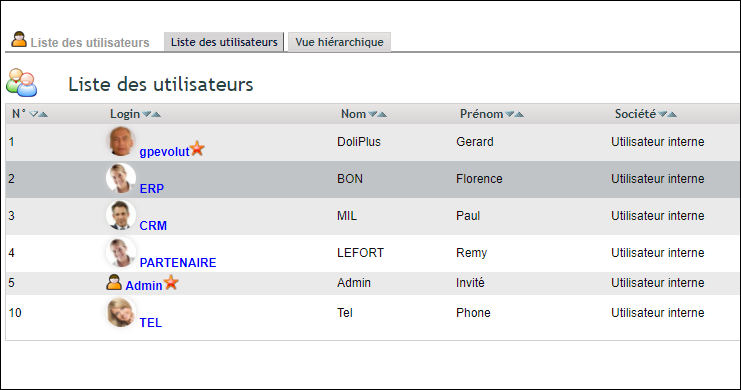
Next, open the menu Home → Users & Groups → Users. DoliPlus then displays the full list. Finally, select the user you want to modify.
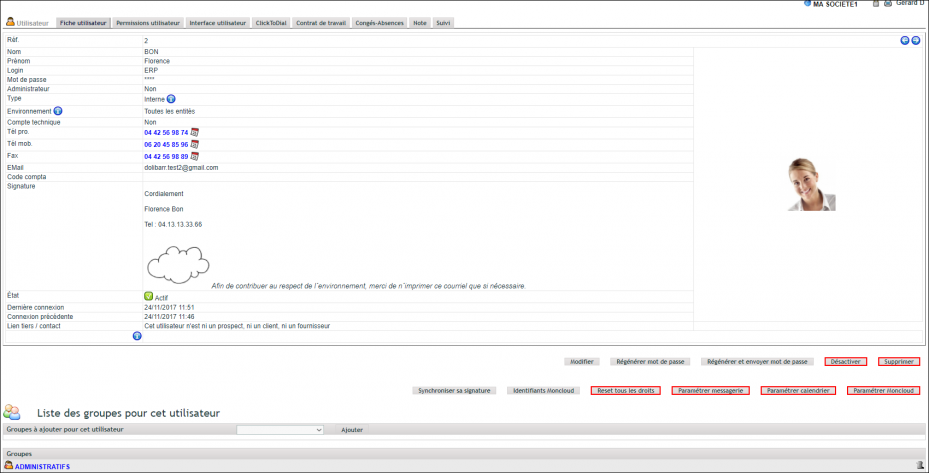
From this record, you can deactivate the account or change the password. You can also sync their email signature with the webmail in one click.
Note: You can’t delete a user with ERP history. However, you can always deactivate them.
Create an external user (extranet)
To create an external user, first open a customer or supplier record. Then click the “Create User” button.
For password details, refer to the Security information chapter.
Set permissions and groups
Go to the “Permission” tab in the record. Then click the + or – to add or remove a permission.
However, carefully read each permission’s description. It may grant a “can” right or deny a “cannot”. For example, in the margin module, you can block access to margin information.
To save time, manage permissions at the group level. Then assign users to these groups.
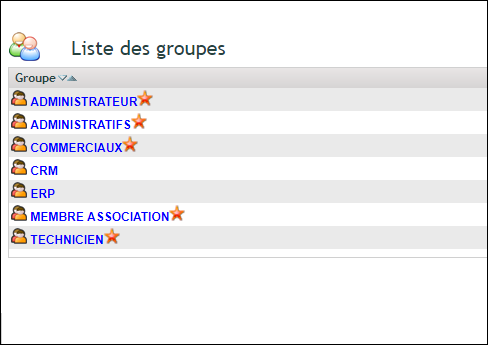
Some groups are predefined and already used by DoliPlus. For example, the TECHNICIAN group populates the list of assignable staff for interventions. Similarly, the SALES group is used in statistics.
In practice, a user combines their own permissions with those from their groups. These appear under the “inherited” label. To remove an inherited permission, simply unassign the user from the relevant group.
Finally, the “Reset” function clears all permissions. It removes the user from all groups to completely redefine their access.
Multi-company configuration case
In a multi-company setup, access management has just been simplified. Everything can now be configured from the user record, in a single table. First, their role is defined once via their groups (sales, technician, accountant…). Then, you simply tick the companies they can access.
This way, the user keeps the same role across all their companies, with no repeated settings. By default, each user remains isolated within their own company; only cross-company mode grants access to multiple environments for transversal functions (accounting, management).
For full details — separate companies or multiple branches, data sharing, setup — check the dedicated chapter Multi-company management in DoliPlus.

DoliPlus session billing
Your subscription cost depends on the server capacity provided. This capacity is chosen based on several criteria:
- the workload demanded from memory and processor,
- the number of users connected simultaneously,
- the volume of files and backups to store,
- the network bandwidth.
For simplicity, our plans are based on a user count. You remain free to add or deactivate accounts within this limit.
Beyond this, contact our support for a tailored quote. Upgrading to a more powerful server is free; however, downgrading is not possible.
Finally, if you experience significant slowdowns, upgrading to a more powerful server may be advisable, even if the user limit hasn’t been reached.
Further reading
- User photo — add a user photo.
- Digital vCard — the digital vCard business card.
- DoliPlus login page security enhancements — what protects your instance’s login page.
