 on 10 September 2026
 Expense report software built into your ERP
Why expense report software belongs inside your ERP
Your DoliPlus solution includes expense report software that replaces your spreadsheets and your double entry:
- each colleague declares their spending directly, receipts attached;
- a ready-made list of expense types — restaurant, flight, taxi — each with its own VAT rate;
- mileage worked out automatically from the vehicle and the distance;
- a payment method chosen line by line: employee or company;
- one PDF gathering the report and its scanned receipts, sent by email.
As a result, you approve and reimburse without paperwork — and the expense reaches your accounts on its own. DoliPlus is the enhanced cloud edition of Dolibarr, the open-source ERP & CRM used across Europe.
Know straight away who can approve an expense report
A report awaiting approval now shows who is entitled to approve it. Therefore, hovering over the Approve button names the authorised group.
As a result, you know exactly who to ask. For example, the report reads “approving expense reports is restricted to members of group Management”.
Moreover, that list stays yours. Indeed, you choose the authorised group in the module settings, and you adjust it whenever your organisation changes.
What good expense report software saves you
Reimbursing staff spending eats time. Indeed, receipts go missing and the sums drag on. The module settles that: you create, approve and pay expense reports in one place. Moreover, it calculates mileage against the official scale, which stays fully editable.
New: your teams can photograph their receipt from the mobile app — the expense line then fills itself in. Expense reports on mobile: photograph the receipt, the line fills itself
What the module covers
The module follows an expense from end to end. Here are the main capabilities:
- per-user rights (create, edit, approve, send by email);
- customisable expense types, each tied to a VAT rate;
- automatic mileage based on the vehicle and the distance travelled;
- a summary PDF gathering the report and its scanned receipts, sent by email;
- statistics per user or per customer;
- a payment method per line: every expense states who paid, the employee or the company;
- conversion into a supplier invoice, payable by SEPA transfer and exportable to your accounts.
Setting the module up
Once the module is active, it appears in the Tools menu. The settings are then organised in tabs.
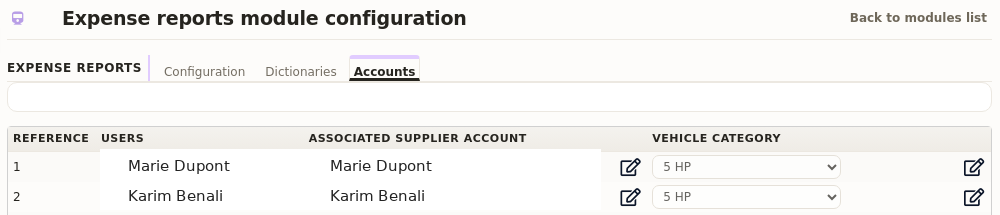
First, the Accounts tab links each employee to a supplier account and a vehicle category. That account then carries the reimbursement: it is what lets your expense report software post the report as a supplier invoice, and then mark it as paid. Therefore, fill it in for everyone who may pay expenses out of their own pocket.
Then the Dictionaries tab customises expense types, mileage scales, vehicles and payment categories.
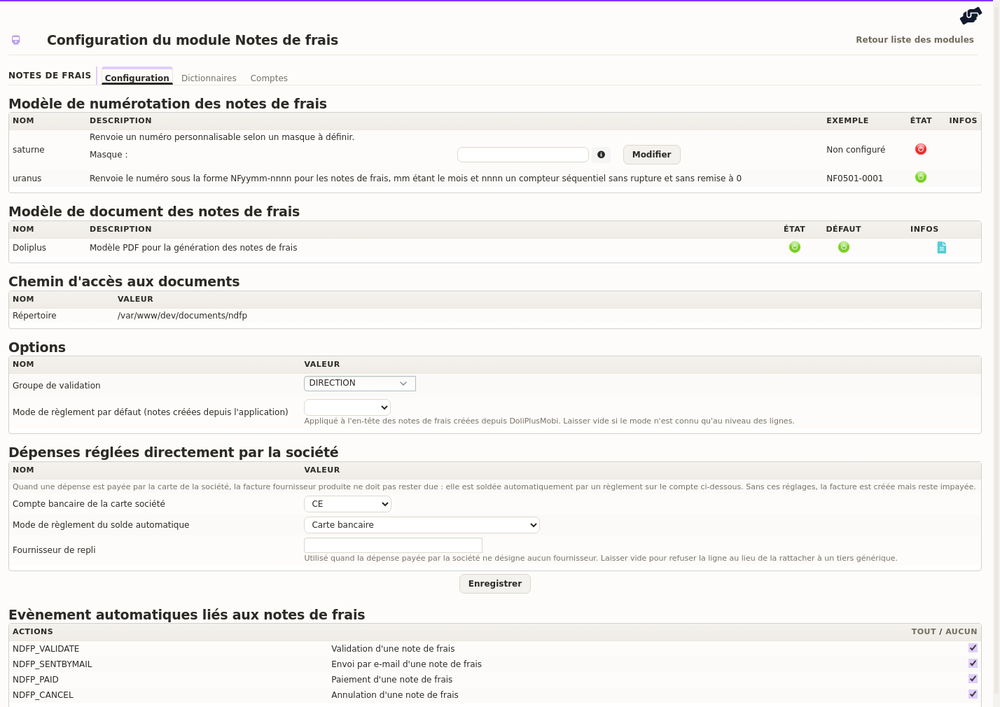
Finally, the Setup tab fixes the numbering, the PDF template, the group allowed to approve, and the automatic events (approval, sending, payment, cancellation).
Entering an expense report
Entry stays simple. On the web app, you enter the total before or after tax depending on the expense type. Note that the quantity stays at 1, because you enter the total itself. For travel, on the other hand, you enter the distance covered.
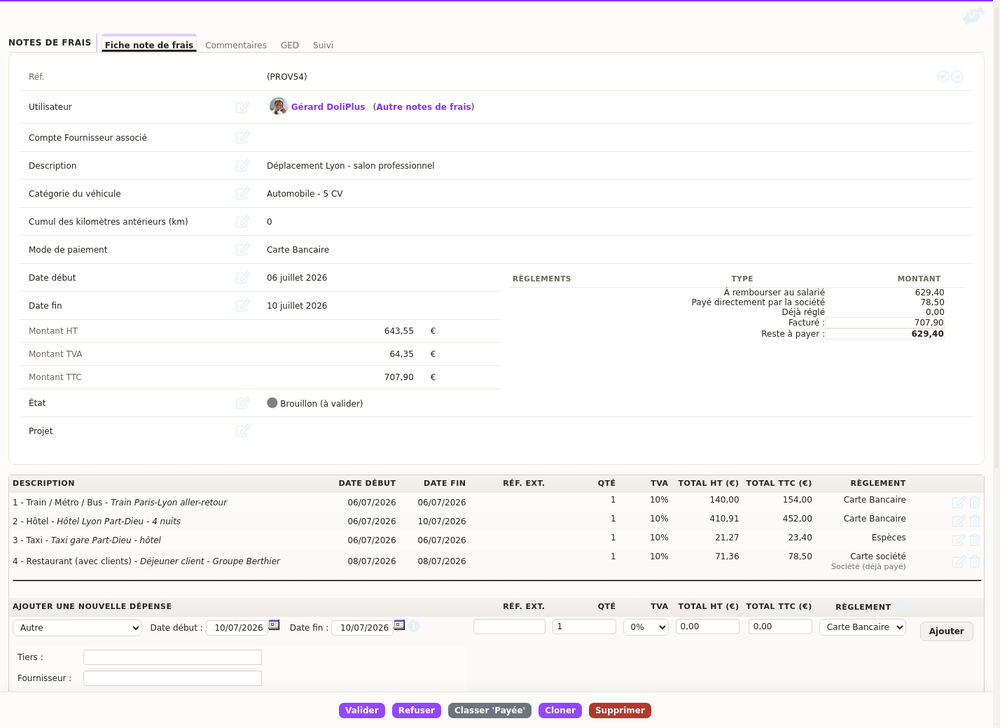
Besides, entry works just as well on the DoliPlusMobi mobile app, on iOS and Android. Your teams therefore declare their spending straight from the field.
When the company already paid: the mixed report
Out in the field, one day often mixes two situations. Lunch goes on the company card; parking is paid in cash by the employee, who is therefore out of pocket. Those two expenses do not call for the same treatment: the first owes the employee nothing, the second does.
That is why the payment method is chosen expense by expense, on the web app as well as on mobile. The methods you consider “paid by the company” are named once and for all in the module dictionaries — a business card, for instance.
At invoicing time, the report splits itself. The share advanced by the employee becomes an invoice in their name, still to be reimbursed. The share paid by the company goes to the relevant supplier and arrives already settled, with its bank entry: the cost and the VAT reach your accounts without showing a supplier to pay when the money has already left.
This per-line handling is switched on when you ask for it on your DoliPlus. Tell us which payment methods your teams really use — company card, cash, cheque — and we set them up on your installation.
Approve, reimburse and post to the accounts
Once entered, the report goes for approval. An authorised manager approves it. The report is then posted as a supplier invoice, and that entry is what opens the reimbursement. Finally, the report switches to “paid”.
In practice, a report travels through four steps:
- the employee enters the report, then submits it for approval;
- an authorised manager approves it;
- one button posts it as a supplier invoice, on the account of the employee being reimbursed;
- the Classify “paid” button closes the report once the transfer has left.
Each step therefore builds on the previous one. In other words, a report that has not been posted yet still waits for its reimbursement — and the expense report software tells you so on the button itself.
Generating the PDF with the receipts
When the PDF is generated, the files stored in the document space are appended after the report table. Those files can be images or PDFs.
To keep a file out of the assembly, put it in a “do not assemble” subfolder of the document space. Besides, if a PDF refuses to open during assembly, print it back to PDF and replace it. An automatic conversion to a compatible PDF format is now available as well.
So, how many of your expense reports already mix company card and employee advances? That is usually the first place where time is won.
The expense report dashboard: everything visible without a click
Opening the module tells you where you stand straight away. Three panels sum the situation up, with no filter to set.
- Draft expense reports: declarations started but not yet sent for approval.
- The 3 most recently edited reports: who touched what, and when.
- Unpaid expense reports: what is left to reimburse, colleague by colleague, with the total at the foot of the table.
The question “how much do I still owe my staff this month?” therefore settles at a glance, without exporting anything. Moreover, every reference and every name links straight to the matching record.
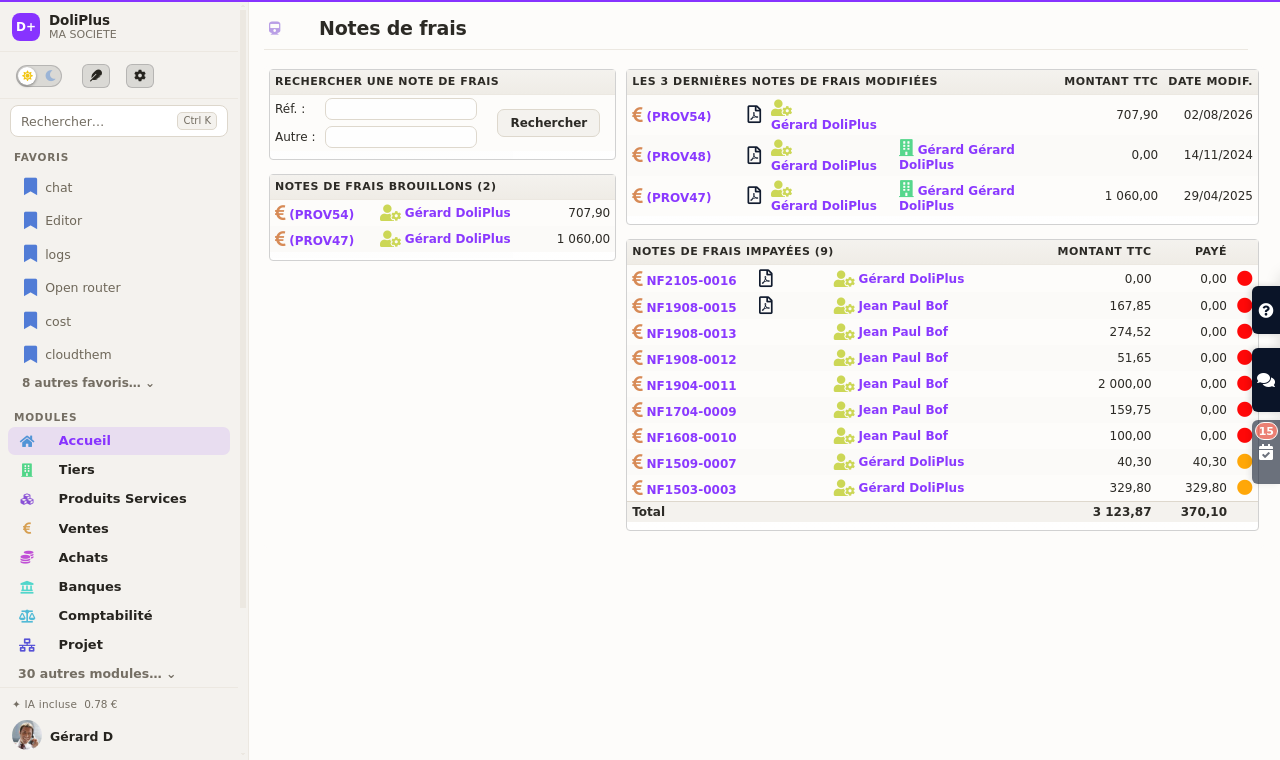
Finally, the lists sort on any column, including the colleague name. That helps as soon as one person has several declarations waiting.
Once the report is approved and reimbursed, the expense joins your accounts as a supplier invoice. The receipts themselves stay reachable from the document tab.
Further reading
