 on 25 August 2026
 Document management software: find any file in seconds
DoliPlus document management software keeps your quotes, invoices, contracts, site photos and letters in the same place as your customers — and has just become far more comfortable to use:
- Pinned folders at the top of the column: the three folders you open every day are one click away, with no need to walk the tree.
- A side panel that tells you, as soon as a file is selected, what it is and what you can do with it.
- A full-size preview: read a PDF, an image or a text file without downloading it or leaving the page.
- Actions that match the file — edit a text file, open an Office document, resize a photo.
- Touch-friendly on phones and tablets, with a thumbnail view.
In other words: your files stop being scattered attachments. They become a company library, filed by customer and by folder, that everyone consults according to their own permissions.
Finding a document without hunting for it
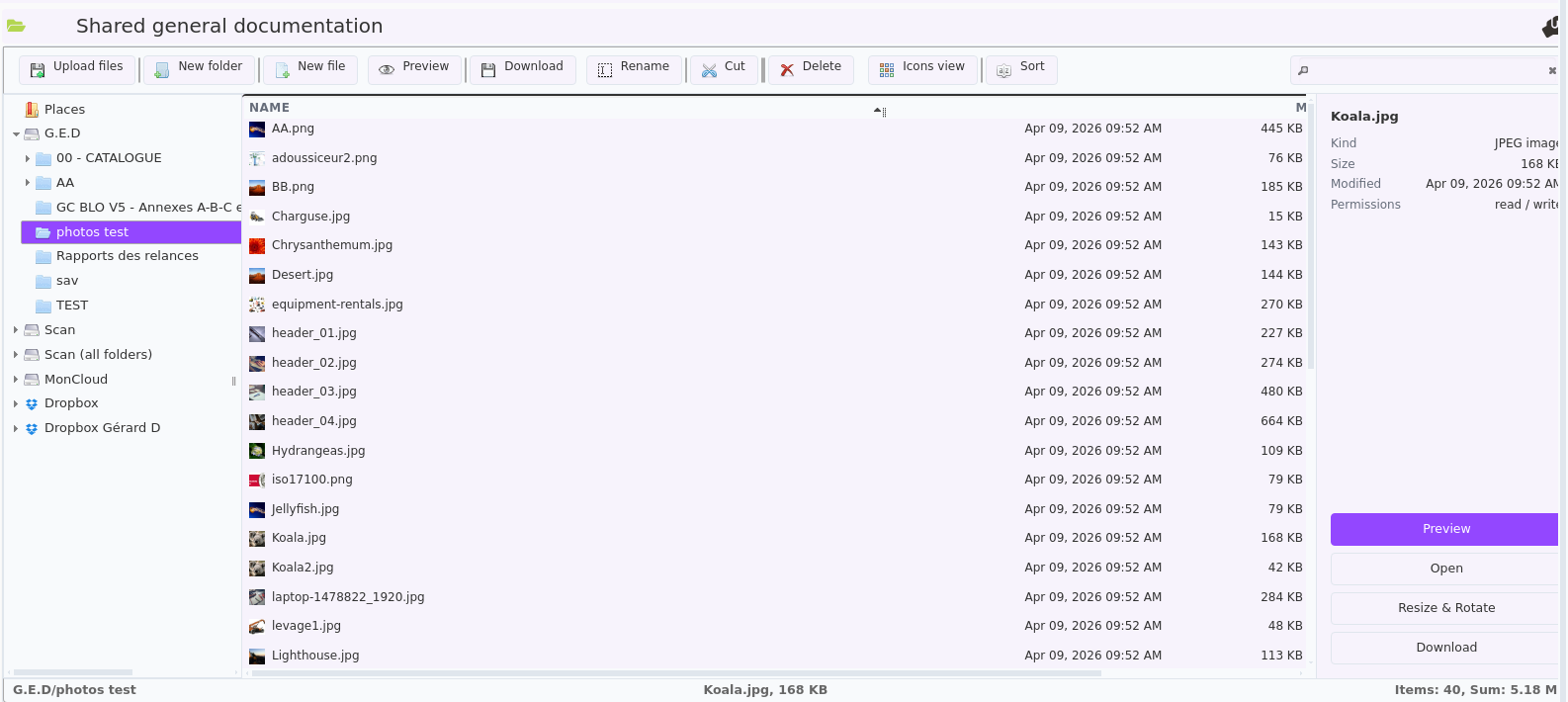
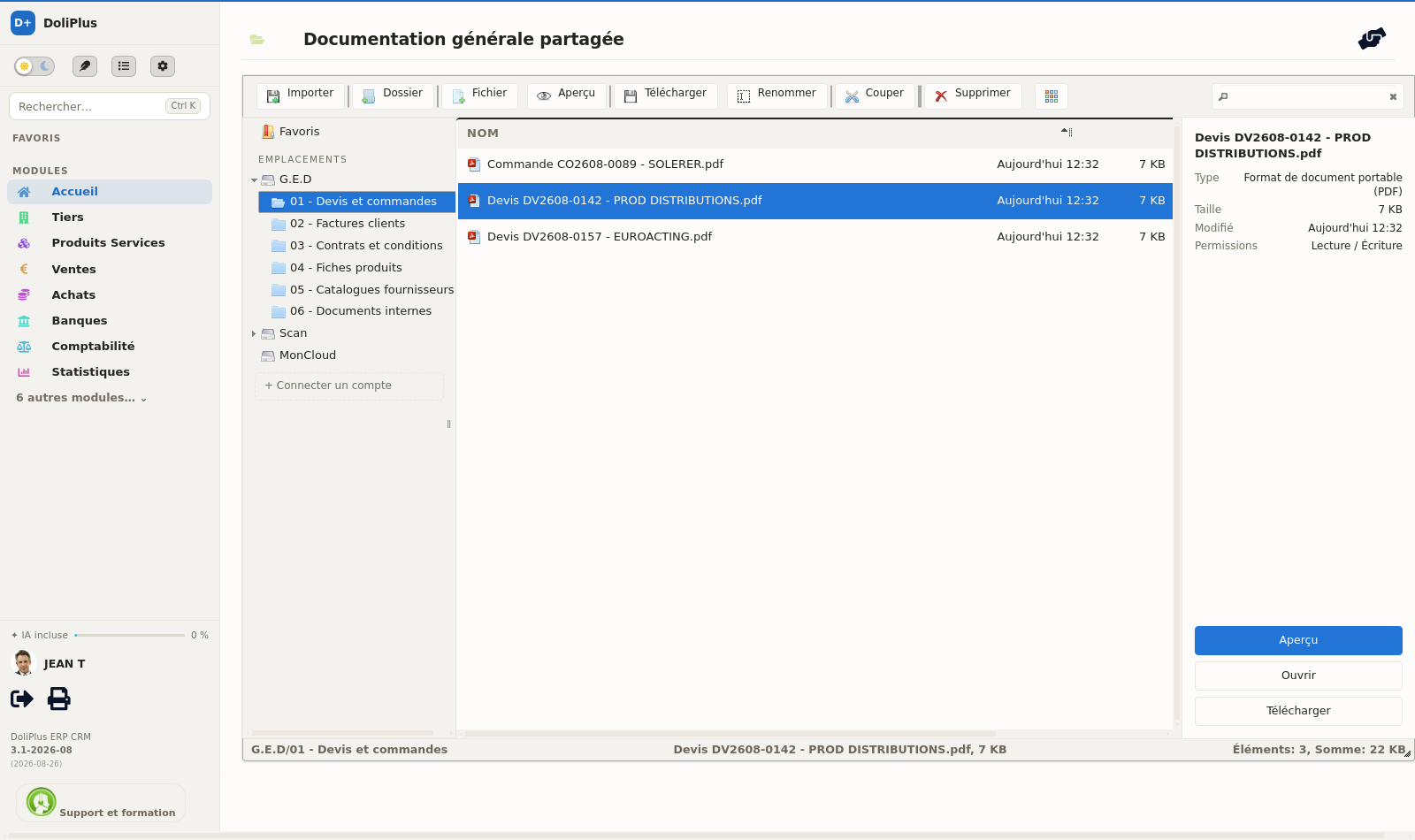
The left-hand column gathers your pinned folders first, then your storage locations (shared documents, scans, personal space) and finally your linked accounts. A folder you open daily is pinned once, and reached in a single click from then on.
The search box looks where you tell it to: in the current folder, across the whole location, or everywhere at once. It is the fastest route when you know what you are looking for but no longer remember where it was filed.
Reading a document without opening or downloading it
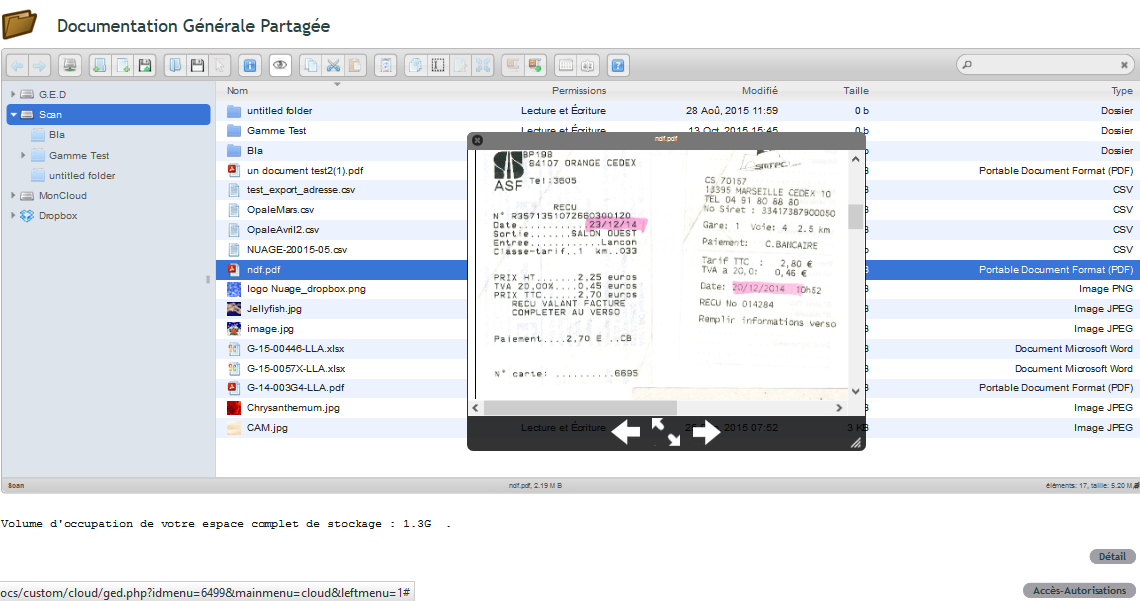
Select a file and the side panel shows its type, its size, its date and your rights on it. The Preview button then displays it full size, inside the page — a PDF invoice can be read from top to bottom, a photo appears at full scale, a text file shows its contents. Close it, move to the next one.
That detail changes the day of anyone checking paperwork in bulk: no more downloading ten files to find the right one.
The buttons on offer change with what you have selected. On a text file, DoliPlus offers to edit it in place. On a Word, Excel or PowerPoint document, to open it in the online office suite. On a photo, to resize it. You do not go looking for the right command in a menu: either it is already there, or it does not apply.
The right-click menu still holds every classic operation: rename, copy, move, archive, manage permissions.
From a phone, out on site
On mobile the folder tree folds away into a drawer and documents appear as thumbnails: a site photo is recognised at a glance, where a list of file names tells you nothing. Selection checkboxes come back so you can pick several items with your finger.
Going further
- Edit your Word, Excel and PowerPoint documents inside DoliPlus
- The online office suite for business
- Reach your document space as a network drive on Windows or Mac
Why choose document management software built into your ERP?
Your DoliPlus solution includes document management software that files every company document right where you need it:
- a document space behind every quote, order, invoice, project and customer card;
- a modern file explorer with drag-and-drop, previews and image tools;
- direct connections with your scanner, your email and your private cloud space;
- fine-grained access rights on shared folders;
- online editing of Word, Excel and PowerPoint files, without downloading anything.
As a result, everyone files documents the same way — and everyone finds them again in a few clicks. DoliPlus is the enhanced cloud edition of Dolibarr, the open-source ERP & CRM used across Europe.
Going paperless matters, because filing documents takes time — and searching for them takes even more. Document management software is a computerised system that digitises and archives the documents of your company.
Indeed, companies that go digital gain efficiency, competitiveness and better organisation. Therefore, DoliPlus links every document directly to your ERP data.
Moreover, the system stores all your files in an electronic safe, and an encrypted connection protects every transfer as standard in DoliPlus.
How the filing system works
A logical entry point behind every record
Develop the filing reflex: thanks to multiple logical entry points, a document space sits behind each:
- quote,
- order,
- invoice,
- project,
- service job,
- shared global space,
- and more.
Behind each entry point, you file a note or documents in any format (Word, PDF, Excel…). In this way, DoliPlus organises and standardises the filing for the whole company. Consequently, everyone knows the filing logic and finds the desired document in a few clicks.
For example:
- the calculation note of a quote sits in the document space of that quote;
- the sales brochures sit in the general shared space;
- a supplier invoice sits in the document space of that supplier invoice;
- the account opening documents of a customer sit in the customer’s document space;
- the photos and datasheets of your products sit in the document space of each product or service.
Scanner connection
Point your scanner to the “scan” folder of your DoliPlus server. Then, retrieve and file your scanned documents easily into the right folders. This feature comes as standard in DoliPlus: ask the support team for your free access codes.
See this chapterEmail connection
Sending an email with a document from your files as an attachment has never been easier with the internal DoliPlus messaging. A browser lets you explore your folders and select the documents to send.
In addition, your webmail is linked to your document folders: you can automatically extract the attachments of an email and file them behind one of the logical entry points.
With your webmail, you can also select and send documents already filed in your folders.
Private cloud connection — MonCloud
If you have a MonCloud DoliPlus space, it is connected to your document folders. Furthermore, your MonCloud space connects to your company file server (NAS) and to OneDrive.
Access rights
Access rights on the folders of the general shared space, and on the customer document spaces, let you define precise permissions.
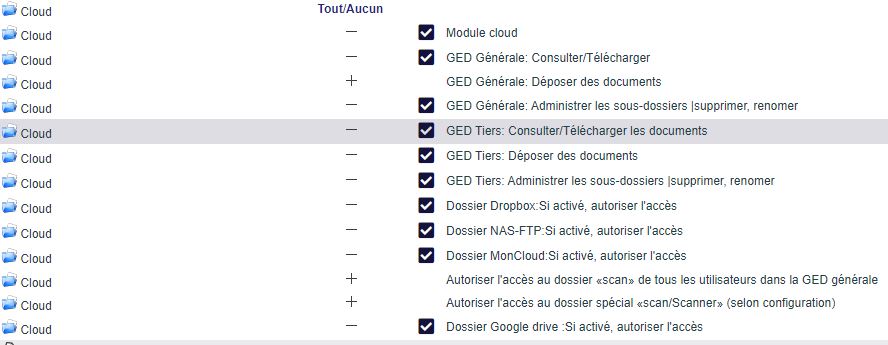
Access rights on the sub-folders of the general space
You can also override the rights of the general shared space. In this way, selected users regain full rights to view, download and upload documents in specific folders, even without the general permission.
A button in the general space opens the screen that lists the top-level folders and assigns the users with full rights.
- First, remove the user’s general “View” right on the shared space.
- Then, register the user on the authorised folders; the other folders stay hidden, including in the DoliPlusMobi mobile app.

Typical use case: users hold a limited, view-only right on the general space. However, the authorisation on certain folders also lets them upload documents into those sub-folders.
Connection with a network storage server
For example, if you own a network storage server (NAS) connected to the web, you can set up a link that lets you drag your documents between your DoliPlus folders and your storage server.
Watch an example video here (in French).
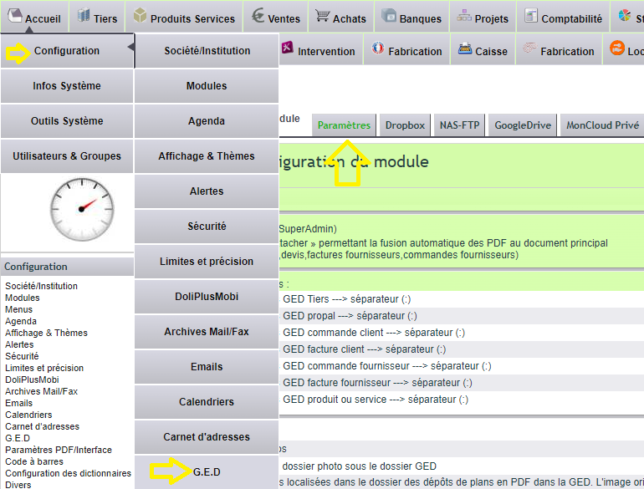
To set up this connector on the DoliPlus side, go to Home → Setup → Documents.
For the connection, DoliPlus needs the classic secure file transfer settings of your storage server (FTP, or better, its encrypted variant):
- public address of the server,
- login,
- password,
- port number.
Tip: first test these settings in a browser or in a file transfer program such as FileZilla.
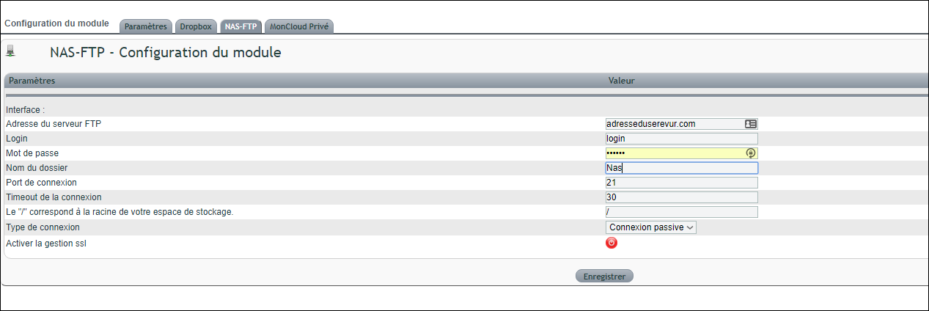
In addition, you must configure the storage server and the router:
- File transfer service on the storage server:
- port 21,
- encryption enabled,
- passive mode on the port range 55536-55735.
- Router or internet box configuration:
- forward port 21 to the local address of the storage server,
- forward the passive port range 55536-55735 to the local address of the storage server.
The file explorer of your document management software
Uploading a document
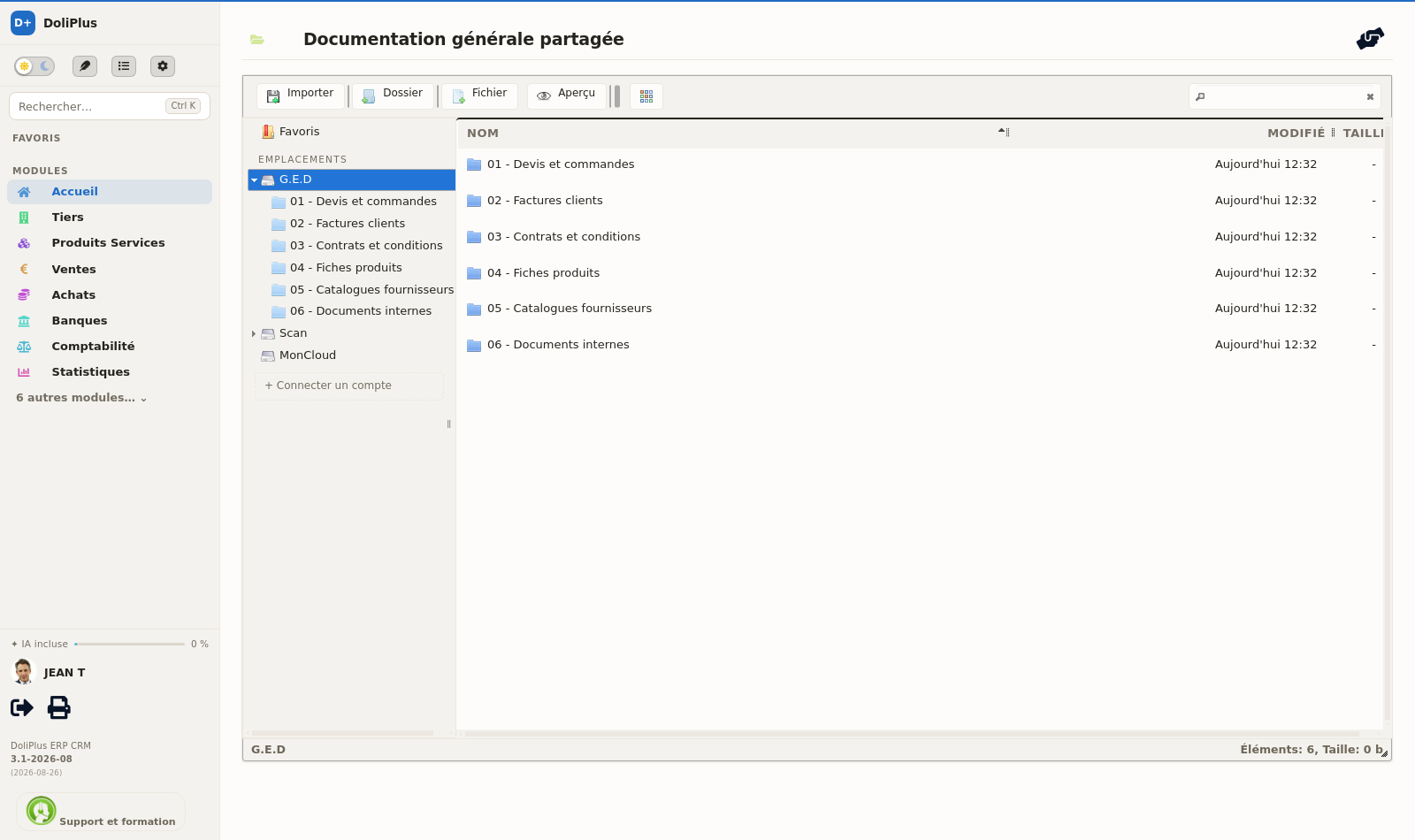
DoliPlus embeds a modern file explorer with a drag-and-drop interface.
Moreover, you can read PDF files and images from a computer, a tablet or a smartphone directly in DoliPlus, without any other application.
Image tools
Tools to resize, crop and rotate images come built into your explorer.
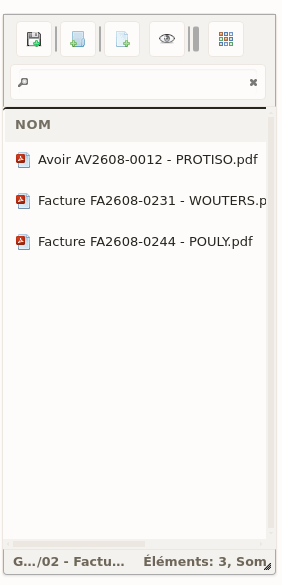
- every file and folder operation on the server (copy, move, download, create a folder or file, rename, and so on);
- file upload with drag-and-drop support;
- list view and icon view;
- keyboard shortcuts;
- standard file and group selection with the mouse or the keyboard;
- move or copy files with drag-and-drop;
- creation and extraction of archives (zip, rar, 7z, tar, gzip, bzip2);
- rich context menus with an additional toolbar;
- quick preview of PDF files, images and videos;
- editing of text files and images (rotate, crop, resize);
- folder size calculation;
- thumbnails for image files;
- integration with your text editor, the internal messaging and the webmail;
- flexible configuration of access rights and allowed file types.
On tablets, and in the DoliPlusMobi mobile app

On the move, especially on a tablet, use the icons to reach the features you normally access with a mouse on your desktop computer or Mac. Alternatively, use the context menus with a long press on the document.
Keyboard shortcuts
You will find the familiar Windows shortcuts in your file explorer. For example, the main ones are:
- Refresh: F5
- Back: BACKSPACE
- Forward: SPACE
- Copy: CTRL+C
- Cut: CTRL+X
- Paste: CTRL+V
The other shortcuts sit behind the “?” icon of your explorer.
Example of image editing
PDF preview in the explorer
MonCloud, your private document space
The word “cloud” refers to the storage of your data on remote servers, which avoids keeping it on a local computer.
The benefit is clear: you access your data from any computer connected to the internet, and you synchronise it across several devices.
MonCloud is a reserved, non-shared space — yours only. Consequently, the documents you store in MonCloud stay invisible to the other users.
In addition, you can reach your MonCloud folder from your Android or Apple mobile devices, and from your Windows or Mac desktop computer, thanks to the open standard called WebDAV.
Depending on the device, you download a standard app and connect with:
Address (URL) + login + password of your DoliPlus session
Please note:
To obtain the server address, click the “MonCloud credentials” button on your user card: you then receive your full credentials by email. Afterwards, a simple copy and paste from your mailbox is the easiest way.
This address ends with a slash (/); it is important not to omit it.
Some devices use a discovery service that truncates the address. To work around this, save first, then edit again to force the full address.
If the device asks for a protocol, choose Basic.
Open your document space as a drive on your computer
MonCloud speaks WebDAV, a standard protocol: your private document space therefore adds itself to Windows File Explorer or to the Mac Finder, like any other drive. It takes about two minutes. Files then travel both ways, without going through the browser.
First, get your credentials
Open your user record, then click the « MonCloud credentials » button: you receive the server address, your user name and your password by email. Keep that message at hand — you will copy and paste those three values.
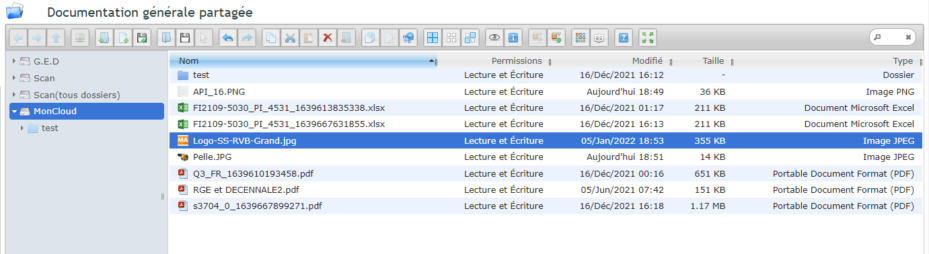
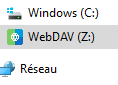
Windows: add MonCloud as a network drive
Several tools do this job. We use RaiDrive here as an example: download it, install it, then launch it.
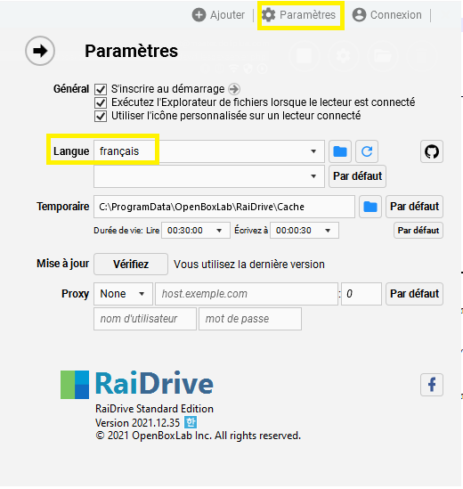
Then click Add in the top toolbar, open the NAS tab and fill in:
- Storage: WebDAV;
- Drive: the drive letter of your choice;
- Address: the long address you received by email, split over the two lines as shown;
- Port: 443;
- Account: your user name and password.

Confirm with OK: the folders of your private document space appear in Windows File Explorer. Synchronisation then runs on its own.
macOS: connect from the Finder
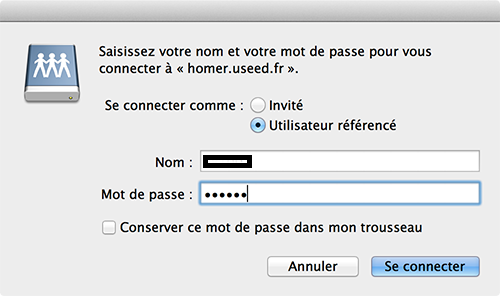
On a Mac, there is nothing to install. Open the Finder, menu Go, then « Connect to Server… », and enter the same address as on Windows.
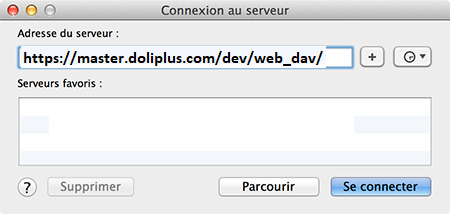
The Finder then asks for your credentials: enter the login and password you received, and click Connect.
The Scan folder, over secure FTP
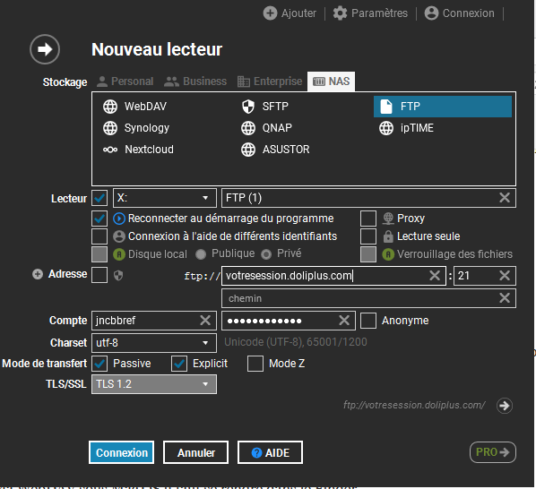
The same tool also mounts the Scan folder of your instance as a network drive, this time over secure FTP, using the settings handed to you at delivery. In RaiDrive, Add, NAS tab:
- Storage: FTP;
- Drive: a drive letter;
- Address: your FTP address, port 21;
- Account: your user name and password.
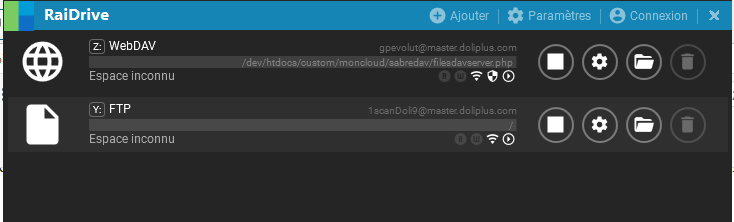
Your connections then sit side by side in the same window.
Do you want a handful of users to work on the same files, without going through an outside storage service? A secure FTP account is opened on a shared folder of your document space, with full read and write access. Each person then synchronises a local folder of their computer with it, using the tool of their choice — that tool is not supplied, only the access is.
You gain on three counts: sharing stays controlled, since only the users you name get in; the integration is real, since the folder behaves like a Windows drive; and no external cloud is involved, since the documents never leave your DoliPlus instance. Sharing by email, by contrast, multiplies versions and losses.
This feature is still under development.

On Android and iOS
On phones and tablets, any WebDAV client will do — the server is DoliPlus, the client is the app that connects to it. A few that have proved themselves:
- Android — WebDAV Navigator Lite (also on iPad) · WebDavDroid Lite;
- iOS — WebDAV Navigator Lite · My WebDAV.
MonCloud access rights
Two permissions govern MonCloud, both granted by default to a new user:
- Access to the MonCloud document space — without it, the user does not see their private space in the DoliPlus explorers;
- Allow synchronisation of the private MonCloud space with third-party apps (Android, iOS, Windows) — this is the one that opens, or closes, everything described above.
Removing the second one from a user therefore leaves their space readable inside DoliPlus, but cuts it off from network drives and mobile apps.

Other options and configuration
You reach these options from the administrator menu.
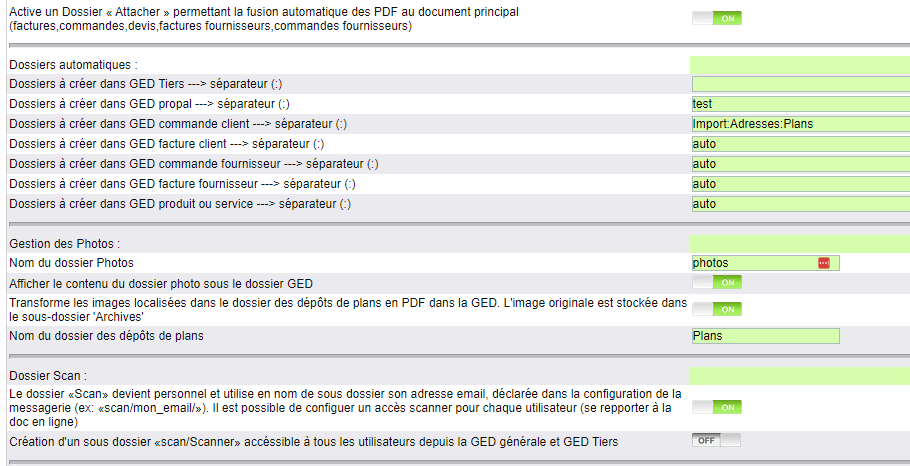
Automatic folders
This option automatically standardises the names of the sub-folders in your document spaces.
Access: Home → Setup → Documents.
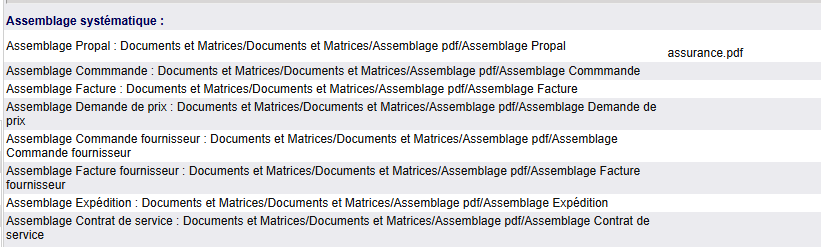
Attaching a document systematically
Access: Home → Setup → Documents.
For example, this option is handy to attach an insurance certificate systematically to every commercial proposal.
Moreover, it is available for all the record types listed here.
Converting drawing images into PDF files
This option converts the images stored in the drawings folder (for example “Plans”) into PDF files.
The original image then moves to an “Archives” sub-folder.
It can apply to folders located in several places, provided the name of the drawings folder matches a sub-folder of the order, the proposal, and so on.
Allowed image formats:
- GIF,
- JPEG,
- PNG,
- BMP,
- TIFF_II,
- TIFF_MM,
- IFF.
Editing Word, Excel and PowerPoint files directly in your documents
With the OnlyOffice module built into DoliPlus, you no longer need to download a document to modify it. A right click on a Word, Excel or PowerPoint file shows the option Edit with OnlyOffice: the editor opens directly in your browser, in full screen, and saves your work automatically. Your document stays on your DoliPlus server — it never travels to an external service.
Learn more about document editing with OnlyOfficeConnecting other software
Finally, your document management software also communicates with other programs in both directions. See the dedicated chapter about the DoliPlus communication interface.
Related Entrées
