 on 5 September 2026
 Terms and Conditions of Sale
DoliPlus lets you easily attach Terms and Conditions (Sales/Purchasing).
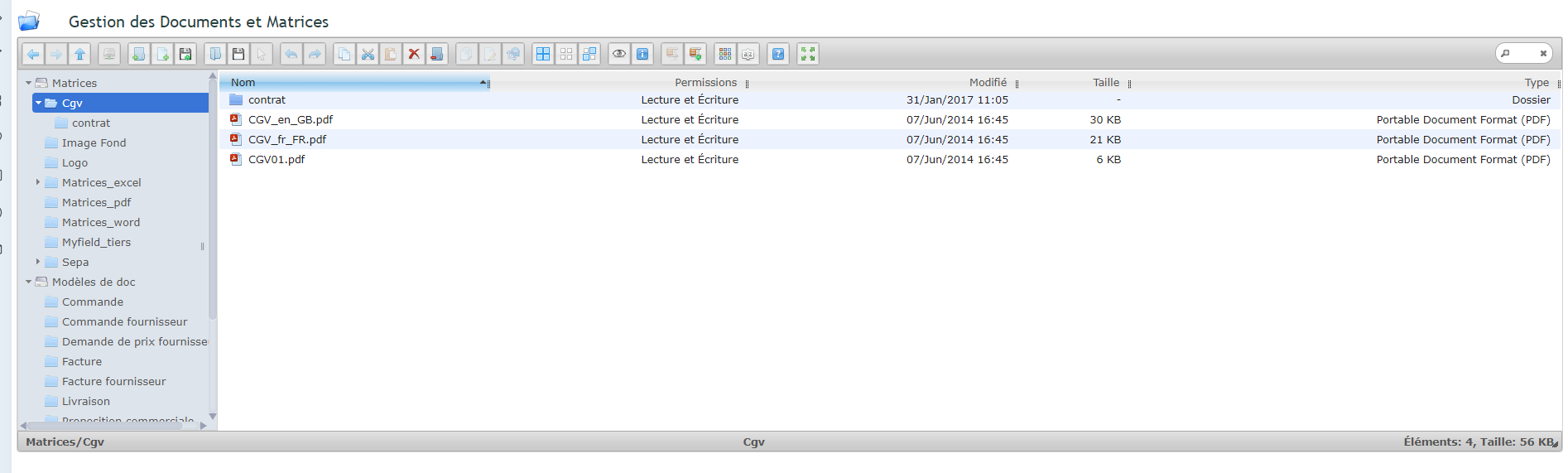
PDF files representing T&Cs (Terms and Conditions) should be placed in the Matrices document library folder
Menu Tools-> Documents & Matrices->Documents & Matrices
-> Then T&Cs or Purchasing T&Cs folder
You also need to adjust the following option in PDF/Interface Settings

Country-specific T&Cs
The country-based file naming convention allows, when the multi-language option is enabled in Dolibarr, to assign the relevant T&Cs matching the language of the quote for example.
For this reason, the ISO country code is used as the basis for standardising the PDF filename.
Examples:
Replace T&Cs or Purchasing T&Cs as needed.
- T&Cs_fr_FR.pdf for France
- T&Cs_en_GB.pdf for the UK
Alternative T&Cs
It can also be useful to have different types of T&Cs matching various business activities. Another simple naming convention (single word) can then be used to call up other T&Cs in a document.
Example:
- T&Cs01.pdf
You then need to enable the option in PDF/Interface Settings:
- 114 Prioritise T&Cs selection from the list
Usage
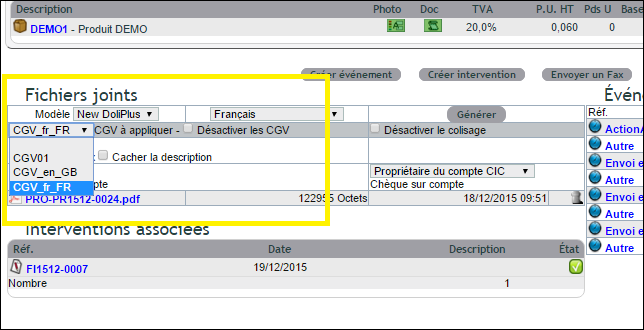
A selector displays available T&Cs stored in the T&Cs folder.
- Option 213 in PDF/Interface Settings lets users disable T&Cs
Other options in PDF/Interface Settings:
- 115 Display T&Cs after the document (document selection)
Service Contract-specific T&Cs
Must be placed in the contract subfolder (see screenshot above)
Only add terms and conditions to specific documents
Your general terms and conditions are accepted upon signing the quote. Attaching them to each invoice lengthens all your mailings without adding any value.
To reserve them for quotes, place the file in the commercial proposal assembly folder rather than in the T&Cs folder:
Documents & Matrices → templates → PDF assembly → Quote Assembly
The language-based naming rule remains the same — CGV_fr_FR.pdf for French. The full process is described in Adding documents to your PDFs.
