 on 7 July 2026
 Customer support helpdesk: manage after-sales service with DoliPlus
Why run your customer support helpdesk inside DoliPlus?
The DoliPlus customer support helpdesk structures every customer request, from the first report to the final resolution:
- centralise after-sales cases from every channel in a single view;
- involve sales, technicians, logistics and accounting on the same file;
- attach the order, service contract or delivery concerned;
- notify every participant automatically by email;
- measure your service quality with clear statistics.
As a result, no request gets lost, and every case moves forward with the right people on board. DoliPlus is the enhanced cloud edition of Dolibarr, the open-source ERP & CRM used across Europe.
A customer support helpdesk that involves the whole company
With this module, you place the customer at the heart of your organisation. Indeed, it mobilises every person concerned, so you answer after-sales and support requests better.
Where does a support request come from? It can arrive through several channels. For example, a customer calls your technical team. Sometimes, a sales person spots it during a meeting. Or a technician identifies it in the field. In every case, you then open a support case.
In practice, this feature lets you:
- Follow your multi-channel support requests on a single screen. Therefore, the history and all the information stay in one place.
- Work together as a team: sales administration, technicians, logistics, accounting. As a result, everyone moves forward and you solve problems quickly, without anything slipping through.
- Easily attach the order, the service contract or the delivery concerned, or point to the products involved. In addition, you get statistical follow-up.
- Fill in a form that acts as an interview guide. It identifies the case precisely: description of the problem, product concerned, contact details of the reporter, findings at the time of the failure, urgency level, first actions taken by the customer… Moreover, custom fields adapt the software to your business in a few minutes, through simple configuration.
- Pass the information automatically to each participant of the case, who then receives a notification.
- Plan a “Workshop return” or an “On-site support” action. The technical team therefore knows exactly the goal and the product concerned.
- Follow the spare part purchases attached to the case. You can also attach an email, a visit report or documents. Consequently, everyone holds all the elements needed to decide and act.
Finally, a summary board gives you an overview of the open cases and the progress of the tasks, at every level of your organisation.
To stay focused on this board, you create and edit your support cases and their actions in pop-up windows.
Configuration
When you activate the module, DoliPlus adds new tabs on the following cards, as long as the matching modules are active:
- Third party,
- Quote, commercial proposal,
- Order,
- Invoice,
- Shipment,
- Service contract.
Each tab shows the context header, then a table that groups the cases filtered by third party, order, and so on.
Therefore, to attach an order, a service contract or a delivery to a support case, the easiest way is to start the case from these tabs.
Meanwhile, the general summary board, available from the top menu, offers an overview of the open cases and their statuses. It also lists the actions assigned to each participant, with their progress.
Moreover, this board places the open cases at the top of the list, followed by the closed ones.
Filters refine the view. For example, the “Other columns” button shows or hides columns, and remembers this choice in your user profile.
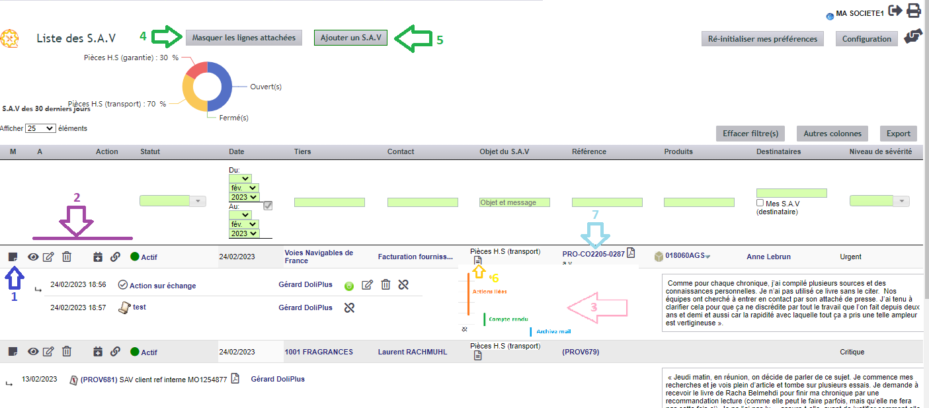
- Toggle button to show or hide the detail of actions, emails, and so on.
- Case management button: view, edit, delete, then add an action, link another action, an archived email or a visit report (depending on your rights),
- Detail lines of the linked elements, by type,
- Bulk action to show or hide the detail of actions, emails, and so on,
- Add a support case,
- Documents linked to the case,
- Object linked to the support case; in this example, the order.
Of course, the administrator can fine-tune the rights of each user.
Adding or editing a support case
To create a case, click the button marked 5. To edit it, use the button marked 2.
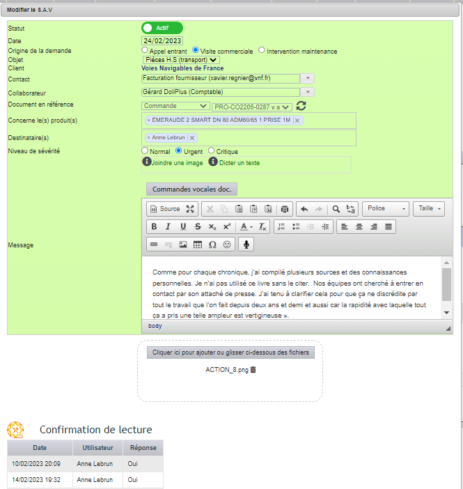
- A status shows or hides the detail of the linked elements in the summary board,
- You qualify the initiative of the contact, to state who originated the request,
- You define the contact channel from a dictionary, in the module configuration,
- The subject stays free or follows a dictionary, depending on the module configuration,
- You select the third party, as well as the contact at this third party,
- You indicate the product or products concerned by the call,
- The recipients of the case receive an email notification, with a read receipt request. Depending on the configuration, a designated group can pre-fill this list, as can the account managers of the third party,
- A text editor records the exchange. You can dictate by voice on Chrome and paste an image directly. The message therefore relates the observations and the requests of the customer,
- A drop zone collects the documents attached to the case.
Creating a replacement order from an existing order

Click the icon on the right of the order: DoliPlus then duplicates the initial customer order, which you adapt as you wish.
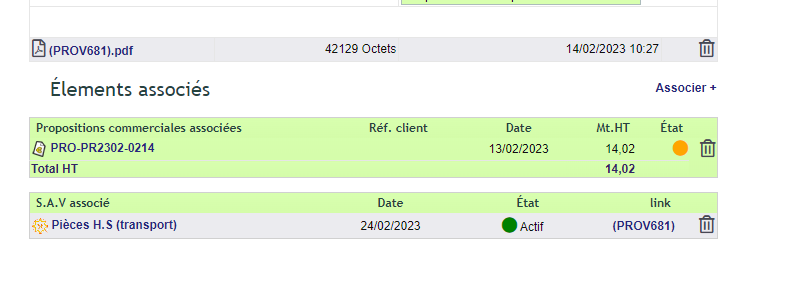
At the same time, links connect this order to the support case, but also to the commercial proposal and to the original order.
And if you delete this order? The matching links disappear automatically.
Here is, for example, a provisional order created by the duplication.
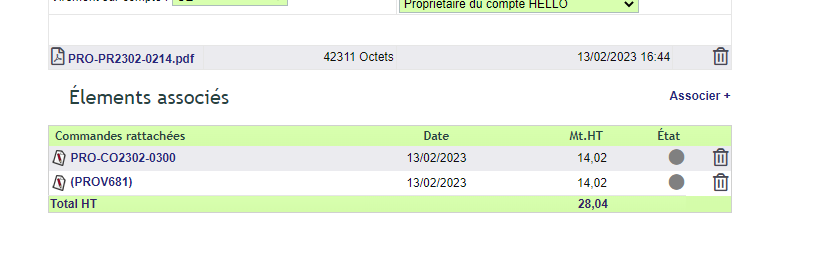
Likewise, at the bottom of the original commercial proposal, you find the two orders.
Filtering the cases in the list view
To follow numerous exchanges, you have several filters at hand.

Among these filters:
- The Author filter limits the board to the cases you created,
- The Recipient filter limits the board to the cases where you are the author or a recipient. Please note: this filter does not appear for users whose rights already restrict the cases to the ones that concern them.
On the statistics side, a chart shows the breakdown of the open support cases by type.
Notifications on a support case
On every creation, update or deletion, DoliPlus alerts the recipients by email, according to the configuration, with an optional read receipt.
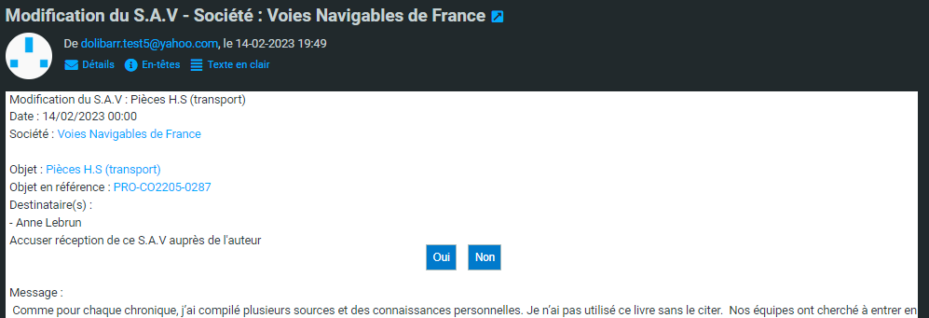
The links stay active: they open the matching windows directly in a DoliPlus session.
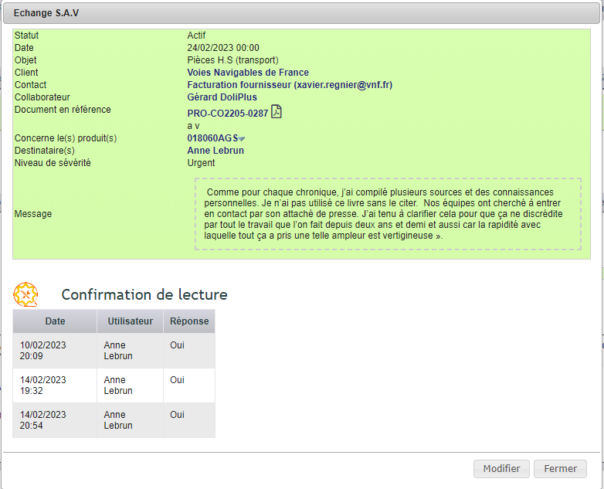
In return, the author receives an email notification. In addition, a summary table of the read receipts appears at the bottom of the case.
Here is, for example, the case in read mode, opened from the mailbox:
Adding actions and other elements to the case
Let us take the example of a case already created, then imagine the following role sharing:
- First, you create an action for the account manager, to warn him about a case that could weigh on his negotiations. Most fields are already pre-filled, for fast entry; however, you can still change them. At the very least, state the content of the action and the recipients. A notification then goes out, with the case as the linked object.
- Next, you create an action for the engineering team, with a replacement or a repair in mind,
- Then, you link a visit report from the previous account manager,
- Finally, you attach an email from the customer as an archive.
Buttons let you act directly on the attached action. The red or green dot indicates, for its part, whether the action is closed.
Furthermore, depending on your rights, you can detach this action from the case.
Adding custom fields to the form
As everywhere in DoliPlus, you customise the entry form with custom fields. For that, please refer to the module configuration.
Statistics
To manage your customer support helpdesk, you need to measure its performance against precise criteria, for example:
- The number of cases over a given period,
- The types of requests, the products concerned, and so on,
- The satisfaction rate of your customers.
Thanks to this data, your quality and support teams then improve the efficiency and the profitability of the service.
Module configuration
Go to the module configuration, from the module management page or from the general summary board. A dedicated button gives the administrator access to the console.
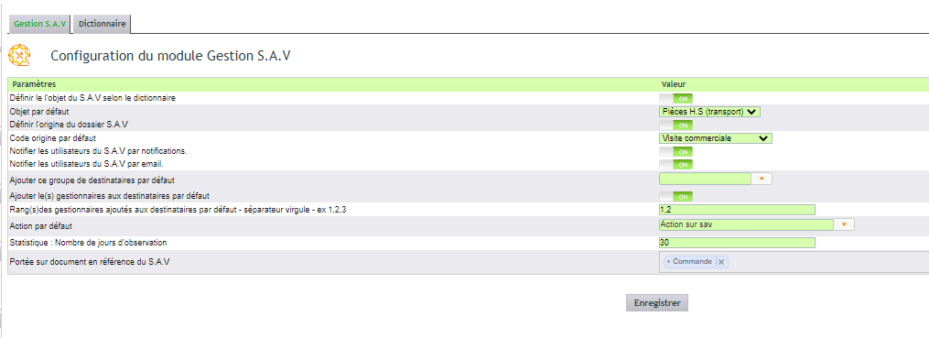
Next, enable the useful options, which are presented and explained during the initial training.
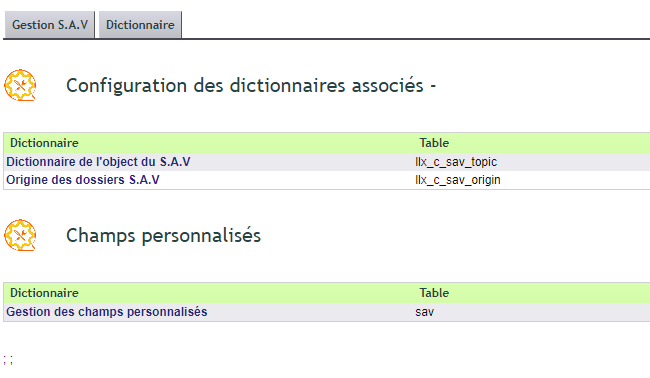
Also configure the dictionaries and, where relevant, the custom fields.
Finally, set the rights of the users.
Going further
To go further, read the definition of customer satisfaction on Wikipedia.
