 on 5 September 2026
 Batch or serial numbers
Entering batch or serial numbers
The batch or serial number option lets you easily manage your numbered products.
Indeed, these numbers are fully customisable. Moreover, they accept alphanumeric characters.
Furthermore, you can link this management to stock tracking by location.
In practice, you also manage expiry dates (DLC and DLUO), as well as the Minimum Durability Date (DDM).
Thus, you easily control warranty limits and the traceability of sold items.
DoliPlus offers two versions of batch or serial numbers.
- First, V1: a simple method for recording stock exits on delivery notes, customer orders, or invoices.
- Then, V2: a more advanced method. Indeed, it manages batch entry on receipt, multi-warehouse allocation, and precise stock deduction on delivery notes.
Version V1
Method 1 – Entry from the shipping console
First, edit the Delivery record. Then, enter edit mode and save.
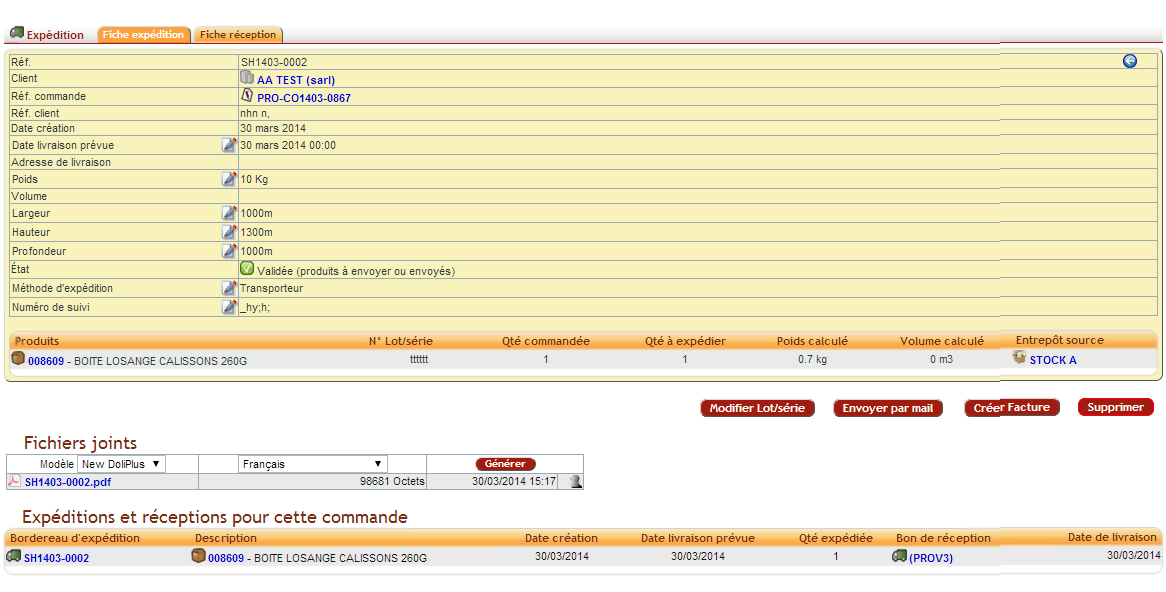
Method 2 – From the order or customer invoice
Similarly, edit the Order or Invoice record. Then, enter line edit mode and save.
Here is the entry screen on the line.
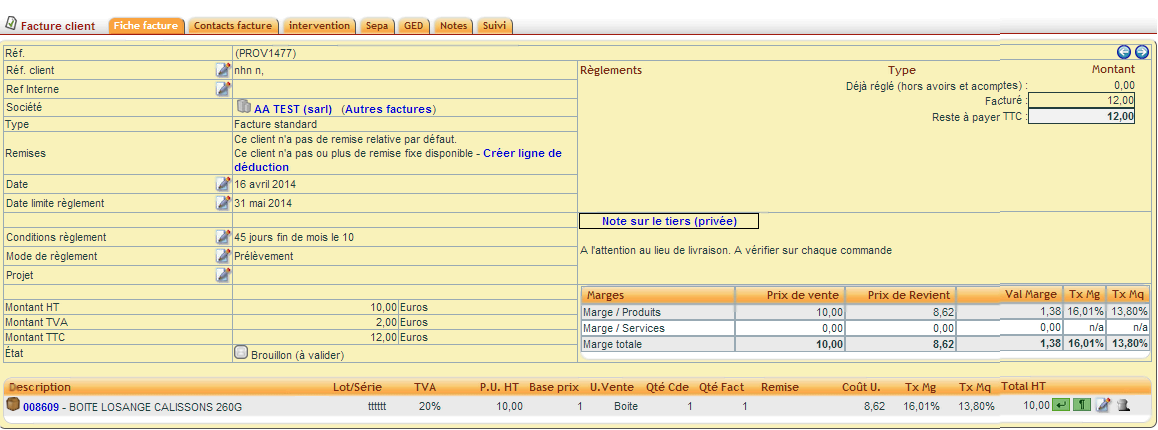
Furthermore, here is the result once the batch is recorded.
Finding the serial number in sales
In practice, you can find each serial number directly in your sales.
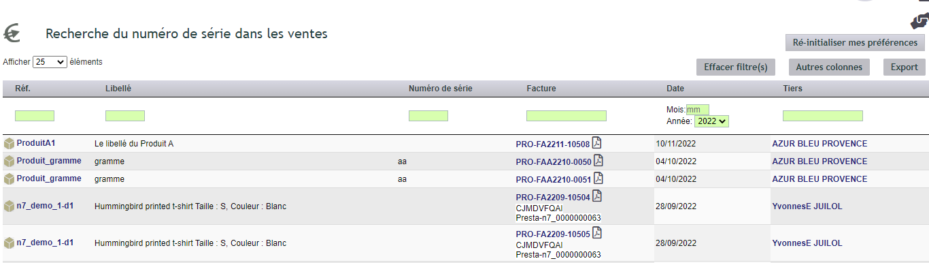
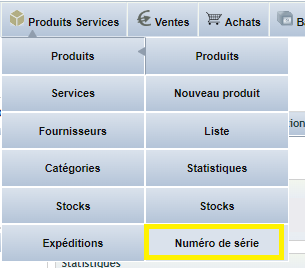
Then, here’s how to access this view.
Version V2
Configuration
First, configure the stock module with the following two rules.
- Deduction rule: deduct physical stock on delivery note validation.
- Increment rule: increment physical stock on manual allocation of supplier order receipts in warehouses.
Then, enable batch management in the stockplus module.
- Enable V2 batch management (incompatible with location management).
Furthermore, if quantities vary on supplier receipts, enable the following option.
- Disable V2 batch quantity control on receipt validation. Thus, you allow quantities exceeding the order.
Moreover, if quantities vary in delivery notes, enable the option in PDF/Interface Settings.
- PG69: allows a quantity exceeding the customer order. This option disables customer order quantity control.

Receptions
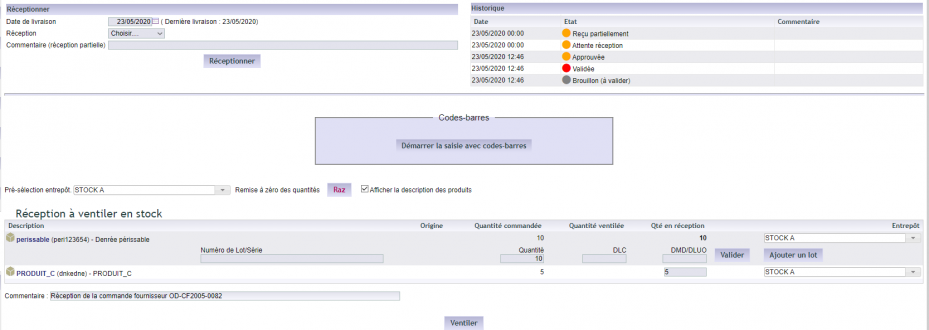
In practice, you assign batches when receiving goods.
Furthermore, this method supports barcode entry. See the corresponding chapter.
Here is the batch receipt screen.
Shipments
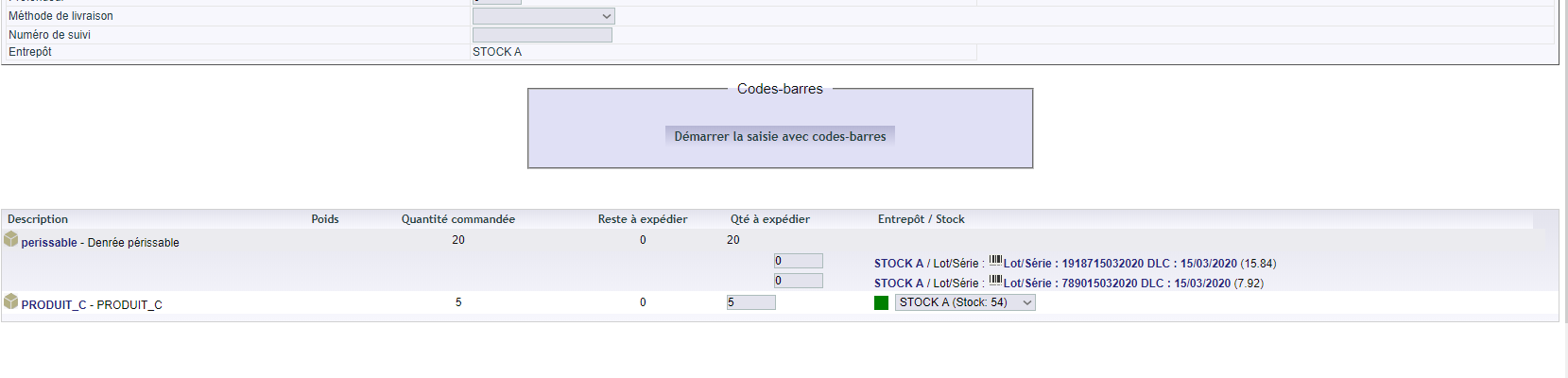
Next, you select the batches for delivery.
Additionally, this method also supports barcode input. View the relevant chapter.
Here is the shipping screen.
Stocks
You also manage batches in your inventory. This allows you to perform all correction and transfer operations.

Movements
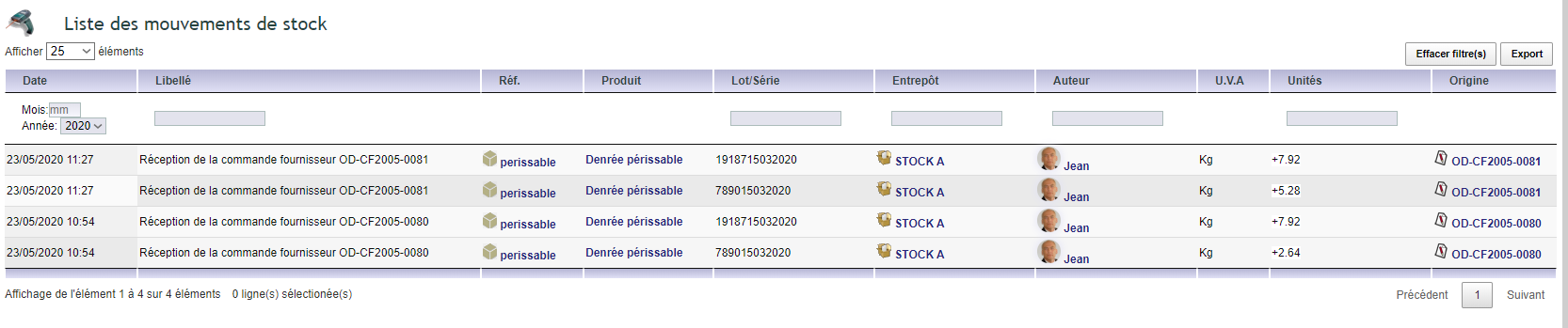
Batches also appear in movement records.
Batch list
Finally, here is the complete list of your batches.

