 on 25 October 2026
 Meeting notes: input interface and read receipt
DoliPlus case notes now feature a modernised interface that’s simpler and more readable. This means you can record notes faster, alert the right people, and easily find everything again.
Today’s case notes interface
Case notes help you keep track of exchanges: calls, visits, meetings. Over successive versions, DoliPlus has completely redesigned their interface to make daily use more practical.
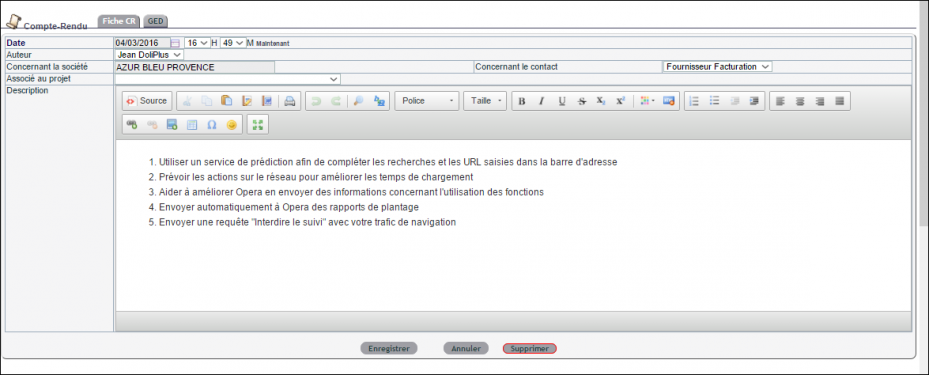
Four improvements now make the process easier:
- entry uses a rich text editor with automatic saving of drafts as you type;
- attach files by simple drag-and-drop and link the note to a customer, contact or project;
- recipients are automatically notified by email (and internal notification if the alerts module is active);
- the list view loads without page refresh and makes better use of screen width.
As a result, you capture key points effortlessly. You can then access your notes in a clear list view.
Guided entry and read receipts
When creating a note, the editor saves your text as you go: you won’t lose work if the session is interrupted. You can also start from a ready-made template and directly invite a user group.
Crucially, each recipient receives an email with the note content and a reply link. When confirmation is requested, they respond with one click (Yes or No). The record then shows who read the note and when. This gives you proof that information was properly circulated.
Writing a case note, step by step
- On the customer or prospect record, click the “Report” tab: all of this third party’s case notes, from newest to oldest. Click “Add a report”.
- The subject: a short title saying what it is about (if left empty, it is simply called “Report”). Then the type: follow-up visit, phone call, sales meeting…
- Who receives it: the distribution list is pre-filled (the group chosen in the settings and the customer’s sales representatives). Remove someone with the cross, add a colleague or a group by typing their name.
- With “Confirm notification sending” ticked, each recipient receives the case note by email, with two Yes / No buttons to say they have read it. Unticked, the case note is saved without notifying anyone.
- Choose the contact you met and, if needed, the project. Write the case note (template, image or dictation available), and attach files just below.
- Click “Add”: the case note joins the third party’s list, recipients are notified if you asked for it, and an entry is added to the customer’s agenda. Click it in the list to reread it, complete it or see who has read it.
The list view

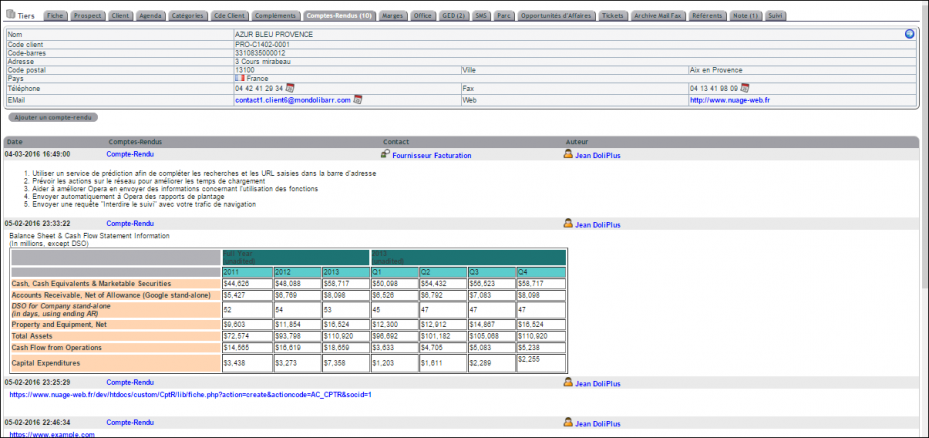
The list view gathers all your notes in one place and loads dynamically. Filter by title, date, author, customer, contact or project, and expand any row to read the full note without leaving the page. This lets you quickly review a customer’s history or track a job file.
Setting up case notes
The module settings decide how recipients are told about a new case note (notification, email, or both), and what is offered at creation: the type, the recipient group and adding the customer’s sales representative (rank 1, 2…). Click “Save”. The “Dictionary” tab, then “Report type dictionary”, holds the list of types: “New” adds one, the pencil renames it, the rank sets the order in the list.
Why keep good case notes?
Unrecorded exchanges get forgotten. Regular notes, however, build a valuable relationship history. Everyone can retrace discussions, even months later.
You gain on three fronts:
- shared memory: the whole team accesses the same history;
- reliable tracking: no commitments or follow-ups get missed;
- time saved: simplified entry encourages thorough recording.
Well-maintained case notes become a genuine commercial asset. You can also link them to your events and tasks.
In daily use, this interface actively encourages thorough recording. Because entry is quick and drafts save automatically, you note things down immediately rather than waiting till day’s end. Automatic recipient alerts also save manual notifications. The result is clean, shared, actionable records of every exchange.
Next steps
