 on 5 September 2026
 Computer-Aided Manufacturing (CAM) in DoliPlus
The manufacturing management module in DoliPlus is a built-in computer-aided production management (CAPM) system for your ERP. It lets you handle manufacturing and assembly operations, whether in-house or outsourced, using components or semi-finished products.
This manufacturing solution is designed for businesses seeking a straightforward tool. Crucially, it centralises all your data in one place:
- Sales and purchases, through to invoicing and accounting exports;
- Your product database, including raw materials, components and packaging;
- Stock management, with or without batch tracking, barcodes and inventories;
- Scheduling, with production routes and multi-level bills of materials;
- Resource planning, to trigger purchases and view actual or calculated stock levels;
- Logistics, to monitor your subcontractors.
Note: This module has special pricing. Please contact our sales team.
How manufacturing management works
You define each manufactured product by its composition: raw materials, components, packaging and labour. This bill of materials remains linked to your product database, which provides purchasing terms, stock levels and costs.
Your manufactured products then feed into the sales database, appearing automatically in quotes, orders and invoices.
DoliPlus also handles multi-warehouse stock management, whether physical or virtual. This lets you assign stock to subcontractors handling sub-assemblies.
Finally, you can add production quantities either from customer orders or directly to replenish stock.
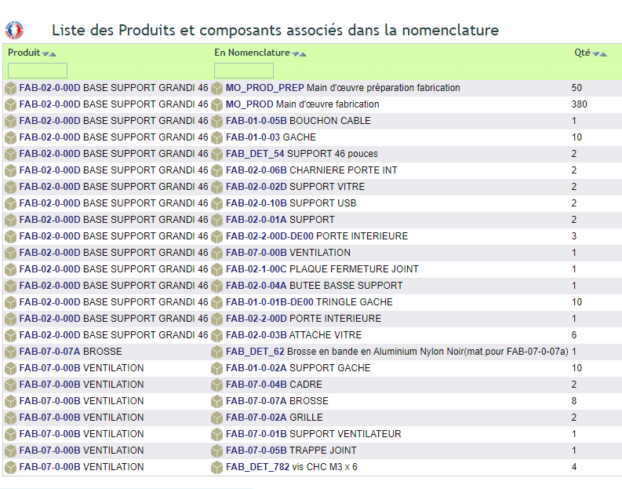
Production item list
Products can also be grouped into a category at the bottom of the table.
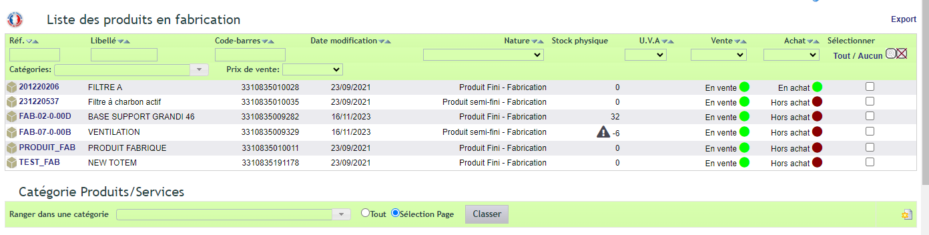
Preparing product manufacturing
DoliPlus offers two methods:
- Direct manufacturing: Updates stock immediately, without scheduling;
- Manufacturing order (MO): Tracks production (schedule, duration, actual consumption and output).
In both cases, the first step remains the same: defining the composition.
Creating the product record
The manufactured product must be registered in DoliPlus as a “finished or semi-finished product” with a “non-purchasable” status. You then complete its definition under the “Manufacturing” → “Summary” tab.
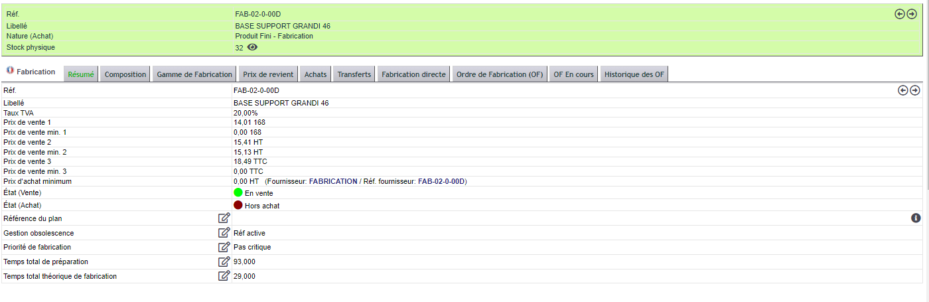
Defining the composition
You register the composition in the “Composition” sub-tab.
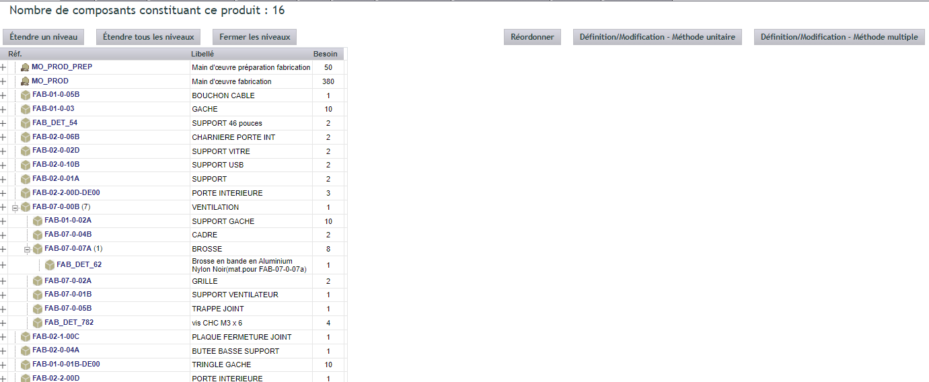
You then have two options: define the composition manually, or import it via an XML file.
To define it manually, click on “Composition definition”, apply your filters, then tick the required products and specify their quantities. The “Global” box indicates that a component is required in a fixed quantity, regardless of the production volume. Finally, save with “Add/Modify”.
The exact steps: click on “Composition definition”, set your filters, then click “Search”. Tick the required products and enter their quantities. At this stage, the saved composition can still be modified manually, or in bulk via the XML Import/Export of the composition.
The manufacturing process
The “Manufacturing process” sub-tab allows you to:
- define production stages;
- record and total times (setup and production);
- reorder phases by simple drag-and-drop;
- specify workshop, work centre and tooling;
- generate a PDF document.
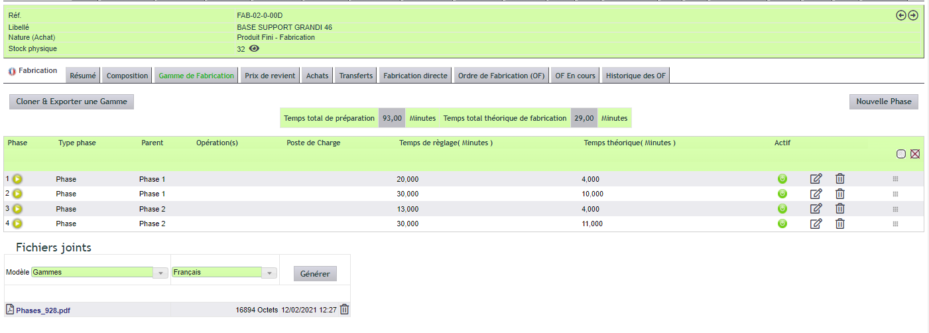
Note: this step is optional. You can also paste images via the clipboard function, stored in the product’s document library.
Phase 1 must be labelled as “product definition”. In the text editor, DoliPlus’s “clipboard” function lets you instantly paste a screenshot or image file.
Cost price
Initially, all prices are set to zero. You then retrieve component prices by clicking “Load prices (PA-PMP)”.
Remember, the PMP (weighted average price) is calculated with each stock entry. You can also replace a price with a purchase price based on your economic batch sizes.
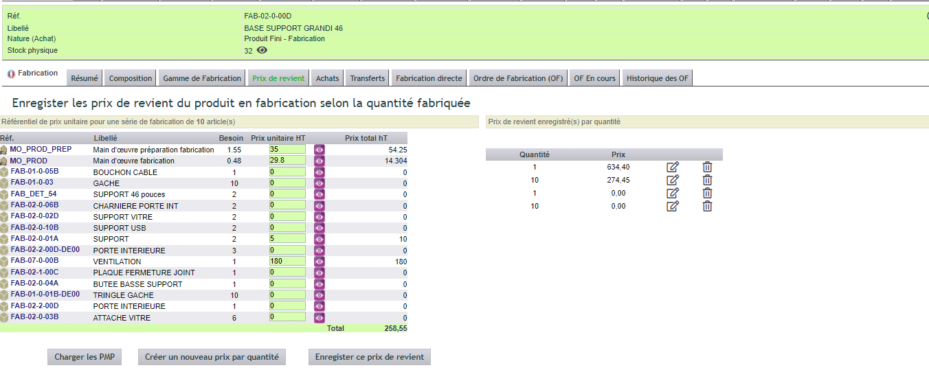
Note: depending on user rights, the display of component prices may be hidden.
You can replace prices with purchase prices from your economic batch sizes, saved as usual in the product’s “Supplier price” tab.
Purchasing and stock transfers
This interface lets you place replenishment orders directly from the composition. DoliPlus suggests a quantity, which you can adjust.
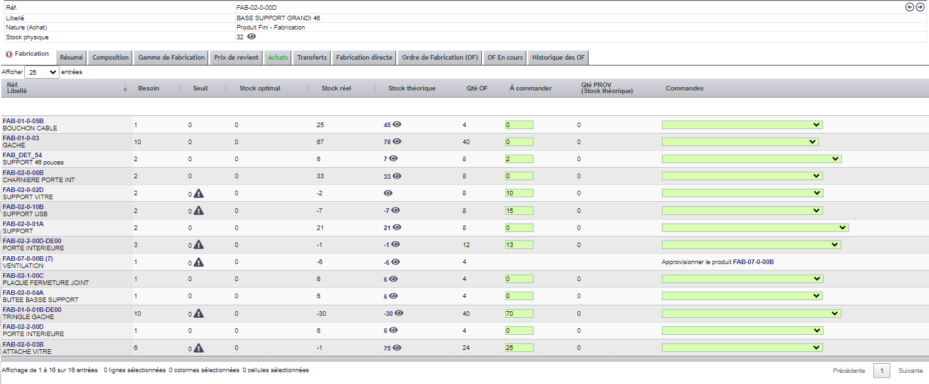
Additionally, multi-warehouse management includes subcontractor stocks. You can manage stock transfers, with a transfer note showing source and destination addresses.
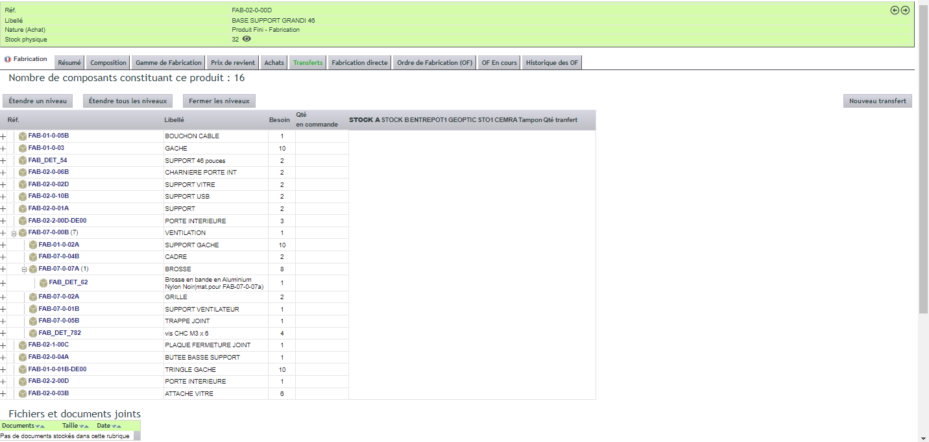
Direct production and work orders
Direct production
Direct production ignores lead times and scheduling. Stock movements are therefore immediate.
In practice, a table shows the producible quantity per warehouse based on stock levels. If a component is missing, DoliPlus displays the list of missing products and blocks production.
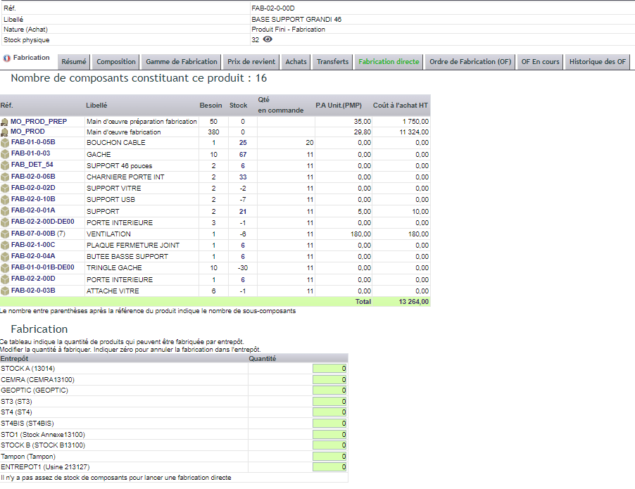
Enter the quantity, then launch direct manufacturing. Once the operation is complete, the component stock levels are reduced, and the newly manufactured stock appears.
The manufacturing order
The manufacturing order (MO) tracks production, including scheduling, duration, component usage, and actual output.
Create the MO
You create the MO from the “Manufacturing” tab → “Manufacturing order” in the product record. The page then displays the composition and available quantities, along with a stock verification button.
This button shows stock alerts, then unlocks the “Create manufacturing order” button. The MO is then created in draft status.
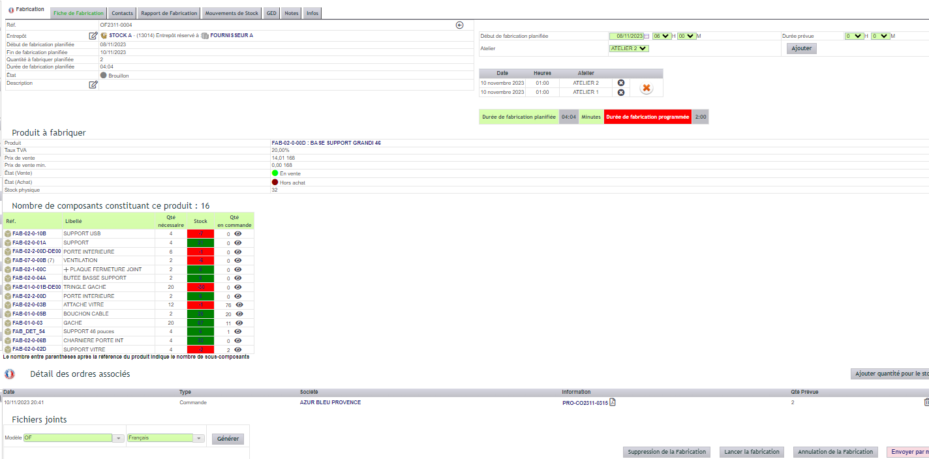
Schedule production
From the MO record, you schedule production in the defined workshops, each with its own colour. The graphical planner lets you visualise and adjust dates by workshop.
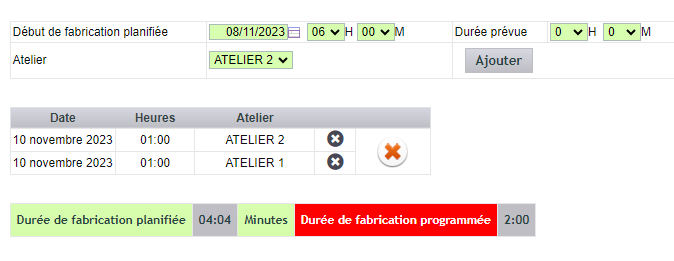
Validate and track the MO
Validation occurs when an actual production date is entered. Note: an MO cannot be deleted, only cancelled. Additionally, modifying an MO’s composition does not affect the product record.
You can also email the MO. To do this, first add a contact in the dedicated tab of the record.
The “Capucins” document template generates the manufacturing order as a PDF:
it includes production dates, component lists, quantities produced, and quantities lost.
To send it, first add a contact in the “Contacts” tab of the MO record,
then use the “Send by email” button.
The production report
Once the actual date is entered, the manager validates the data in the “Production report” tab. They then adjust stock levels: actual quantities produced and components actually used.
For waste or rejects, enter the actual quantity produced. DoliPlus then calculates lost quantities and returns unused components to stock. Finally, the “Complete MO” button updates all stock levels.
Once entered, the “Complete production” button updates
stock levels automatically.
Note
Private and/or public standard notes can add general production-related information.
Stock movements
Storage space for manufacturing-related documents.
Cancel an MO
An MO cannot be deleted, only cancelled.
The production schedule
The schedule centralises all your orders at the heart of production management. You select your MOs in the left column, then drag-and-drop to adjust the schedule. Multiple views are available.

Lists and overview
Production management offers several lists for a complete view: the production log (MOs and their statuses), the product and bill of materials list, and the in-production products list.

Configure production management
Once activated, you configure the module via **Divers → Configuration**. Three tabs group the settings.
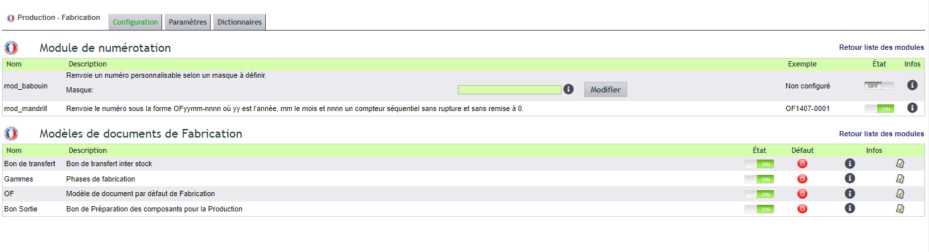
Dictionaries
This tab lets you define the essential tables: work cycles, workshops, cost centres, machines, and tools by workshop. You can even add your own entries.
Settings
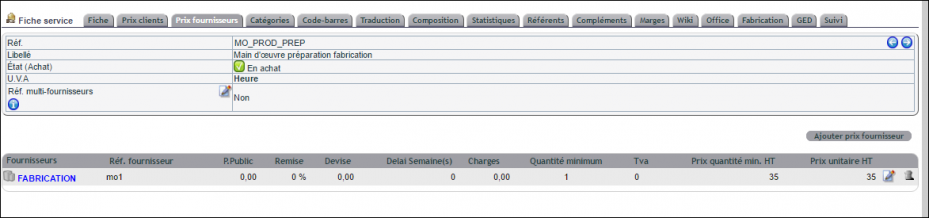
Here, you set up the warehouses, default time slots, and labour cost services. Note: these services must be “non-saleable”, in “hour” units, and linked to the supplier “FABRICATION”.
Configuration is done via the Divers / Configuration menu once the module is activated.
Restrictions
Finally, be careful: do not use both production management and composite/virtual products at the same time, or you may encounter stock errors. Disable the latter.
To learn more, also explore the inventory management.
Next steps
- Production software — the production module in detail.
