 on 25 October 2026
 Electronic signature software: your signed quote becomes a ready order
Why choose electronic signature software built into your ERP?
Your DoliPlus solution includes electronic signature software that lets you get contracts signed remotely, in full security:
- legally valid signatures, compliant with the European eIDAS regulation;
- identity checks with a one-time security code sent by text message;
- a proof file for every transaction, archived for at least 10 years;
- an extranet review page that tracks who reads your documents;
- automatic reminders and a clear status table for every signature;
- a signed quote that turns into a validated sales order on its own.
As a result, you close your deals faster, without printing, posting or scanning a single page. DoliPlus is the enhanced cloud edition of Dolibarr, the open-source ERP & CRM used across Europe.
Moreover, we recommend reading these related chapters:
Electronic signature and extranet review
This module combines two features, which you can enable separately, for your PDF documents:
- the electronic signature process;
- the extranet review.
The extranet review displays your document on a web page linked to DoliPlus, instead of attaching it to an email. Consequently, you monitor its reading and you offer additional services to your contact.
This module is optional. Please contact the support team to enable it.
Signing through a consent platform
The electronic signature relies on a subscription to Docage, a French platform that complies with the European eIDAS regulation.
In practice, the Docage account and access key, provided by DoliPlus, are saved in the module configuration. Then, DoliPlus automatically links each transaction to the relevant DoliPlus user.
How does the electronic signature software work?
To guarantee the legal value of the signature, the electronic signature software follows a precise sequence of steps:
- you upload your PDF document to the platform;
- you declare the identity of the signers, their email address and their mobile number;
- once you send the transaction, the document becomes impossible to modify;
- each signer receives a read-only review link;
- every signer must read the whole document before signing;
- by clicking “Sign”, the signer accepts the conditions through a mandatory checkbox;
- he then receives a one-time security code by text message;
- finally, he types this code to confirm;
- the platform adds a personal certificate, bearing his name, to the document;
- once every signer has finished, a qualified eIDAS timestamp seals the document.
Moreover, the certification authority is CERTINOMIS, a qualified trust service provider in the European Union. Above all, a proof file records the whole transaction (dates, fingerprints, certificates). Finally, the platform archives this file for at least 10 years, as long as your Docage account stays active.
Choosing the sending mode, step by step
- On the validated document (quote, order, invoice…) or on the third party card, click “Send by email”.
- Choose the recipient in “Liste des emails disponibles”, then click “Add”: for the extranet review, it must be a contact (last name and first name); for the signature, a mobile number on his card lets him receive his code by text message.
- Check that the PDF of the document is attached: without an attachment, the electronic signature is refused.
- Read the subject and the message again, then click “Email shipment”: nothing is sent yet, DoliPlus asks for “Your choice”.
- “Standard” sends a classic email, with the PDF attached. “Extranet access + electronic signature if available” sends a button to your customer’s page, without any attachment; tick “+ Direct debit request” to have him fill in a SEPA mandate as well. “For electronic signature” hands the document over to Docage, with an “Automatic reminder” at the chosen frequency (every day, every week…).
- “OK” sends for good, “Cancel” closes the window without sending anything. If no mode is ticked by default, tick one before “OK”.
Sending a document for signature
You start the signature from the outgoing email window. The document then travels through the Docage platform, which forms part of the authentication process.
In the dialog box, select the option “For electronic signature”.
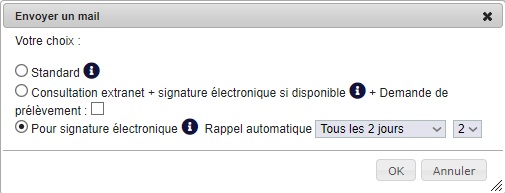
A few rules apply:
- all the recipients must sign to validate the document;
- you add a simple observer in “Copy to”, without any signature required;
- you must attach a document; DoliPlus merges several documents into a single one;
- you set the frequency of the automatic reminders.
Please note: all the recipients must belong to the same third party. In addition, your contact receives an email without any attachment, with a button that opens the document.
Important: to insert this button, DoliPlus adds an invisible tag before your email signature. Therefore, if you edit your automatic signature, keep the “‌” tag — otherwise the button will no longer appear.
Inserting a visual signature
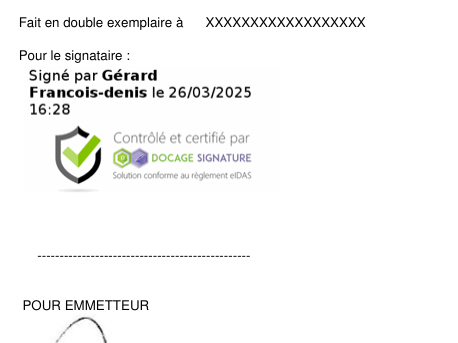
Visual signatures are purely cosmetic. Indeed, they have no legal value: only the certificates guarantee the validity of the document.
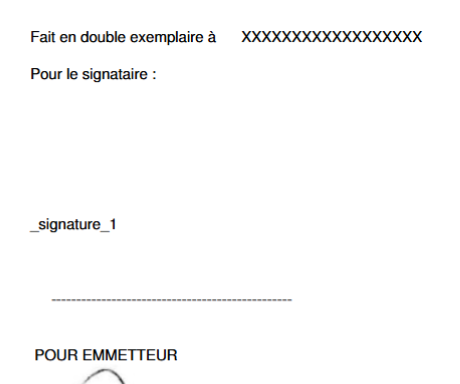
A visual signature displays the Docage seal, the signer’s name and the timestamp. To define its position, add the tag _signature_X, where X is the signer number (1, 2, 3…).
 |
 |
Please note: this tag only works when you send the document from a third party. Moreover, as an option, a signature can also appear on your commercial proposals.
What the signer sees
Docage sends the email directly to the recipient. When the recipient opens the document, he receives a security code by text message, which he then types in to confirm.
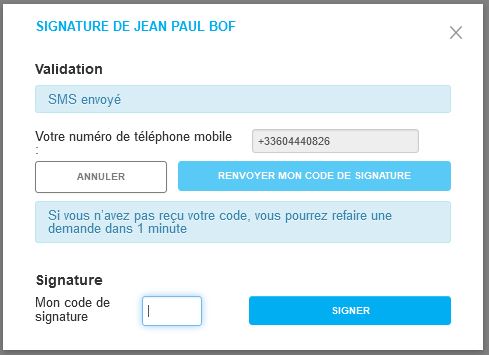
If he has no mobile phone, he receives his code by email instead. A final screen then confirms the end of the transaction, and the signer receives a copy of his document.
Furthermore, a summary table — for example inside the commercial proposal — sums up the transaction and its status:
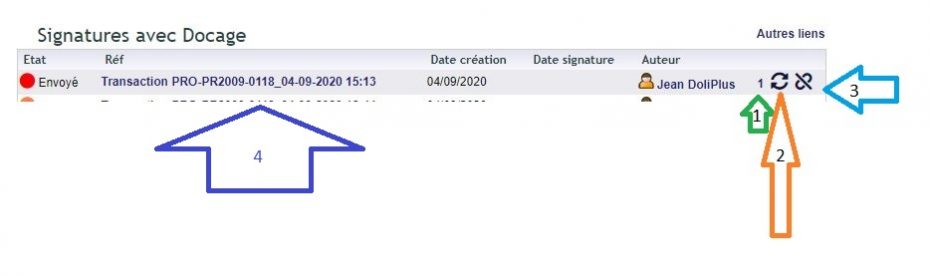
From this table, you can send a manual reminder, cancel an unsigned transaction or open the proof file.
The proof file
Given the wide variety of documents, the signature does not appear inside the signed PDF: the law does not require it. In reality, the proof file remains the only guarantee of the signature. You can open this document of around 9 pages from the transaction details.
Tracking all your signatures, step by step
- Menu Sales › Tools › “Electronic signatures list”.
- The status column updates on its own: “Sent” as long as the customer has not signed, then “Signed”, “Rejected”, “Expired” or “Abandoned”. The signature date appears at the end of the line.
- Click the label of a request: the “Transaction details” window shows the signer or signers, the dates, the status, the author and, once signed, the files (signed document and proof). “Close” closes it.
- For a request still “Sent”, “Follow up” immediately sends a reminder to the signer (the number next to it counts the reminders and opens their dates); the cancel icon stops the request. Each one asks for confirmation.
- “Linked object” opens the relevant document. On its card, the “Signatures with Docage” table lists its requests with the same buttons (it appears for users who are allowed to create signatures), and the “All signatures” link opens the list filtered on this customer.
From signed quote to ready order, with no re-keying
A signature only pays off when the next step follows. Therefore, as soon as the last signer validates, DoliPlus takes over your file.
First, your commercial proposal moves to the “signed” status. Moreover, the signed document and its proof file are filed right next to it.
Then, the sales order is built automatically from the quote. It carries over your lines, your discounts and your contacts, without any re-keying.
Finally, that order is validated straight away. Consequently, it holds its final reference instead of waiting as a provisional draft, and your team finds it ready to pick or to invoice.
Besides, a confirmation email reaches you as soon as everything is sealed. It carries the signed document together with its proof file. DoliPlus also writes it in your own working language, so your English-speaking colleagues receive theirs in English.
See the chapter on customer ordersThe extranet review
The extranet review displays your document on a web page linked to DoliPlus. Therefore, you avoid the email attachment and you track the reading. Better still, at the end of the reading, you can invite your contact to:
- fill in a SEPA direct debit authorisation;
- sign the document instantly, together with its direct debit mandate;
- pay a down payment invoice by bank card (Paybox option);
- enter the prices of a supplier request;
- send a message to the sales manager, who receives an email and a calendar alert.
Sending a review
You send the document from the outgoing email window. In the dialog box, choose “Extranet access + electronic signature if available”, and optionally “+ Direct debit request”.
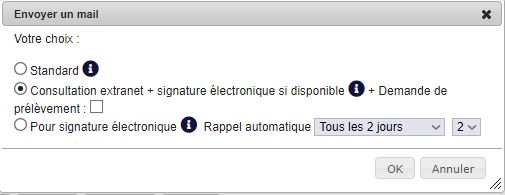
You must attach a document to the message. As with the signature, the recipients must belong to the same third party. Your contact then receives an email with an access button.
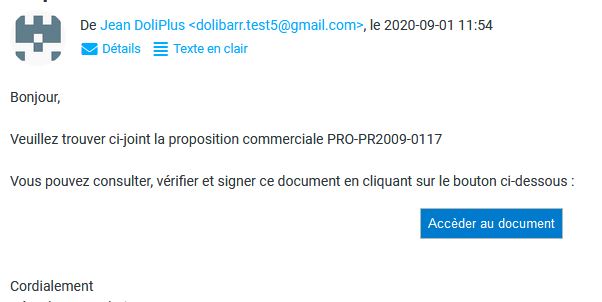
As soon as he opens the document, a counter records his visit. Moreover, a summary table shows the status, the number of views and the approximate location.
Finally, the menu Sales › Tools › “Extranet consultations” supervises all your sendings:
- one line per review, with its status: “In progress” (not opened yet), “Viewed”, “Signed”;
- the “Ref.”, that is the email subject, opens the page as your customer sees it, without counting your visit;
- “Linked object” opens the quote or the order, and the third party opens its card;
- “Other columns” adds the “View count” (in one click, the date and the approximate town of each visit) and, if the SEPA module is active, the mandate request;
- the “ECM” tab shows the files produced by these sendings.
On the card of the quote, the order, the invoice or the third party, the “Extranet” table also lists its reviews: status, creation date, validity and number of views.
What the recipient sees
By clicking the button, the recipient reaches a dedicated reading page.
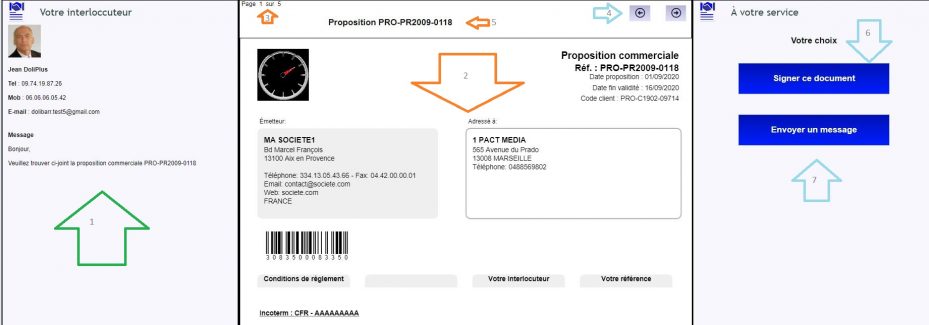
On this page, he finds your contact details, the assembled PDF and the navigation buttons. If the signature is active, “Sign this document” asks him to confirm his identity, then takes him to Docage, with a check by text message. In addition, he can send you a message; DoliPlus then notifies you by email and in your calendar.
Once the document has been signed, the page closes, and the recipient receives a copy of the document. If he opens the link again later, the page tells him “This transaction is no longer available”.
Communication area
You can also display a message to all your recipients, through a text editor. For example, announce a trade show or a new product, with a link.
Approving a quote with a down payment invoice
As an option, an “Accept this quote” button can replace the signature button. This click then generates an automatic down payment invoice. Once the customer pays the down payment, the acceptance of the quote becomes final.
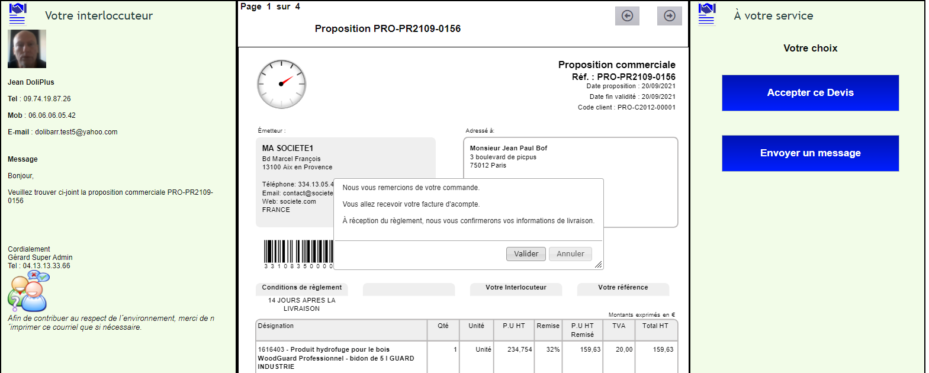
Here are the key points of this option:
- the button does not appear if the quote already has an invoice;
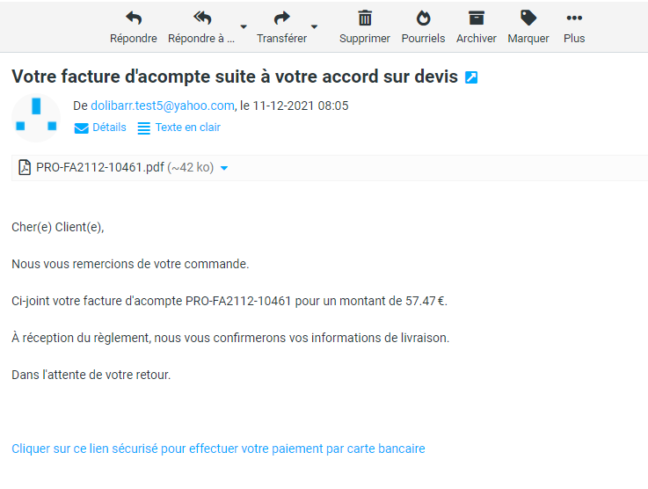
- the variables __FACREF__ and __TTC__ show the reference and the amount of the invoice;
- DoliPlus then closes the proposal and notifies the manager by email.
Setting up the module
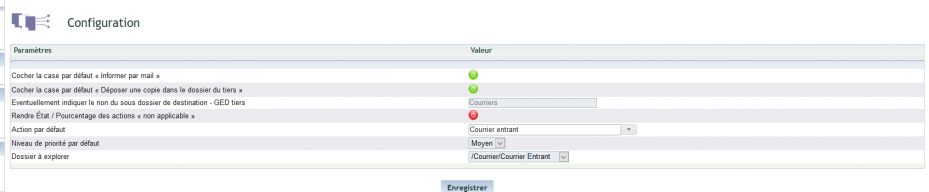
First, adjust the permissions by group or by user. Next, the administrator sets the options with the “Configuration” button of the signature and review lists. In detail:
- “Demo signature mode”: as long as it is on, the signatures you send are tests with no legal value; switch it off to sign for real;
- the copy of the file and of the proof into the ECM: the signed document and its proof are filed in the ECM of the quote or the order;
- accepting a quote with a down payment invoice instead of a signature: down payment percentage, down payment service, user linked to the invoice, thank-you message shown to the customer and email that comes with the invoice;
- the values offered at each sending: “Default reminder type” and “Default sending mode”; save them once, otherwise no mode is ticked by default when you send;
- the extranet: “Number of days before expiration”, “The author is notified by email for each access”, “SEPA Label” and mandate template, “Notice on extranet page”;
- the Docage account and key, provided by DoliPlus: do not change them, as a mistake stops signatures from being sent.
Switches apply as soon as you click them; fields only count after “Save”. Therefore, save your entries before clicking a switch, otherwise they are lost.
Finally, the “Email” tab sets the mailbox that sends the extranet notifications: choose an existing email configuration or enter the account, password, server, security and port, then “Save”; “SMTP test” checks the connection. Without this account, the author is notified of no review and no message.
With this configuration in place, your electronic signature software runs entirely inside DoliPlus, from the first email to the final proof file.
Related Entrées
