 on 5 September 2026
 Gmail Mailbox Accounts
Setting up a Gmail account
You are now linking a Gmail account to your ERP using OAuth2. This is Google’s official authorisation protocol.
Indeed, Google has disabled password-based login. This affects application passwords, “less secure apps” and two-step verification for third parties. As a result, an email client no longer logs in using your Gmail password.
Instead, the application obtains an access token. Google issues this token after your explicit consent. Therefore, the procedure below replaces the old password-based setup, which no longer works.
Google no longer allows IMAP/SMTP access with just a password. Now, any Gmail account connection requires OAuth2 authorisation with a consent screen.
Understanding the OAuth2 flow
The principle is simple. You never share your password with the application. Instead, Google redirects you to a dedicated page, which asks you to authorise access to your email.
Then, Google sends an authorisation code to the ERP. The application exchanges this code in the background for an access token. Additionally, it receives a refresh token. This way, access is renewed without requiring you to log in each time.
In practice, three steps follow:
- Authorisation: First, you click to connect your email. Then, the ERP redirects you to Google.
- Consent: Next, Google displays the affected account and the requested permissions (reading and sending emails). You confirm.
- Tokens: Finally, Google returns a code. The application exchanges it for the tokens, and the inbox connects. The refresh token maintains access over time.
Procedure for linking a Gmail account
You set up your Gmail account in DoliPlus’s email account configuration. There, you’ll find a button to connect to Google Mail.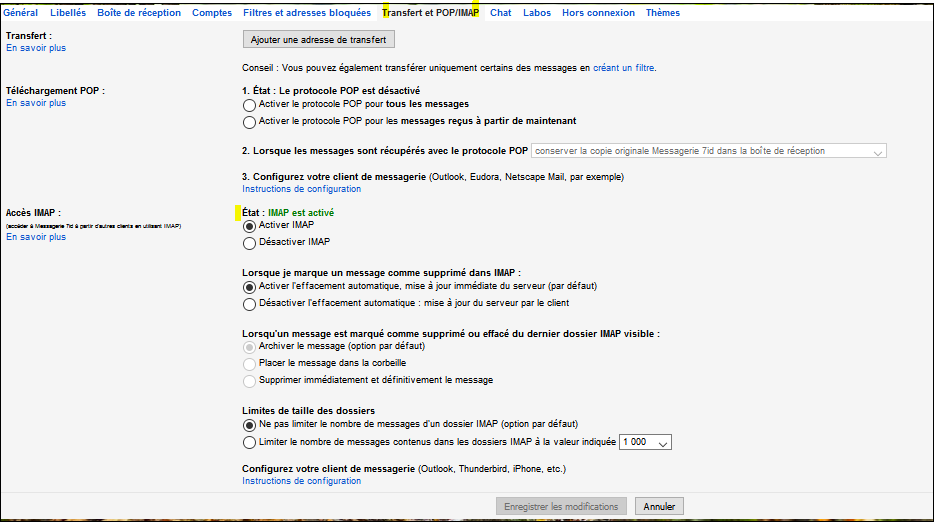
- First, enable the IMAP protocol in your Gmail settings (under “Forwarding and POP/IMAP”). This is still required to access the inbox.
- Next, open the email client in DoliPlus and start the connection to your Google account.
- Google then redirects you to its authorisation screen. Select the correct account, review the requested permissions, and click Authorise.
- Finally, Google redirects you back to the ERP, which completes the token exchange. Your mailbox connects, and you can access your messages without entering any password.
You never need to enter a password. Similarly, you don’t need to set up an app password or two-step verification for a third party. OAuth2 consent handles everything.
Additionally, if you change devices or revoke access in your Google account, simply reauthorise the connection.
Information on email recipient limits
First, Gmail limits sending to 500 recipients per day. This cap rises to 2000 for Google Workspace (see).
If you exceed these rules, Gmail may suspend your account for 24 to 72 hours. What’s more, it does so without any warning.
For example, you’ll then receive the error « 550 5.4.5 daily sending quota exceeded », especially when sending bulk emails.
So, avoid using this type of account for mass sending!
