 on 15 October 2026
 Stop email spam in DoliPlus
Anti-spam filters in your integrated email
Are you bombarded with promotional emails and messages linking to suspicious sites? Spammers use aggressive techniques to infiltrate your inbox. Fortunately, your integrated DoliPlus email gives you another tool to fight back.
In practice, and regardless of your email server, you can create your own anti-spam rules and filters. These then remain active directly from your DoliPlus email.
A few rules to limit spam
First, never click on unsubscribe links or any other links or images in a suspicious email. This action confirms to the spammer that your address is active – which is exactly their goal.
Additionally, adopt these simple habits:
- Do not use one of your addresses to send newsletters without precautions,
- Mark each spam as unwanted (or blacklist, depending on the email service),
- Delete spam directly, without opening it,
- Never reply to a spam,
- Do not click on its links or images,
- Do not use its unsubscribe addresses,
- Limit multiple sign-ups to websites, games, and other services,
- Finally, do not share your address everywhere on the web.
How to create anti-spam filters in the email
First, your integrated DoliPlus email must be activated.
SPAM filters
In the message list, first select the line (blue), then click the “Mark as spam” button.
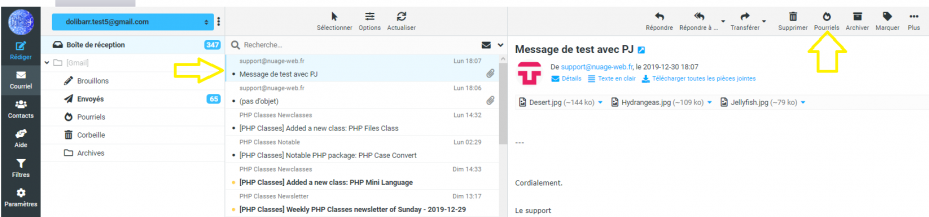
A form then opens, allowing you to choose the filters.
Block a whole domain in one click
Spammers change their address with every mailing: blocking one address is therefore almost useless. That is why the form directly offers “the whole domain”, for example @spam-example.com, already ticked. A single rule then rejects every address of that sender.
You would rather stay precise? Tick “this address only”. In addition, DoliPlus protects you from mistakes:
- for a public email service (Gmail, Outlook, Yahoo…), only the address is offered, so as not to block all its users;
- if one of your customers or contacts uses that domain, the address alone stays ticked, with a warning.
Check the filter scope (Subject, From…), then save.
Immediately, the message moves to your junk folder, as defined in the special folders configuration of the email.
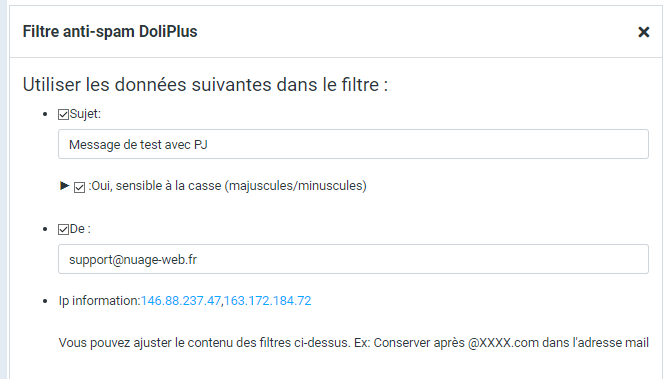
Note: By default, the anti-spam filter applies to all messages in the inbox (read and unread), and the destination folder is your junk folder.
Your filters also spare you interruptions
Your anti-spam filters also serve the new-email notifications, on your phone as in the webmail. Thus, a message matched by one of them triggers no alert, even before you open your mailbox. To go further, choose to be alerted only for known senders: see email notifications on your phone.
Filter to another folder
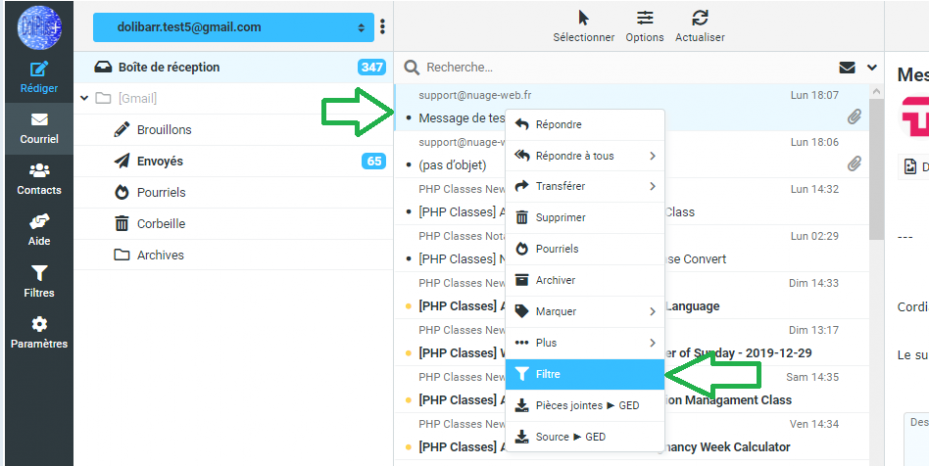
You can also sort a message into another folder. To do this, select the line (blue) in the inbox, open the context menu (right-click), choose “Filter”, then fill in the dialog box: check the headers to use (Subject, From, To), adjust the address or text to search for, then select the destination folder before saving.
Indeed, it is sometimes useful to sort messages by folder, for example by sender.
Delete a filter
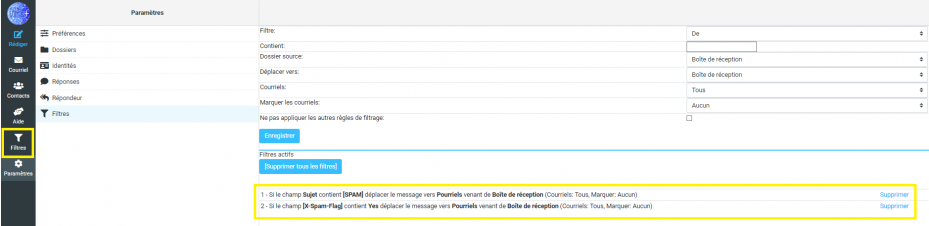
If you make a mistake, open the email, go to Settings then Filters: the list of saved filters appears. Click the “Delete” link next to a rule to remove it, or use the “Delete all filters” button to reset everything.
See also: the integrated Roundcube webmail
