 on 25 October 2026
 Automated catalogue of products and services for sale
The automatic catalogue generates your products and services into a PDF or Excel document, with or without pricing. This way, you produce an up-to-date catalogue in just a few clicks, without manual formatting.
What is the automatic catalogue for?
The automatic catalogue generates catalogues in table format, based on your product and service database. You filter your items, then generate the document on demand.
In practice, the tool offers several advantages:
- on-demand PDF or Excel output;
- automatic table layout;
- direct synchronisation with your ERP;
- support for sales and purchase units (UVA);
- immediate integration of new items and last-minute changes;
- customisable PDF footer.
Once activated, the automatic catalogue is accessible from the Sales › Tools › Catalogues menu.
Creating and printing a catalogue, step by step
- In the “Sales” menu, hover over “Tools” then click “Catalogues”: the list shows your saved catalogues, and each one can be reprinted at any time with today’s prices. Click “New”.
- The price list name is printed on the cover (“Stationery price list 2027”), along with the validity start date.
- The price class selects the price level (Tarif 1, Tarif 2…): one catalogue per customer group. For the negotiated prices of a single customer, select that customer in the “Client” field.
- In the “Catégories” field, type the beginning of a product category and select it; add as many categories as you want chapters. Only items for sale are included.
- “Type d’impression” (output type): PDF to send or print, Excel to rework the list. The following lines are set to Yes / No: the price (excl. or incl. tax), the photos, the description, the weight, the dimensions, the country of origin…
- Click “Add”: the catalogue joins the list. On its line, the printer icon generates the document with the current prices.
- “GED” tab (document library): catalogues are filed by validity start year, and the file bears the name and date of the price list. Generating the same catalogue again replaces this file.
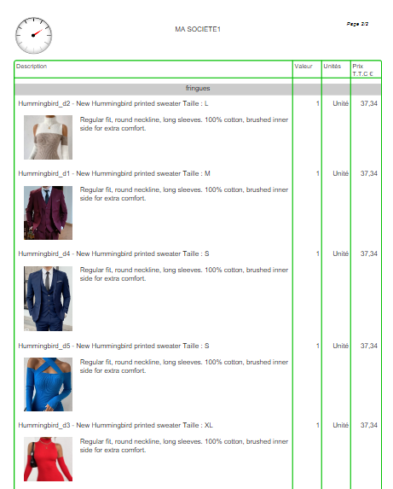
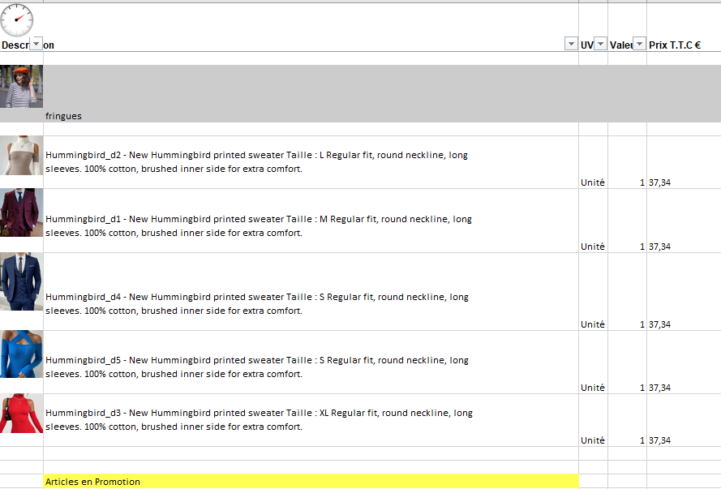
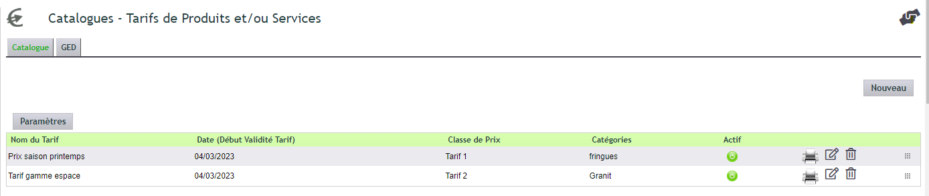
Configuring the automatic catalogue
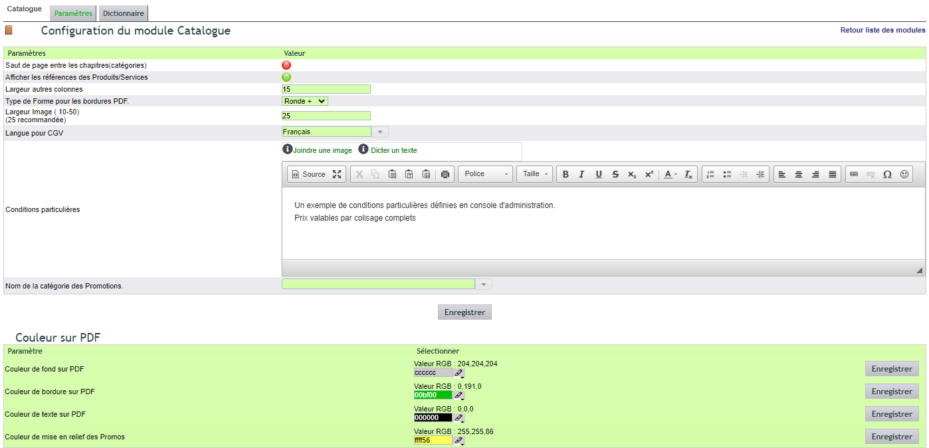
Configuration is done from the module interface, in the “Settings” tab. Many options control your outputs. Note that specific conditions can be added at the bottom of each page, with a 255-character limit for Excel exports.
To open these settings: Setup › Modules, “Catalog” line, settings icon on the right, or the “Settings” button on the Catalogues page. They control the appearance of the PDF:
- each product category forms a chapter, which a switch can make start on a new page; the next line shows or hides the references;
- the width of the photos (25 recommended), the width of the other columns and the shape of the table borders;
- your general terms and conditions in the chosen language, added at the end of the catalogue, and the text of the “Special conditions”, printed at the bottom of each page;
- the promotions category: its products are printed in the highlight colour; switch to another category to change the promotion;
- the background, border, text and promotion colours, each with its own “Save” button.
Then print a catalogue to check the result.
Each catalogue remains highly customisable:
- columns to display can be freely organised;
- each output can be named, dated and saved in a document library folder by year;
- pricing is based on a price class, for example class 100 for customer pricing.
Learn more about price management
Format, chapters and images
The automatic catalogue offers three output formats: PDF (with cover page and watermark), Excel, and Excel Big for large exports, processed in the background.
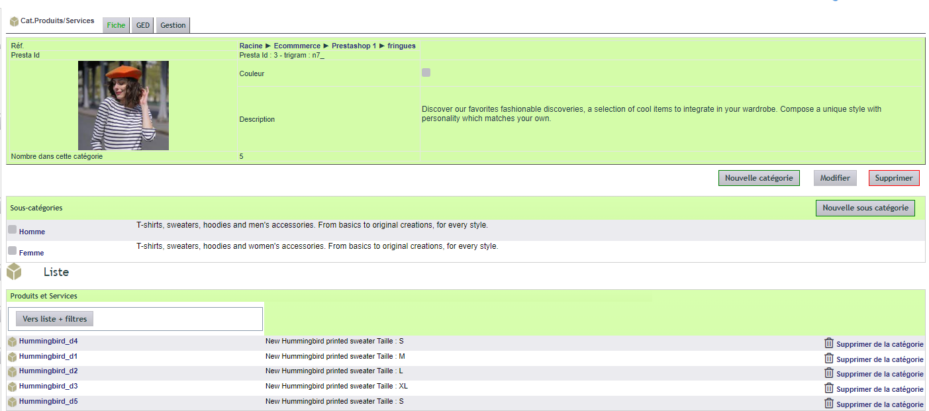
To structure the document, it’s the Product/Service categories that define the chapters and their order. Only items for sale are selected, and the category description serves as the title. Additionally, the catalogue can display product images and highlight promotions.
PDF templates have fixed names. They are stored in the
Templates folder of the module, within its document library:
- the custom cover under the name Cover.pdf;
- the watermark under the name Watermark.pdf.
Your general terms and conditions, however, remain in the usual folder under the
Tools / Templates menu.
Why automate your catalogue?
Creating a catalogue manually is time-consuming and quickly outdated. The automatic catalogue, on the other hand, works from your up-to-date data.
You benefit in three ways:
- Time saved: the document generates in just a few clicks;
- Reliable data: the catalogue reflects your product database;
- Polished presentation: PDF with cover or ready-to-use Excel file.
Learn more about products and services
To go further
