 on 25 October 2026
 Automatic quote follow-up: turn silent quotes into signed deals
Why set up automatic quote follow-up?
Automatic quote follow-up turns your unanswered quotes into signed deals. Indeed, every day, proposals sit waiting because nobody chases them.
However, a customer who stays silent is rarely a lost customer. Often, they simply forgot, compared offers, or waited for the right moment.
Therefore, DoliPlus chases your quotes for you, at the right pace. Thus you recover revenue without thinking about it, and your sales team focuses on the warmest deals.
DoliPlus is the enhanced cloud edition of Dolibarr, the open-source ERP & CRM used across Europe.
- you see where each reminder will be sent before sending it, straight from the list — and you spot at a glance the customers who will receive nothing;
- the quote now travels as an attachment with every reminder email, so your customer finds the proposal instantly;
- the salesperson’s contact details (phone and email address) are added to your messages, so the customer can call back in seconds;
- a “Next reminder” column shows the date of the next message, or the reason why none will go out;
- a safeguard stops the reminders after a delay you set following the validity end date, so an out-of-date price is never chased.
How automatic quote follow-up works
Automatic quote follow-up relies on a sequence of scheduled messages. Concretely, as soon as a quote stays unanswered, the software plans the next reminder and sends it at the right time.
A cadence built to convert
First, DoliPlus sends a polite reminder. Then it follows up with more engaging messages, sensibly spaced. Finally, as the validity date approaches, it triggers an urgency reminder.
- a first reminder a few days after the quote goes out;
- an engaging follow-up, with a call task for the salesperson;
- an urgency reminder before the quote expires;
- finally, a closing message to end the sequence cleanly.
A priority score to work the right quotes
Moreover, each quote gets a priority score. Thanks to this score, your sales team spots high-potential deals at a glance. Thus they handle the largest amounts and the most engaged customers first.
Reminders by email, by SMS, or both
For each step, you choose the channel: email, SMS, or both. Indeed, an SMS lands straight in your customer’s pocket, whereas an email carries a longer message.
Moreover, DoliPlus uses your existing SMS account. For example, a Brevo or OVH account is enough. Notably, the software shows your remaining SMS credit before each send.
Above all, every reminder email now carries the quote as an attachment. Therefore, your customer reads the proposal again immediately, without digging through old messages.
Setting up automatic quote follow-up in two tabs
The configuration page fits on two tabs only: Settings and Email templates. Thus you set everything up without getting lost in endless screens.
One landmark: the quote’s follow-up date
Before touching any setting, remember one idea. Indeed, everything revolves around a single landmark: the follow-up date carried by each quote.
Concretely, it is a date attached to the quote. You either set it by hand on the record, or DoliPlus works it out after each send.
Thus, every day, the software picks up the open quotes whose date has come. Then it sends the reminder for the current level. Finally, it reschedules the next date from the cadence.
The Settings tab
First, the Settings tab defines the rules. Notably, you set:
- the send lead time, that is how many days early a reminder may go out;
- the maximum number of sends per hour, to smooth the load and stay out of spam folders;
- the quote statuses to exclude, for example quotes already signed or invoiced;
- the customer categories you never want to chase, such as sensitive key accounts;
- the urgency reminder before expiry, in days before the validity date;
- a test email address and mobile number, so you receive simulated sends yourself.
Then, a “Send a test SMS” button validates your gateway in one click. Moreover, DoliPlus shows the remaining SMS credit straight away.
Still on this tab, the “Follow-up cadence” table lists every level. For each row, you simply pick the channel: email, SMS or both.
Finally, a button switches the automatic service on. From then on, DoliPlus sends your reminders every day, with no action from you.
At the bottom of the “Settings” tab, two blocks complete the configuration:
- “Management of old quotes”: pick a date in “Close quotes opened before”, then click “Mark as lost” (after confirmation). Every quote still open from before that date is then closed as lost in one go, with the reason “Postponed project (bulk closing)”.
- “Automatic reminder service”: the scheduled task that sends the reminders every day. “Create the automated service” sets it up, then the switch turns it on or off. As long as it is off, nothing goes out on its own: switch it on once the cadence and the templates suit you, and clear the simulation address.
The Email templates tab
The second tab holds your messages. You create as many templates as follow-up levels. For each one, you fill in:
- the follow-up level, from 1 to 5;
- the subject and body of the email, formatted freely;
- a short SMS text, with a character counter;
- custom variables that insert the customer name, the quote reference or its amount;
- your salesperson’s contact details, so the customer can call back effortlessly.
Who signs the automatic quote follow-up?
Each follow-up goes out in the name of a real person, because a message from a salesperson works better than an anonymous email. DoliPlus picks the sender in this order:
- the author of the quote, if they have connected their mailbox;
- otherwise, an administrator of your company whose mailbox is connected;
- as a last resort, your company’s generic sending address.
So a salesperson who has not yet connected their mailbox sees their quotes followed up in a colleague’s name. Connect each salesperson’s mailbox, then, so that their follow-ups go out under their own name.
Running your follow-ups day to day
Day to day, a single page gathers every quote to chase. For each row, you see the customer, the amount, the priority score and the intended recipient.
Above all, you launch every reminder in one click, or one at a time. However, when a quote is truly lost, you close it with a clear reason.
See where each reminder will be sent, before sending it
A “Recipient” column shows, quote by quote, the address DoliPlus will actually use. Thus you check your sends without opening a single customer record.
Concretely, the column follows the channel planned for the current step:
- the email address retained, when the reminder goes out by message;
- the mobile number, as soon as the step plans an SMS;
- a red warning — “No address” or “No mobile” — when the message cannot go out.
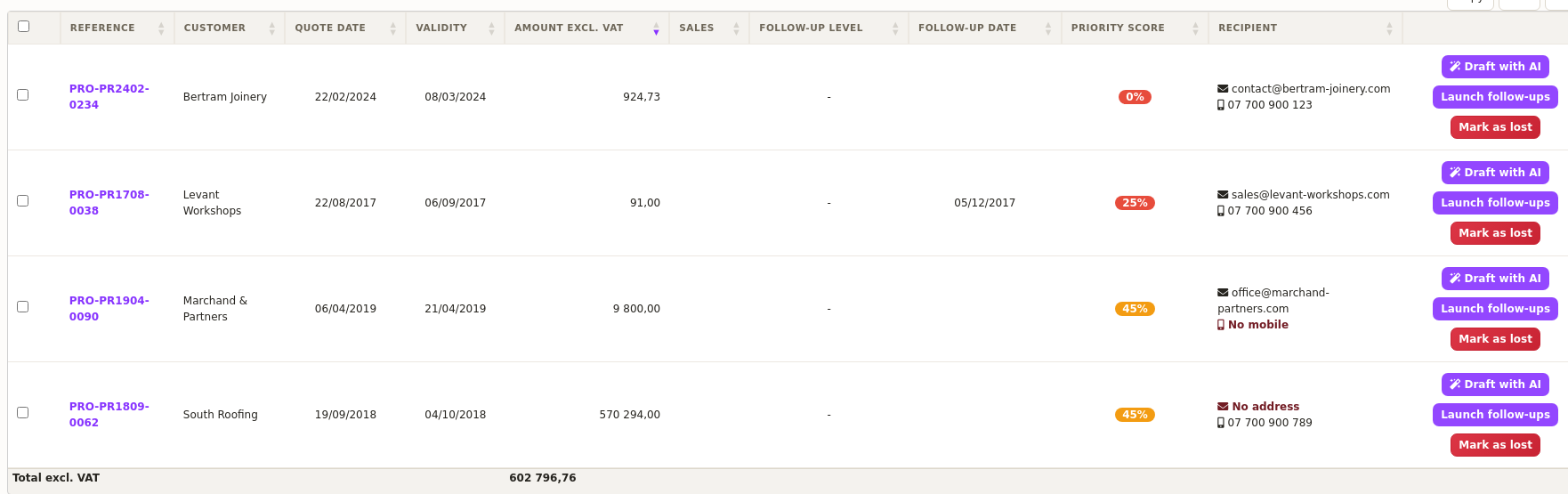
Moreover, the origin of the address stays available. Indeed, hover over the cell and DoliPlus tells you whether it comes from the contact attached to the quote or from the customer record.
Finally, when you work in simulation mode, the column shows the test address. In other words, it never lets you believe a customer will receive a message sent elsewhere.
Know, quote by quote, when the next reminder goes out
A “Next reminder” column now shows the date of the next message. Therefore, you can see what leaves this week at a glance, without opening a single quote.
In practice, it displays three different things:
- a firm date, when the cadence is already scheduled on the quote;
- a forecast date, worked out from the quote’s validity end date, whenever the expiry is what will trigger the reminder;
- a dash, when no automatic reminder is planned at all.
Above all, the dash explains itself, right there on screen. Indeed, a word now sits next to it: to start, off or expired. That way a whole list reads at a glance, without hovering over rows one by one. And hovering over the cell still gives you the full sentence.
As a result, no quote stays silent in the list any more. In other words, your automatic quote follow-up now shows what it will do as clearly as what it will not do.
The follow-up queue, column by column
Closio menu › “Quote reminders” (“View quote reminders” permission): every open quote to chase, largest amounts first — reference, customer, quote date, validity, amount excl. VAT, salesperson, “Follow-up level” (the level reached and, in brackets, the number of sends; a red icon flags that the last reminder failed), “Next follow-up” (“to start”, “expired”, “off”), “Priority score” and “Recipient”. You can copy the list or export it to CSV.
Each salesperson finds there the reminders for their own quotes (those they authored); the home page counter follows the same rule. With the “View all reminders (manager)” permission, or for an administrator, the queue gathers the quotes of the whole team.
Following up right away
With the “Send / schedule reminders” permission:
- the “Launch follow-ups” button on a row immediately sends the reminder for the next step of that quote (email or SMS depending on the cadence, with its template) and schedules the following one;
- at the top, “Send selection” follows up the ticked rows, and “Launch follow-ups” the whole queue. A “Confirm follow-up shipment” window gives the number of quotes concerned; a progress bar tracks the sending, then “Reminders sent” appears, or the list of failures (“Sending failures…”) with their reason.
There is no test mode on this page: to try it out, use the simulation address in the settings.
Closing a quote as lost
When the customer has said no, “Mark as lost” (the red button on the row) asks for the “Reason for loss”: “Too expensive”, “Competitor chosen”, “Postponed project”, “No budget” or “Other”. The quote then moves to “Not signed”, the reason is appended to its note, its follow-up date is cleared and pending reminders stop.
The “stop reminding me” link
The __ABANDON_LINK__ variable inserts a personal link for each quote into a template; the delivered last-level template uses it (“Si vous ne souhaitez plus être relancé, cliquez ici”, meaning “If you no longer wish to be reminded, click here”). The customer who clicks sees an “Abandoned project” page that asks them the question; their request is taken into account when they click “Stop reminding me”. A mere preview of the link by their email software therefore has no effect. After this confirmation, a quote that is still open is closed as lost with the reason “Other (abandon client)”, exactly as with “Mark as lost”. A quote already signed or closed keeps its status: only its pending reminders stop. The link is signed: it is valid for that quote only.
The “Quotes to follow up” counter
On the home page (and in the dashboard), the “Quotes to follow up” box shows at a glance the number of quotes to chase today, those with a high score and those at “last chance”; “View reminders” opens the queue.
Drafting a reminder with AI in one click
Your reminders can also be drafted by artificial intelligence. Indeed, on each quote, a “Draft with AI” button proposes a tailored email, ready to review. Thus you save time while keeping a personal message.
Concretely, the assistant only uses real data from the file: the customer, the quote amount, its validity date, the salesperson and the history. Therefore, it writes text that fits the context, without ever inventing information.
Above all, nothing goes out without your approval. First, a window shows the proposal. Then you edit it, regenerate it if the tone does not suit you, and click send. In other words, the assistant proposes and you decide.
How long is a quote still worth chasing?
Once its validity date has passed, a quote loses its commercial value. Indeed, prices move and so do lead times. Therefore, chasing a document that expired months ago works against the sender.
For that reason, DoliPlus stops automatic reminders a set number of days after the validity end date. You adjust that delay in the Settings tab, through the “Stop reminders after expiration (days)” option. By default, it is one year.
Above all, your trade sets that delay. Indeed, some decisions take years: a homeowners’ association waits for its general meeting, a public body for its vote, a tender for its award. In those businesses, set it wide: 1460 days, or four years, is typed just as easily as thirty. Your quotes then stay in the queue for as long as the deal is alive.
This safeguard works quietly, and it is worth knowing about. For example, a quote may well carry a follow-up date while having already left the queue, simply because its validity is too old. Measured on a real portfolio of 330 open quotes running a short delay, 193 were in that exact situation — almost six out of ten. Which is to say: this setting deserves to be set deliberately.
From now on, the “Next reminder” column states it plainly. Thanks to it, you spot those dormant quotes immediately. Then, two options are open to you:
- extend the delay, if your business justifies chasing for longer (0 removes the limit entirely, but the queue then never empties);
- issue a fresh quote, with prices that still hold, and chase that one normally.
Rest assured, nothing disappears. These quotes stay visible in the list, and a manual reminder remains available at any time. However, they no longer go out on their own — and that is precisely what protects your credibility with the prospect.
Going further
To complete your sales follow-up, see also these chapters:
- Sending SMS with a Brevo account
- SMS and email alerts
- Quotes, orders and invoices in DoliPlus
- Managing your sales team
Related Entrées
