 on 21 August 2026
 Send SMS from your CRM: reach a customer in three clicks from their record
Send SMS from your CRM, straight from a DoliPlus record
When you send SMS from your CRM, a number already sitting in your file becomes a message gone in seconds. Here is what you gain:
- a text sent from the record of a company, quotation, order or delivery note;
- reusable templates, so nobody rewrites the same appointment reminder;
- targeted campaigns on your categories of companies or contacts;
- the credit balance shown before sending, and a trace in the diary afterwards.
Therefore you reach customers where email gets far less attention — and without ever retyping a number.
DoliPlus is the enhanced cloud edition of Dolibarr. It includes a built-in SMS tool to reach your business partners — customers, prospects, suppliers — easily.
This chapter describes the connector working with a prepaid Brevo account. DoliPlus already connects to Brevo for email campaigns (read more), which gives you professional communication at a very competitive cost: the same account and the same key serve both channels.
Moreover, DoliPlus stays independent from providers. Indeed, another connector works with OVH (read more about the OVH connector).
Two main sending modes exist:
- Service texts, also called transactional: from the company record or the shipping note, for example.
- SMS campaigns aimed at categories of companies or contacts, so you can target your recipients.
General configuration

First, switch on the Telephony module from the module configuration screen.
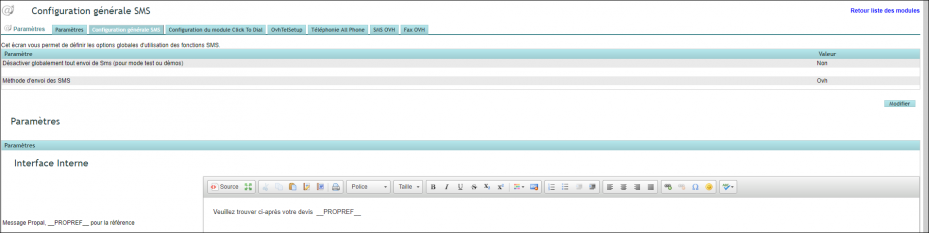
Then, from the General configuration tab:
- Choose the SMS sending method: Brevo.
- Set your messages with substitution variables: these are replaced when the text is used.
- Set the Promobox message: an extra block meant for announcements and promotions.
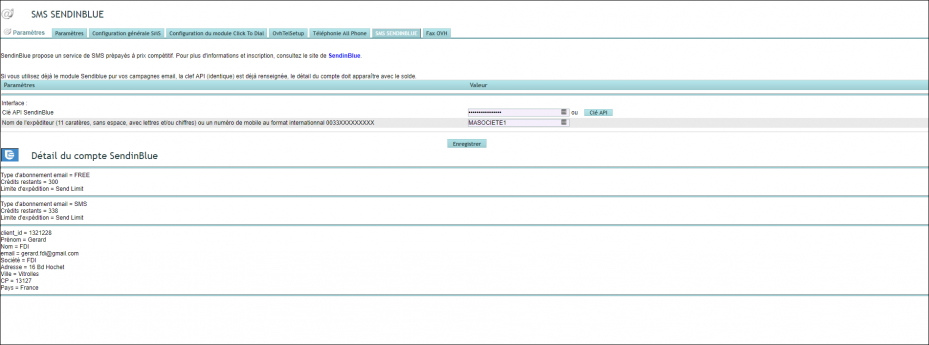
Next, go to the dedicated Brevo SMS tab, which gathers the settings specific to this channel:
- Enter the API key (see the Brevo email software configuration).
- Give a sender name without spaces or special characters.
SMS no longer go out? Authorise your server’s address at Brevo
For security, Brevo rejects sends coming from an address it does not know. SMS then stop suddenly, even though your account and credits are in order.
The fix takes a minute. First, open the Brevo module setup: the line “IP address of your server to authorize at Brevo” shows the exact address, with a direct link. Then, in your Brevo account, add it under My profile → Security → Authorized IP addresses. Sending SMS from your CRM resumes at once.
Transactional texts, from any record
Buttons appear in several places across the software:
- Companies,
- Contacts,
- Quotations,
- Sales orders,
- Invoices,
- Delivery notes,
- and more.
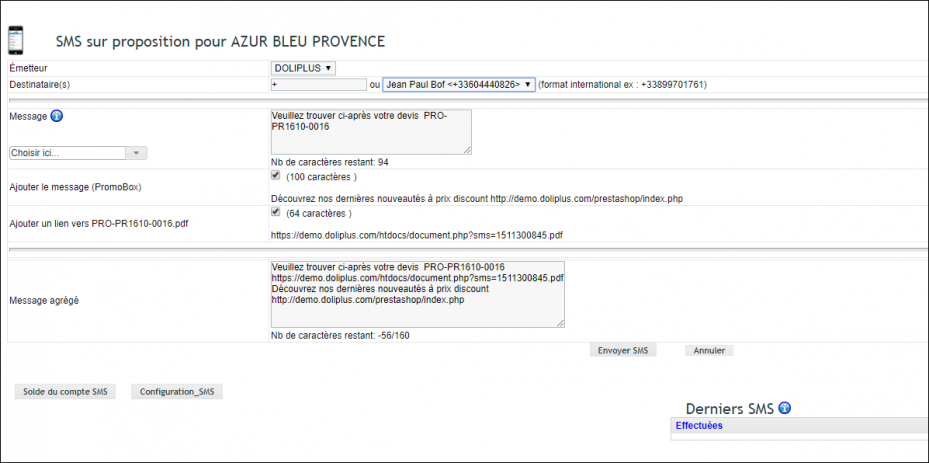
Clicking one of them opens a single sending screen, with options you can switch on:
- add the Promobox content;
- attach a document, when one is available.
The combined message box shows the text as it will go out, with every option applied.
The account balance shows your remaining credits. Moreover, an event is created with the message content, the recipient and the linked object where relevant: therefore you keep a trace of what was said, and to whom.
User permissions for transactional texts:

Write once, reuse for ever: your SMS templates
An appointment reminder, a job confirmation, a shipping notice: those messages come back every week. Therefore it pays to write them properly once.
Your templates live in the Tools → Templates (SMS) menu. Then they appear directly in the sending window, and the substitution variables fill themselves from the record.
In short, your colleagues send the right message, worded the same way, without retyping it every time.
Targeted SMS campaigns
From the Marketing menu:
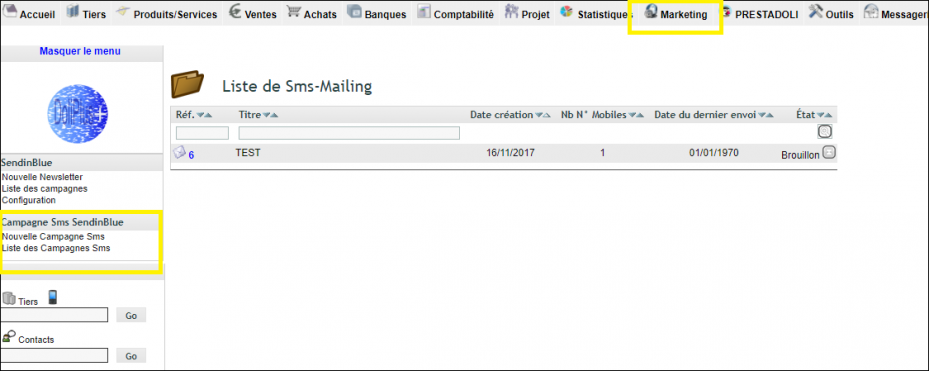
Three tabs set up your campaign:
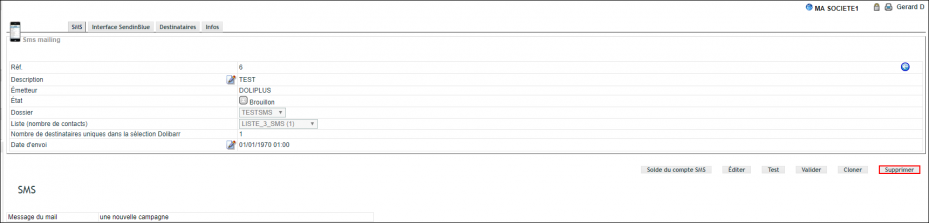
- SMS: save the text and run a test send.
- Recipients: choose your targets through the filters.
- Brevo interface: push the targets to Brevo, into a folder and a list.
- Finally, schedule the send, then send.
User permissions for campaigns:

Going further
- Email marketing software with Brevo — same account, same key, for your newsletters.
- The OVH SMS connector — the alternative, if you already have an OVH Telecom account.
- Document templates — the same idea, applied to your documents.
Want to try it?
To send SMS from your CRM, you need the Telephony module and a prepaid Brevo account. Both are switched on request on your DoliPlus. Open a ticket with your support, tell us which sender name you want to display, and we open the channel on your installation.
Related Entrées
