on 5 September 2026
 SMS Sending Software Integrated with OVH Account
SMS Sending Software
Your DoliPlus CRM solution includes an SMS sending tool that eliminates the need for CRM connectors and ensures seamless integration with your daily management software.
Dolibarr + DoliPlus is provider-independent. This chapter describes a connector linked to a prepaid OVH account.
Another connector is also available for SendinBlue (already used for email campaigns). Learn more…
Two main sending modes:
- Sending transactional SMS from services, also called transactional: from the customer or supplier record or the delivery note, for example.
- Sending SMS campaigns to customer or contact categories, allowing you to target recipients
Transactional SMS Sending
You can send SMS directly from the customer or supplier record, a delivery note, etc.
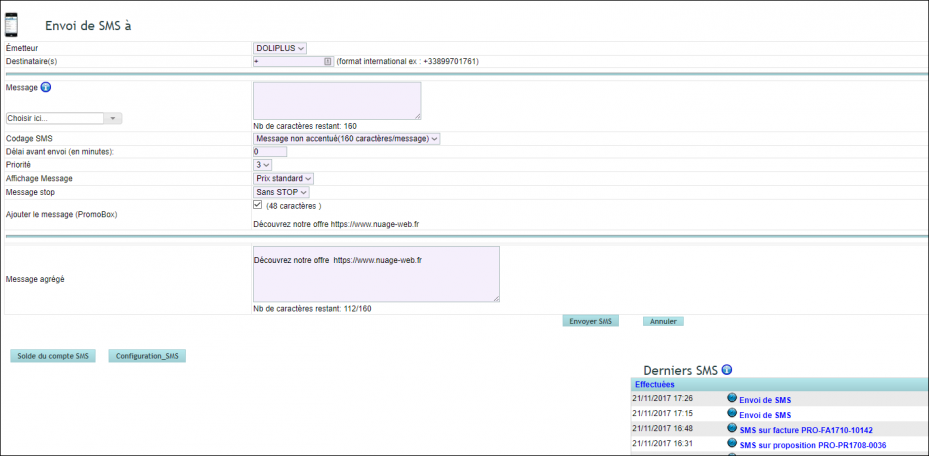
Character counter: SMS are limited to 160 characters in France. If the message exceeds this limit, the operator will charge an additional SMS.
List of available mobile numbers for this customer or supplier: Only mobile numbers from the “Mobile phone” field are available and automatically converted to international format (default: France)
Message display:
- Flash: The message is displayed directly to the user on their mobile screen upon receipt. It is not saved in the phone’s memory or SIM card and is deleted once the user confirms viewing.
- Standard: The message is saved in the phone’s memory and, if full, in the SIM card by default.
- SIM: The message is saved on the SIM card.
- ToolKit: The message is transferred to an external device connected to the mobile (PDA, laptop, etc.)
Priority: default 3
Scheduled sending: in minutes e.g. 60 for 1 hour.
With/without STOP: To hide ‘STOP to XXXXX’ in the message for non-commercial SMS
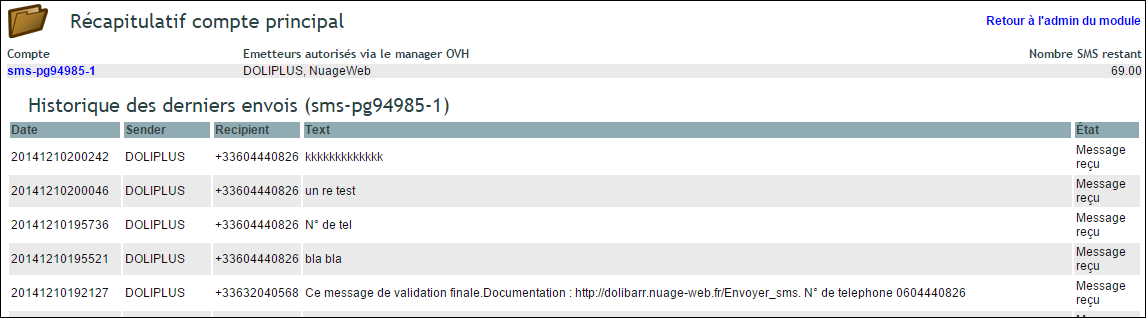
Balance button: Check remaining OVH SMS credit and view recent sent messages.
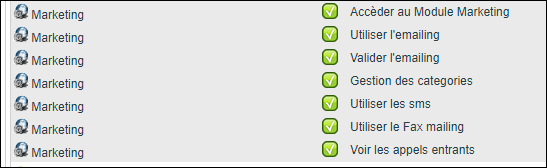
User permissions management for transactional SMS

Bulk SMS sending – SMS Mailing
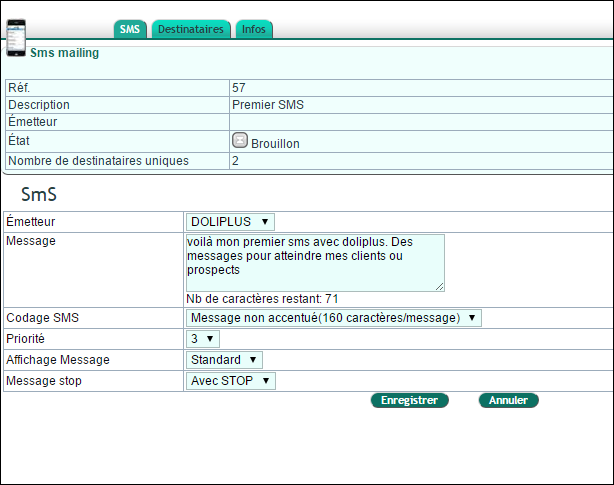
From the Marketing menu then new SMS campaign.
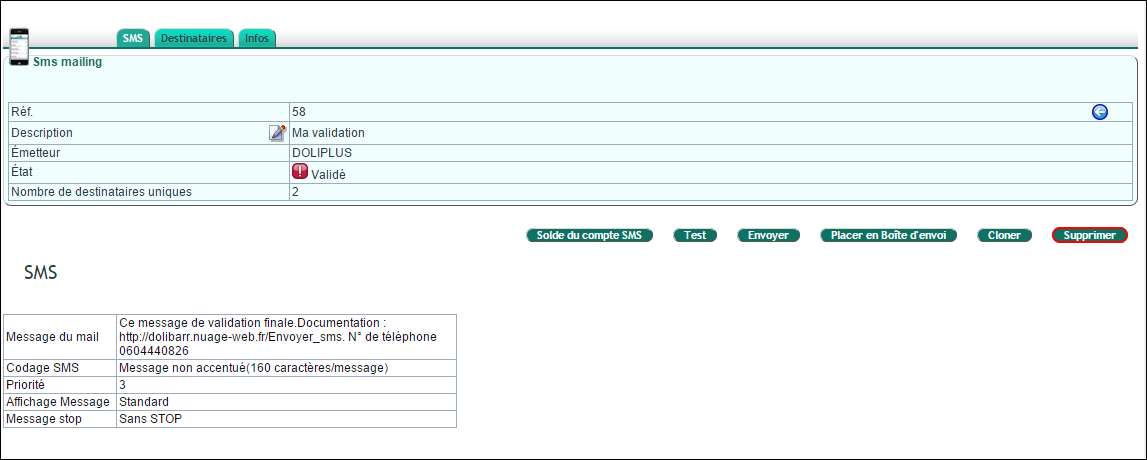
SMS account balance: Check available SMS credit
Test: Single sending
Send: Immediate sending for quantities <100
Queue for sending: Bulk sending >100
Clone: Duplicate the mailing
Delete: Remove the mailing
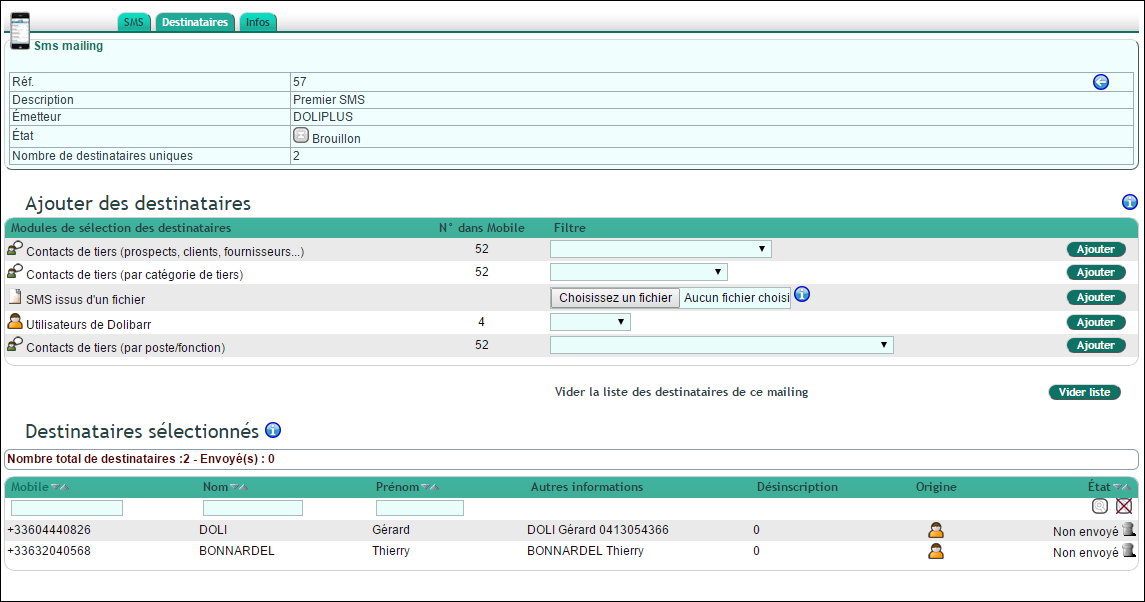
Select recipients, then validate the mailing. This screen also shows mailing progress after sending: sent count, failures,…
In production (not test), you can use these substitution variables:
- __LASTNAME__ => Surname,
- __FIRSTNAME__ => First name,
SMS with reply functionality
Optional feature to capture customer replies to your SMS.
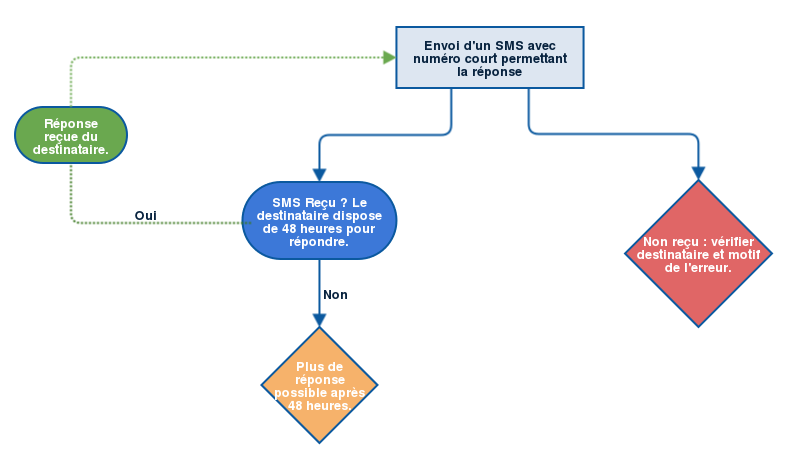
The service allows recipients to reply to received SMS within 48 hours. After this period, replies won’t be processed.
To manage reply options, configure response reception settings.
Log in to your customer area then select Telecom. Click SMS and choose your SMS account.
In the tab bar, click Options then Response options.
Click Add notification to access the following menu.
Configure either email or SMS notification.
- Email notification – free
- Sender: must be a valid email address you own.
- Email address: enter the recipient email for notifications.
- SMS notifications – see OVH costs (currently 1 SMS)
- Sender: choose a sender from those already validated in your SMS account.
- Number: enter the recipient’s phone number in international format.
Once your notification is configured, click the Validate button. You can add multiple notifications, edit or delete them.
To learn more about configuring your OVH account
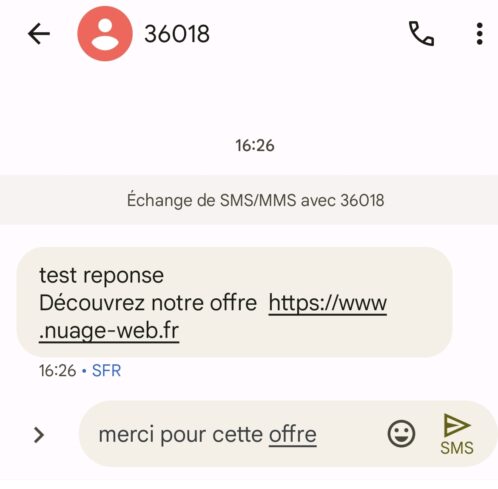
Example:
SMS received
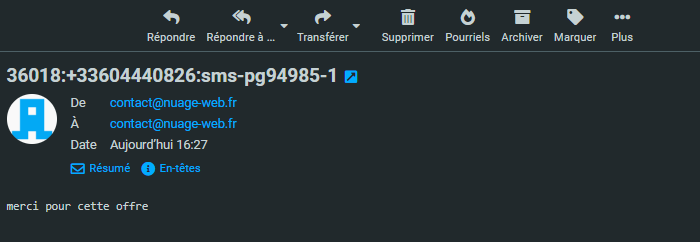
Email received
Configuration with OVH
Step 1 – Create an OVH account
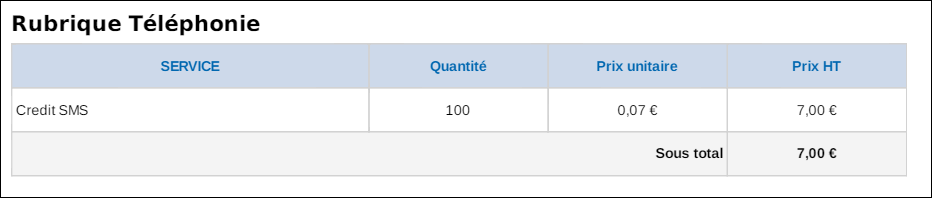
Purchase a prepaid pack directly with no additional commission fees from OVH
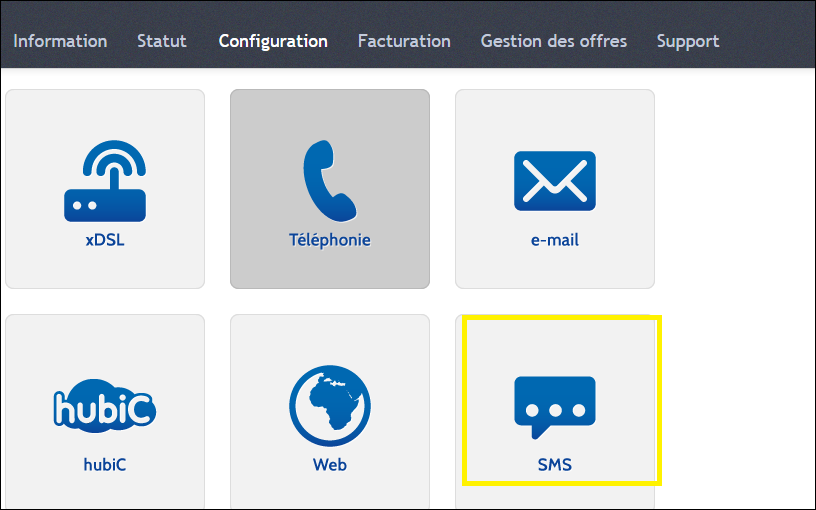
Set up an SMS sender number in the OVH console or better yet a name like MY_COMPANY (recommended)
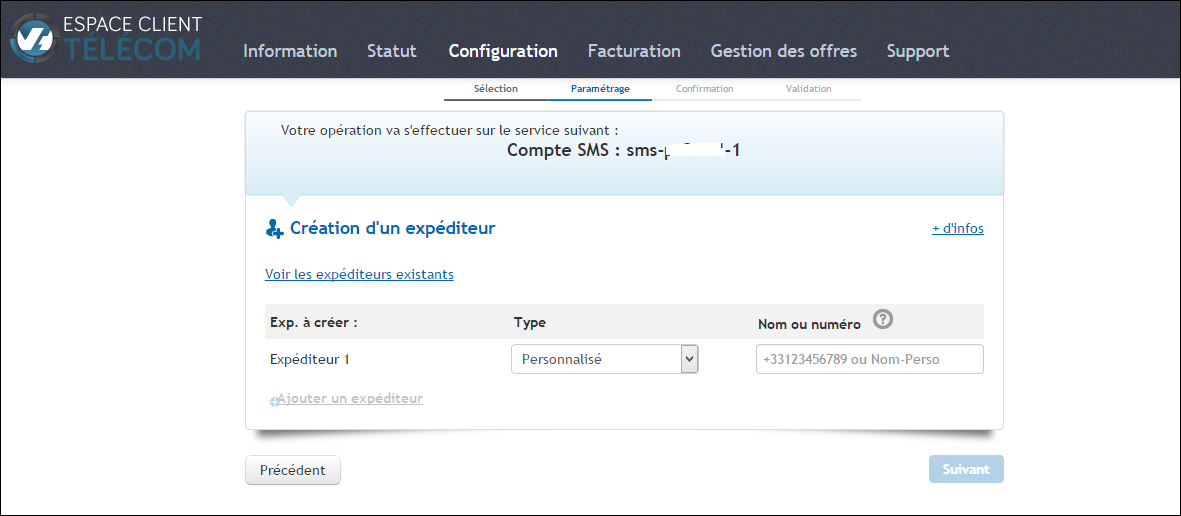
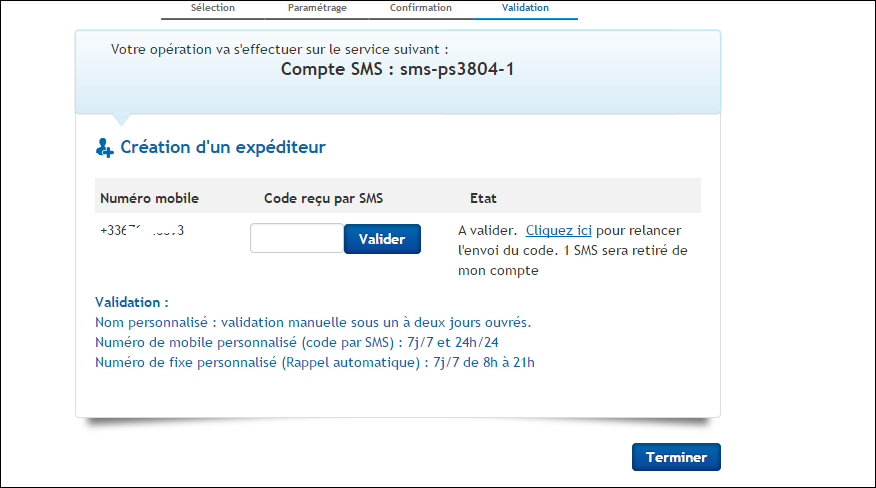
Enter the confirmation number received by SMS for mobile validation and wait for OVH to validate the name (24/48 hours)
Step 2 – Configure Dolibarr

Enable the Telephony module in the module configuration interface
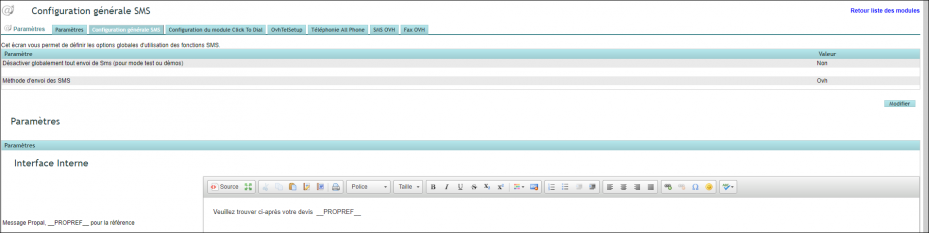
From the General Configuration tab
- Select SMS sending method: (OVH)
- Configure messages with substitution variables: These variables will be replaced when sending SMS.
- Set up the Promobox message: Additional message for communications and promotions
Then go to the specific OVH SMS tab
Enter the sender SMS number via home/configuration/sms
Enter all OVH account details. Test the API connection. Connection OK!
Select the SMS account from the SMS accounts list, copy then paste the chosen list name and you’re ready!

A consumption report is available in the account balance
User rights management for campaigns