 on 25 October 2026
 Barcode Management
DoliPlus barcode management automatically generates codes for your products and customers/suppliers, then prints them on your documents. This speeds up data entry and improves operational reliability.
Barcode management in DoliPlus
Barcodes automate fast data capture. With barcode management, DoliPlus automatically creates codes for your products and customers/suppliers. It supports EAN13 format, with QR code functionality planned.
The EAN (European Article Number) ensures codes are recognised across the European Union. It also remains compatible with North American UPC codes.
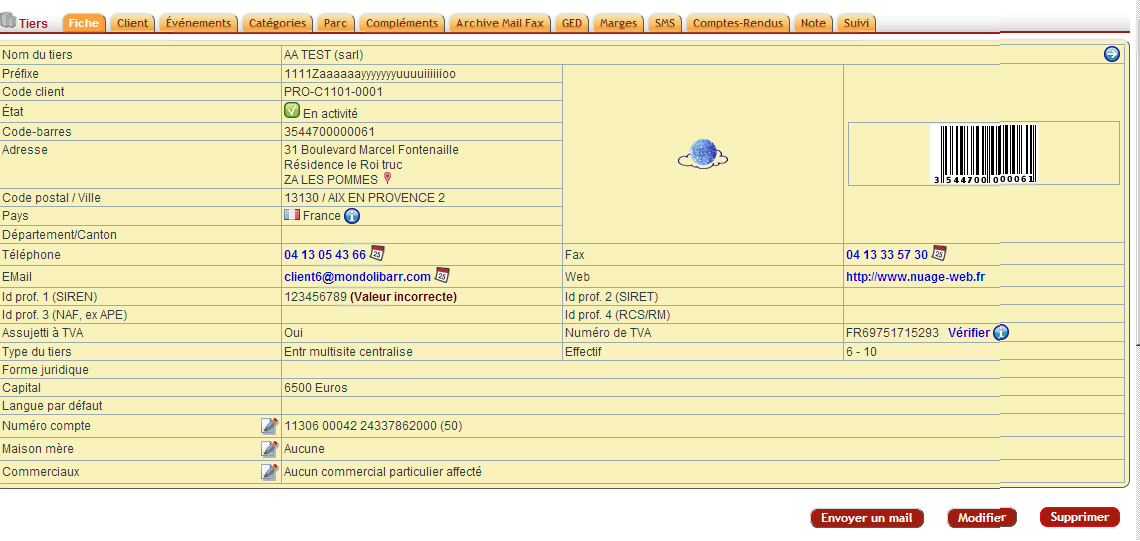
Codes are generated based on module settings whenever a new product or customer/supplier is created. Bulk generation is also available during initial setup. DoliPlus then displays these codes on-screen and on your documents: quotes, orders, shipments, receipts.
How to read an EAN code
The encoded word contains 8 or 13 characters, divided into three sections. From left to right:
- the country code, two characters indicating origin;
- the data section, ten characters in a 13-digit code: the first four identify the manufacturer, the last six identify the item;
- the check digit, the final character that validates the code.
EAN 128 codes are particularly useful for conveying best before dates or use-by dates along with batch numbers.
Configure the module
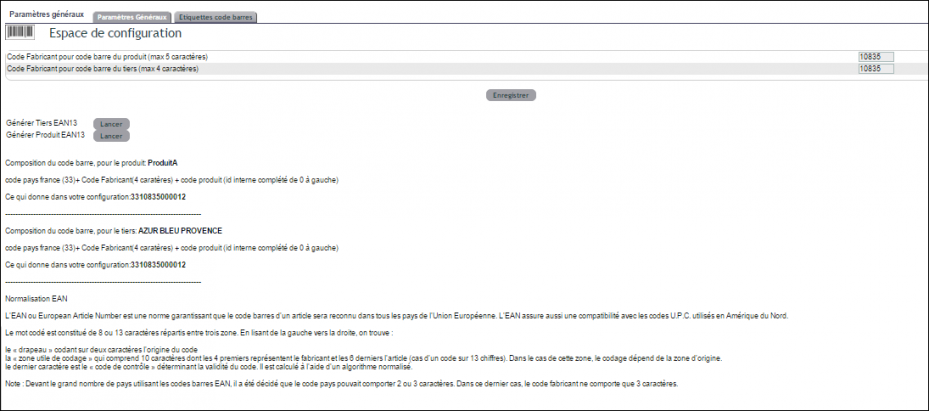
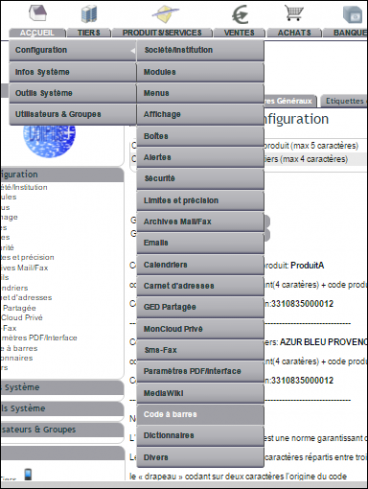
Configuration is straightforward: Setup › Modules, “Barcodes-Plus” line (Products family), key icon on the right. There you set:
- the manufacturer prefix: when a product is created, DoliPlus gives it an EAN13 code made of 33, this prefix, the product number and a check digit; the next line does the same for customers/suppliers. Set them once and for all: codes already printed do not change;
- entry of shipments and receipts with a handheld scanner, through two switches;
- “Launch”, which gives an EAN13 code to every product (or customer/supplier) that does not have one yet — to do once, after setting the prefix; existing codes are left untouched;
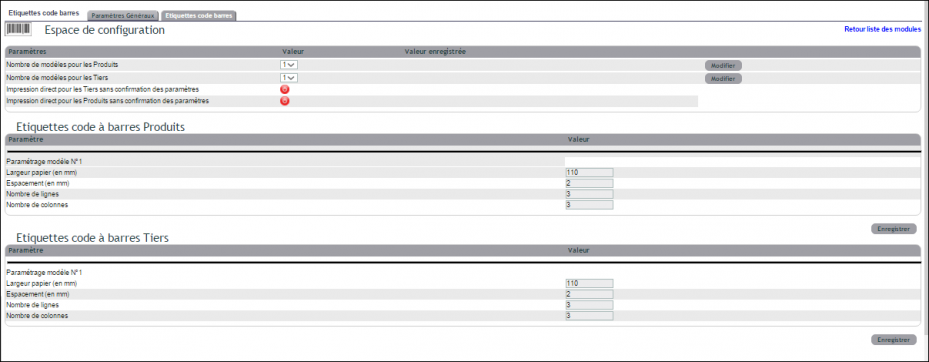
- in the “Barcode labels” tab, the number of sheet formats for products, customers/suppliers and resources, then for each format the paper width, the spacing, the number of rows and columns (each block has its own “Save”).
Reading barcodes
For reading, a simple optical scanner is sufficient. It emits a light beam onto the code and analyses the reflected light. Modern scanners connect to any computer or tablet, wired or wirelessly.
For example, we successfully tested the Bluetooth Inateck BCST-10 scanner with Windows 10 and Android. Additionally, the product or customer/supplier search in the left-hand menu accepts direct scanner input.
Printing and using barcodes
DoliPlus prints your codes in two ways.
On label sheets
First, a label sheet management feature prints codes for customers/suppliers and products. The interface lets you preset the number of labels or adjust it during printing.
On your documents
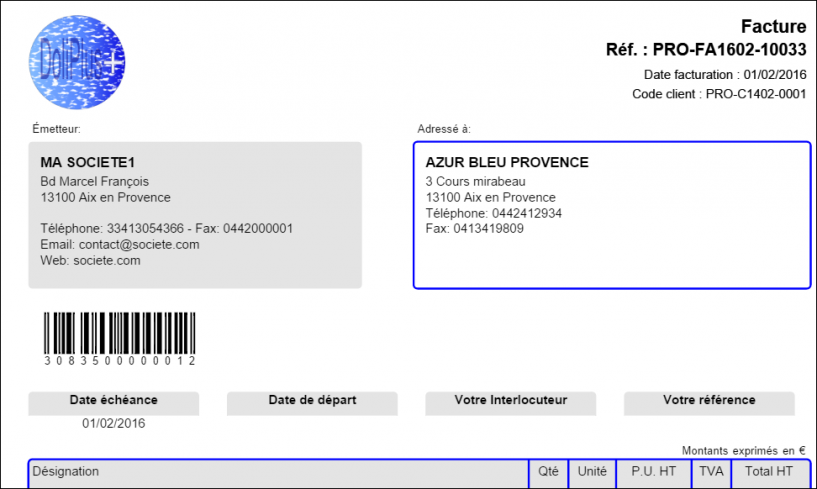
Next, your quotes, orders, and invoices can display the customer or supplier barcode at the top of the page. To enable this, activate option 118 or 119 in PDF/Interface Settings.
Additionally, to scan your receipts and shipments, barcode management extends to EAN 13 and EAN 128 codes. Read the dedicated chapter on EAN barcodes
Why adopt barcode management?
Manually entering a reference is slow and error-prone. Barcode management turns every item into a scannable code.
You benefit in three ways:
- faster data entry: a scan replaces typing a reference;
- fewer errors: the correct item is recognised instantly;
- professional documents: the barcode appears on your outputs.
Learn more about goods receipts
To go further
