 on 5 September 2026
 Browser Maintenance
Clearing your browser cache is the first step when DoliPlus displays an outdated screen or a non-responsive button. Your browser is the main interface with your session, and a cluttered cache can disrupt the ERP display.
To speed things up, the browser stores previously visited pages in a memory called the “cache”. Consequently, it doesn’t always reload the latest version of a page. After a DoliPlus update, this memory becomes outdated.
Moreover, an outdated cache slows down the ERP, distorts some screens, and may even block an action. On the other hand, an up-to-date browser ensures proper display, smooth performance, and better security. Knowing how to refresh this memory prevents many issues.
To do this, simply delete the cookies and clear your browser cache. Today, we recommend using a recent, updated browser: Google Chrome, Microsoft Edge, Mozilla Firefox or Apple Safari. These modern browsers display DoliPlus optimally and receive regular security patches.
Why clear the browser cache for DoliPlus
First, the cache stores old interface files. After an update, your browser may continue to load these old files. Result: a frozen screen, an incomplete menu, or a non-responsive button.
Next, clearing the cache forces the browser to retrieve the latest version. You then regain the correct display and new features. Also, remember to keep your browser updated: recent versions are faster and more secure.
Finally, you may need to log in again after the operation, as clearing the cache also deletes session cookies.
How to clear the browser cache on Windows
The method is the same for modern Chrome, Edge, and Firefox. First, open your browser. Then, press the combination Ctrl + Shift + Del, which directly opens the cleaning window.
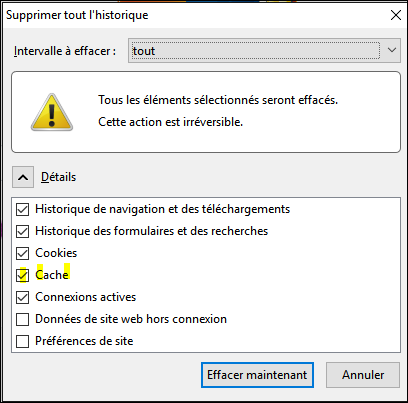
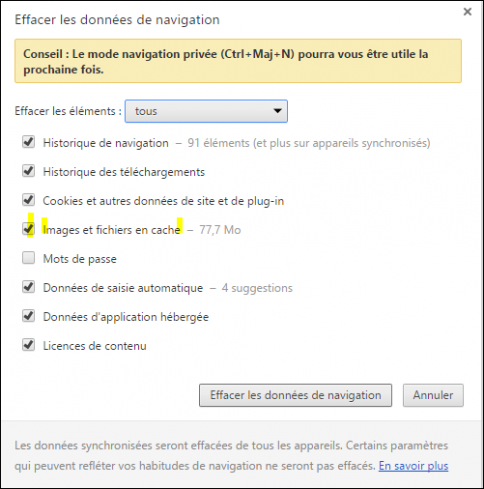
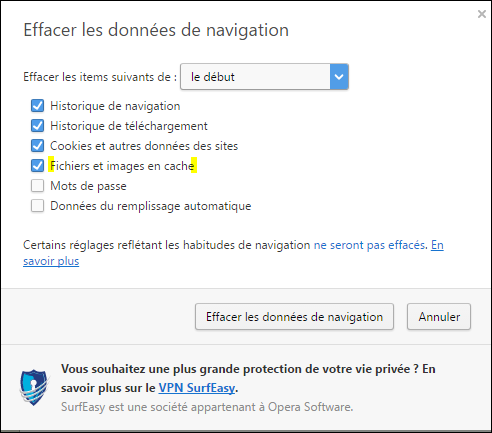
In this window, choose the period to delete, for example “All time”. Then check “Cached images and files” and “Cookies”. Finally, click “Clear data”.
You can also go through the browser’s “Settings”, under the “Privacy and security” section. There, the “Clear browsing data” menu offers the same options.
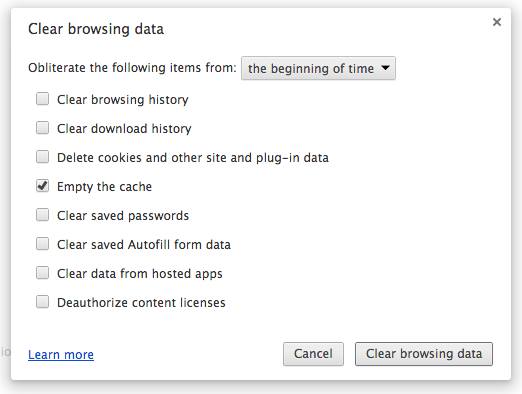
Here, as an example, are the cleaning screens according to the browsers.
How to clear the browser cache on Mac
On Mac, the principle is the same: you clear the cache memory to see the updated DoliPlus screens. Additionally, the shortcut Cmd + Shift + Del opens the cleaning window on Chrome and Edge.
Chrome (macOS)
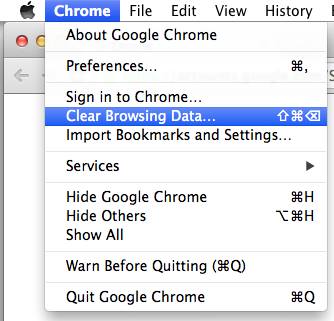
First, open Google Chrome. Then, open the menu (the three dots in the top right). Go to “Clear browsing data”. Choose the desired period, check the cache and cookies, and confirm with “Clear data”.
Firefox (macOS)
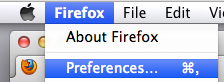
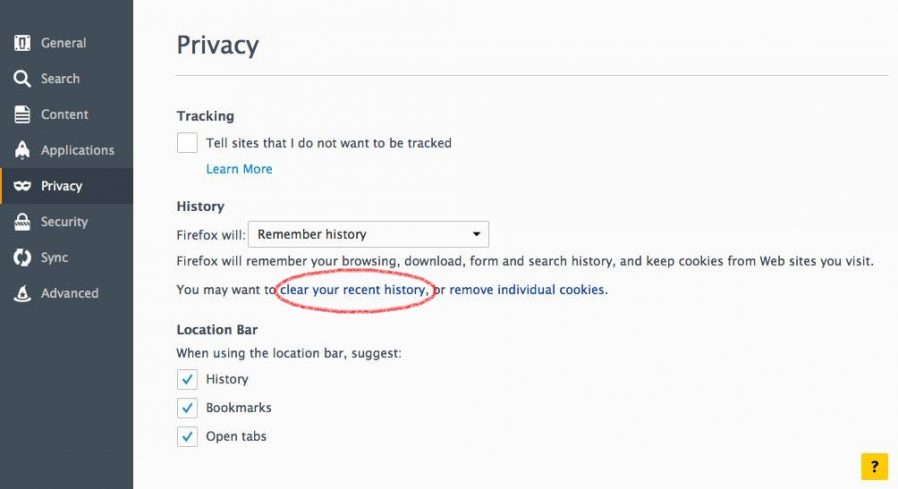
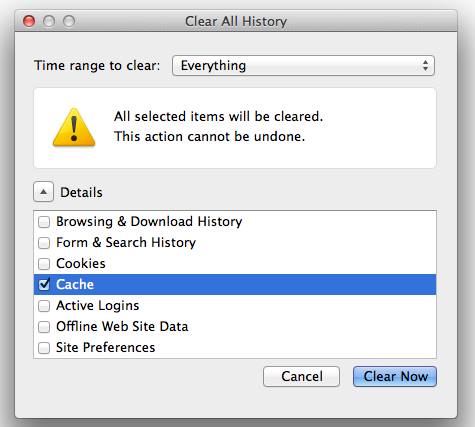
First, open Mozilla Firefox. Then, open the menu and select “Settings”. Go to the “Privacy & Security” section, then to “Cookies and Site Data”. Finally, click “Clear Data” and confirm.
Safari (macOS)
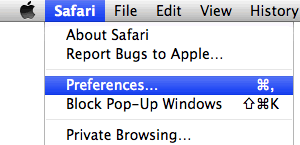
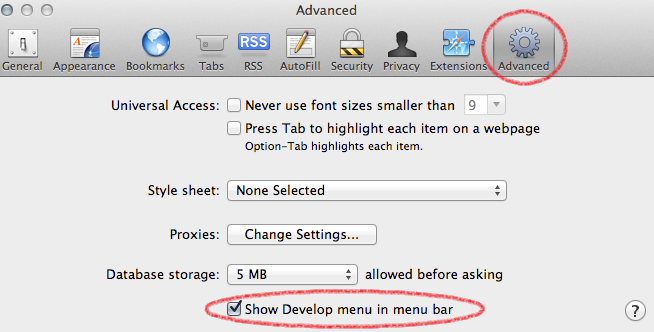
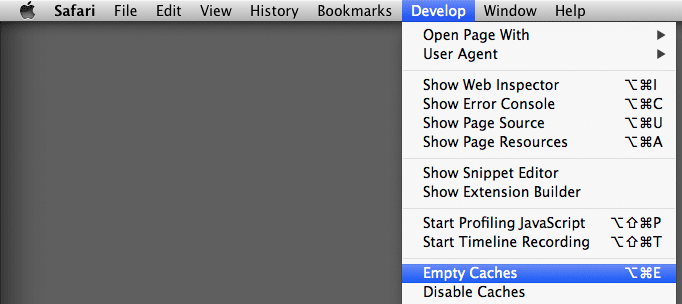
To begin, open Safari. Then, in the top menu bar, open the “Safari” menu and select “Preferences”. Go to the “Privacy” tab, then click “Manage Website Data”. Finally, select “Remove All” to clear the cache and cookies.
Good practice after each update
In summary, whenever a DoliPlus screen appears frozen, clear the cache and reload the page. Moreover, always keep your browser up-to-date. This way, you’ll benefit from reliable display, good performance and enhanced security.
