 on 5 September 2026
 Import Contacts into Your DoliPlus CRM
Importing contacts into your DoliPlus CRM is quick and simple, with no rekeying or data loss. This means you can launch your lead generation and qualification campaigns faster.
Importing contacts into your CRM
DoliPlus is an effective tool for acquiring new customers. It helps you run direct marketing campaigns using contact lists or files.
An import tool and Excel template let you perform these operations in one go:
- Import customers/suppliers, either new or existing records
- Import associated contacts for each record
- Assign imported records to an existing or new category
The video above helps you get familiar with this feature. Our training programme also helps train your team members.
Note: Follow the usage guidelines carefully to avoid compromising your data.
Preparing your import file
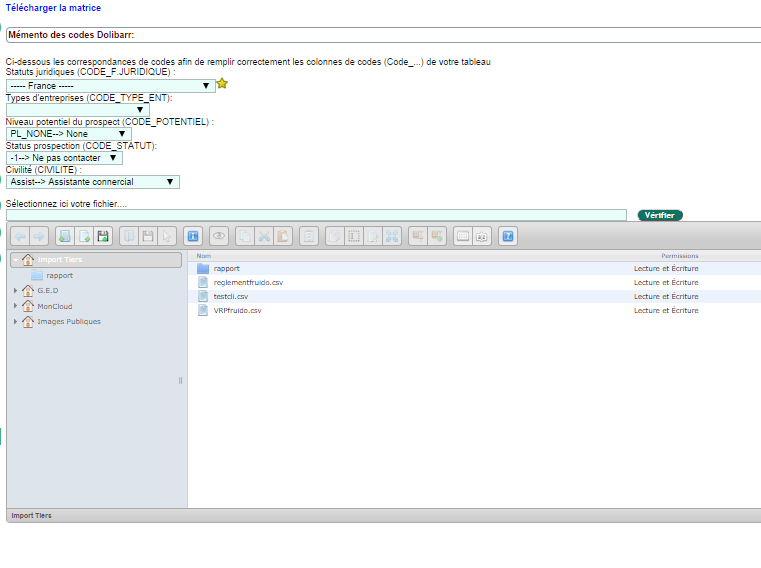
First, format your files using the Excel template available in the interface:
- The template contains guidelines and useful codes
- Header syntax must be followed precisely
- Column order is flexible – only present columns are processed
- A code reference helps complete optional fields like titles
Next, convert your files to CSV format and save them in the “Import Tiers” folder in the document library. Double-click the file to display it next to the “Verify file” button.
DoliPlus then displays the first 300 lines, like a spreadsheet. This lets you quickly check the format. We recommend testing first with a small number of lines.
Note: Specify whether the file contains prospects, customers or suppliers. Mixed imports aren’t supported.
Distinguishing between records and contacts
The import handles records and their contacts in one operation when they appear on the same line. The contact is identified by first and last name, and shares the record’s address.
For multiple contacts under one record, use the TIERS_CONTACT column with a T or C marker. This ensures the record is only created once, while each contact can keep their own address.
DoliPlus processes large files in the background. Small imports are immediate, while larger ones trigger an email notification upon completion. A technical report remains available in the document library to analyse any errors.
Assigning records to categories
To classify your records, fill the “CATEGORY” column with a pre-existing category name. If not found, DoliPlus creates a “Customers/Prospects” category.
You can also assign a global category at validation stage. This takes priority over column entries.
Validating the file
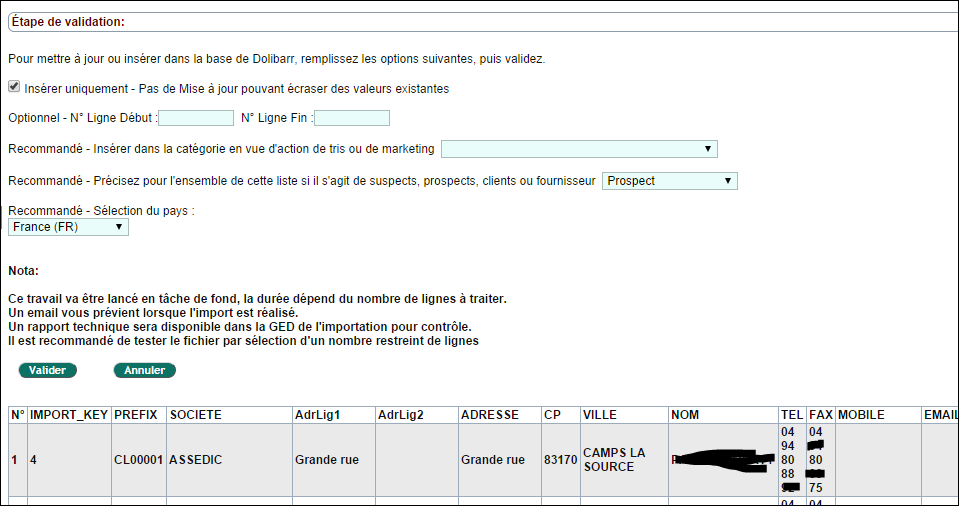
The CSV file is then displayed as a spreadsheet. Proceed as follows:
- check the fields and content in the preview;
- select the behaviour (important): tick “Insert only” to avoid overwriting existing values. In update mode, DoliPlus updates the customer/supplier or contact with the same name, or creates it if not found;
- finally fill in the other optional fields, then confirm.
Note: “Neither prospect nor customer” corresponds to suspects in DoliPlus.
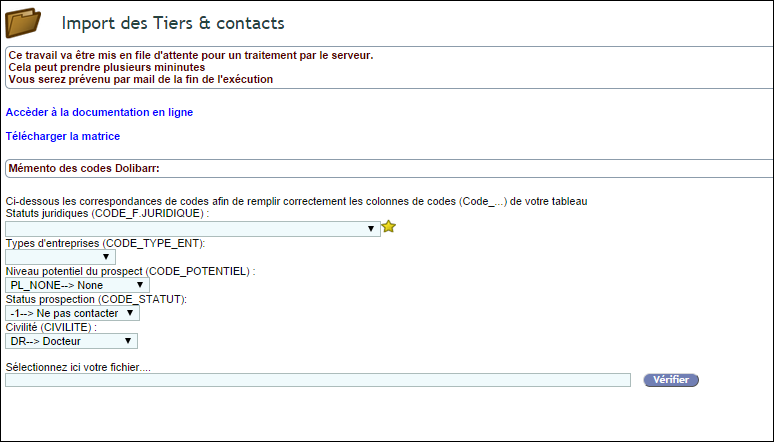
Updating your customer/supplier and contact database
You can also use the same tool for bulk updates. For this, it’s best to start with an exported file, modify it, then reimport it.
To export your customers/suppliers and contacts by type, use the menu Tools → Export wizard → 9301 (List of customers/suppliers + contacts by category, import format).
Most importantly, keep the ID column: it identifies each customer/supplier by its internal ID. With this, you can even change a customer/supplier’s name, as the name is no longer used as a key.
Updating custom fields
You can also link your custom fields to the update. The simplest approach is to start with an export to understand the syntax: MYFIELDS_COMPANY:ATTRIBUTE_NAME:FK_OBJECT.
For this, use the menu Tools → Export wizard → 9303 (List of customers/suppliers + custom fields, import format).
Limitations
Finally, keep two limits in mind. First, DoliPlus does not check the uniqueness or format of accounting codes during import. Second, the software does not handle customers/suppliers with dual status, e.g. both customer and supplier.
To go further, explore our guide to managing custom fields.
