 on 5 September 2026
 Custom fields: edit them with a single click, without leaving the record
Custom fields tailor DoliPlus to your business needs without any specific development. Simply add your own information to forms with a few clicks, then use it throughout the software:
- one-click editing without leaving the record: correct values directly where you view them – changes save instantly;
- controlled input via dropdowns, checkboxes and radio buttons to prevent errors;
- lists linked to your own data: warehouses, product categories, accounting accounts or related invoices;
- advanced field types for fieldwork: photos, handwritten signatures, geolocation or links to customers/suppliers;
- immediate use in dynamic tables, statistics and documents;
- copies that keep your custom fields when you duplicate a quote, an order or an invoice, if you choose to;
- data entry possible both at your desk and via the DoliPlusMobi mobile app.
This way, your management software fits your exact requirements. Moreover, these fields are added without modifying the software core, ensuring they survive updates and remain easy to adapt independently.
Why structure your business data?
Every company tracks information that standard screens don’t always accommodate. Instead of noting everything in a “comments” field, you structure data with these tailored attributes – boosting reliability and usability.
For example: add a lead source to customer records, a follow-up date to quotes or an internal reference to orders. Three concrete benefits:
- controlled input: dropdown menus standardise responses and eliminate typos;
- reliable tracking: the same information appears consistently across all records;
- analysis-ready: filter and group data using these criteria.
Where to add custom fields?
Enhance most DoliPlus objects. The table below shows which tab to use for data entry per object. Works equally on desktop and mobile apps.
| Object | Data entry tab |
|---|---|
| Customer/Supplier (client, prospect, supplier) | Record or Additional tab |
| Sales proposal | Record or Additional tab |
| Customer order | Record or Additional tab |
| Invoice | Record or Additional tab |
Field display depends on its group. IN and INS groups place fields after the module’s native form. The OUT group gathers them in a separate tab called “Additional”, appended to the original form.
Edit custom fields without leaving the record
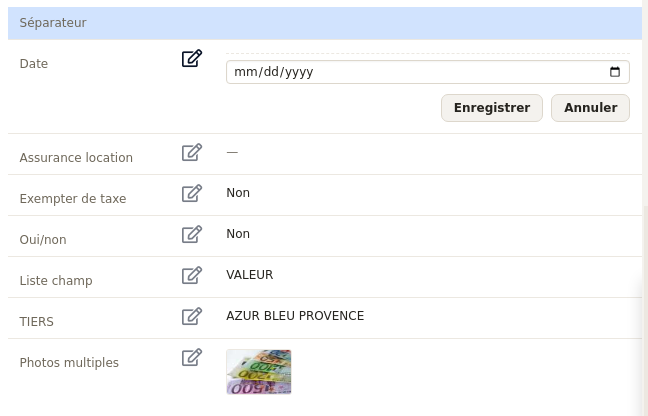
Previously, changing a value required multiple steps: open the record, click “Edit”, scroll through the entire form, then save. Now just click directly on the field line, enter your change – it saves instantly.
In other words, you correct information exactly where you view it. You stay on the record with no reloads or intermediate forms.
Which records?
Direct entry works on the records you use every day:
- your sales: quotes, customer orders, invoices and recurring invoices;
- your purchases: supplier orders and supplier invoices;
- your contacts: customer, prospect or supplier record, and contact record;
- your activity: contract, product or service, shipment, and user record.
Moreover, the appearance doesn’t change: your fields remain displayed exactly in the same place, in the same table as the standard record information.
One action, no form
Depending on the field type, the entry adapts for maximum speed:
- an exclusive choice (dropdown or radio button) is saved as soon as you select it, without needing to click a submit button;
- text, numbers or dates offer a “Save” button and a “Cancel” button;
- a photo, signature or GPS location is captured directly from the line.
Even more fields editable with one click
This update also expands the list of fields you can modify without detours. Now, dictionary-fed lists, colours, years and user lists can be entered directly on the record, just like text or checkboxes.
Now, fields that draw from your own data join the list:
- the lists sorted by categories, which display the category alongside the answer;
- your warehouses, your product categories and your equipment family groups;
- the accounting chart accounts, with the number and title side by side;
- the linked invoice, to select from your list of invoices;
- the free-text fields that suggest previously used values, to maintain consistent terminology across records.
Moreover, very long lists don’t slow down display. For example, the accounting chart only loads when you open the field. You can view your record just as quickly as before.
Finally, fields displaying a colour now show the chosen shade, not just its code. Similarly, a “chase” field displays the action date and a direct link to it.
Building the custom fields form
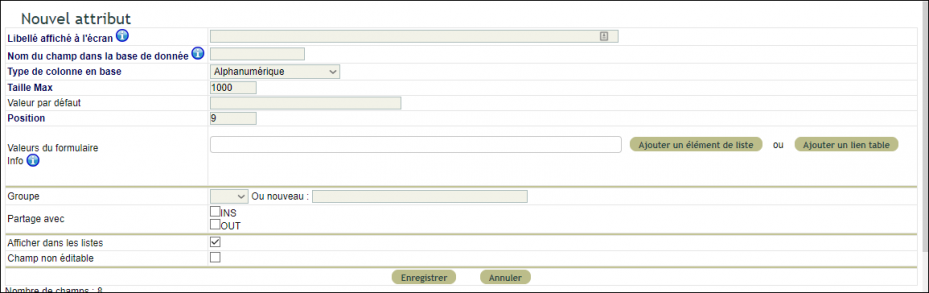
To start, click the “New attribute” button. Then, you can modify an existing field at any time using the pencil, on the corresponding line.
Form in creation mode
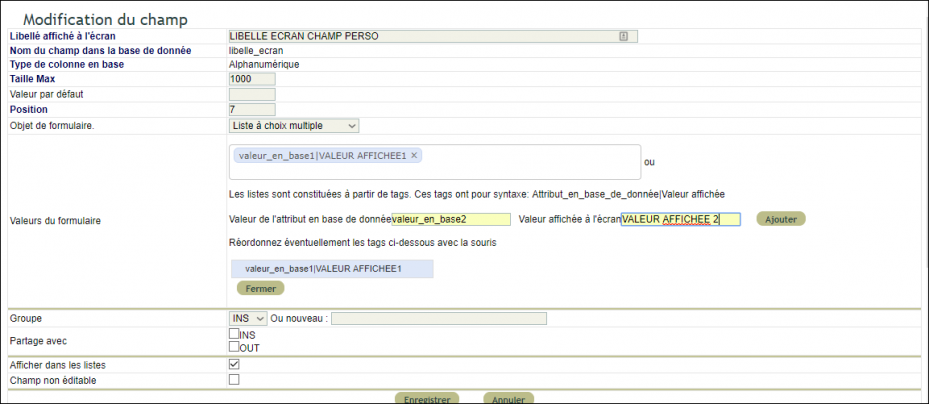
Form in edit mode
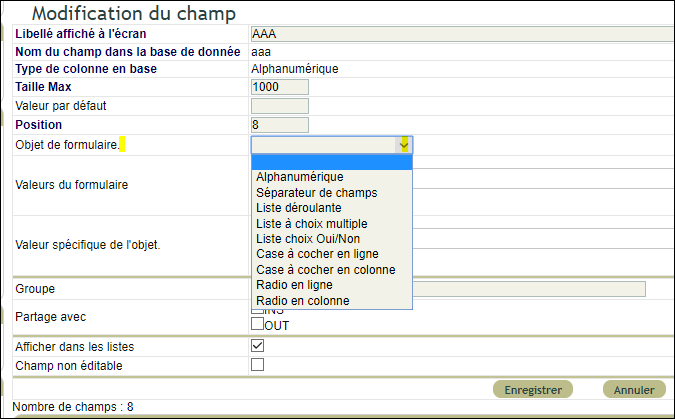
The form content
In practice, each field is defined by several parameters:
- Label displayed on screen: all characters are allowed;
- Field name in database: in lowercase, no spaces or special characters (the “_” is allowed);
- Max size: the field size in database — leave the default value;
- Default value: only for alphanumeric characters;
- Form object: the field type, to select from the list.
List values
You only need to enter values for certain field types: single-select dropdown, multi-select list, checkboxes, or column radio buttons.
Values must follow this syntax: database_attribute|Displayed value. Note that the database attribute must not contain spaces or special characters, as these values will appear in your exports and printouts.
Note: checkboxes allow multiple selections, while radio buttons enforce an exclusive choice. Also, ensure values are distinct and none share a common prefix. For example: “a → Value A” and “b → Value B”, not “ab → Value B”.
Field options
Several options refine each field’s behaviour:
- Show in lists: the field appears in dynamic tables with its filter;
- Non-editable field: the field becomes read-only;
- Required field: entry becomes mandatory;
- Share with: defines group sharing permissions;
- DoliPlusMobi: dedicated options control the field’s display, editing, and pre-filling in the mobile app.
Special form: colour-coded dropdown
You can also build a dropdown list with colour coding. This colour appears in your tables and on the form.
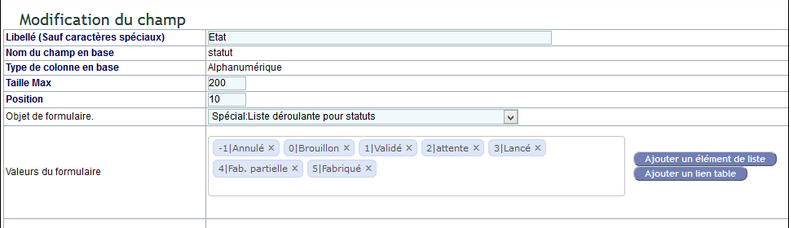
Colours are linked to the database_attribute value:
| 0 | Grey |
| 1 | Red |
| 2 | Purple |
| 3 | Orange |
| 4 | Light green |
| 5 | Dark red |
| 6 | Green |
| 7 | Coral orange |
| 8 | Brick |
| 9 | Slate grey |
| 10 | Dark turquoise |
| 11 | Turquoise |
The colour is determined by the value stored in the database of the attribute, and is then displayed both in forms and in tables and lists:
| Database value | Displayed colour |
|---|---|
0 |
grey |
1 |
red |
2 |
purple |
3 |
orange |
4 |
light green |
5 |
dark red |
6 |
green |
7 |
coral orange |
8 |
brick red |
9 |
slate grey |
10 |
dark turquoise |
11 |
turquoise |
Required custom fields, copied from one document to the next
A required field blocks validation while it is empty
Tick “Required field” on a quote, order or invoice field, on the customer side as well as the supplier side. From then on, validating the document stops on the message “The custom field … is required!” as long as this field is empty.
Be careful: a default value does not fill in this field for you. On a drop-down list, for instance, it preselects nothing: the document stays empty, and validation is blocked.
Does a field only concern some of your documents? In that case, do not make it required, or add a “Not applicable” value to its list. To remove the requirement, your administrator unticks “Required field” in the field’s form, then saves.
One field per record type, copied during conversions
Each custom field belongs to one record type. Consequently, a field created on quotes exists neither on orders nor on invoices.
To find it throughout the sale, create it on each record type with the same “Field name in the database”. Then, when an order is created from a quote, or an invoice from a quote or an order, DoliPlus copies its value into the new document.
This copy happens only once, when the document is created. In other words, a field added later does not fill in orders or invoices that already exist.
Duplicate a quote, an order or an invoice with its custom fields
Do you often repeat the same offer, or the same order to your supplier? The “Clone” button then creates a copy ready to adjust. Its window now also offers a “Copy custom fields” box.
Tick it, and the copy takes over the values of your custom fields, for example an internal reference, a sales channel or special terms. As a result, there is nothing to type again.
Leave it unticked, and the copy starts with empty fields, ready for the new deal. This is the right choice for information specific to each document, such as an availability date or a file number.
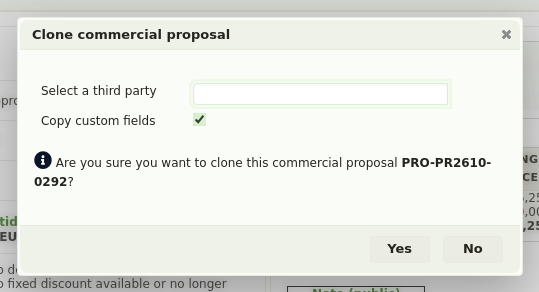
The box appears on quotes, customer orders, invoices and supplier orders. It is unticked by default, so you decide, for each copy, what suits you.
Advanced field types for on-site data entry
Your fields are not limited to text and lists. They also support rich types, particularly useful for mobile use with the DoliPlusMobi app:
- Photo: one or more images directly attached to the record;
- Handwritten signature: a signature drawn with your finger, for example on a service ticket;
- Geolocation: GPS position recorded with a simple gesture;
- Link to a customer or supplier: a connection to another company in your database.
With these field types, your teams collect the right information at the right time, then retrieve it instantly in the office. To go further, discover data collection in the field and the DoliPlusMobi mobile app.
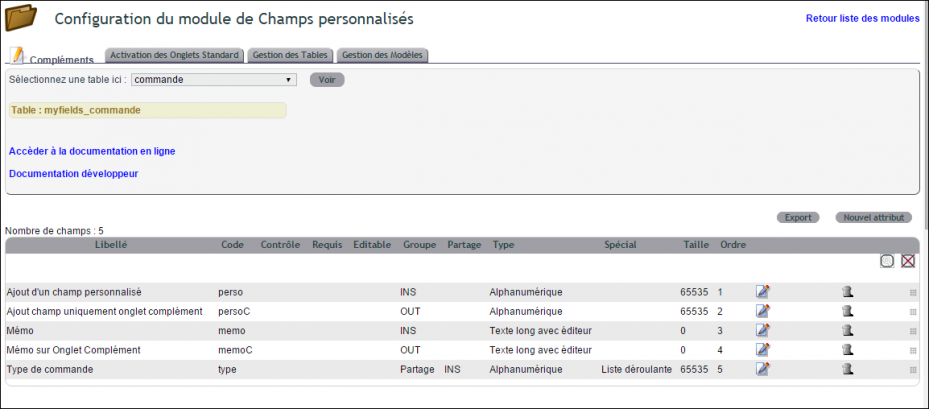
Managing your fields and their order
Once created, you control the display order of your fields. Simply drag the row using the handle on the right. This keeps your forms clear and logical for every user.
Using data in your tables and documents
Depending on the module, you then edit your values as dynamic tables, with sorting and filters. You can also integrate this data into your documents using substitution variables. Additionally, certain queries in the statistics module also display your custom fields.
Restrictions and training
Multilingual support is not yet available, but it is planned. Nuage-web provides the necessary training to master your custom fields in DoliPlus. For specific needs, contact your technical support: other options are possible as a custom service.
Want to try it on your setup?
Direct editing from the record is ready. It is activated per installation, so each team can switch at their convenience. Simply ask us: contact your DoliPlus support, and we’ll enable it in your environment and show you how in two minutes.
To go further
- Forms and field data collection
- Dynamic lists and tables
- Substitution variables overview
- DoliPlusMobi, the mobile app
- MyField module — developer lexicon
- general dictionary — the general dictionary, where your dropdown lists get their values.
