 on 5 September 2026
 Inventory Management with Dolibarr & DoliPlus
Inventory management in DoliPlus
Inventory management is a legal requirement: every company must conduct at least one physical stock count per year. DoliPlus offers two methods to suit your needs, including an advanced option with historical tracking.
Batch management for products is now supported in Method 2
Stock count – Method 1
This process is a legal requirement: all companies must perform at least one physical stock count annually.
For maximum reliability, stock counts should follow a structured approach.
DoliPlus enables stock updates in a single operation through a simplified interface.
Preparation – Stock Export
From the Statistics & Reports section, select the 420 output in Excel format.
You can use this export directly as a counting sheet to record your stock values.
Inventory Import
Using the previously generated file, completed according to the template available at:
Tools menu -> Import wizard -> New DoliPlus import -> 10100 Inventory – Stock Update and Movements
Follow the instructions in the “Fields” tab to ensure column headers are correctly interpreted during import.
Note:
- Only the “VARIANCE” column values (+ or -) will be used to adjust warehouse stock levels.
- E.g.: if VARIANCE =10, stock value = current stock + 10
- E.g.: if VARIANCE = -10, stock value = current stock – 10
- Column order doesn’t matter,
- Respect case sensitivity (uppercase),
- Not all columns are mandatory,
Next steps:
- Convert your Excel sheet to CSV (flatten formulas if necessary before conversion)
- Upload this .csv file to the “Stock Import” folder. This dedicated directory has restricted access rights.
- Select it via the file explorer,
- A preview confirms data integrity before final validation of required fields.
- If errors occur, load the report file into the “Stock Import” folder and optionally forward it for assistance
Historical Inventory – Method 2
A new management interface enables inventory operations with full history tracking.
This can be used in warehouses with connected tablets and barcode scanners. We observed better performance with Chrome in this scenario.
Module setup and configuration
Located in Product Management – Stocks – Purchasing
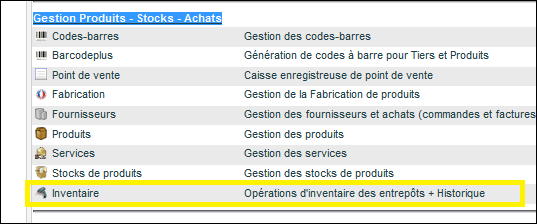
Adjust module settings
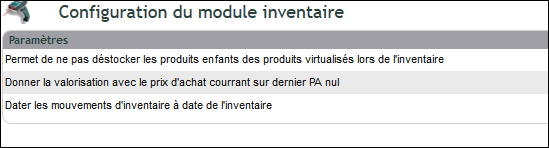
Set user permissions:
- View inventories,
- Create new inventory,
- Edit inventories,
- Validate inventories,
- Modify product average cost price
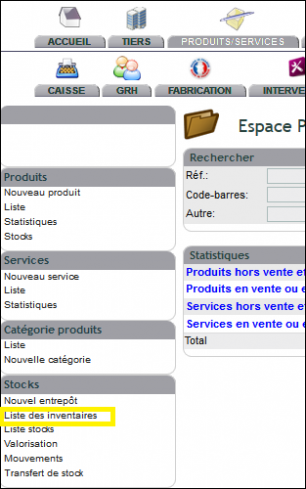
A new “Inventory list” entry appears in the left menu >>>> Products/Services >> Stocks
Creating an inventory
Create an inventory based on available options and validate. A signal will prompt you to wait until the history creation is complete. Once the operation finishes, the list will open.

Inventory statuses change based on the buttons at the end of the list.
- Draft: Initial status. Does not allow data entry,
- In progress: Entry permitted based on user rights,
- Closed: Data entry is complete, stock movement can be initiated. The inventory cannot be modified,
- Completed: Stock has been adjusted and the history remains available
Entering inventory data
“Start data entry” (subject to your permissions) makes the table editable.

Dynamic table functionality
Features of the dynamic table:
- View quantity, price etc. information – both theoretical and actual,
- Filter references by product code or barcode (via scanner) dynamically without page reload,
- Numeric keypad linked to fields for mobile device entry,
- Filter already completed lines (Update: Upd),
- Link to product record,
- Link to stock movements,
- Delete an inventory line,
- Add a line via top button,
- Adjust number of lines per page,
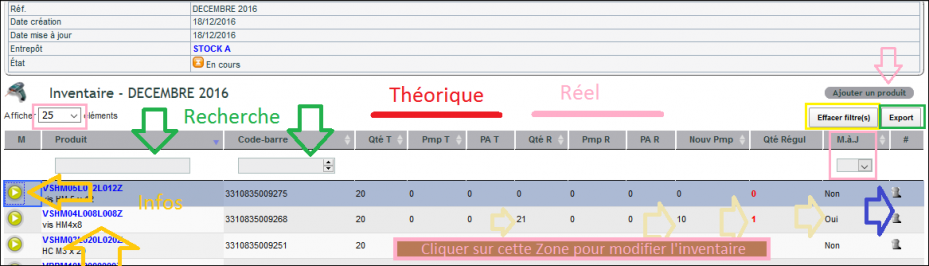
Data entry principles for dynamic table
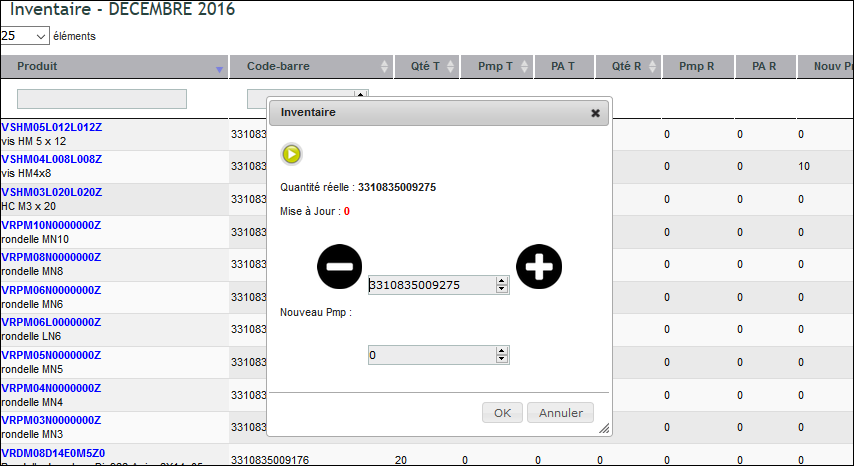
To enter values, click on the line obtained by dynamic filtering in the quantity and price column areas (as shown in the screenshot above) to display an entry field as shown below.
Entering a new weighted average cost is only possible based on granted permissions.
Export
The export button lets you choose the export format.
Next steps
Inventory complements stock management and stock inventory in DoliPlus.
