 on 25 October 2026
 Progress or interim invoice and retention of guarantee
The progress invoice, also called a status invoice, lets you bill a project as it progresses. This way, you receive payments regularly, without waiting for completion.
In practice, you assess progress at a given deadline, then invoice the work completed since the last status. DoliPlus also manages the retention of title specific to construction.
Why use progress invoicing in construction
On long-term projects, waiting for completion to invoice puts a strain on cash flow. That’s why the construction industry uses progress invoicing.
With this method, you invoice each stage based on actual progress. Plus, the module covers the entire process:
- a dashboard to track progress directly from the customer order;
- management of advance invoices;
- creation of progress invoices by task or as a global percentage;
- sequential progress invoices until the final one (status #1, #2, etc.);
- retention of title, with consolidated accounting and final invoice.
Advance payment vs. progress invoice: the difference
In construction, an « advance payment » refers to the amount requested before work begins. It typically covers the purchase of initial materials.
Accounting-wise, an advance payment is recorded under account 4191, with no revenue recognised. The invoice then includes just one line, for example « Advance on quote #xxxx ».
A progress invoice, on the other hand, is a standard invoice (account 4111, counterpart 7011). It includes each line from the quote, with a progress percentage applied, calculating the value of completed work.
The difference is also clear in the entries. A progress invoice is a standard invoice: it’s recorded under account 4111, with its counterpart in account 7011.
Retention of title (RoT)
The retention bond is typically 5%. It is settled one year after completion of works and resolution of any defects, to guarantee proper execution.
However, the advance invoice is not subject to it, as it covers works not yet carried out. Similarly, any commercial discount does not apply to the advance payment.
For accounting entries, for example, 95% of the invoice is posted to account 404 and 5% to account 4047. In other words, the retention only affects debt settlement, not the immobilised amount.
In DoliPlus, the retained amount is the rate applied to the progress invoice’s total including tax, calculated when the invoice is created. It appears on the invoice card (“Retention payment” line) and on its PDF, and the remainder to pay is reduced by it, including when you enter the payment. A progress invoice that carries a retention is therefore not classified as paid automatically: once its remainder to pay no longer exceeds the retention, the invoice’s “Convert to future discount” button classifies it as paid and sets the amount paid aside as a discount, to be applied on the final invoice.
Creating a progress invoice in DoliPlus
First, activate the Progress Invoice module.

Then, configure the retention bond if needed.

The settings page (Setup › Modules, “Progress Invoice” line, wrench icon on the right; administrator only) offers:
- “Enable Retention Payment management” and “Retention Payment rate” (often 5);
- two switches that print the progress percentage instead of the quantity on the PDF, one in the progress invoice column, the other in the overall invoiced column;
- the titles of the three PDF columns (by default “Est. Qty”, “Invoiced Qty” and “Progress Qty”): give them the wording of your contracts.
The switches apply as soon as you click; the rate and the titles take effect after “Save”.
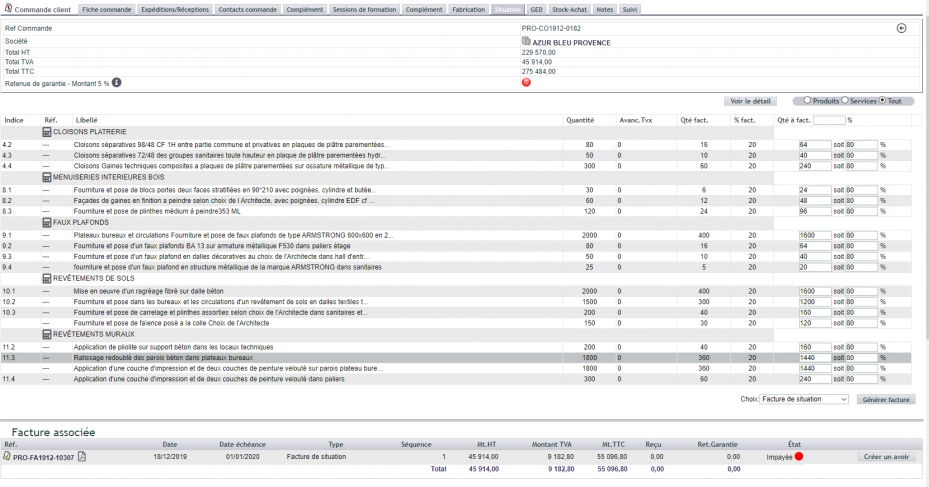
A new “Progress” tab then appears on the order. It allows you to issue progress invoices, with or without retention bond. Additionally, if the “line index” option is active, a column of indices is added.
For step-by-step guidance, follow the video tutorial:
Issuing a progress invoice, step by step
- On the validated order for the project, open the “Progress” tab (a draft order displays “Order not validated!”).
- If the contract provides for a retention bond, enable it for this order BEFORE invoicing, by clicking the “Retention payment – Rate 5 %” line (depending on your rate): it applies to the progress invoices created afterwards.
- The table lists each line of the order: “Qty” is the contract quantity, “Inv. qty” and “% fact.” show what has already been invoiced. In “Qty to inv.”, enter the quantity completed since the previous progress invoice, or its percentage in the box after “i.e.”: the other value is calculated.
- Same progress on every line? Type the percentage in the box at the top of the “Qty to inv.” column: all lines take it.
- Choose “Facture de situation” for a stage of the project, or “Facture de situation finale” for the last one: it is shown as “Finale” in the summary, instead of a number.
- Click “Generate invoice” (this requires the right to create invoices): the progress invoice is created as a draft, with one line per order line at the quantity entered, and its progress invoice number. Review it, then validate it like an ordinary invoice.
- The bottom table summarises each progress invoice: its number (“Sequence”), its amounts, what has already been “Received” and the retention (“Ret.Payment”).
Issuing an advance and progress invoices
Issue your advance invoice from your customer order.
If you wish to split your advance across progress invoices and schedule, for example, 3 progress invoices, divide your advance invoice into 3 parts, then apply your split advances to the progress invoices as you go.
At the end of the process, issue a final invoice from your orders in which you call all your progress invoices converted into ‘Future Reduction’.
This way, your customer will have a PDF document that clearly shows their payment status.
Issuing a credit note on a progress invoice
Making a correction is simple. Go to the “Progress” tab of the order, then click “Create a credit note” on the relevant validated progress invoice, and confirm: DoliPlus issues a full credit note for this progress invoice.
Two scenarios may then occur:
- The invoice is paid: the credit note remains available in the customer account, ready to be applied to the next invoice.
- The invoice is unpaid: DoliPlus automates the process, applies the credit to the account status, then marks the invoice as paid.
In both cases, the invoice covered by a credit note is removed from the status calculation. You can therefore issue a new status report.

Further reading
- Advance invoices in DoliPlus
- Credit notes and replacement invoices
- Project management with ProjetPlus
