 on 3 September 2026
 Chase unpaid invoices: you choose who gets a reminder, and when
When you chase unpaid invoices by hand, you decide who receives a reminder, and when. DoliPlus, the enhanced cloud edition of Dolibarr, gives you that control:
- you pick the clients and the invoices, one by one;
- you write the wording once, then reuse it as an email template;
- the invoice travels with the reminder, as an attachment;
- every reminder stays recorded on the customer file.
Therefore a delicate case never turns into an awkward email. A long-standing client, a dispute in progress, a payment promised for next week: in all these situations, you keep the tone and the timing in your own hands.
Chase unpaid invoices at your own pace
First, you prepare an email template. Then, you filter the overdue invoices. Finally, you send the reminder in one click. Thanks to this order, nothing is improvised at the moment of writing.
Write the email template once
Open the email templates and compose your message. Inside it, you place variables, which DoliPlus replaces automatically when the message leaves your customer invoice.
The syntax stays simple: (double underscore) VARIABLE (double underscore). For example: __FACREF__
Moreover, you can reuse the custom fields of the invoice with the same syntax, for instance __MYFIELD__. The full list is here: see the substitution variables chapter.
Filter the overdue invoices
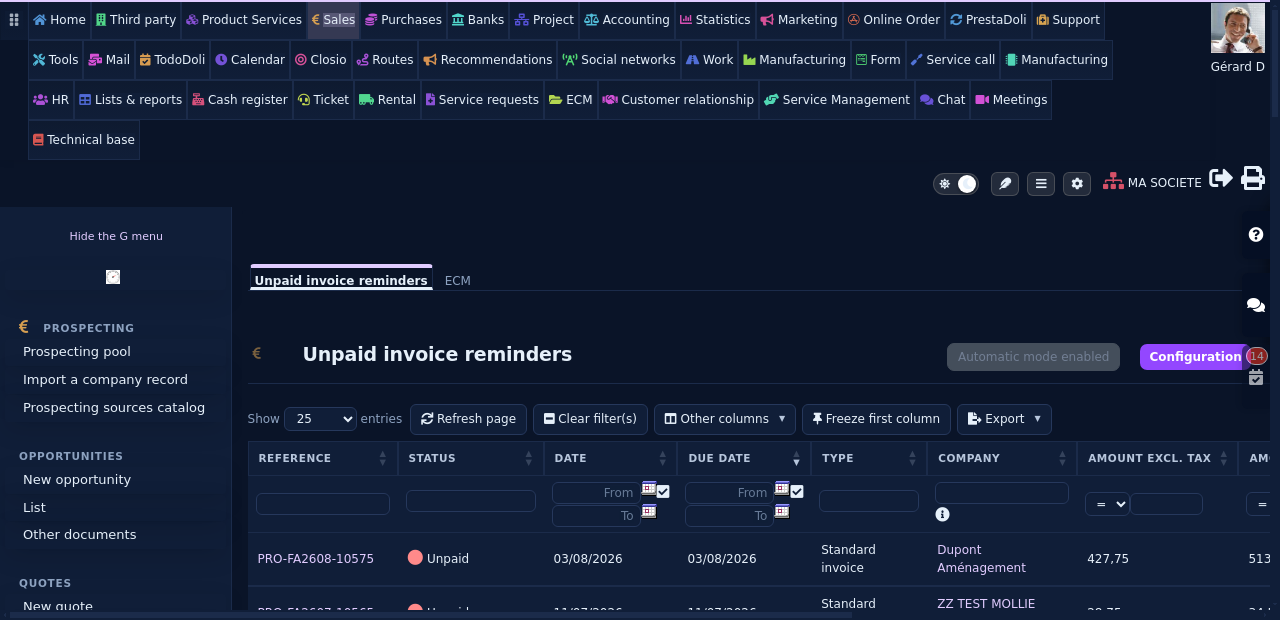
To save time, start from the dedicated list of unpaid invoices. Column by column, you narrow it down to the customers you really want to chase today. Then you open the invoice concerned.
Send the reminder
Finally, send the email with the invoice attached. In addition, a custom field on the invoice lets you record each step of the reminder, and that field remains available in your dynamic tables.
The permissions needed to chase unpaid invoices
A user only sees what you allow them to see. Therefore, when the reminder screen or its send button goes missing, the answer almost always sits in the user file, under Permissions.
Here are the rights to grant, depending on what the person has to do:
- Read invoices (Customer invoices module): the entry ticket. Without it, the reminder screen simply refuses access.
- Edit reminders (Accounting Expert module): the decisive right. Indeed, it drives both the Commercial › Customer invoices › Unpaid invoice reminders menu entry and the button that opens the letter editor.
- Send invoices by email (Customer invoices module): required for the reminder sent from the invoice itself.
- View all third parties (Third parties module): without it, the list only shows the customers the user is the salesperson for. Consequently, a table that looks empty is sometimes just a filtered table.
- Administrator: reserved for the reminder settings, namely the levels, the letter templates and the schedule.
Furthermore, the menu entry appears only when the Accounting Expert module is enabled and the after-due-date reminder is switched on in its configuration. That is why these two settings deserve a check before you suspect a permission problem.
Two very different causes produce the same symptom.
First, the tooltip “Rights required” means the Edit reminders permission is missing. You fix it in the user permissions.
Second, the label “Automatic mode enabled” says something else entirely: the automatic reminder service is running on your installation. DoliPlus then sets the bulk manual sending aside, so that no client receives two letters on the same day. In other words, your permission is fine — the automation simply has priority. To take back control, stop the service from the reminder configuration screen.
Prefer to let DoliPlus do it?
You do not have to chase unpaid invoices by hand forever. DoliPlus can also do it on its own, following a schedule you define. For more on this, read Automated payment reminders for unpaid invoices.
Act before the due date
Finally, you can prevent late payments altogether. On this subject, see Preventive invoice reminders.
Related Entrées
