 on 25 October 2026
 Field data collection: capture on site, land straight in your ERP
Field data collection that lands straight in your ERP
Your DoliPlus solution includes field data collection your teams fill in on site, tied directly to the company database:
- forms you build by settings alone — no development;
- values, states and photos captured on the spot;
- entry that works at the desk or out in the field, with or without network;
- a document generated from the collected data, photos and location included;
- email alerts, per-group rights and automatic events on each form.
As a result, the information is entered once — not on paper first and on a computer afterwards. DoliPlus is the enhanced cloud edition of Dolibarr, the open-source ERP & CRM used across Europe.
Why field data collection deserves attention
Entering the same thing twice — on paper, then on a computer — breeds mistakes. Moreover, it wastes valuable time.
With this tool built into your ERP, you set your online forms up as you see fit. Consequently, the information is captured once and only once.
Field data collection you configure entirely yourself
The platform gives professionals what they need: you build your survey forms through settings, without any development.
A powerful, straightforward visual editor structures the information at the moment of entry. You therefore capture values, states or photos.
Besides, entry works just as well at the desk as out in the field, with or without a network connection.
DoliPlus then produces a document from the field data, with photos and a location point.
On each form, you may also configure:
- the people notified by email of each entry made on mobile;
- the groups that see it in the mobile app;
- events created automatically for the designated people.
Finally, you attach your forms to the processes of your ERP. The data gathered on site therefore stays readable from:
- a quote,
- a sales order,
- an opportunity,
- a project,
- a company record.
Besides, DoliPlus offers dedicated tools for these particular needs:
- site progress tracking,
- job reports,
- weekly timesheets,
- expense reports.
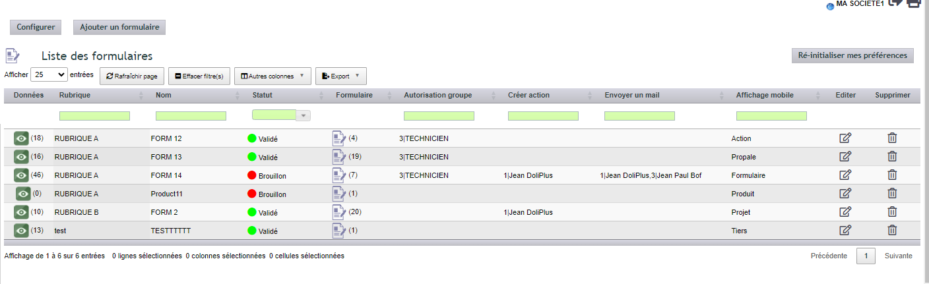
Form list: the administration screen
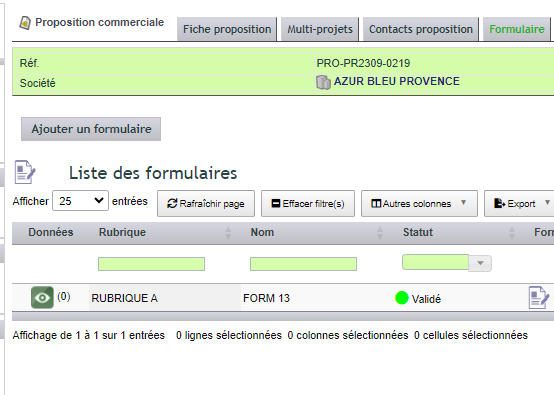
Forms attached to a quote
Creating a form, step by step
Everything happens from the forms list, without leaving DoliPlus and without writing a single line of code.
1. Declare the form
- “Formulaire” menu, then “Add a form”.
- The “Rubrique” (category) files your forms by theme: pick one from the list, or type a new one in the box next to it.
- The “Nom” (name): this is what your colleagues will choose, at the desk and in the mobile app.
- The “Statut” (status): “Brouillon” (draft) while you are preparing it, “Validé” (validated) so that it is offered on the records and in the mobile app, “Archivé” (archived) to withdraw it without losing its answers.
- “Affichage mobile” (mobile display) states what the form is attached to: “Tiers” (third party: it appears in the “Form” tab of the customer record), “Propale” (quote), “Commande” (order), “Projet” (project) or “Action” (calendar event); “Formulaire” for a free-standing form, attached to nothing.
- Optional: “Autorisation groupe” (group permission) limits the mobile app list to the chosen groups; “Créer action” (create event) and “Envoyer un mail” (send an email) designate the people notified of each entry made on mobile.
- Click “Save”: the form is added to the list.
The details of the form record are themselves configurable: the “Configure” button, at the top of the list (administrator), opens the field editor of the form record.
2. Build what your colleague will fill in
In the “Formulaire” column, the icon on each line, followed by the number of questions, opens the field editor of that form, in a new tab.
There you add your fields one by one. Each one has a label, a position on the screen, and a type:
- short text or long text editor;
- whole number or decimal number;
- date, or date and time;
- drop-down list, multiple-choice list, Yes/No list, status list;
- checkboxes or radio buttons, in a row or in a column;
- separator, to split a long survey into readable sections.
The order you set here is the order the person on site will see: arrange the fields in the order of the real-life task, not in the order you thought of them.
Step by step:
- In the “Formulaire” column, click the icon on the line (the number of questions is shown in brackets): the list of questions opens in a new tab. Click “New attribute”.
- “Label displayed on screen”: the question as the person filling in the form will read it; the technical name fills itself in.
- Choose the answer type. The “DoliPlusMobi” types (photo, location, contact) are designed for the mobile app.
- For a list or buttons: click “Manage form tags”, type a choice in “Value displayed on screen” then “Add”, and repeat for each choice. Do not press Enter: the question would be saved with a single choice.
- Tick “Display in lists” to see this answer as a column in the list of answers, and to be able to filter on it. Leave the suggested “Group” as it is.
- Click “Save”. The questions are displayed in the order of the “Pos.” column; the pencil edits one of them.
3. Set what happens when data is entered
On the form record, you decide what it is attached to (“Affichage mobile”), which groups see it in the mobile app (“Autorisation groupe”) and who is notified of each entry made on mobile: “Créer action” creates a “New entry” event for each designated person, “Envoyer un mail” sends them the content of the entry by email.
4. Review the entries
The eye in the “Data” column, followed by the number of answers, opens the list of entries received, with thumbnails of their photos and, if the form includes one, the location link. From there you produce the PDF of each answer.
Filling in a form and finding the answer, step by step
- On the customer record (or the quote, order, project or event record), click the “Form” tab: the forms intended for this record are listed.
- On the line of the one to fill in, click the eye in the “Data” column (the number of answers already given for this record is shown in brackets), then “Add an entry”.
- Answer the questions, then click “Save”: the answer is kept, attached to the record. The answers from all records can also be found in the “Formulaire” menu.
- Click the icon of the answer to open its menu: “Standard PDF” produces the PDF of the answer (a PDF icon then appears on its line), “Preview” displays it on screen, “Edit” corrects it, “Create an action” creates an event for the designated people, “Duplicate image to ECM” copies its photos into the document management (ECM) of the linked record (Formulaire folder), “Delete” erases it after confirmation, along with its photos and its PDF.
In the field, with the mobile app
In DoliPlusMobi, only “Validé” forms are offered. You open them from the customer, the quote, the order, the project, the calendar event or the shipment. Photo questions take one or more photos, each with its position; the location type records the point where you are; the contact type creates the contact on the spot. On saving, DoliPlus produces the PDF of the entry, creates the event for each person listed in “Créer action” and sends an email to each person listed in “Envoyer un mail”. An entry made from the computer, however, triggers neither an email nor an automatic event.
To go further: custom fields throughout DoliPlus · create a report from your website form
Related Entrées
