 on 25 October 2026
 Incoming mail management: every letter reaches the right desk, paper-free
Incoming mail management in DoliPlus digitizes the letters you receive and dispatches them to the right teams:
- paper mail is scanned once and lands directly in your ERP,
- mail received by e-mail is extracted from the webmail in one click,
- an operator dispatches each letter to the person in charge,
- a summary table tracks the whole flow.
As a result, you process mail faster, with no paper going around. DoliPlus is the enhanced cloud edition of Dolibarr, and this capability is part of the standard toolset.
What is incoming mail management for?
Incoming mail management first serves the mail desk, then every user involved in replies and follow-ups. By digitizing, you boost productivity and improve customer service.
Concretely, this approach brings several benefits:
- it turns each letter into usable information;
- it shortens processing times;
- it cuts photocopying, printing and filing costs;
- it removes time-consuming chores.
Therefore, you get a filing, search, consultation and archiving policy, centralised in your ERP.
How incoming mail management works
First, incoming letters are scanned, then uploaded straight into DoliPlus, which offers this capability as standard. Moreover, for a letter already received by e-mail, the webmail extracts the attachments in one click into the “Scan” folder. Learn more about the Scan folder
Then, an operator dispatches each letter to the users in charge. This key step, now digital, saves precious time: information is better organised, and customer service gains responsiveness.
You will find all the screens — Sort, List of actions, Setup — in the “Mail sorting” group, at the end of the Sales menu.
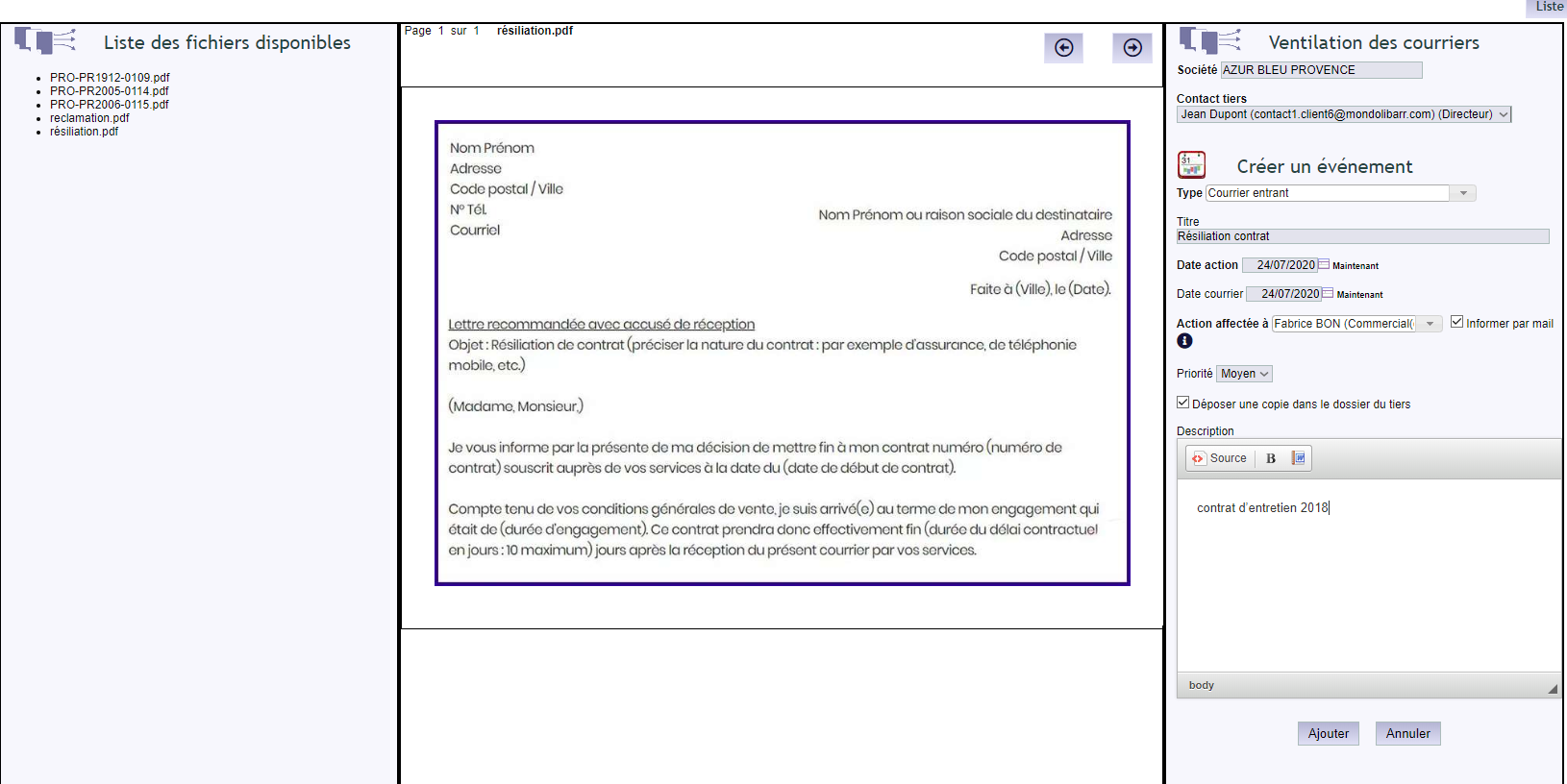
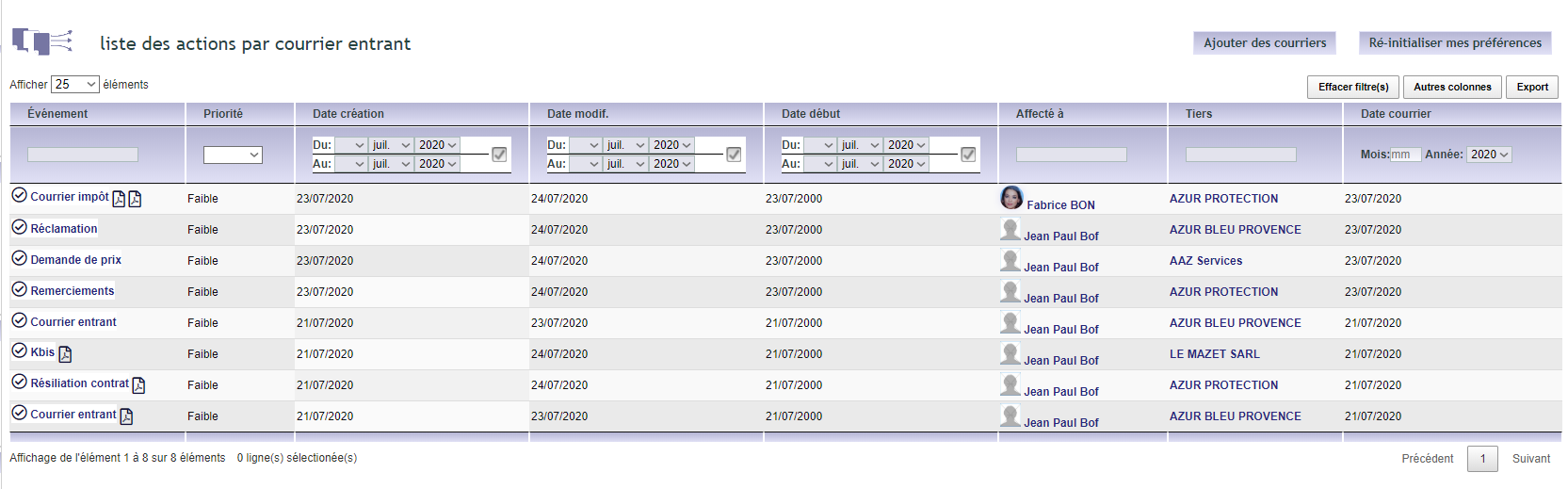
Finally, a summary table supervises the flow, so your teams follow progress and stay in control of their information.
Setting up the module
The setup stays simple. First, adjust the rights, per user group or individually.

Then, set the dispatch business rules. The administrator reaches them from the “Mail sorting” group of the Sales menu, or in one click via the Setup button on the sorting screen.
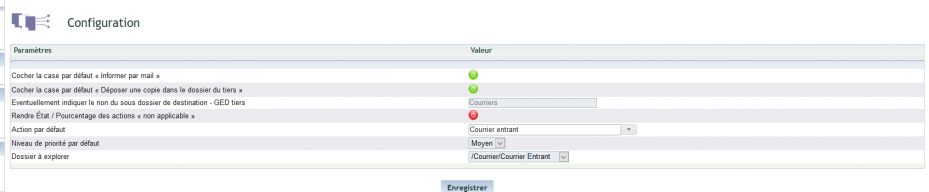
In detail, the configuration (“Configuration” button on the sorting screen, administrator) sets the default values of the screen:
- the boxes ticked by default for every sorted letter: “Notify by email”, to alert the person it is assigned to, and “Place a copy in the third party’s folder” — you can always untick them case by case;
- the pre-filled action type (to process, to pay, to file…) and priority level;
- the ECM folder where your scanner drops the letters — this is the folder the sorting screen displays — and the number of history entries shown under the screen; “Save” applies these values.
Sorting a received letter, step by step
- Sales menu › Mail sorting › “Sort”: on the left, the PDFs that have arrived in the mail folder (network copier, ECM › Scan, attachments extracted from the webmail). Click the one to process: it is displayed in the centre, and the arrows at the top right turn the pages.
- In “Company”, type the beginning of the customer’s name and select it. Their contacts load into “Third party contact”, the first one being picked by default: check it just before saving (the list reloads when you leave the Company field).
- Give a meaningful title (“Showroom quote request”); without a title, it will be “Incoming mail”. “Mail date” is the date written on the letter, “Action date” the date of the event.
- In “Action assigned to”, choose the person who will handle the letter; with “Notify by email” ticked, they receive an e-mail with the link to the event.
- With “Place a copy in the third party’s folder” ticked, the PDF is also filed in the customer’s documents (ECM tab, Courriers folder).
- “Add”: DoliPlus creates the incoming mail event on the customer’s card, attaches the PDF to it and removes it from the list to sort. The letter then appears under the screen in “History of latest dispatched mail”.
Finding a sorted letter and its scan
All sorted letters become calendar events. The sorting list (“List” link) finds them: type part of the customer’s name in the box under “Third party” then press Enter, narrow the period with the “From” / “To” dates, or use the box under “Assigned to” to follow what is still awaiting an answer (“Other columns” adds the status, the city, the requester). Click the event on a row: its card shows who received it, who it is assigned to and for which customer; the scan is in the event’s “ECM” tab, and “Edit” lets you set it to “Completed” once it has been handled.
Why digitize your incoming mail?
A paper letter going around gets lost, falls behind and costs money. Incoming mail management removes these obstacles.
You win on three fronts:
- fast processing: each letter reaches the right team immediately;
- full traceability: everything is filed and searchable;
- lower costs: fewer photocopies and less paper filing.
To go further
Related Entrées
