 on 2 September 2026
 Invoice multiple shipments: several deliveries, a single invoice
The shipments-to-invoice list gathers every delivery that has left your warehouse and still waits for its invoice. You therefore invoice multiple shipments in one go, without forgetting a single order:
- several partial deliveries for the same customer merged into one invoice;
- or, if you prefer, one separate invoice per shipment;
- invoice validation, shipment closing and order closing, all automatic;
- the PDF generated, then emailed to the billing contact, with no action from you.
An order delivered in three batches therefore no longer produces three invoices to reconcile, but a single one at the end of the cycle.
DoliPlus is the enhanced cloud edition of Dolibarr, and this feature belongs to its sales module.
Where to find your shipments to invoice
Once the module is enabled and configured, open Sales → Shipments → Shipments to invoice. A few rules apply:
- orders already processed are left out;
- orders in progress and already paid cannot be selected;
- only shipments whose orders are not invoiced remain available.
From that table, you then create your invoices according to the options you configured. Moreover, the list filters by shipment reference, customer reference, order reference, third party, status or invoicing frequency.
Why invoice multiple shipments together
A customer receives an order in several batches: a first parcel on signature, the rest as stock comes in. Should you send one invoice per box? Rarely. In most cases, your customer expects a single document at the end.
That is exactly what this list does. You select several validated shipments, for one or several customers, then generate the invoices in one click. Grouping happens per customer: each third party receives one invoice covering all of its selected shipments.
This approach suits large orders, progressive replenishment and building sites delivered in stages.
Enabling the shipments-to-invoice list
This feature relies on the Shipments module, so enable that one first. Then open Home → Setup → Modules/Applications → DoliPlus and enable Shipments to invoice.
The Shipments to invoice entry then appears in the left menu, under Sales → Shipments. Finally, the configuration page opens from Home → Setup → Modules/Applications → DoliPlus → Ship2Bill → Setup.
Configuring how invoices are built
The configuration adapts invoice generation to your habits. It reads in five blocks.
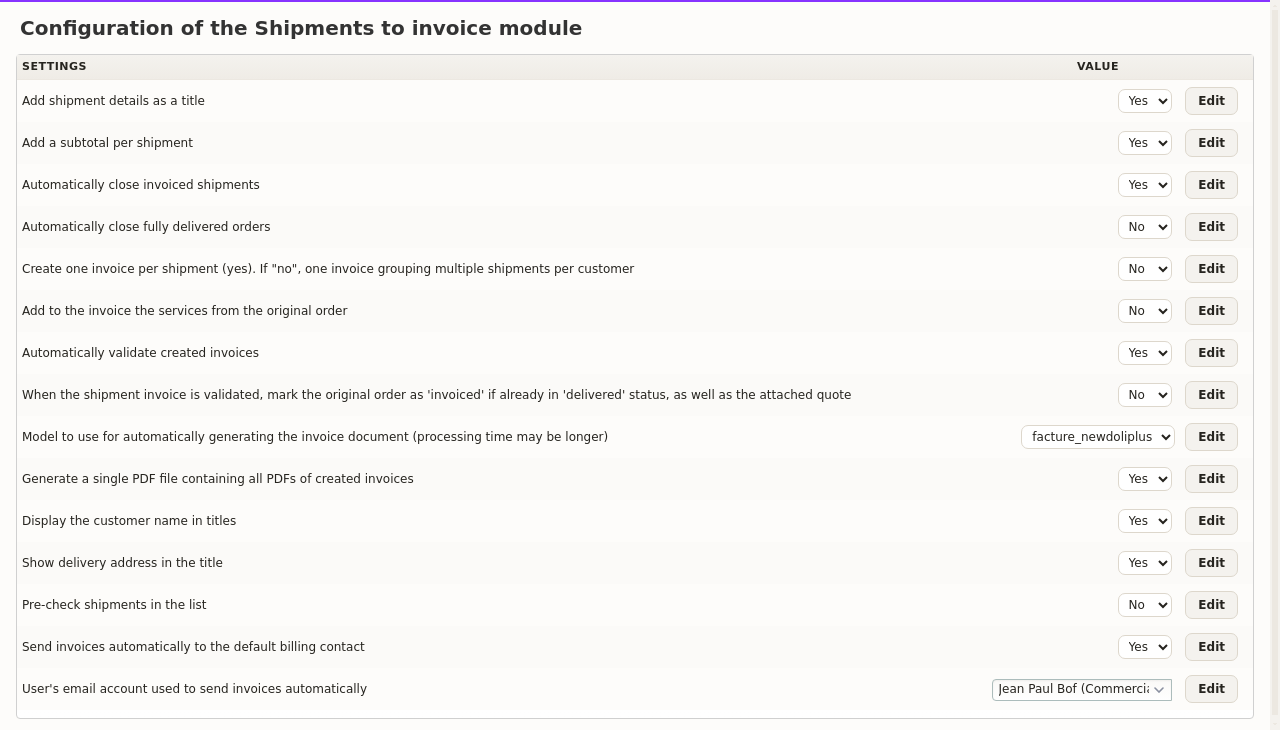
Invoicing mode
| Setting | What it does |
|---|---|
| Create one invoice per shipment | On yes, every selected shipment gets its own invoice. On no, all shipments of the same customer are grouped into a single invoice. |
| Add shipment details as title lines | Inserts a title line carrying each shipment reference. Traceability therefore stays readable inside the grouped invoice. |
| Show the customer name in title lines | Adds the third party name to those title lines. |
| Show the delivery address in the title | Adds the delivery address, which helps when one customer is served on several sites. |
| Add a subtotal per shipment | Places a subtotal line after the lines of each shipment. This option requires the Subtotal or Milestone module. |
| Add the services of the original order | Pulls the service lines from the source order. Useful when your services never travel through a shipment. |
Automation
| Setting | What it does |
|---|---|
| Validate the created invoices automatically | Invoices go straight to Validated, with no manual step. |
| Close invoiced shipments automatically | Shipments included in the invoice are closed right away. |
| Close fully delivered orders automatically | When every shipment of an order is invoiced and the order is delivered, that order closes on its own. |
| Classify the source order as “invoiced” | On invoice validation, a source order already marked delivered moves to Invoiced, together with the linked commercial proposal. |
| Pre-tick shipments in the list | Every eligible shipment arrives ticked. Bulk processing therefore goes faster. |
PDF documents
| Setting | What it does |
|---|---|
| Template used to generate the invoice document | Picks the template applied to the invoices created. Generation takes slightly longer, but it saves you from rebuilding every PDF by hand. |
| Generate a global PDF file | Merges every generated PDF into one downloadable file. The option only appears once a template is selected. |
Automatic emailing
| Setting | What it does |
|---|---|
| Send invoices automatically to the billing contact | Every generated invoice goes to the default billing contact of the third party. |
| Email account used for sending | Sets the user whose account acts as the sender for those messages. |
Stock and bank
| Setting | What it does |
|---|---|
| Warehouse used after invoice validation | Applies when your stock movements are triggered on invoice validation rather than on shipment. The setting only shows in that precise case, with automatic validation enabled. |
| Default bank account of the Invoices module | Reuses the bank account already configured for wire transfers, instead of leaving the field empty. |
Your shipments-to-invoice list therefore follows your own invoicing rhythm.
Sending the invoices by email automatically
DoliPlus can also email the invoices without any action from you. To achieve that, fill in the default billing contact on each third party, as well as the sending email account. Then enable automatic validation and the global PDF.
An event is logged on the invoice for every message sent. Moreover, a text report is filed in the document management module. Finally, the billing contact addresses appear in the list, in the company column.
Generating your invoices, step by step
- Open Sales → Shipments → Shipments to invoice.
- The list shows validated shipments that are not invoiced yet. Filter it if needed.
- Tick the shipments to invoice. With the pre-tick option, they already arrive selected.
- Click Generate invoices.
- DoliPlus builds the invoices according to your configuration, with title lines and subtotals if you enabled them.
- With automatic validation, invoices are validated straight away. Otherwise, they wait as drafts for your review.
- The number of invoices created appears on screen. Moreover, a link to the global PDF shows up when that option is active.
Points to watch
- A possible gap in the net total. With the option that pulls services from the order, the invoice total can exceed the shipment total, since services never travel in the parcel. The configuration page warns you about it.
- Automatic emailing has two conditions. You need a default billing contact on the third party record, and a properly configured sender account.
- The global PDF ignores ODT templates. Therefore pick a native PDF template to benefit from the merged file.
- Stock calculated on the invoice needs a warehouse. Without that setting, the movement may fail or hit an unexpected warehouse.
- Automatic classification goes back to the quotation. The option that marks the order as invoiced also acts on the linked commercial proposal. Therefore check that this behaviour matches your sales follow-up.
Why track shipments waiting for their invoice
A delivery that has left but is not invoiced is revenue on hold. This list prevents those oversights.
You gain on three fronts:
- nothing forgotten: every delivery is tracked;
- time saved: invoicing runs in batches, or even on its own;
- faster cash: you invoice as soon as goods leave.
Going further
Related Entrées
