 on 2 September 2026
 Profit margin calculation: know what each sale really earns
DoliPlus runs the profit margin calculation on every quote, order and invoice, line by line:
- the margin rate or the markup rate, according to your setup;
- the margin in value, split between products and services;
- a cost price that already includes freight, overheads and sales commissions;
- a cost price column in your everyday reports, next to the purchase price.
Therefore you never wait for the accountant to know whether a sale earned money. Moreover, DoliPlus is the enhanced cloud edition of Dolibarr. So you keep an open-source foundation under a business-ready layer.
Why the purchase price alone misleads you
A product bought at 100 and sold at 120 looks like a 20 % win. However, the carrier’s invoice has not arrived yet. Then add freight, customs and overheads. That comfortable margin often shrinks to nothing.
That gap is exactly what the profit margin calculation closes. DoliPlus does not compare the selling price with the purchase price. Instead, it compares it with the cost price: what the goods truly cost you, charges included.
Gross margin, net margin and the two rates
The gross margin is the amount added to the buying cost to reach the selling price. For example, an item bought at 100 and sold at 120 shows a gross margin of 20.
Unit selling price (excl. tax) − Unit buying cost (excl. tax) = GROSS MARGIN
The net margin goes further, because it also absorbs your running costs: payroll, depreciation, commissions.
Gross margin − Running costs = NET MARGIN
Then two rates read the same figure from two angles. First, the margin rate measures the gain against what you paid. Second, the markup rate measures it against what your customer paid.
Margin rate = 100 × (SP − CP) / CP
Markup rate = 100 × (SP − CP) / SP
An item bought at 100 and sold at 120 therefore shows a 20 % margin rate, but a 16.66 % markup rate. Consequently, you compare products without guessing. Moreover, you arbitrate between volume and margin on facts.
A profit margin calculation that follows your real charges
In trading especially, the profit margin calculation deserves a cost price rather than a bare purchase price. So DoliPlus adds three elements to each sales line:
- sales commissions,
- a general overhead rate,
- a freight cost.
Usually you set these rates from last year’s figures. Then DoliPlus applies them automatically, line after line. Besides, the detail stays visible whenever you edit a line.

Furthermore, freight no longer has to be an average. Record the real landed cost on a product’s supplier purchase price. DoliPlus then uses that figure first for this product. In other words, an item whose shipping cost you know carries its true weight. Meanwhile, the others keep your average rate.
In every case, a fee counts once only. It sits either in the line’s purchase price, or in the freight charge — never both. Besides, you pick that placement in the settings, or you let DoliPlus decide.
Your reports show the cost price too
Most reports already carry margin figures. Moreover, the reports you open every day now display a cost price column. It sits right next to the purchase price, with the total charges that explain the gap.
This applies to quotes, orders and invoices. Therefore you read real profitability without switching report. Besides, the margin and markup rates rest on that cost price, not on the purchase price alone.
The column appears as soon as a charge exists in your setup: freight rate, overhead rate, product landed cost or commissions. However, it stays hidden if you track no charges. Otherwise the cost price would simply repeat the purchase price. To go further, see ready-made business reports.
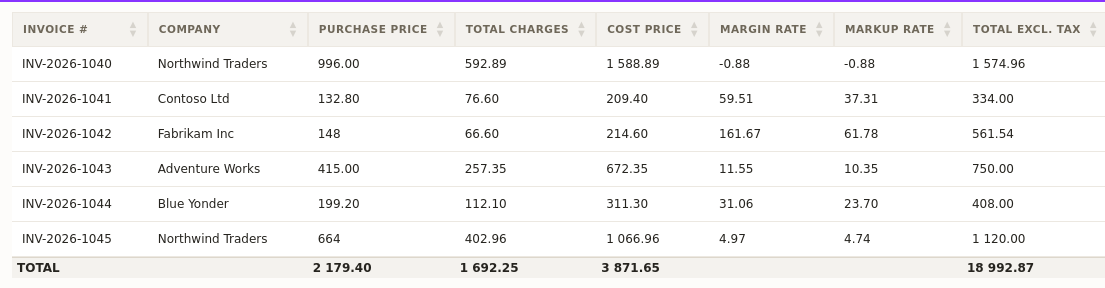
Read the first line: a sale that looks comfortable on its purchase price alone turns negative once freight and overheads are counted. That is precisely what the column is for.
Profit margin calculation settings, and who sees them
Finally, you configure the whole profit margin calculation from one console. There you choose gross or net margin, the rates, and where landed cost fees sit.
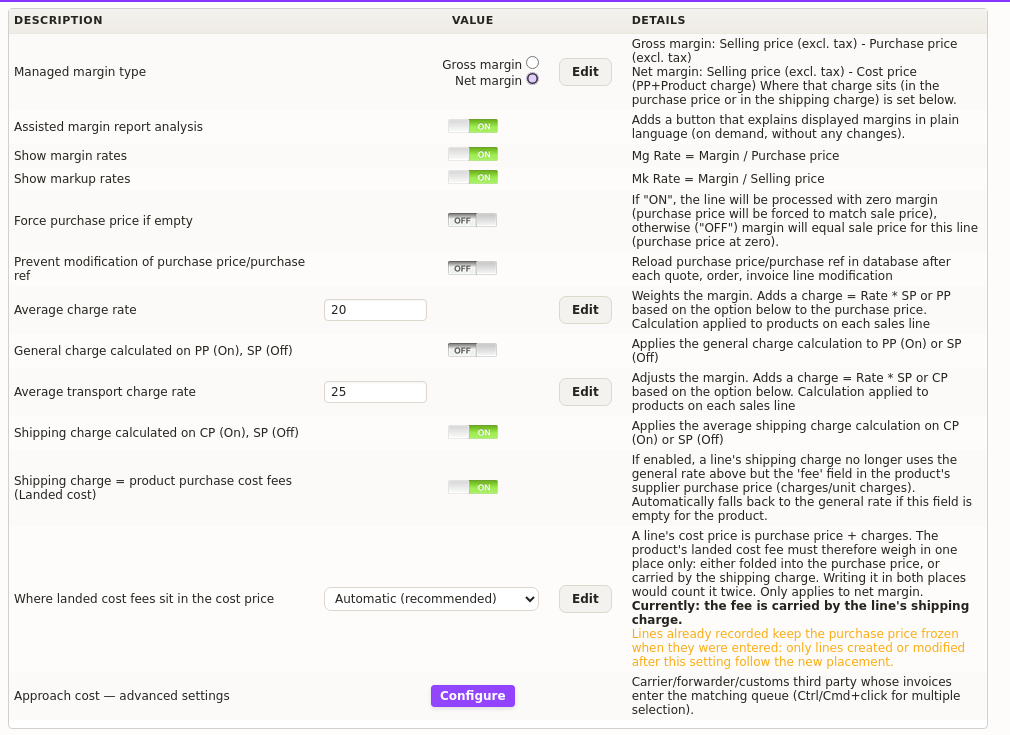
Naturally, fine-grained permissions decide who sees these figures: the “View margins” right alone governs the margin columns, on your documents as well as in your reports and exports. Without it, the user works as usual and simply sees no margin figure. In addition, one button hides the margin detail during a screen share.
For a related chapter, read sales commission management.
Related Entrées
