 on 5 September 2026
 Project management
DoliPlus offers two project management modules. This page covers Project, the standard module:
- Project — standard project management (this page);
- ProjectPlus — advanced project planning with Gantt charts.
DoliPlus project management helps you deliver on time. Plan tasks, assign a dedicated team, and track costs in real time.
Why switch to project management mode
A new customer request, a product to design within a tight deadline? Project mode structures this work. It lets you create under time constraints, plan tasks, and define the dedicated team.
How to create a project
Start by selecting “New project” from the menu. Then choose the confidentiality level:
- a public project can be viewed and edited by anyone with Project permissions;
- a private project is restricted to its creator and designated project contacts.
Create a task
Next, add tasks from the “Tasks” tab of the project, or via the “New task” menu. Tasks can be placed under the project or under another task, creating a hierarchy.
Note: You can create a task on a shared project or on a project you are responsible for.
Task creation starts with the “Create task” button in the “Tasks” tab of a project, or directly from the menu Projects → New task.
Link an ERP element
To calculate costs, link the project to your ERP elements, including:
- a quote, customer order, or invoice;
- a supplier order or invoice;
- an intervention or action.
Track time spent
By enabling the « Time Management » option in the calendar, you track the time spent on project-related actions. Additionally, by entering the hourly rate of users in the HR module, DoliPlus automatically values this time.
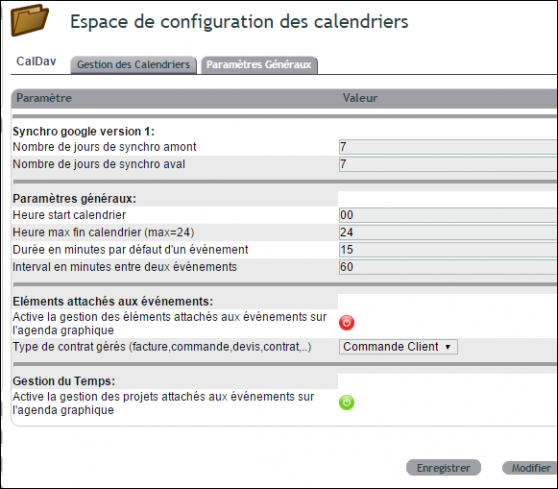
For dedicated entry, refer to the timesheet.
By entering the user’s hourly rate in the HR module, you value the time spent in euros, not just in hours.
Analysing profitability (References tab)
A simplified analytical management tracks the project’s income and expenses. This way, you know its budget balance in real time. The calculation is based on the associated quotes, orders, and invoices, both for sales and purchases.
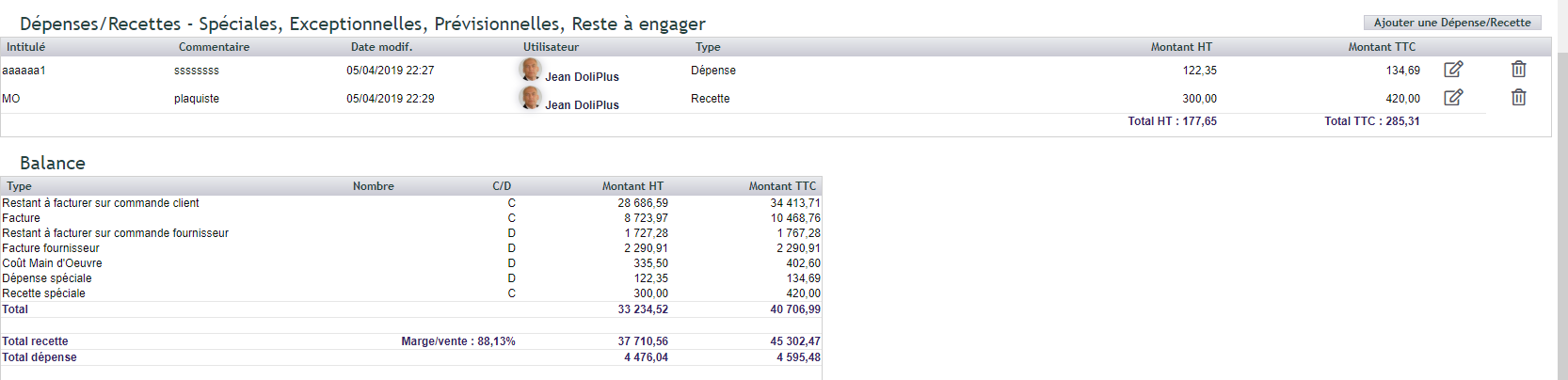
On the purchasing side, the order acts as a committed expense, a very useful concept in construction. As soon as the supplier order is recorded, the expense appears in the balance. Then, the supplier invoice replaces it in the calculation.
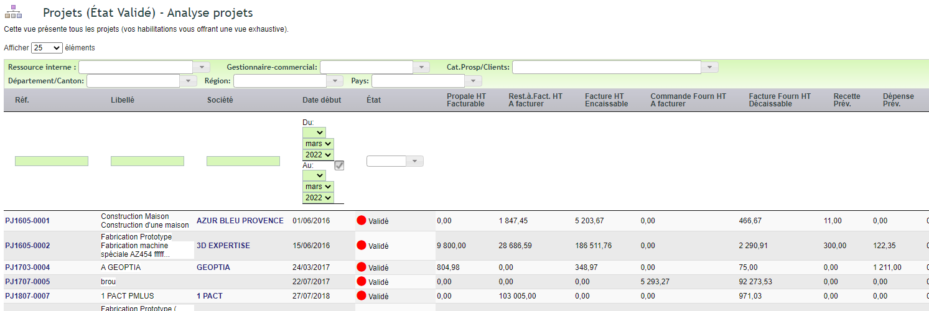
Finally, exceptional income and expenses allow you to classify the unclassifiable, either temporarily or permanently. A summary table then recaps the profitability of all your projects.
Multi-project allocation
Some income or expenses concern multiple projects at once. That’s why an option allows you to split a line across several projects, in both the sales and purchasing cycles. You activate it in Configuration → PDF/Interface Settings.

This distribution is activated by the PG84 option — Configuration →
PDF/Interface Settings: « Enable multi-project management allowing multiple allocation of line details in the sales and purchasing cycles ».
Custom fields and email archives
As everywhere in DoliPlus, you can add your own custom fields to projects and tasks. Additionally, email archives linked to project resources remain accessible when the module is activated.
List views and filters
Multiple list views make it easier to access information, sometimes with a pre-filter. Additionally, filters can be combined, and a button resets the search:
- “Internal resource”: the people designated as project resources;
- “Sales manager”: based on the sales manager linked to the project’s customer or supplier;
- “Prospect/client category”: based on the category of the assigned customer or supplier.
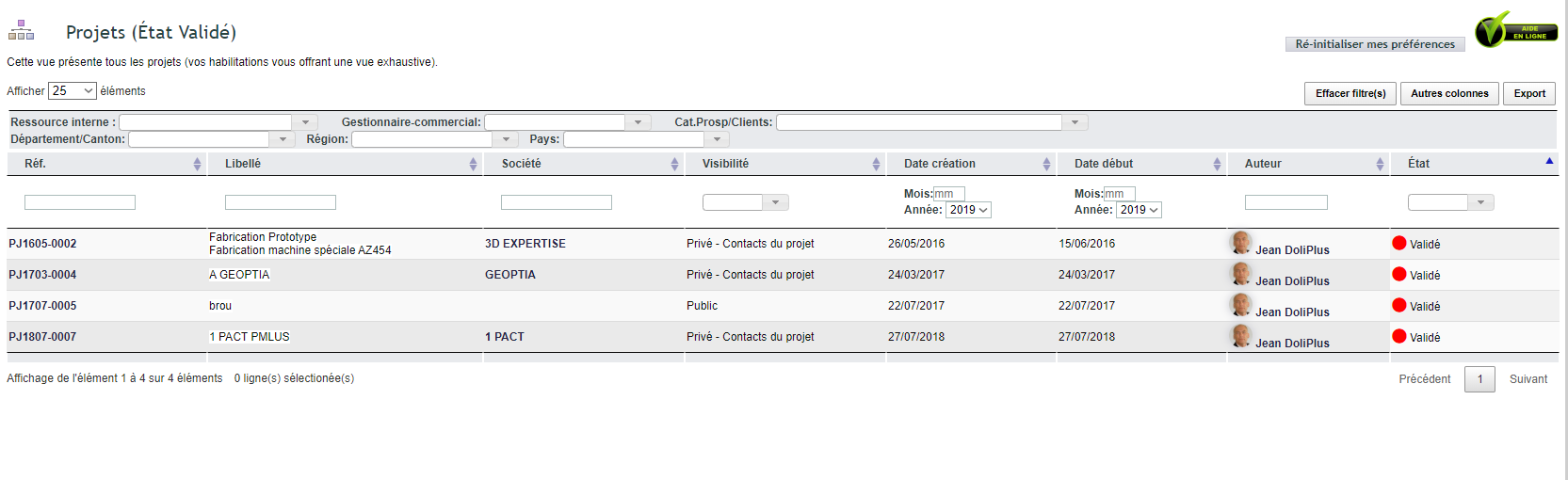
Two filters are worth knowing. “Internal resource” includes people designated as project resources, regardless of their role in the contact tab. “Sales manager” filters based on the sales manager assigned to the project’s customer or supplier. Finally, “Clear filter(s)” resets the search.
To go further
To go further, check the definition of Gantt chart on Wikipedia.
To go further
- Dolibarr specification document — write a specification document before ordering a development.
