 on 25 October 2026
 Request for quotation software: compare supplier offers before you order
A request for quotation software should not stop at sending the request: it should help you choose. DoliPlus, the enhanced cloud edition of Dolibarr, therefore gives you:
- a multi-supplier consultation — one move, and a copy of the request reaches every supplier you selected;
- a comparison table of the replies, line by line, with totals and terms side by side;
- the import of the supplier reply: drop the PDF or the photo, and the prices read are offered against the prices you asked for;
- a commented analysis from the assistant, which puts words on the figures of the table;
- a month-by-month follow-up of your requests, compared over three years.
In other words, you no longer compare offers on a spreadsheet corner. Instead, you decide inside the very tool that will place the order.
Where the request for quotation software fits in your purchasing cycle
The supplier request for quotation, also called consultation, opens the purchasing cycle of your ERP:
Therefore, you compare several offers before committing, while keeping a clear trace of every step.
Creating and sending a request
First, enter the request quickly, either from the multi-supplier product catalogue or in free text. DoliPlus displays the lowest purchase prices already known for each item, which builds a reference basis. The printed document, however, shows the items and quantities without any price: at this stage the goal remains to collect the expected prices, not to announce them.
Then, validate the request and send it by the channel of your choice. DoliPlus records both the sending status and the transmission mode, and the status moves from « validated » to « sent — awaiting reply ».
You may also clone the request towards another third party. The clone includes the lines, the supplier and internal references, and the custom fields. It also carries over the line prices, the notes and the project; on the other hand, it does not include the contacts, such as the delivery address.
Numbering and printing price requests
The module setup page (Setup › Modules, « Supplier price request » line, administrator) sets:
- the numbering: « Marbre » numbers on its own (RQ2610-0001: year, month, counter), « Saphir » follows a mask that you type, then « Edit ». The button in the Status column chooses the active model;
- the document sent: the « New DoliPlus » model prints your logo and the list of items and quantities; the star in the « Default » column sets the one offered;
- the free text added at the bottom of every request (terms, expected reply time);
- « Allow creating items from non-referenced products/services with custom labels »: when the order is created, a free line becomes a product.
Comparing the replies you receive
Asking a single supplier tells you little. That is why DoliPlus groups your requests into a consultation, then shows the replies side by side in a dedicated Comparison tab.
Moreover, you can import the reply — a PDF, a scan, a photo of the quote — instead of typing it again. The prices read are proposed against the prices you asked for, and nothing is saved until you confirm.
Both features have their own chapter, which details the line-by-line table, the best offer detection, the incomplete quote unmasked and the commented analysis: Comparing supplier quotes.
Turning an accepted request into a purchase order
Once you have decided, you either accept or refuse the request. Accepted, it becomes a purchase order with one click on « Create order »; refused, it stays recorded with the « refused » status.
During the transformation, DoliPlus also updates the purchase prices automatically, according to what you entered. Furthermore, depending on the option you set, a free item carrying a label becomes a real product or service at that very moment. Finally, a link to the related document appears at the bottom of the page.
From the supplier reply to the order, step by step
- On a « Sent (awaiting response) » request, click « Price quote received », then confirm: it moves to « Received ».
- The lines can be edited again: enter the supplier prices and references.
- Click « Accept/Reject ». In the window, choose « Accepted » or « Declined »; the optional note is added to the private note of the request.
- On the accepted request, click « Create order », then confirm. DoliPlus updates the purchase prices of this supplier with the prices entered, creates the purchase order as a draft with the same lines and terms, and opens it. The request moves to « Closed », linked to its order.
« Reopen » brings a sent, received or accepted request back to the « Approved » status.
Following your requests month after month
How many consultations did you launch this year? For which amount? The statistics page answers at a glance.
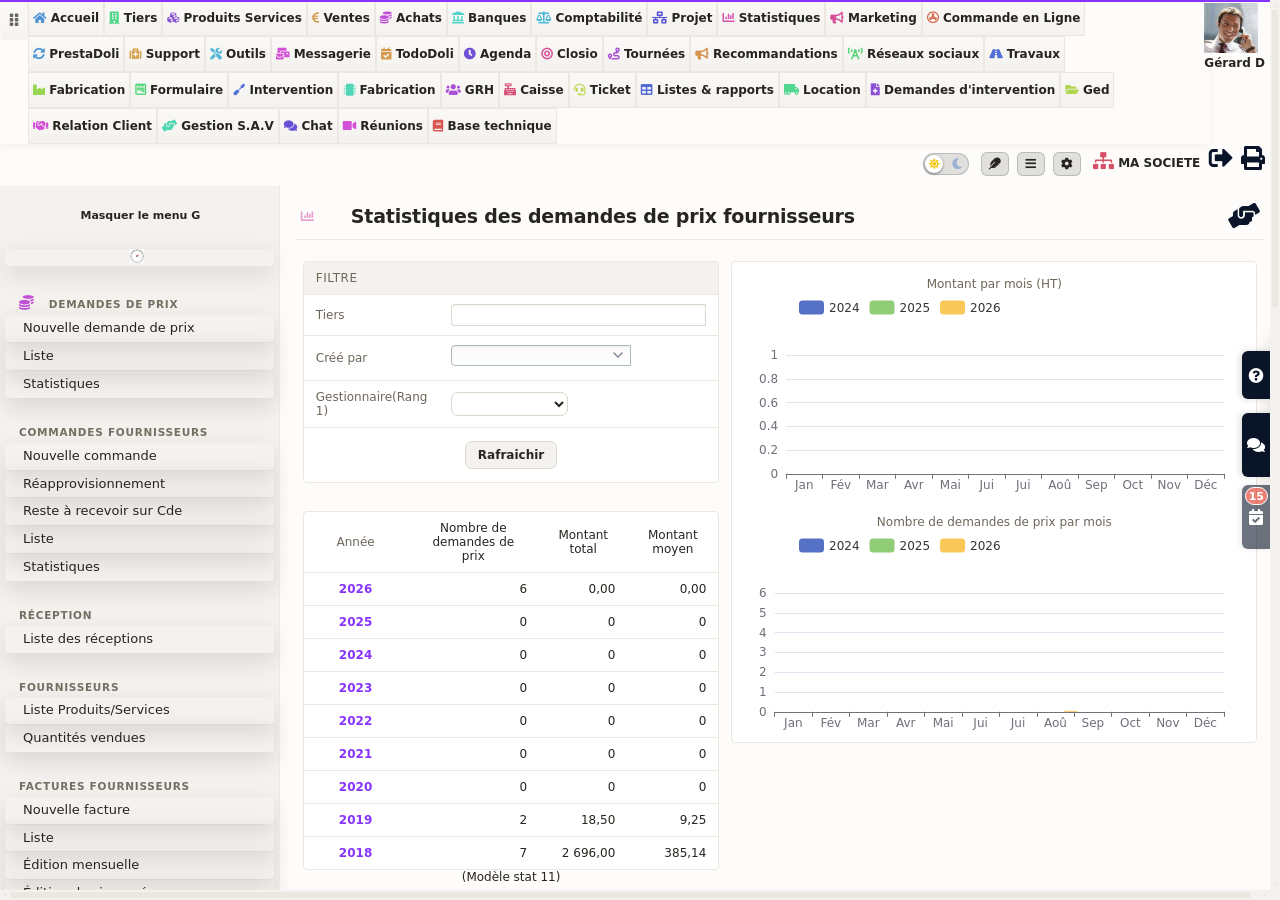
You will find the number, the total amount and the average amount per year, together with two monthly charts compared over three years. In addition, three filters refine the reading: the supplier, the author of the request and the account manager.
Clicking on a year opens the month-by-month detail. This page remains available from the « Statistics » entry of the Purchasing menu, as well as from the « Supplier price request » label of the home dashboard.
Finding a price request
- Purchases menu › Price requests › « List ». The columns: Ref., Status, Supplier, Date (of validation), Delivery date, Amount excl. tax, Author; « Other columns » adds the zip code, the city or the note.
- Type in the box under a column to filter: the Ref. box also searches the supplier reference and your internal reference. Dates are bounded by « From / to », the amount by <, > or =.
- The box under « Status » keeps only the requests Sent (awaiting response), Received, Accepted…
- Click the reference to open the request; the PDF icon next to it opens its document. « Export » outputs the list as Excel, CSV or PDF.
The « Sent supplier price requests » and « Received supplier price requests » indicators of the dashboard open this list directly, already filtered.
Custom fields, lists and projects
Custom fields apply to requests as they do elsewhere, and the dynamic tables display them too. Requests linked to a project also appear among the project referents.
Used this way, a request for quotation software stops being a mailbox and becomes a purchasing decision tool.
Further reading
- Comparing supplier quotes — the comparison table and the reply import, in detail.
- The purchase order — the natural next step of an accepted request.
- The supplier invoice — the last stage of the purchasing cycle.
Related Entrées
