 on 7 July 2026
 AI writing assistant in the DoliPlus text editor
Why use the AI writing assistant built into your ERP?
Your DoliPlus text editor now includes a true AI writing assistant, along with several new features:
- a spelling and grammar correction button, powered by artificial intelligence;
- a second button that rewrites, summarises or translates your texts in a single click;
- an automatic saving mode that protects your work while you type;
- a microphone button to dictate your texts by voice.
As a result, combined with voice dictation and automatic saving, the assistant transforms the way you write in the application — flawless texts, and work that is never lost. DoliPlus is the enhanced cloud edition of Dolibarr, the open-source ERP & CRM used across Europe.
Correct the spelling of your documents directly in DoliPlus
When you write a quote, a note, a commercial proposal or any other document in DoliPlus, the rich text editor now includes a spelling and grammar checker powered by artificial intelligence. In one click, your texts are analysed and corrected, without leaving the entry screen.
Moreover, this feature is part of the DoliPlus approach of progressively bringing artificial intelligence into your daily workflow — the same engine that powers the webmail, the generation assistants and the chat assistant.
The AI correction button (magic wand icon ✨) sits in the toolbar of the editor, used in the rich text areas of DoliPlus. For example, you will find it in:
- commercial proposals and quotes (description field, terms and conditions…);
- internal notes attached to third parties, projects or deals;
- product and service descriptions;
- any other field of the application using the rich text editor.
How to use it
Correcting the whole content
If nothing is selected in the editor, a click on the magic wand button sends the entire content to the corrector. The corrected text then automatically replaces the original, without changing the formatting.
Correcting a selection
Alternatively, select the passage to correct with your mouse, then click the button. Only the selected text is submitted — the rest of the document stays untouched. This is ideal for targeting a specific paragraph or a doubtful wording.
Going further: the AI writing assistant guided by templates
Next to the correction button, a second button enriches the toolbar: “Writing assistance”. While the corrector focuses on mistakes, this assistant helps you write and rephrase. In practice, you pick a writing template from a short list, and the assistant does the rest.
The process stays very simple.
First, you click the button; then, a menu shows the available templates; finally, you select one.
In addition, the AI writing assistant adapts to your intention: if you selected a passage, it reworks and replaces it; on the other hand, without a selection, it writes a new text at the cursor position.
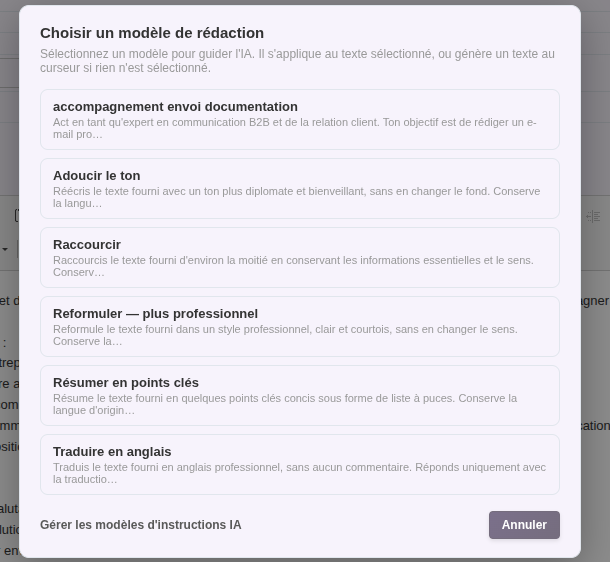
Ready-to-use templates
DoliPlus ships with several templates, so you can start without configuring anything. For example:
- Rewrite in a more professional tone — a more polished email or note, without changing the meaning
- Shorten — a denser text that goes straight to the point
- Summarise in key points — the essentials as a list
- Translate into English — a professional version for your international contacts
- Soften the tone — a more diplomatic wording, for example for a delicate reminder
Create your own writing templates
Above all, you are not limited to the built-in templates.
Indeed, you can write your own instructions — for example “Write a reply to a customer review” or “Turn these notes into a report” — from the Tools → AI instruction templates menu.
Each template you create instantly appears in the assistant list, for your whole team. To go further, read the chapter Document templates.
Ready to use, with nothing to configure
Good news: you have no technical key to enter. Artificial intelligence is included in DoliPlus and works as soon as the Artificial Intelligence module is enabled.
Consequently, as soon as the module is active, both buttons appear in your editor and you can use them immediately.
To get started, you benefit from a free demonstration credit, already preconfigured: nothing to set up. Then, for regular use, simply subscribe to a DoliPlus AI plan in one click from the module configuration. You choose the plan that matches your needs:
- Demo (free credit) — to discover the assistant without commitment
- Pro eco — excellent value for daily use
- Pro performance — the most powerful engines, for the most demanding texts
In practice, DoliPlus handles the whole technical side. Therefore, you have nothing to install or configure: you write, the assistant answers.
The same intelligence across all of DoliPlus
The corrector and the AI writing assistant rely on the same artificial intelligence as the rest of DoliPlus.
Moreover, this intelligence is shared and managed by DoliPlus: your subscription gives you access to it across the whole application — documents, email, chat, content generation… without any extra configuration.
Automatic saving — your work always protected
Your text editor also gains a discreet but precious feature: automatic saving.
As soon as you start writing in the editor, DoliPlus periodically saves your content in the background — without you clicking the “Save” button. In other words, total peace of mind for your long entries.
Which fields does it cover?
Automatic saving is active on the rich text fields of product and service cards:
- the Description field — the one printed on your quotes, invoices and orders;
- the Note field — an internal note, not visible on printed documents.
The real-time status indicator
A discreet indicator, displayed right under the editor, keeps you informed of the saving status at all times:
- “Automatic saving enabled — your work is protected”: the service is watching your changes;
- “Pending…”: changes were just detected, saving is imminent;
- “Saved at HH:MM”: the automatic save just succeeded, with the exact time.
Prerequisites
Automatic saving is available when the following three conditions are met:
- the rich text editor is enabled in the DoliPlus configuration;
- the Rich editor for products option is enabled in the configuration;
- you are using a desktop browser (the feature is disabled on mobile to preserve performance).
Dictate your texts by voice
No more typing everything on the keyboard: your DoliPlus text editor now lets you dictate your text by voice. One click on the microphone button in the toolbar, you speak, and your words appear automatically in the document. It is ideal for writing a description, an internal note or a commercial proposal faster — and particularly handy for long texts.
How to use it
Click the microphone button in the editor toolbar, allow access to the microphone when your browser asks (only once), then speak normally. The recognised text flows in as you dictate, at the cursor position. Another click on the button stops the listening. Furthermore, for better accuracy, a headset microphone is recommended in a noisy environment.
Voice commands
Beyond simple dictation, you can also control the formatting without touching the keyboard. Say the word “command” followed by the desired action:
- “command new paragraph” — to start a new paragraph
- “command new line” — for a simple line break
- “command undo” — to cancel the last action
- “command redo” — to restore the cancelled action
Compatible browsers
Dictation relies on the voice recognition built into your browser: it is entirely free and needs no configuration. It is available on the following browsers:
- Google Chrome (on desktop)
- Microsoft Edge (on desktop)
- Safari (on Mac, iPhone and iPad)
Related chapters
- Voice dictation in the DoliPlus editor
- AI in the DoliPlus webmail — writing and correction
- Commercial proposals
- Document templates with DoliPlus
- The DoliPlus chat assistant
Related Entrées
