 on 25 October 2026
 Geolocation
Geolocating a customer or supplier places your clients and prospects on a map, directly from their record. This way, you can view their location and plan your sales routes more easily.
Geolocating a customer or supplier from their record
On the customer or supplier record, the address field appears with its dedicated icon. With one click, you launch the geolocation and get a clickable link to the map.
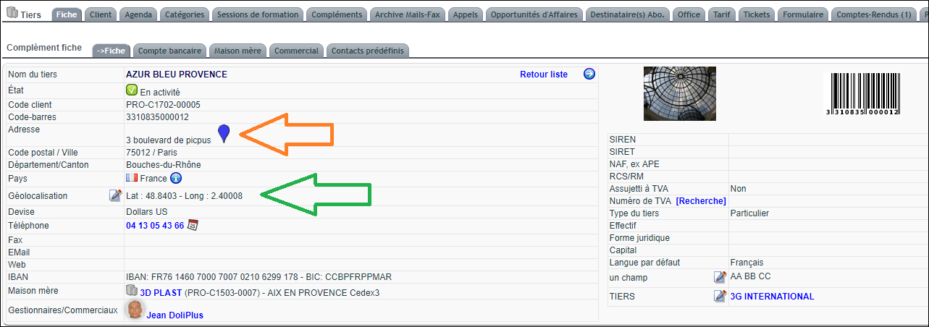
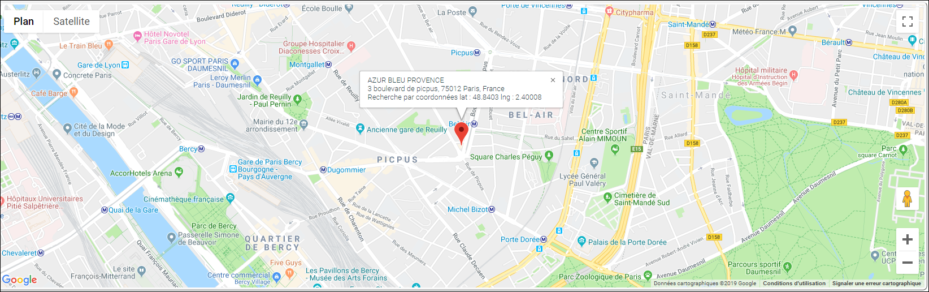
A few key points to remember:
- each new address entry stores the result in the Geolocation field;
- you can manually adjust the values in this field;
- however, modifying the record resets the coordinates.
In practice, the pin icon placed after the address (tooltip “Show on map”) opens the customer or supplier map in a new tab: a pin, its bubble with the name, address and coordinates, and two buttons, “OpenStreetMap” and “Google Maps”, to prepare your route. An address that has never been located is looked up in the Base Adresse Nationale (the French national address database, for addresses in France) when the map opens, then saved; if it cannot be found, DoliPlus tells you so (“The address … could not be found.”).
To correct a position, on the record: on the “Geolocation” line, click the pencil “Set GPS coordinates”, then enter “Lat” and “Long”, or use the “Address in France” search (5 characters minimum), and click “Edit”.
Geolocating a contact or address
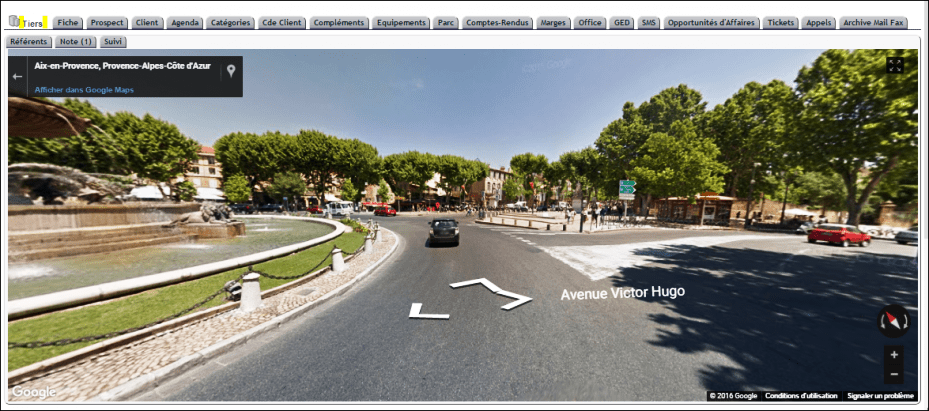
The principle is the same for a contact. From their record, the address field displays the same icon. You then get a map with a clickable link.
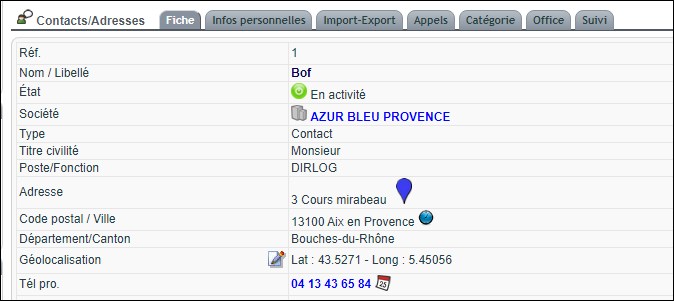
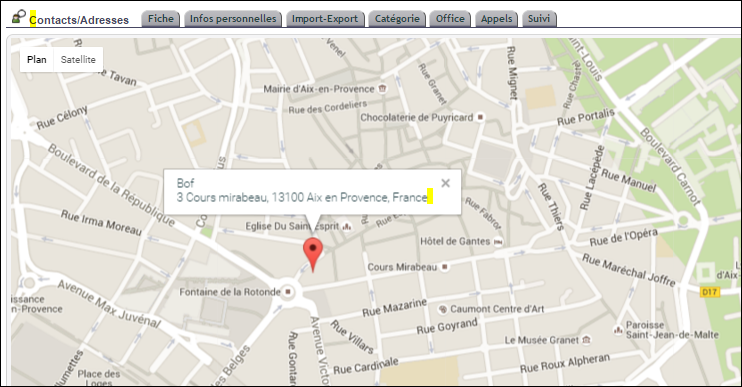
Here again, the same rules apply: automatic storage of coordinates, manual adjustment possible, and reset if the record is modified.
Geolocating a selection of customers or prospects
DoliPlus also geolocates your customers and suppliers in bulk. Before starting, first index the CRM database. Without this step, the processing time may be too long and affect the page.
Go to the menu Tools → Miscellaneous → Geolocation, then launch the indexing. Note that bulk indexing only applies to customers and suppliers.
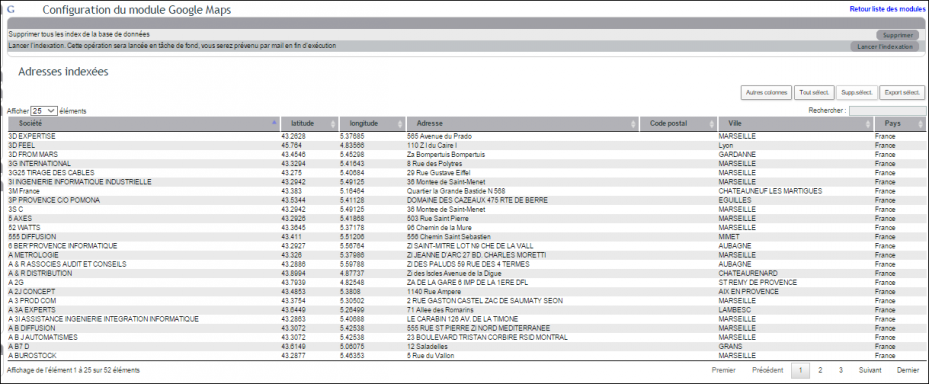
You can also start from the pre-filtered lists in the Customers and Suppliers menu.
Showing a selection of customers or suppliers on the map, step by step
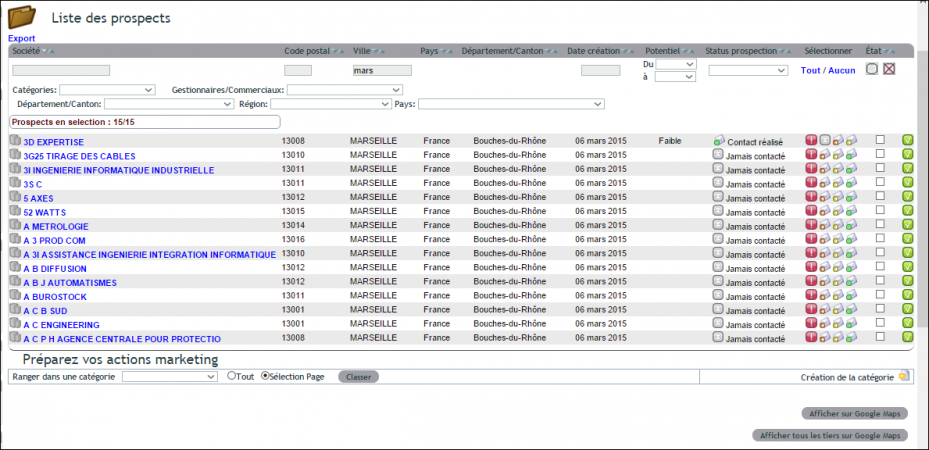
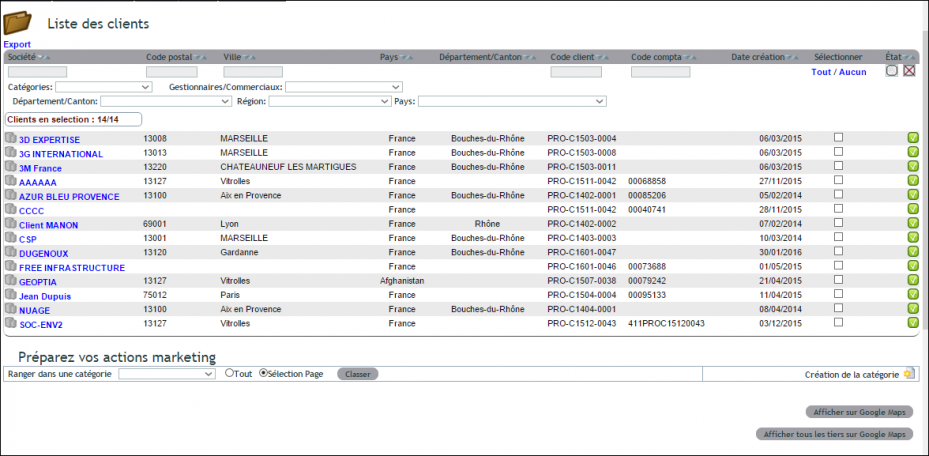
- In the customer and supplier list, first narrow the list down to what you want to see: type a city in the City column filter, then press Enter (the sales representative, department, region or type filters work the same way).
- “All” ticks the whole page displayed (increase the number of lines displayed to include more), or tick customers or suppliers one by one.
- At the bottom of the list, “Show selection on the map” opens the map in a new tab (with nothing ticked: “No selection!”). The button is reserved for people who are allowed to create customers and suppliers.
Reading the map
- Each pin is a customer or supplier from the selection: green for a customer, red for a prospect or any other third party. The map adjusts to fit them all.
- A numbered badge groups several nearby customers or suppliers: click it, and the map zooms in and separates them.
- Hover over a pin to read the name; click it for the summary card: the name, address and phone number lead to the customer or supplier record, and “OpenStreetMap” opens the address on the mapping website.
- A customer or supplier with no position is placed based on its address; an address that cannot be found is listed below the map (“Unable to find”).
The contact list has the same button: it opens the map of the ticked contacts, each bubble leading to the contact record.
Bulk geolocation of prospects
Bulk geolocation of customers
Setting up the customer, supplier and contact map
Geolocation module settings (administrator), “Configuration” tab:
- “Enable this tool for Third parties”, “… for Contacts”, “… for Members”: the pin icon appears next to the address on these records.
- The default zoom level of a record’s map: from 1 (the world) to 21 (the street); 15 suits a city; then click “Save”.
- “Disable clusters (groupings on map)”: by default, nearby customers and suppliers are grouped into a numbered bubble; when this option is switched on, each point is displayed separately.
Why geolocate your customers and suppliers?
Geolocation of a customer or supplier isn’t just for displaying a map. It primarily helps streamline daily commercial operations. By grouping visits by area, you reduce unnecessary travel.
You benefit in three key ways:
- Optimised routes: you see which customers are close to each other;
- Geographic targeting: you identify prospects by area;
- Time savings: the address becomes a clickable point, ready for route planning.
Thus, geolocation turns a simple address into a powerful prospecting tool.
For further reading
