 on 26 August 2026
 Quote and invoice editor: clean documents, without the retyping
The DoliPlus quote and invoice editor is the screen where quotes, orders and invoices are actually built, line by line. Therefore the time you save there is time saved on every sale.
This quote and invoice editor gives you:
- fast line entry, with shortcuts for free items and options ;
- reusable comment lines, saved once and recalled whenever you need them ;
- a text editor that cleans up whatever you paste into it ;
- layout tools — page breaks, subtotals, product photos and attached PDF files.
As a result, your documents look consistent, and nothing has to be retyped from one document to the next.
DoliPlus is the enhanced cloud edition of Dolibarr, the open source ERP and CRM.
Why the quote and invoice editor is worth learning
Slow data entry holds up the whole sales chain. However, once the screen is familiar, the gain is immediate and it shows in three places: faster entry, cleaner documents, and information that carries over from one document to the next without a single re-entry.
Two entry conventions to know
On a quote, order or invoice line, two conventions save you a lot of explaining. First, a 100 % discount marks a free item. Then, a quantity of 0 prints the word « Option » while keeping the unit price visible — a behaviour you can change with option 153.
Comment lines
You can insert comments anywhere in the document. A dedicated tool stores them and formats them, straight from the text editor. Moreover, those comments fit into subtotals, and an icon tells them apart from priced lines.
The older method: the COM_libre service
Before the comment tool existed, people created a COM_libre service with no description, then edited it while writing a quote or an order. On the PDF, only the description shows: neither the label nor the reference. You can of course create as many as you need — COM_transport, COM_handling_notice, and so on — with the label summarising the intended use.
The text editor
The text editor appears everywhere in DoliPlus: a document description, a product or service record, a comment. Its toolbar adapts to the context, so its contents change from one screen to another. You will find the usual styles — bold, underline, strikethrough, italic — along with paragraph styles, headings, lists, justification and alignment.
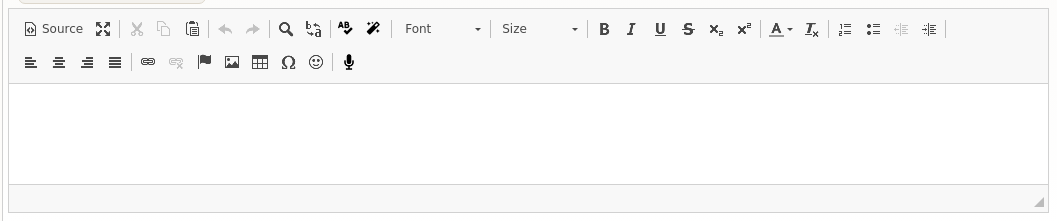
Copying from one editor to another. To reuse the detail of a quote line as a reusable comment, go through the source mode of the first editor into the source mode of the second, then save. The layout then stays intact.
Working on a long text. The double arrow next to « source » makes the window bigger or smaller. The small icon at the bottom right, meanwhile, lets you drag the window downwards. Just remember to save as you go.
Two last points. Voice dictation is available under Chrome only, and depending on the screen. Furthermore, images meant for outgoing emails must sit in the public area of the server to be readable by the recipient — so never put anything confidential there.
Laying out and enriching your documents
Several options refine how each line is presented:
- line break and page break, with one click on the icon ;
- rule after the item: add a line break followed by a page break ;
- subtotals, shown by the indent of child lines on the PDF, and by a return icon on the form ;
- the product photo attached to the PDF — on quotes only ;
- the product PDF files, merged into the final document.
In the last two cases, DoliPlus takes the first file in alphabetical order by default: the first photo in the folder, or the first document at the root of the product’s document folder. To pick another one, switch the line to edit mode and select it from the list. The merged PDF files then sit in the linked document folder, under the name doc_PRXXXXXXX.
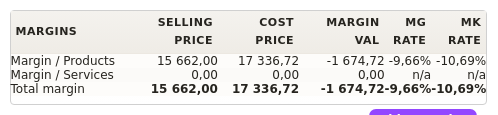
Finally, the customer note appears on screen to remind you of anything specific to that account. A button hides margins according to each user’s rights. And you can delete several lines in a single operation, which helps after cloning a quote.
Bank details and terms of sale on the PDF
You can let some users change the bank account that receives the payment. To do so, enable the option and grant the matching permission per user.
Your terms of sale can run over several pages inside the same PDF. Name the file with its language code — CGV_en_GB.pdf for the United Kingdom, CGV_fr_FR.pdf for France — and, when the multilingual option is active, DoliPlus picks the right one. A list-based selection is available as an option.
Going further with the interface
Several functions extend the editor, each with its own chapter:
- the subtotal function ;
- sales and purchase units (SPU) ;
- assisted area and weight calculation ;
- adding your terms of sale.
Lastly, the « Sales/Purchase interface settings » group (numbers 200 to 223) tunes how the forms behave. For the full list, see the PDF and interface settings.
Going further
Related Entrées
