 on 5 September 2026
 OVH Telephony for DoliPlus
The OVH Telephony links your phone system to DoliPlus. This way, you can dial numbers with a single click and identify callers from the first ring.
This CTI integration relies on OVH telephony services in VoIP. Additionally, it handles both incoming and outgoing calls.
Click to Call: dial with one click
Click to Call initiates dialling with a single click on any number displayed in DoliPlus. This saves you valuable time on every call.
The process is straightforward. First, click a number on screen. Next, your physical phone or softphone rings. Finally, once you pick up, the call is automatically connected to your contact.
Contact card popup on incoming calls
Computer Telephony Integration (CTI) also displays the contact’s card in a popup as soon as a number is recognised in your database. This lets you greet every caller by name.
Crucially, the contact card remains the heart of your CRM. You can instantly access their documents, quotes, orders, invoices, and reports during the call.
Setting up your OVH lines
We have no commercial agreement with this brand. Our sole aim is to provide a productivity solution for your business. Here’s what you need to know:
- you keep your current ADSL/SDSL connection and provider, then simply add a telephony service;
- or you subscribe to a full OVH package (ADSL/SDSL + telephony);
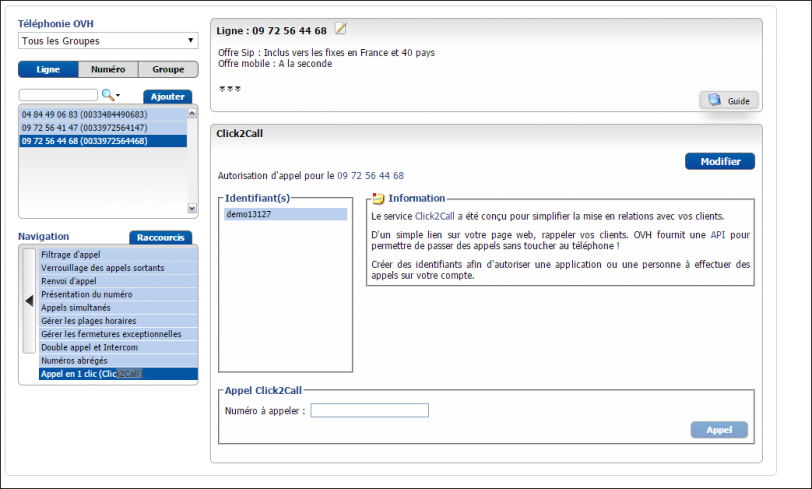
- only services with the “Click2Call” option are compatible, namely SIP Entreprise and SIP Trunk.
Once your lines are active, enable the Click2Call option for each line via the OVH interface.
Configuring the Telephony module in DoliPlus
Start by enabling the Telephony module in DoliPlus. Then configure the three areas described below.
“Settings” tab
- select the “ovh” connection type;
- define how the incoming call popup appears (e.g., left menu popup);
- enable call logging to create an action for each call;
- don’t force international format (33) for SIP dialling.
“Click To Dial module configuration” tab
Verify that the variables listed in the “Variable management” section are correctly included here.

From the user profile
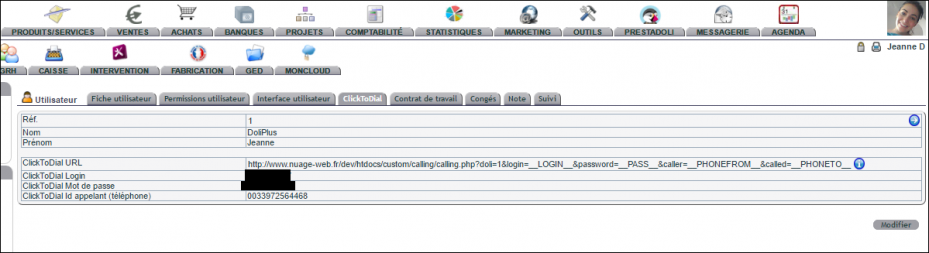
Configure each account via the “ClickToDial” tab in the user profile. The login and password match those set in the Click2Call option for each OVH line.
Note that the phone number follows the format 0033XXXXXXXXX.
Authenticate the application with OVH
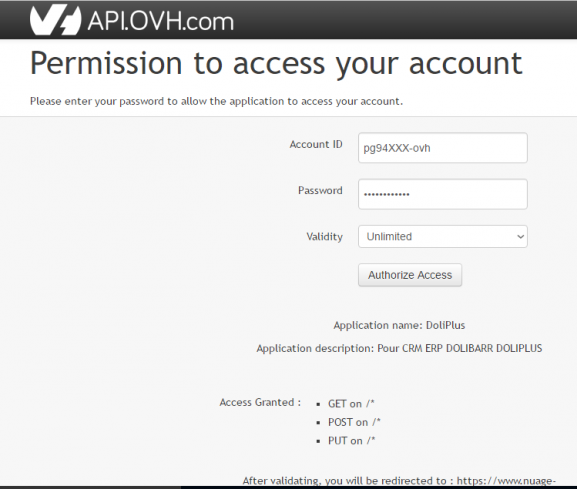
Open the “OVH Telephony” tab, then launch authentication. You’ll then be directed to OVH’s consent page.
Select your billing group, then confirm.
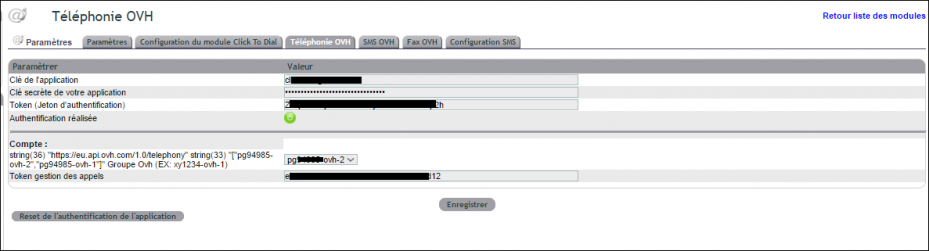
The “call management” field is then filled in automatically. Additionally, the indicator turns green to confirm “Authentication completed”.
To go further
- Keyyo telephony with DoliPlus
- Sending SMS with an OVH account
- Send a fax with DoliPlus
- Synchronised diaries and schedules
This connector is part of the DoliPlus Click-to-Call telephony, which brings together all operators: OVH, Keyyo, Vodia, PBXware, 3CX and SIP devices (Snom, Yealink…).
