 on 5 September 2026
 User email signatures
Email signatures for each user are configured directly in DoliPlus. This means your outgoing emails automatically include your name, job title and contact details. You can also sync this signature with your webmail in a single click.
Setting up a user’s email signature
First, open your user record and switch to edit mode. Then locate the “Signature” section.
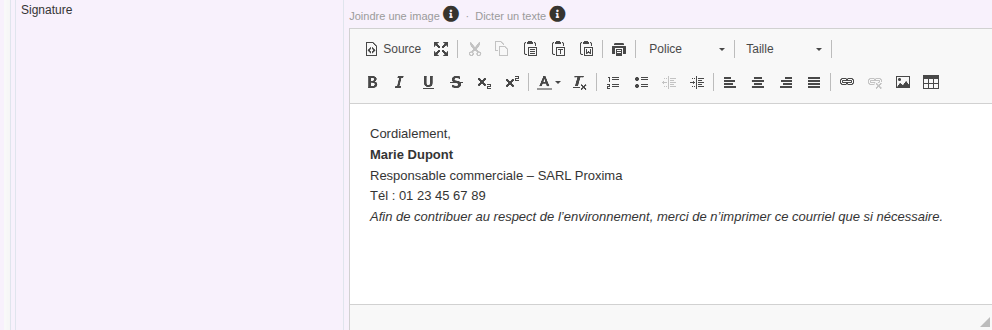
A) Editing the signature linked to your user account
- Open your DoliPlus user account and switch to edit mode.
- Enter your text in the “Signature” section.
- To add an image, click the “Browse server” icon, open the public folder, then select the image and confirm. If it’s not there yet, simply drag and drop it directly into the window.
- You can also dictate your signature using the “Dictate text” button.
Finally, save the record. DoliPlus will then use this signature for every email you send.
B) Syncing your signature with webmail
If you have an active email account, a “Sync signature” button will appear on your user record. DoliPlus then copies your name, company, email address and signature to your built-in webmail. This keeps both signatures identical without duplicate data entry.
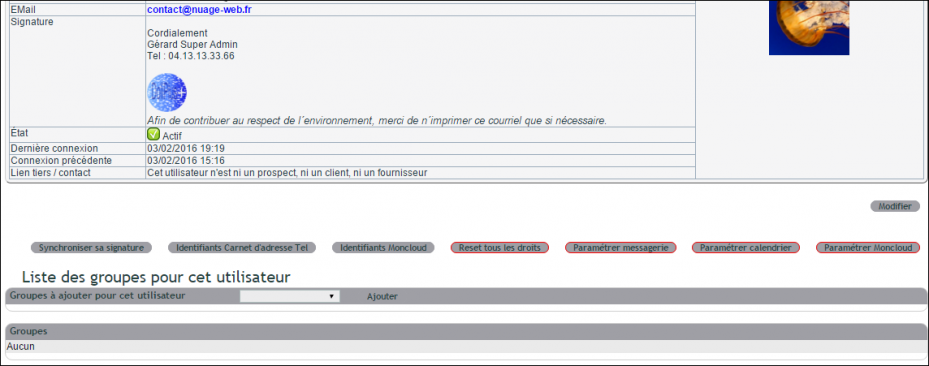
Your customers will then receive a consistent email signature whether you’re writing from DoliPlus or webmail.
Next steps
