 on 2 September 2026
 Recurring invoicing software: automate your customer invoices
Why choose recurring invoicing software built into your ERP?
Your DoliPlus solution includes powerful recurring invoicing software that automates your customer invoices from end to end:
- automatic invoice generation, based on a template invoice and a predefined schedule;
- sending by email or by post, at the frequency you choose;
- flexible options: tacit renewal, draft or final status, automatic service dates;
- direct integration with SEPA direct debit runs;
- a monthly management dashboard for bulk creation and sending.
As a result, your subscription and contract invoices go out on time, every time — without any manual work. DoliPlus is the enhanced cloud edition of Dolibarr, the open-source ERP & CRM used across Europe.
In practice, each invoice relies on a template invoice, also called a predefined invoice. Moreover, this template comes with a defined payment schedule and configurable options.
For payments collected by SEPA direct debit, the generated invoices join the direct debit management. Thanks to it, you produce a file in the standard European format.
Every European bank accepts this file. Therefore, you execute all the direct debit orders in a single operation.
Finally, you mark the whole batch of invoices as paid as soon as the payment shows up in the bank.
How to create a predefined invoice
First of all, here is the starting screen below.
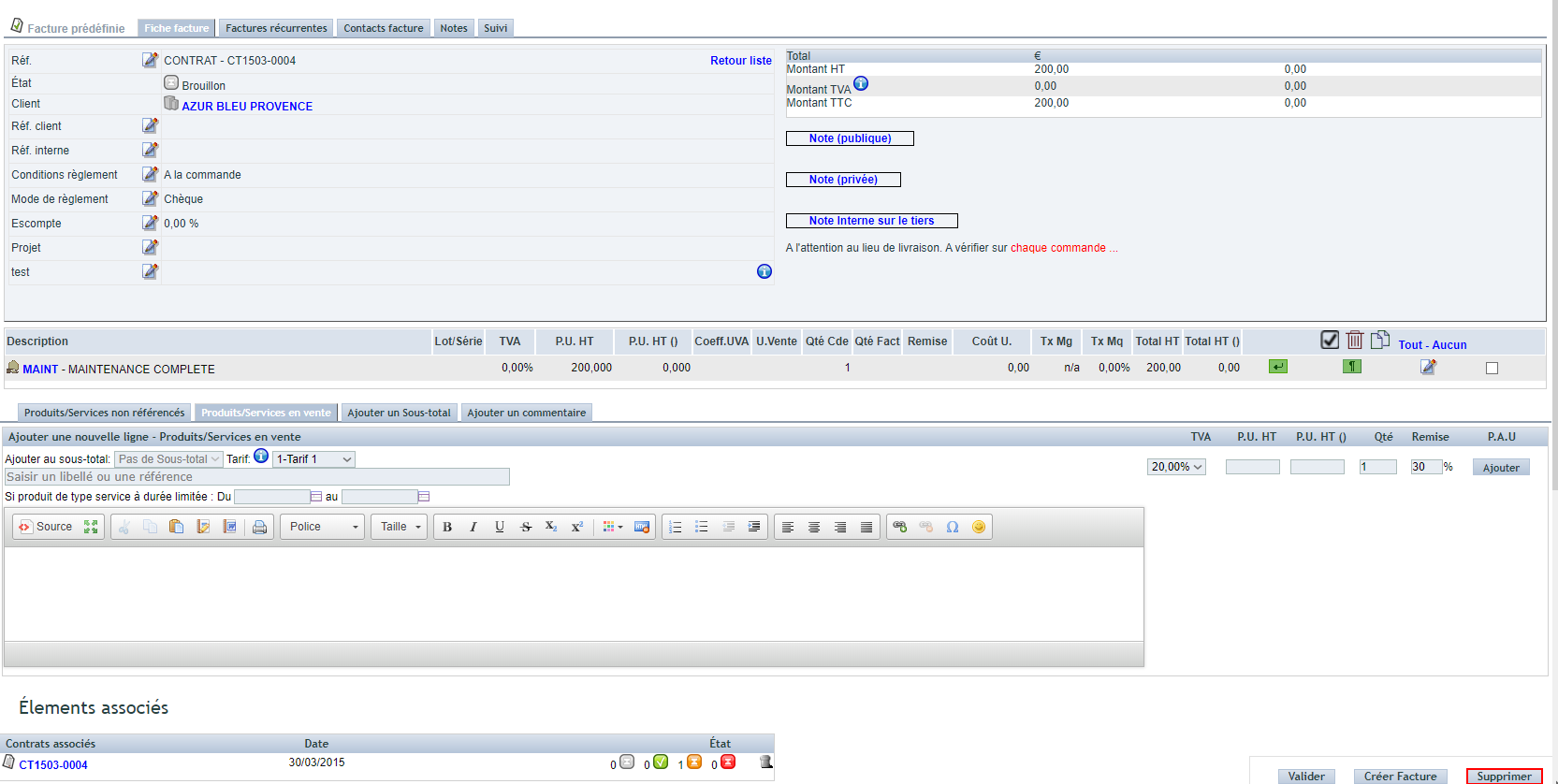
Next, enable option PG76: Recurring invoice management, in the PDF/Interface settings. To do so, open the “Configuration area – General settings” tab.
Furthermore, you can start from several sources:
- A service contract
- A customer order
- A customer invoice in Draft mode
- A signed quotation: turn it into a draft invoice first, then create the predefined invoice from that invoice
In all these cases, a button creates the predefined invoice. Moreover, it links the invoice to its source element (table available at the bottom of the page).
This link then takes you straight to the predefined invoice. You can therefore complete or edit it whenever necessary.
Note that the source invoice, still in draft and provisional status, disappears after the transformation. A service contract or a customer order, on the other hand, stays untouched.
Note: the “Abo” tag on the internal reference customises this reference automatically. In practice, you get Abo + the month and year of the invoice.
How to define the invoice recurrence
First, open the predefined invoice.
Then go to the “Recurring invoices” tab, as shown below.

After that, enable the desired frequency, as on the next screen.
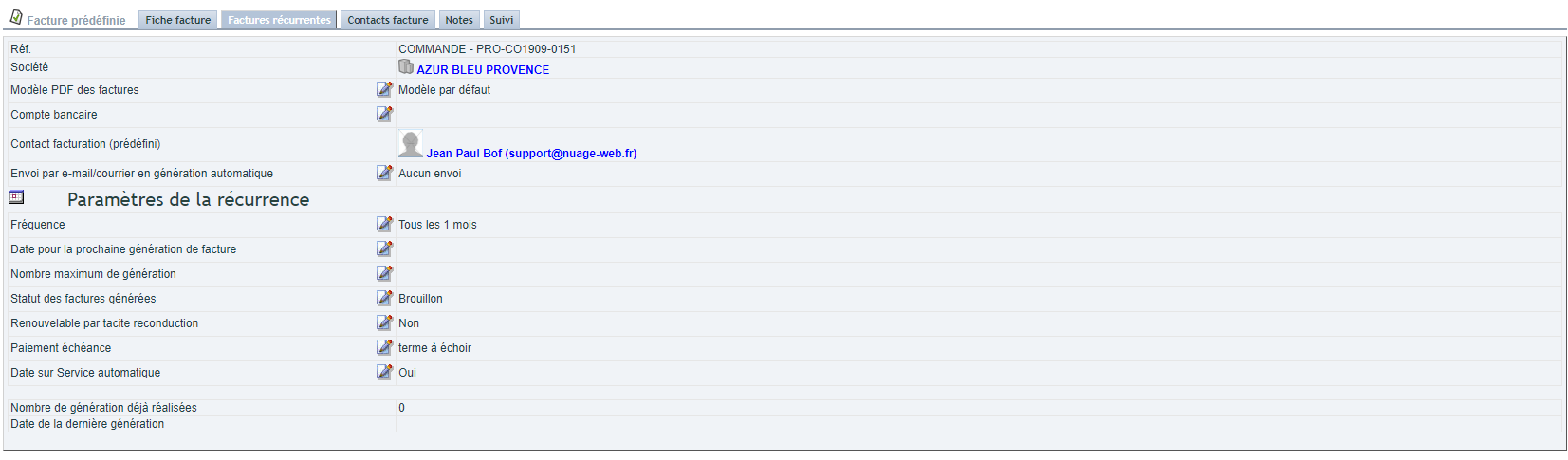
Setting the parameters
First, set the date of the next invoice generation. Indeed, it marks the start of the next instalment, both at initial configuration and after an update.
Then define the maximum number of generations: 2 for a tacit renewal, or a fixed number of instalments.
In addition, choose the status of the generated invoices: Draft or final number.
Next, specify whether the contract renews tacitly: Yes or No.
The instalment payment follows the payment term. Finally, enable the automatic service date so the service period appears on the invoice.
Note: one instalment in advance remains necessary to calculate the period end date (start of the next period minus one day).
For a SEPA mandate, the direct debit payment method must be enabled. You then pick the mandate to use directly on the predefined invoice.
Three further settings wait for you on that same record:
- the PDF template to apply, if you want something other than the standard one;
- the bank account to print on the invoice, for the payment;
- the early payment discount, together with the payment terms and method, the customer and internal references, and the linked project.
Finally, the user who runs the generation must hold the right to create invoices.
Generating the payment schedule
Here is the generation screen below.

- First of all, this tool is for internal management purposes only. It is therefore not intended for your customers.
- Moreover, you can launch an Excel export whenever needed.
- In addition, bulk invoice creation is described below, in “Monthly management dashboard”.
- Next, you can disable an instalment (for example, a postponement requested by a customer).
- Likewise, you can delete an instalment.
- Finally, you can add instalments by changing the date of the first one, then running a new generation.
The table below illustrates these options.

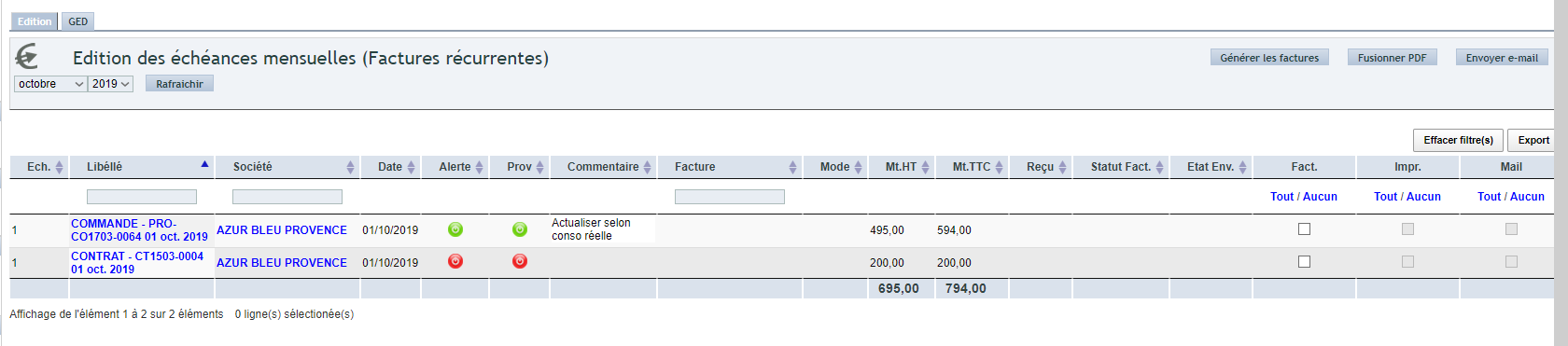
- Furthermore, the “Prov” column tags an invoice generation to be produced exceptionally as a draft, so you can amend it for that specific instalment.
- In addition, the “Alert” column tags the instalment with a comment. Thus, you remember to carry out an action (for example, an actual reading if the schedule reflects an estimate).
The next screen shows the result.

- Finally, once the invoice is generated, it appears with a link in the instalment line.
The “Invoice contact” tab
Here is the dedicated tab below.
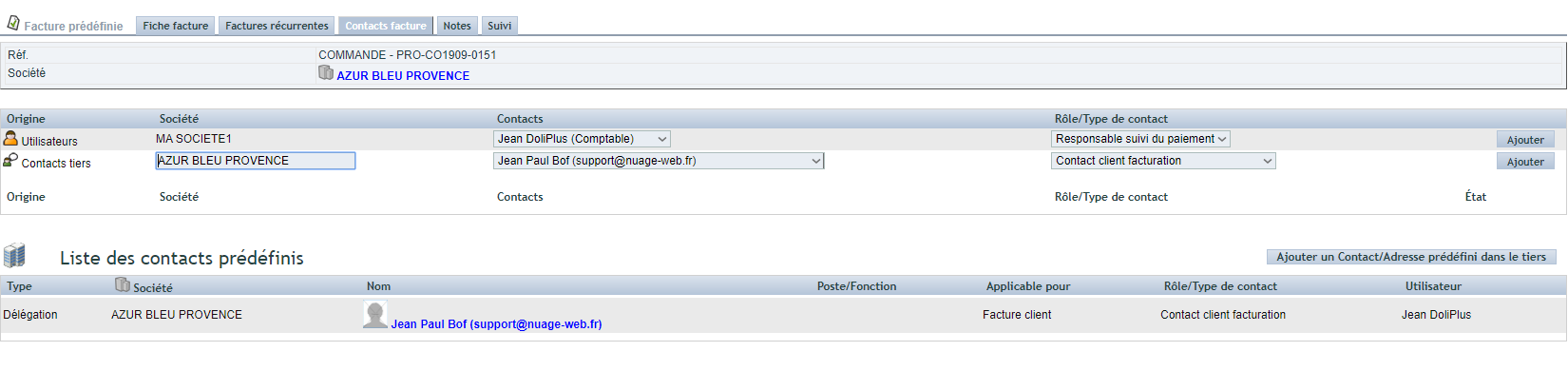
Two methods are available:
- First, define the billing contact locally, on the predefined invoice.
- Alternatively, define the predefined invoice contact at third-party level (see the chapter: default contacts).
This contact drives two things. On the one hand, its postal address lets you invoice somewhere other than the third party’s registered office. On the other hand, its email address receives the PDF invoice, whether the sending is manual or automatic. The contact is then carried over to the “Invoice contacts” tab of every generated invoice.
The monthly dashboard of your recurring invoicing software
First, follow the screen below to open the management table.
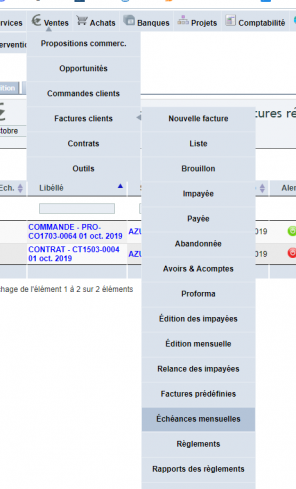
This management table then drives the operations month by month:
- First, bulk invoice creation.
- Then, sending by email or by post, through a single PDF file gathering all the invoices to print.
Moreover, the table refreshes automatically while the launched operations run.
That is why you keep the screen open until the operations finish.
In addition, draft invoices must be validated before sending. In practice, DoliPlus uses the email account of the current user for the sending.
Finally, the ECM tab stores the merged PDF, as shown below. Thanks to this recurring invoicing software, your whole billing cycle runs from one single screen.
Getting paid: SEPA direct debit or bank card
A subscription invoice is rarely settled by hand, month after month. Two payment methods therefore automate collection.
SEPA direct debit
First, enable and configure the direct debit module. Then designate the customer’s SEPA mandate on the predefined invoice. The generated invoices join the direct debit order, which you send to your bank in the European format.
Once the bank confirms the payment, go back to the direct debit order: a single action marks every linked invoice as paid.
Note that a direct debit request is impossible on an invoice still in provisional status. Validate it first.
Bank card through PayBox
The online payment module must be enabled and configured as well. From then on, in an automated email, DoliPlus adds the line offering payment by card. Your customer therefore pays in one click, straight from the invoice.
Going further
Related Entrées
